You need to create a data source for online assessment. This topic describes how to create a data source when you create a compatibility assessment task.
Limitations
Only users with the AliyunOceanBaseFullAccess permission can create data sources. For more information about the permission policy, see AliyunOceanBaseFullAccess.
Procedure
Log on to the
ApsaraDB for OceanBase console.In the left-side navigation pane, choose Migration Assessment > Compatibility Assessment. On the page that appears, create an online assessment task.
For more information, see Execute online assessment.
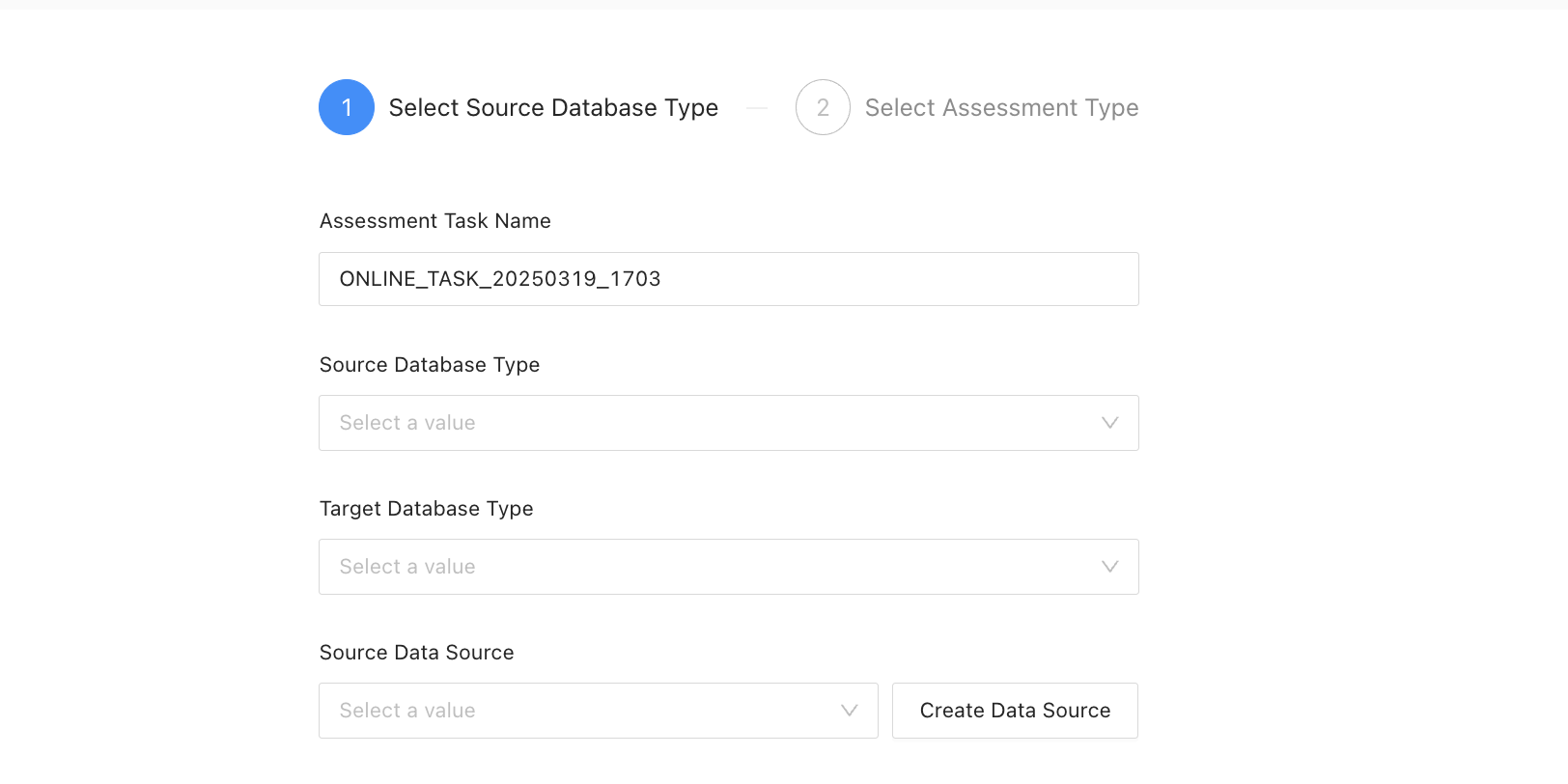
On the Select Source Database Type page, click Create Data Source next to the Source Data Source drop-down list.
(Optional) If you are creating a compatibility assessment task for the first time or if the service-linked role AliyunServiceRoleForOceanbaseMigrationAssessment for the migration assessment service has been deleted, you need to click OK in the Create Service-linked Role for Migration Assessment dialog box.
Then, a service-linked role is automatically created for the migration assessment service. For more information about the role, such as its permission policy, see AliyunServiceRoleForOceanbaseMigrationAssessment.
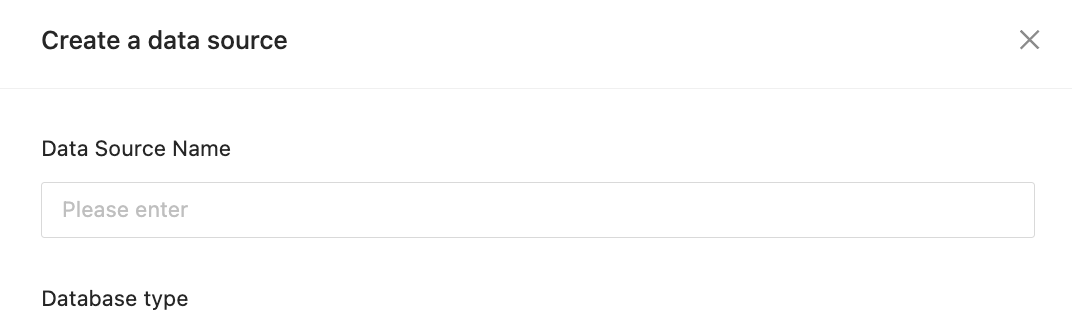
In the Create Data Source dialog box, specify Data Source Name and Database Type.
Configure parameters based on the database type you selected.
The database type can be Oracle or MySQL, each requiring you to configure different parameters.
When you select Oracle, you need to configure the following parameters.
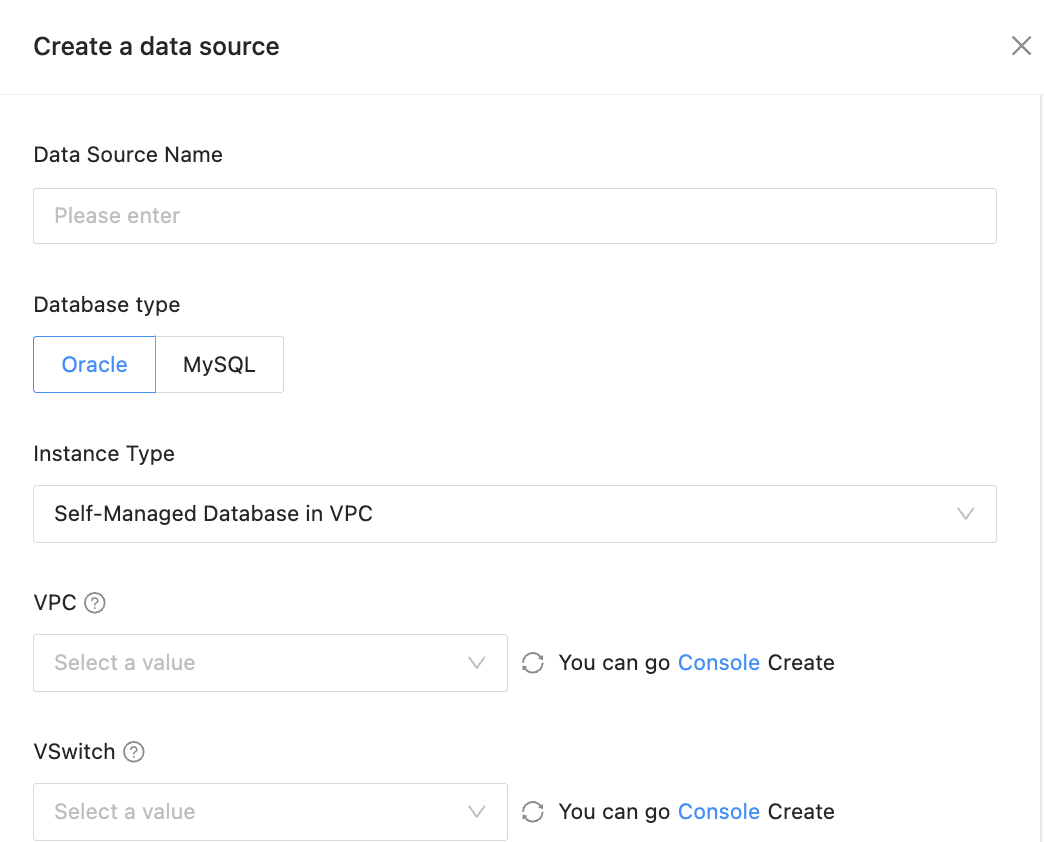
Parameter
Description
Instance Type
Valid values: Self-Managed Database in VPC and Self-Managed Database with Public IP Address.
VPC
Select from the VPC drop-down list the VPC where your source database resides.
NoteThis parameter is available only if you select Self-Managed Database in VPC for Instance Type.
vSwitch
Select from the vSwitch drop-down list the ID of a vSwitch that serves a supported zone. You can hover over the tooltip icon next to vSwitch to view zone limitations.
NoteThis parameter is available only if you select Self-Managed Database in VPC for Instance Type.
Host IP Address
The IP address of the host where the database is located.
Port
The port number of the host where the database is located.
Username
The username of the database user.
Password
The password of the database user.
Connection Type
Valid values: SERVICE_NAME and SID. Select the type as needed.
Connection Name
After selecting the connection type, query the corresponding connection name in the source database and enter it here.
When you select MySQL, you need to configure the following parameters.
Select an instance type from the Instance Type drop-down list. The corresponding configuration section automatically appears.
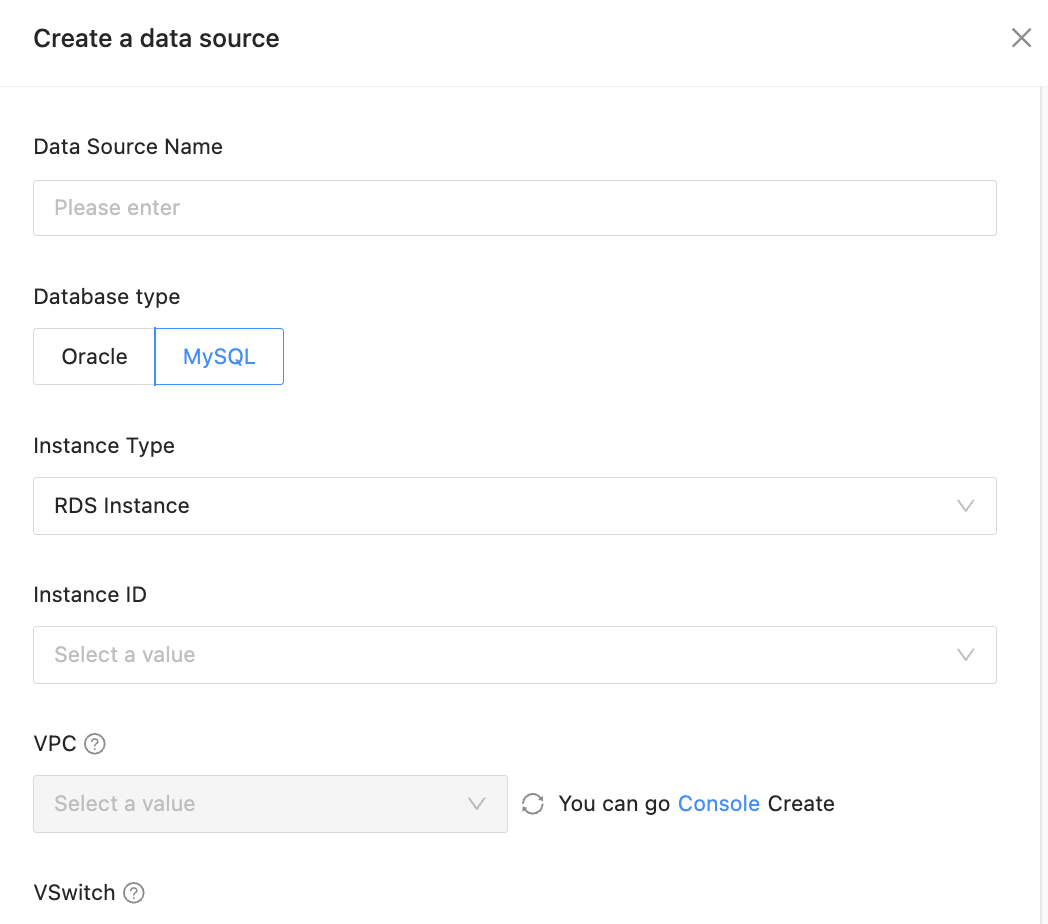
Parameter
Description
Instance ID
Select the desired instance from the Instance ID drop-down list.
NoteThis parameter is unavailable if you select Self-Managed Database in VPC or Self-Managed Database with Public IP Address for Instance Type.
VPC
Select from the VPC drop-down list the VPC where your source database resides.
NoteThis parameter is unavailable if you select Self-Managed Database with Public IP Address for Instance Type.
vSwitch
Select from the vSwitch drop-down list the ID of a vSwitch that serves a supported zone. You can hover over the tooltip icon next to vSwitch to view zone limitations.
NoteThis parameter is unavailable if you select Self-Managed Database with Public IP Address for Instance Type.
Host IP Address
The IP address of the host where the database is located.
Port
The port number of the host where the database is located.
Username
The username of the database user.
Password
The password of the database user.
Click Test Connection to verify the network connectivity between the migration assessment server and the database, as well as the validity of the username and password.
After the test is passed, click OK.