Change the Virtual Private Cloud (VPC) and vSwitch for an ApsaraDB MyBase for MySQL instance based on your business requirements.
Prerequisites
Before you begin, ensure that you have:
-
An ApsaraDB MyBase for MySQL instance
Limitations
The storage type of your instance determines what network settings you can change:
| Storage type | What you can change |
|---|---|
| Enhanced SSD (ESSD) | VPC and vSwitch |
| Local SSD | vSwitch only |
Impacts
Changing the vSwitch has the following effects:
-
Connection interruption: Changing the vSwitch causes a connection interruption of approximately 30 seconds. Make sure your application is configured to automatically reconnect to the instance.
-
VIP change: The virtual IP address (VIP) of the instance changes. Connect your application using the instance endpoint rather than the VIP to avoid connection failures after the switch. For more information, see Use a database client or the CLI to connect to an ApsaraDB MyBase for MySQL instance.
-
DMS and DTS interruption: The VIP change briefly interrupts connections from Data Management (DMS) and Data Transmission Service (DTS). Both resume automatically after the switch completes.
-
Temporary read-only state: After the instance connects to the new vSwitch, the instance is temporarily read-only due to cached data on your database client. Clear the database client cache immediately after the switch.
Change the vSwitch
-
Log on to the ApsaraDB for MyBase console.
-
In the upper-left corner of the page, select a region.
-
In the left-side navigation pane, choose Instances > MySQL.
-
Find the instance that you want to manage and click Details in the Actions column.
-
In the left-side navigation pane, click Database Connection.
-
In the Database Connection section, click Switch vSwitch.
-
Select a VPC and a vSwitch, then click OK.
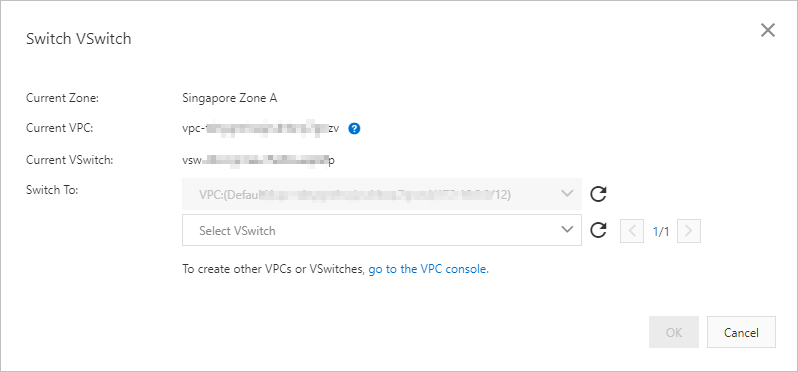
-
In the confirmation message, click OK.
After the switch
Complete the following steps after the vSwitch change finishes:
-
Clear the database client cache: The instance is temporarily read-only until you clear the cache. Clear it immediately to restore write access.
-
Verify connectivity using the endpoint: Connect to the instance using its endpoint, not the VIP. The VIP changes after the switch, so applications connecting by VIP will fail.
-
Check DMS and DTS connections: If your instance is integrated with DMS or DTS, verify that both connections have resumed automatically.