This topic describes how to use Dataiku to connect to AnalyticDB for PostgreSQL for visualized analysis.
Prerequisites
An AnalyticDB for PostgreSQL instance is created as the data source.
Dataiku is installed. For more information, visit the Dataiku official website.
Limits
Dataiku allows you to query external tables by using SQL notebooks, but not by clicking Import tables to datasets.
Procedure
Start Dataiku. Click Blank project to create a project named AnalyticDB for PostgreSQL.

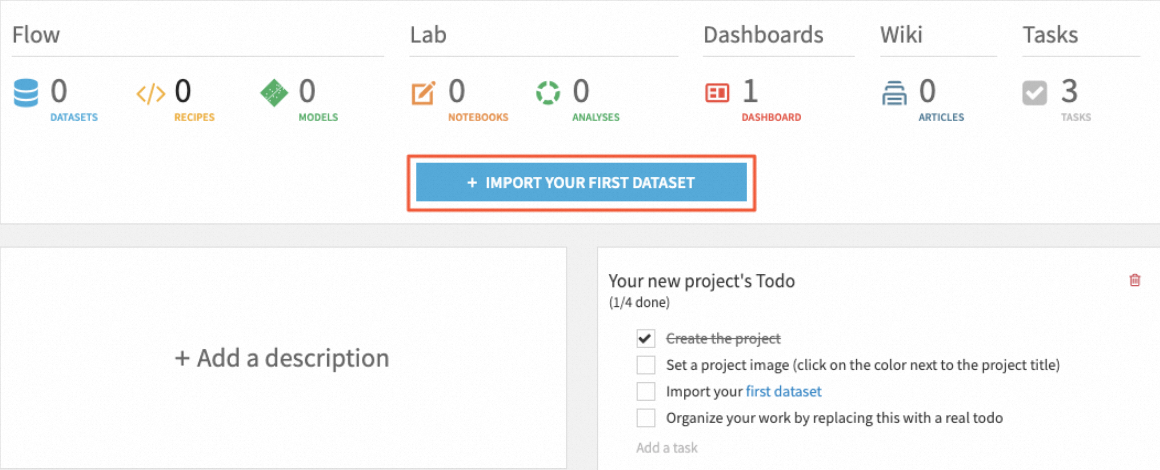
On the project details page, click +IMPORT YOUR FIRST DATASET to go to the Datasets tab.
On the Datasets tab, select PostgreSQL from the SQL dataset types. On the Connection tab, click create a new connection.
In the upper part of the Connections tab, click +NEW CONNECTION and select PostgreSQL from the drop-down list to create a connection.
On the NEW PostgreSQL connection page, configure the parameters that are described in the following table.
Parameter
Description
New connection name
The name of the connection.
Host
The internal endpoint of the AnalyticDB for PostgreSQL instance. You can log on to the AnalyticDB for PostgreSQL console and go to the Database Connection page of the instance to obtain the internal endpoint.
Port
The port number of the AnalyticDB for PostgreSQL instance. Default value: 5432.
Database
The name of the database in the AnalyticDB for PostgreSQL instance.
User
The name of the database account in the AnalyticDB for PostgreSQL instance.
Password
The password of the database account in the AnalyticDB for PostgreSQL instance.
Other parameters
For information about other parameters, see the Dataiku official documentation.
After you configure the required parameters, click TEST in the lower part of the page. After a success message appears, click CREATE to create the connection.
After the connection is established, click Import tables to datasets in the lower part of the page to batch import table schemas from the database to the dataset. Then, you can analyze data in a visualized manner. For more information, see the Dataiku official documentation.