AnalyticDB for PostgreSQL provides foreign-data wrappers (FDWs) to help you easily and quickly perform federated queries across different instances of the same Alibaba Cloud account. This ensures real-time data while effectively reducing data redundancy.
Feature overview
Many companies and organizations run multiple instances for various businesses and applications. In some cases, queries need to be performed across these instances, for example, federated analysis across business departments. Traditional cross-instance queries adopt the following approaches:
Store copies of the same data in different instances. However, this may cause business confusion and data redundancy.
Store data in shared storage such as Object Storage Service (OSS). However, the real-time performance of data cannot be guaranteed.
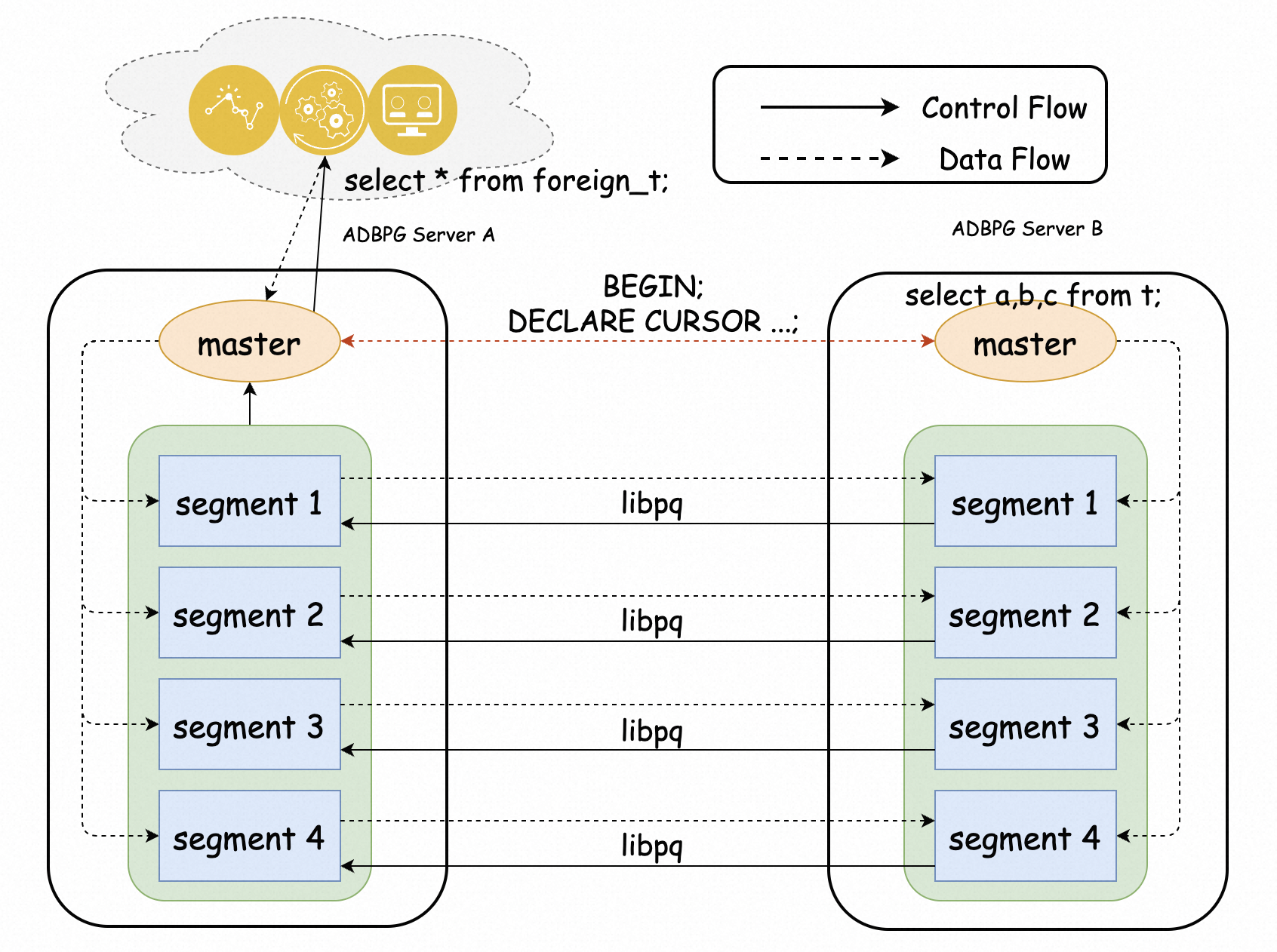
To resolve the preceding issues, the Alibaba Cloud team designed and implemented an FDW based on the interconnection of compute nodes on top of the MPP architecture of AnalyticDB for PostgreSQL. The FDW makes full use of the performance advantages of compute nodes to access data across instances in parallel, improving data access efficiency. The performance is several times higher than that of postgres_fdw in native PostgreSQL.
Usage notes
The source instance and the destination instance must belong to the same Alibaba Cloud account and be located in the same region and the same VPC.
If the source instance is a serverless instance, data cannot be accessed while the instance is being scaled in or out.
High-speed cross-instance queries are supported only by the following database kernel versions:
Elastic storage mode V7.0: V7.0.1.x or later.
Elastic storage mode V6.0: V6.3.11.2 or later.
Serverless mode: V1.0.6.x or later.
Because the password verification method of AnalyticDB for PostgreSQL instances has changed, when an Enterprise Edition instance or a serverless instance accesses another AnalyticDB for PostgreSQL instance, you need to submit a ticket contact technical support.
Foreign tables support SELECT and INSERT only. UPDATE and DELETE are not supported.
JOIN pushdown and AGG pushdown are supported only in elastic storage mode V7.0.
Only the ORCA optimizer in elastic storage mode V7.0 can generate execution plans for FDW foreign tables. The ORCA optimizer in elastic storage mode V6.0 and serverless mode cannot process foreign tables, so the native optimizer is used to generate execution plans.
Procedure
The following content enables cross-instance queries for Instance A and Instance B under the same account (the two instances are located in the same region and the same zone). After the feature is enabled, you can access tables in the db02 database of Instance B from the db01 database of Instance A, and conveniently perform federated queries with local tables by using the high-speed interconnection between compute nodes.
Use psql to connect to the instance. For more information, see Connect to the instance.
Create databases on Instance A and Instance B.
Create the db01 database on Instance A and switch to the db01 database.
CREATE DATABASE db01;
\c db01
Create the db02 database on Instance B and switch to the db02 database.
CREATE DATABASE db02;
\c db02
Create the greenplum_fdw and gp_parallel_retrieve_cursor cross-database query extensions in the db01 database of Instance A and the db02 database of Instance B. For more information, see Create the extensions.
Obtain the internal IP address of Instance A and add the IP address to the whitelist of Instance B. For more information about how to configure a whitelist, see Configure a whitelist.
Run the following SQL statement on Instance A to obtain the internal IP address.
SELECT dbid, address FROM gp_segment_configuration;Prepare test data in the db02 database of Instance B.
CREATE SCHEMA s01;

CREATE TABLE s01.t1(a int, b int, c text);
CREATE TABLE s01.t2(a int, b int, c text);
CREATE TABLE s01.t3(a int, b int, c text);

INSERT INTO s01.t1 VALUES(generate_series(1,10),generate_series(11,20),'t1');
INSERT INTO s01.t2 VALUES(generate_series(11,20),generate_series(11,20),'t2');
INSERT INTO s01.t3 VALUES(generate_series(21,30),generate_series(11,20),'t3')
Create a server and a user mapping in the db01 database of Instance A.
Create a server.
CREATE SERVER remote_adbpg FOREIGN DATA WRAPPER greenplum_fdw
    OPTIONS (host 'gp-xxxxxxxx-master.gpdb.zhangbei.rds.aliyuncs.com',
             port '5432',
             dbname 'db02');
The parameters are described as follows.
Parameter
Description
host
The internal endpoint of Instance B.
You can log on to the AnalyticDB for PostgreSQL console, go to the Basic Information page of Instance B, and obtain the Internal Endpoint in the Database Connection Information section.
port
The port number of the internal endpoint of Instance B. Default value:
5432.dbname
The name of the source database. In this example, the value is
db02.Create a user mapping. For more information about user mappings, see CREATE USER MAPPING.
CREATE USER MAPPING FOR PUBLIC SERVER remote_adbpg
    OPTIONS (user 'report', password '******');
The parameters are described as follows.
Parameter
Description
user
The database account of Instance B.
The account must have the read permission on the db02 database (or the write permission if you need to execute INSERT operations). For more information about how to create an account, see Create a database account.
password
The password of the account.
Perform cross-instance queries in the db01 database of Instance A.
You can perform cross-instance queries in either of the following ways:
Create a foreign table for the source table.
CREATE SCHEMA s01;
CREATE FOREIGN TABLE s01.t1(a int, b int)
	server remote_adbpg options(schema_name 's01', table_name 't1');
The advantages and disadvantages of this approach are as follows:
Advantage: You can flexibly customize the DDL of the foreign table. For example, the t1 table in the db02 database has three fields a, b, and c, but the destination database requires only the a and b fields. You can specify the fields when creating the foreign table.
Disadvantage: You must know the DDL of each table, and importing multiple foreign tables at a time is cumbersome.
Import all tables in the schema of the source database.
CREATE SCHEMA s01;
IMPORT FOREIGN SCHEMA s01 LIMIT TO (t1, t2, t3)
	FROM SERVER remote_adbpg INTO s01;
The advantages and disadvantages of this approach are as follows:
Advantage: You can quickly import foreign tables without knowing the DDL of each table.
Disadvantage: This approach is not flexible enough. The name of each table is the same as that in the source database, and the fields are also the same.
For more information, see IMPORT FOREIGN SCHEMA.
Query the data of db02 in Instance B from the db01 database of Instance A.
SELECT * FROM s01.t1;The following result is returned.
 a  | b  | c
----+----+----
  2 | 12 | t1
  3 | 13 | t1
  4 | 14 | t1
  7 | 17 | t1
  8 | 18 | t1
  1 | 11 | t1
  5 | 15 | t1
  6 | 16 | t1
  9 | 19 | t1
 10 | 20 | t1
(10 rows)
Performance test
The following content is a TPC-H performance test of cross-instance queries with a test data volume of 1 TB. The queries are executed on the local database and the destination database respectively.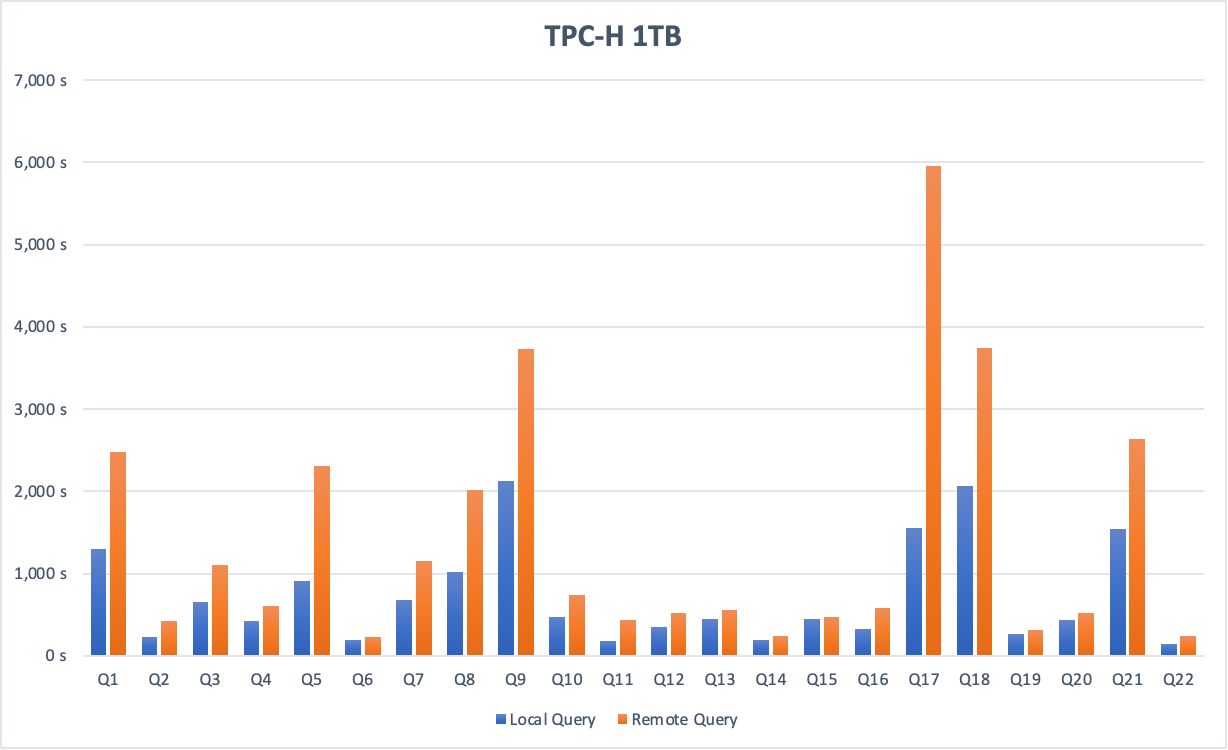
In big data scenarios, such as TPC-H with 1 TB of data, the performance of cross-instance queries is about 50% of that of local queries.
Cross-instance queries require data to be transmitted across networks. To reduce network I/O, add WHERE filter conditions to foreign tables as much as possible.
References
AnalyticDB for PostgreSQL also supports cross-database queries. For more information, see Cross-database queries.