Connect FineBI to AnalyticDB for MySQL to visually manage and integrate data through operations such as filtering, grouping, aggregation, adding columns, field settings, and sorting.
Prerequisites
-
Ensure that your version of FineBI is compatible with AnalyticDB for MySQL. For more information, see Compatibility overview.
-
The MySQL JDBC driver is installed.
-
You have installed FineBI 5.0 or a later version that supports real-time data, which is required for a direct connection to the AnalyticDB for MySQL engine. For more information, see Real-time data (direct connection).
-
If you are installing FineBI for the first time, you need a MySQL server, such as ApsaraDB RDS for MySQL, to store FineBI metadata. For more information, see MySQL data connection.
-
If you need to connect to an AnalyticDB for MySQL cluster over the internet, apply for a public endpoint.
Configure an external MySQL database
If FineBI is already installed and in use, skip this section and proceed to connect to your AnalyticDB for MySQL cluster. For detailed steps, see Connect to AnalyticDB for MySQL.
-
Open FineBI.
-
Click the server address and follow the prompts to configure the Account Settings.
-
Click Next, select the database, and then click Configure Database in the External Database section.
-
On the External Database Configuration page, configure the parameters as prompted.
NoteEnter the connection information for the MySQL database that stores FineBI metadata, not for the AnalyticDB for MySQL database.
Parameter
Description
Database Type
Select Data Preparation.
Real-time Data
Select
com.mysql.jdbc.Driver.Database Name
The database name for FineBI metadata storage. You can also create a new database. For example, if you create a database named
finedb, FineBI automatically runs thecreate database finedb;statement after connecting to the MySQL server.Host
The address of the MySQL server.
Port
The port number of the MySQL server. The default is 3306.
Database Account
The username of the account created on the MySQL server.
Password
The password for the specified username.
URL
The system automatically generates the connection URL.
-
After you configure the parameters, click Enable New Database to start importing the FineBI metadata.
-
After the metadata is imported, click Logon to log on to the MySQL server.
Connect to AnalyticDB for MySQL
-
Open FineBI. In the left-side navigation pane, choose .
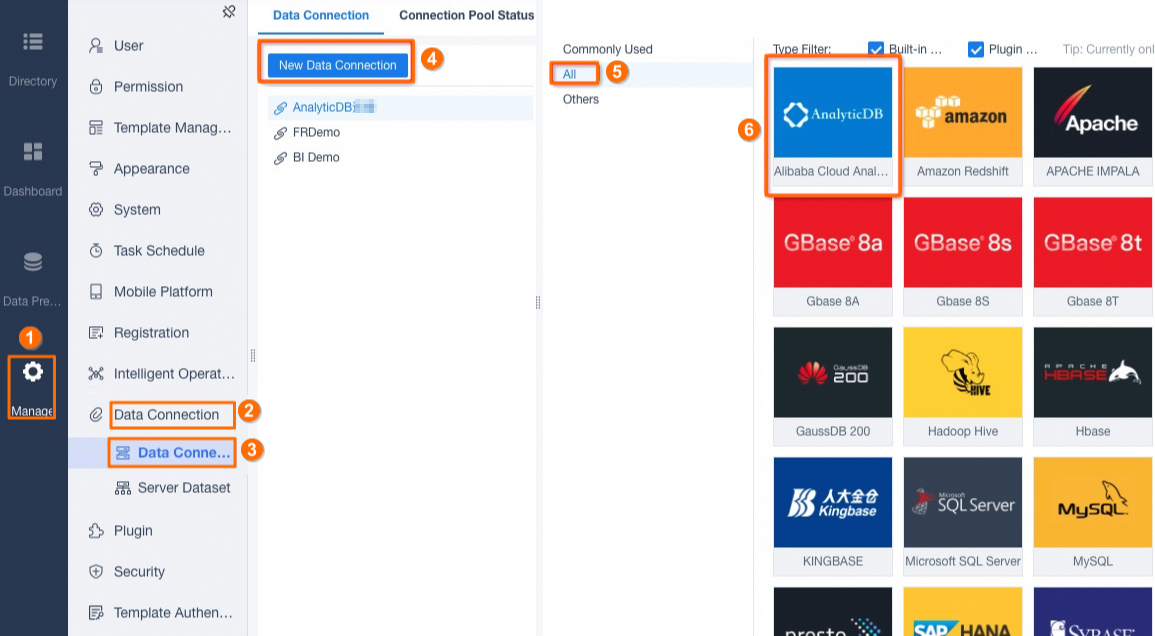
-
On the database connection page, enter the connection information for your AnalyticDB for MySQL database.
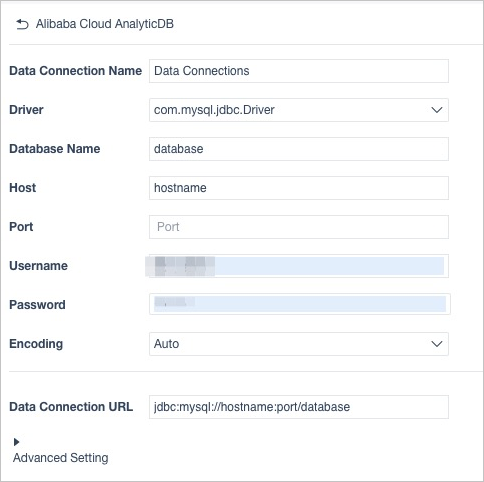
Parameter
Description
Data connection name
A descriptive name to identify this data connection.
Driver
Select
com.mysql.jdbc.Driver.Database Name
The name of the database in your AnalyticDB for MySQL cluster.
MySQL
The public or VPC endpoint of the AnalyticDB for MySQL cluster.
You can find the endpoint and port information in the Network Information section on the Cluster Information page. For more information, see Endpoints.
Port
The port number. The default is 3306.
Database Account
The account for connecting to the AnalyticDB for MySQL cluster. Supported account types:
-
A privileged account.
-
A standard account.
Password
The password for the specified username.
-
-
After you configure the parameters, click Test Connection. If the test is successful, click Save in the upper-right corner of the page.
Add a table
-
In the left-side navigation pane, choose . Select the AnalyticDB for MySQL connection that you configured, choose a table type, and add datasets to the decision-making system for subsequent analysis and use in dashboards.
-
Database table: Directly add tables from your AnalyticDB for MySQL database.
-
SQL datasets: Generate datasets for analysis by executing SQL statements.
-
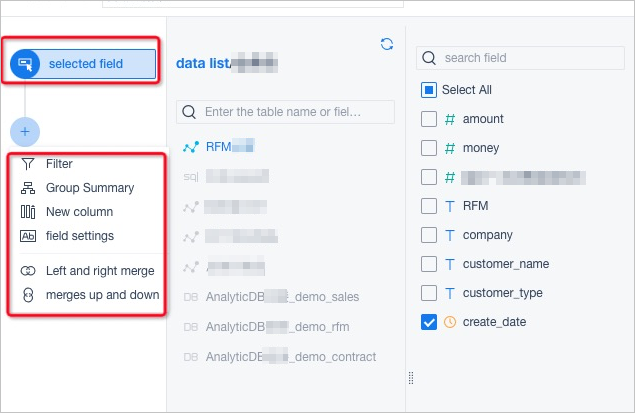
Self-service datasets: Process data from existing database tables or SQL datasets to create new datasets.
-
-
After selecting the base table fields, you can perform operations such as filtering, grouping and aggregation, adding columns, and merging.
Example
Market basket analysis finds associations between products by studying user consumption data. This example walks through creating a table, importing data, and using FineBI with AnalyticDB for MySQL to build the market basket analysis
-
Download the demo_sales sample data.
-
Create a table in AnalyticDB for MySQL.
-
Choose a column with evenly distributed data as the distribution key and a time-based column as the partition key. For more information, see Table schema design.
-
Based on the
demo_salesdata, the values in thedocument_idcolumn are randomly distributed and are used in JOIN operations for the analysis. Therefore, usedocument_idas the distribution key. Use thedatecolumn as the partition key. Because no more data will be imported, set the lifecycle to 100. -
Use the following statement to create the table:
CREATE TABLE `demo_sales` (
 `date` DATE,
 `city` VARCHAR,
 `document_id` VARCHAR,
 `store_name` VARCHAR,
 `product_category` VARCHAR,
 `product_name` VARCHAR,
 `province` VARCHAR,
 `cost` DOUBLE,
 `gross_profit` DOUBLE,
 `quantity` BIGINT,
 `sales` DOUBLE
)
DISTRIBUTED BY HASH(`document_id`)
PARTITION BY VALUE(`date`) LIFECYCLE 100
INDEX_ALL='Y' STORAGE_POLICY='COLD' COMMENT='Overall Product Sales Table'
-
-
After the table is created, use Kettle to import the downloaded Excel file into AnalyticDB for MySQL.
-
For more information about how to use Kettle, see Use Kettle to import data.
-
After the import is complete, run
SELECT COUNT(*) FROM demo_sales;. The result shows 40,514 rows of data.
-
-
Create a self-service dataset in FineBI.
-
In the navigation pane, choose . First, add a business package and name it
adb. -
In the business package, create a new self-service dataset. When selecting fields, choose
AnalyticDB_connection_demo_salesto select all fields from thedemo_salestable in AnalyticDB for MySQL.
-
-
Follow the FineBI documentation to add data and create the dashboard. For more information, see Market basket analysis.
FAQ
-
I did not select an external database during initialization. How do I configure it now?
Solution:
-
In the data decision system, choose . On the Regular tab, click Pending Configuration.
-
Enter the connection information for your database to configure it as the external database.
-
After the configuration is complete, click Enable New Database.
-
-
I configured an external MySQL database, but data import fails.
Solution:
-
Check the database version and encoding. For more information, see Configure an external database. FineBI supports MySQL 5.x.
-
Check if the external MySQL database uses the utf8 character set (
– UTF-8 Unicode), or create a new database with utf8 encoding:create database finedb character set utf8).
-
-
I configured AnalyticDB for MySQL as the external database, and the connection failed.
Solution: FineBI requires a standard MySQL instance for metadata storage, not an AnalyticDB for MySQL cluster.
-
The Extract Data and Real-time Data options are missing under the Data Preparation tab.
Solution: The version available on the official FineBI website does not include the direct connection engine. Contact FineBI technical support to obtain a version that includes the direct connection engine. For more information, see Solution.
-
Data is not synchronized between the database and FineBI.
Solution: For more information, see Data is not synchronized between the database and BI.
-
No results are returned after updating data.
Solution: If a single row returns no result, the calculated value for that row might be null. If an entire column returns no results after a function is applied to it, the function may be incompatible with AnalyticDB for MySQL. Contact AnalyticDB for MySQL technical support for assistance.
-
Failed to preview or save data.
Solution:
-
Check if a function is applied to a column with an incompatible data type, which could result in invalid values after conversion. For example, applying an absolute value function, such as
ABS(), to a string column like 'City' causes an error because the string cannot be converted to a valid number. -
If the error details include a long string of numbers, as shown in the figure below, the error likely originates from AnalyticDB for MySQL. Provide this number, which is a process ID, to AnalyticDB for MySQL technical support for further investigation.
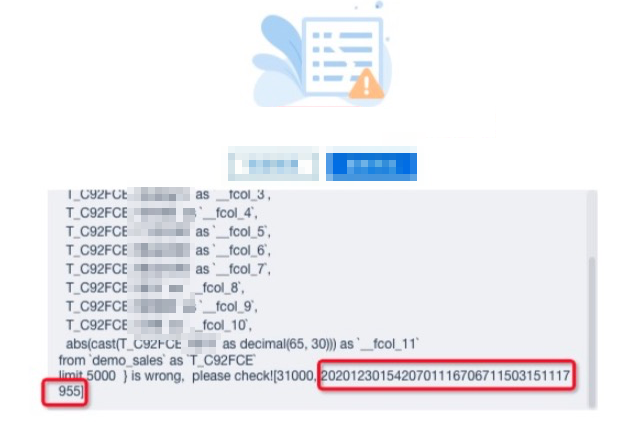
-
If the error details contain only an error code, the error is likely from FineBI. For troubleshooting, see the FineBI documentation BI usage issues.
-