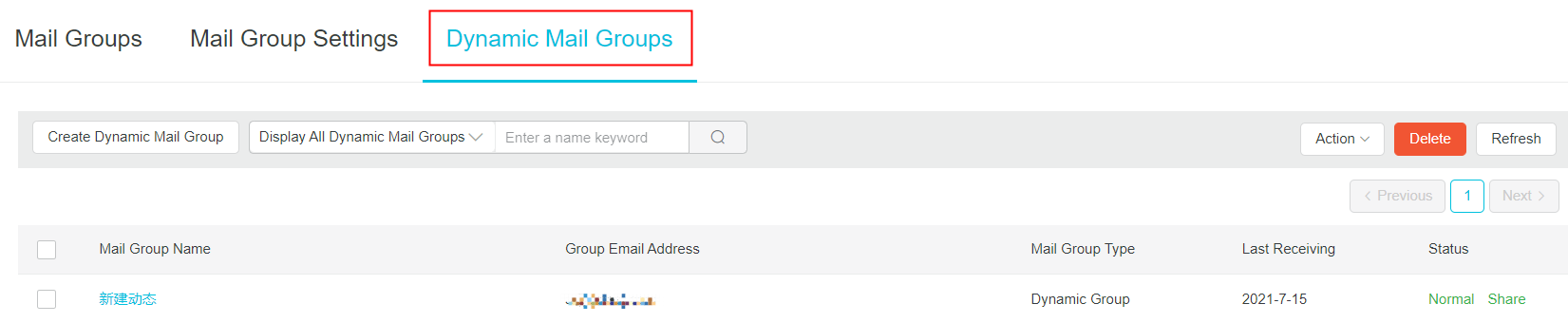
A dynamic mail group is a department dynamic group. Members in dynamic email group can automatically increase or decrease with the addition or departure of department employees without manual addition.
How to Create A Department Dynamic Email Group?
Procedure
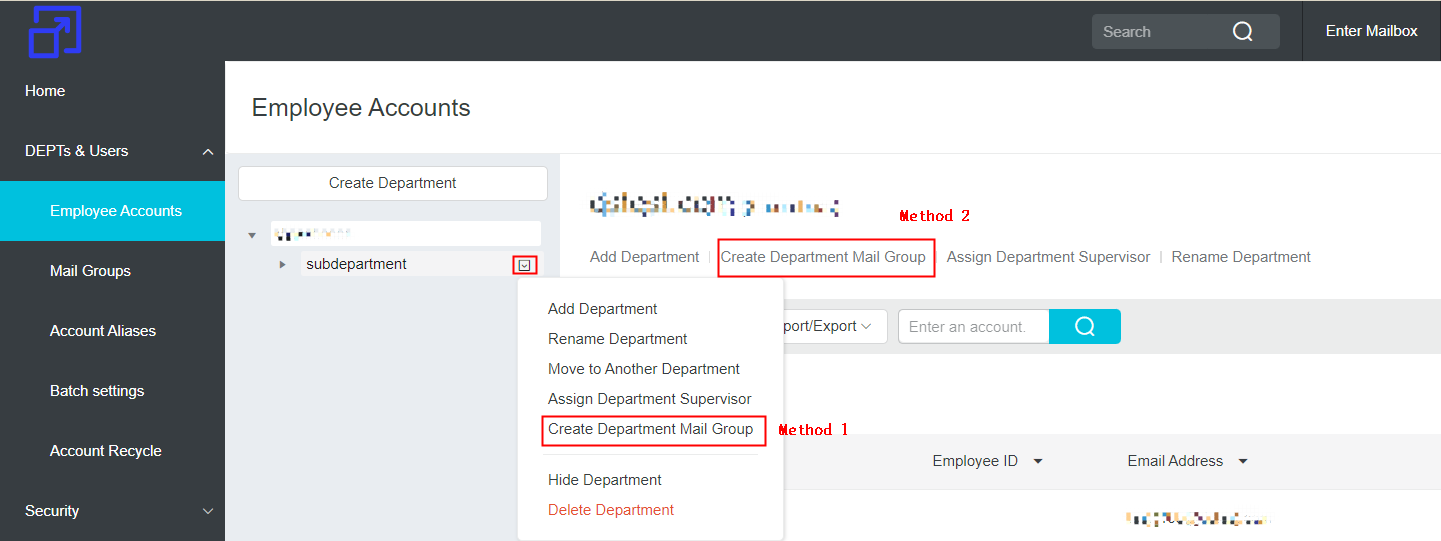
Method 1: Use postmaster account to login Alibaba Mail and enter the domain management page >> click Employee Accounts under DEPTs & Users>> select the corresponding department, click the down arrow icon appears to the right of the department name and open the drop-down menu>> click "Create Department Mail Group", and then start creating a new department mail group.
Method 2: Use postmaster account to login Alibaba Mail and enter the domain management page >> click Employee Accounts under DEPTs & Users>> click the corresponding department and find "Create Department Mail Group".
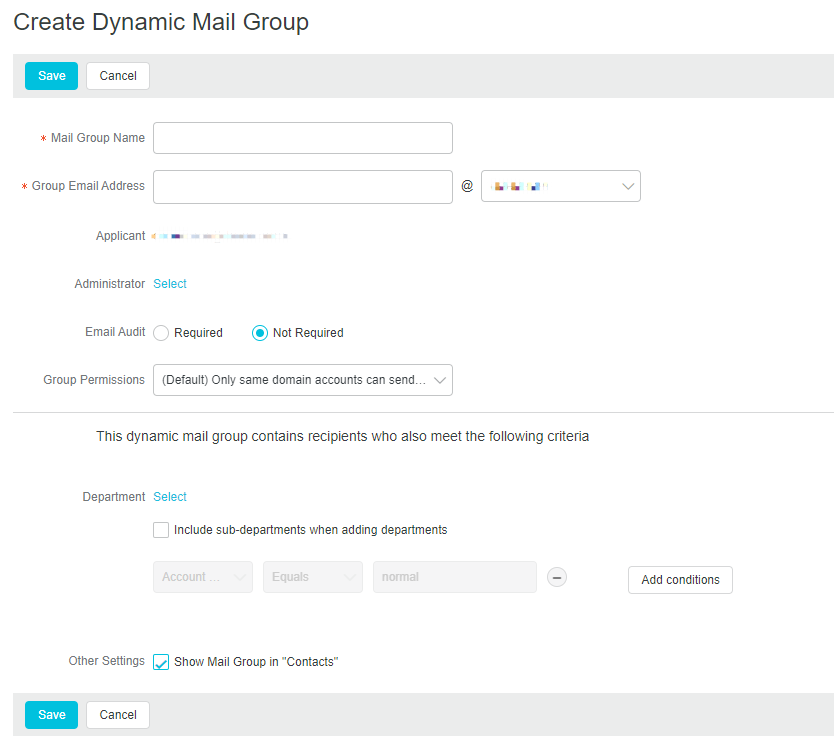
Method 3: Use postmaster account to login Alibaba Mail and enter the domain management page>> Click Mail Groups under DEPTs & Users>> Click Dynamic Mail Group and select "Create Dynamic Mail Group".

Mail Group Configuration
Configuration | Description |
Mail Group Name | Specifies the name of this new mail group. |
Email Group Address | Specifies the address of this new mail group. |
Applicant | The applicant of the mail group. The default setting is the current logon postmaster account and cannot be changed. |
Administrator | The administrator of the email group. The administrator has the permission to manage the mail group and can fix the configuration and group members of the mail group on the management platform. |
Email Audit | Confirm whether you need to add an email auditor for the current email group. Required: Add an email auditor to the current email group. When senders send an email to the email group, it needs to go through the auditor's review process before recipients can successfully send the email. Not Required: There is no review program, mail can be sent directly. |
Group Permissions | Set the scope that is allowed to send mail to this mail group, where: Only same domain accounts can send emails to the mail group: this means that only accounts of the same domain, that is, the same email suffix, are allowed to send mail to this mail group. The default setting is for this item. Only mail group members can send emails to the mail group: this setting indicates that only members of this mail group are allowed to send emails to this mail group. Allow all accounts to send emails to a mail group: this setting indicates there is no restrictions on the email accounts that send emails to this mail group. Only whitelisted accounts can send emails to the mail group: this indicates that only email accounts in the whitelist have the permission to send mail to this email group. |
Conditions | Department: Specify the department for which you want to set up a mail group. You can select whether to include sub-departments. Add conditions: specifies the condition attributes that employees in the current department need to meet. |
Show Mail Group in "Contacts" | Set whether this mail group needs to be displayed in the address book. After checking, you can directly view the mail group in the address book, or directly select the mail group as the recipient in the address book when sending a letter. |
After creation, you can view and manage all dynamic mail groups in "Dynamic Mail Groups".