Mail archiving preserves business emails for compliance, legal evidence, and long-term retention.
Background
Email is a critical business asset. Traditional backups waste storage and slow retrieval, increasing costs and risks. Mail archiving addresses these issues by preserving emails effectively. You can search archived emails by mailbox account, sender, recipient, keyword, and time range, and export results. Archived data serves as a compliance record and legal evidence. The service centralizes business email content and retains it per applicable laws and regulations.
Overview
Alibaba Mail provides a mail archiving service with online archiving, data classification, archived mail search, and data retention. Currently, the mail archiving feature is available only as a paid add-on. To purchase this service, contact our sales or presales team.
The Sarbanes-Oxley Act
The Sarbanes-Oxley Act (SOX) is a U.S. federal law enacted in response to corporate scandals such as Enron and WorldCom. It established stricter regulations for corporate governance and financial reporting.
The SOX Act protects investors in the securities market. Mail archiving originated from SOX requirements for corporate email retention. As regulatory systems evolved, maintaining real-time, tamper-proof email records became critical for data-dependent businesses. Archived emails can serve as legally admissible evidence.
China's Sarbanes-Oxley equivalent
In 2005, the National Archives Administration of China standardized procedures for composing, transmitting, appraising, archiving, organizing, transferring, and storing official emails. On June 28, 2008, the Ministry of Finance, China Securities Regulatory Commission (CSRC), National Audit Office, and China Banking and Insurance Regulatory Commission (CBIRC) jointly issued the "Basic Standard for Enterprise Internal Control," requiring companies to preserve operational data and reduce operational risks.
Step 1: Enable mail archiving
Only an archive administrator can enable or disable mail archiving, query archived mail, and configure third-party archive integration. The default postmaster account does not have archive permissions. An email administrator can assign the archive administrator role. How do I create a tiered administrator? Both the email administrator and archive administrator can query audit logs by navigating to Statistics & Logs > Behavior Query > Archive Log Query.
Mail archiving is disabled by default. To enable it, the archive administrator must sign in to the domain administration console and navigate to Advanced Features > Mail Archiving > Archive Mailbox Management > Enable Mail Archiving Service > Save.
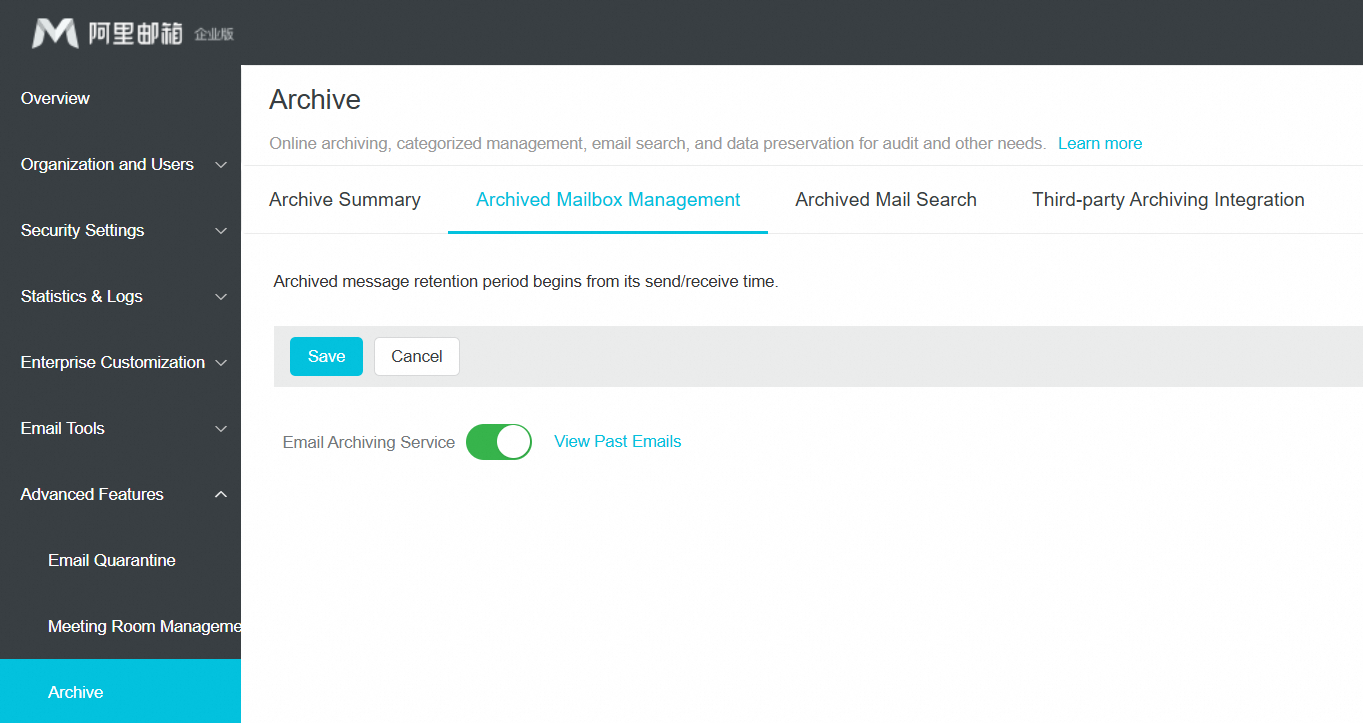
Step 2: Archive summary
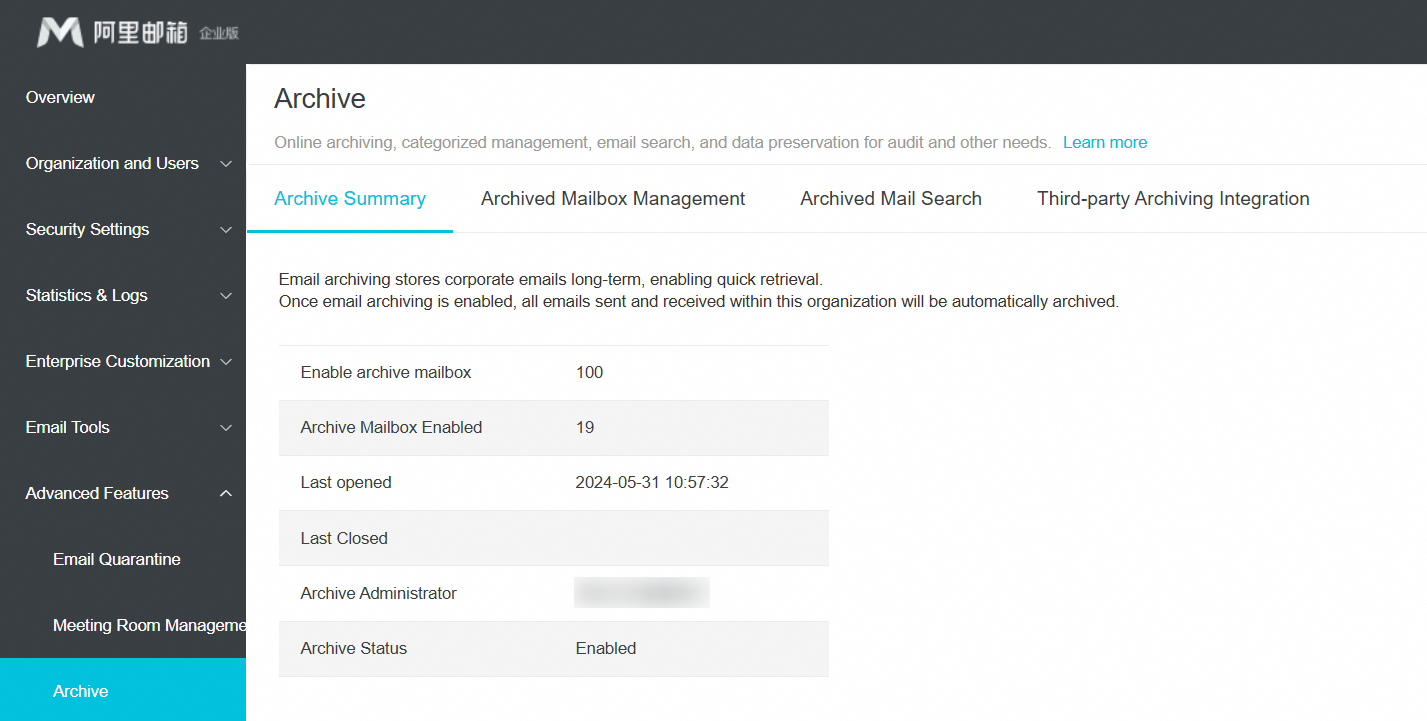
Archivable mailboxes: Total mailboxes eligible for archiving.
Archived mailboxes: Mailboxes with archiving currently enabled.
Archive retention period: The archive retention period matches the subscription period of your mailbox service.
Last enabled time: When archiving was last enabled.
Last disabled time: When archiving was last disabled.
Archive administrator: The username of the archive administrator.
Archiving status: The current status of the archiving service.
Step 3: Query archived mail
Navigate to Advanced Features > Mail Archiving > Query Archived Mail, where you can search by archived mailbox, full sender and recipient addresses, keyword, time range, keyword scope, and department, then click Search.
Note: Time range is required. All other criteria are optional.
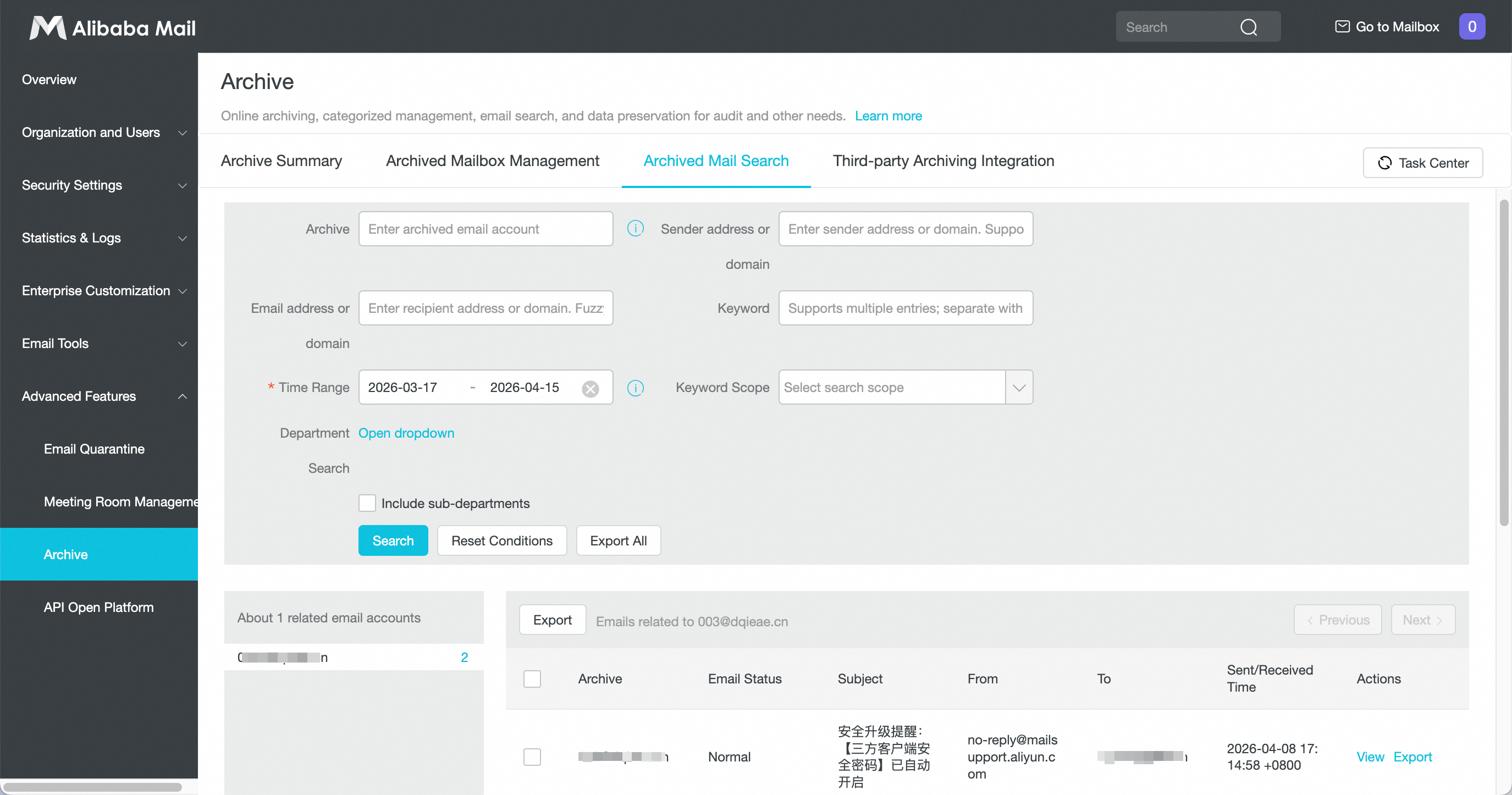
Search criteria
Archived mailbox: The mailbox account whose archived emails you want to search.
Sender address: The email address of the sender.
Recipient address: The email address of the recipient.
Keyword: A specific keyword to search for. Use the Keyword scope field to define where to search.
Time range: The time period to search within.
Keyword scope: The part of the email to search. Options include Subject, Message Body, and Attachment Name.
Department query: The department to search. You can select whether to include sub-departments.
Step 4: View and export archived mail
Export emails individually or in bulk. Click View to preview email content.
Note: Emails are exported in .eml format. Single and bulk exports are supported.
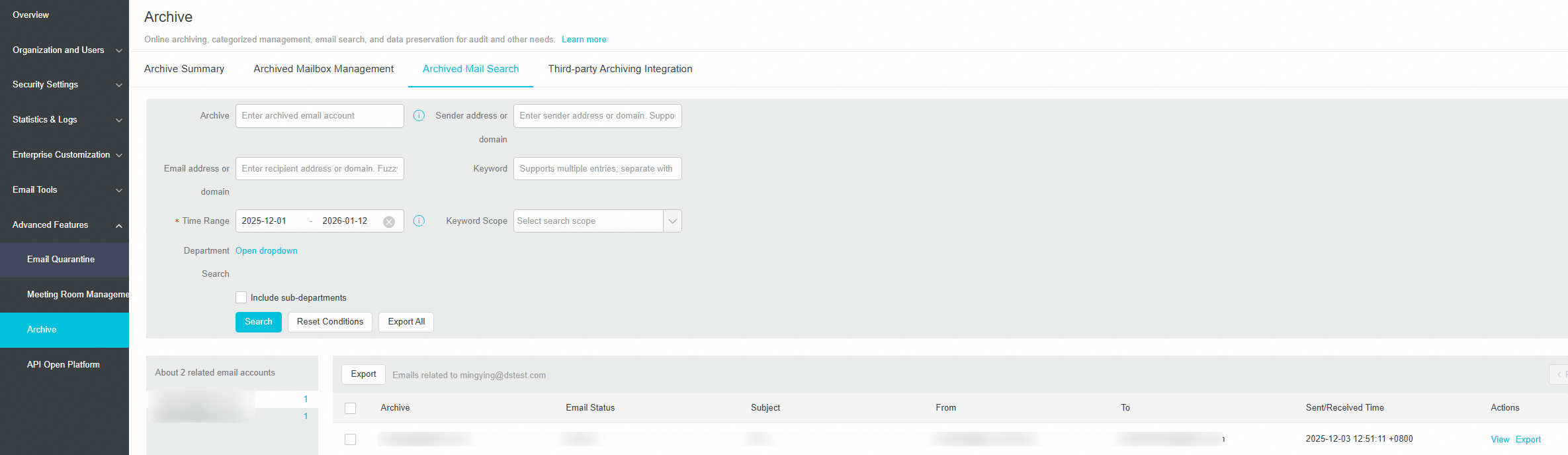
Click Task Center on the right side of the page to view all Export All tasks. You can filter tasks by status and download previously exported files directly from the Task Center.
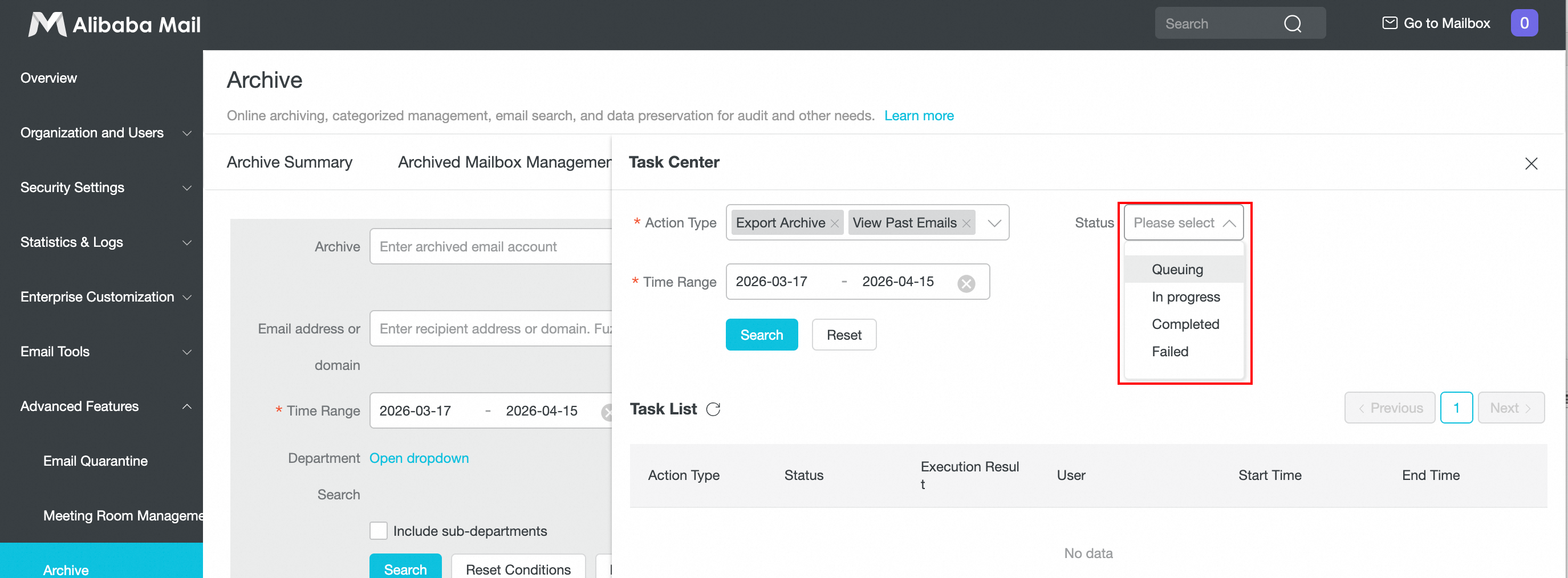
The task list shows tasks submitted within the last 30 days. All files in the list are available for download.
When using Export All, you can export up to 365 days of data for a single account at a time, or up to 30 days of data for multiple accounts.
For large exports, narrow your search criteria to reduce export size.
Step 5: Query archive logs
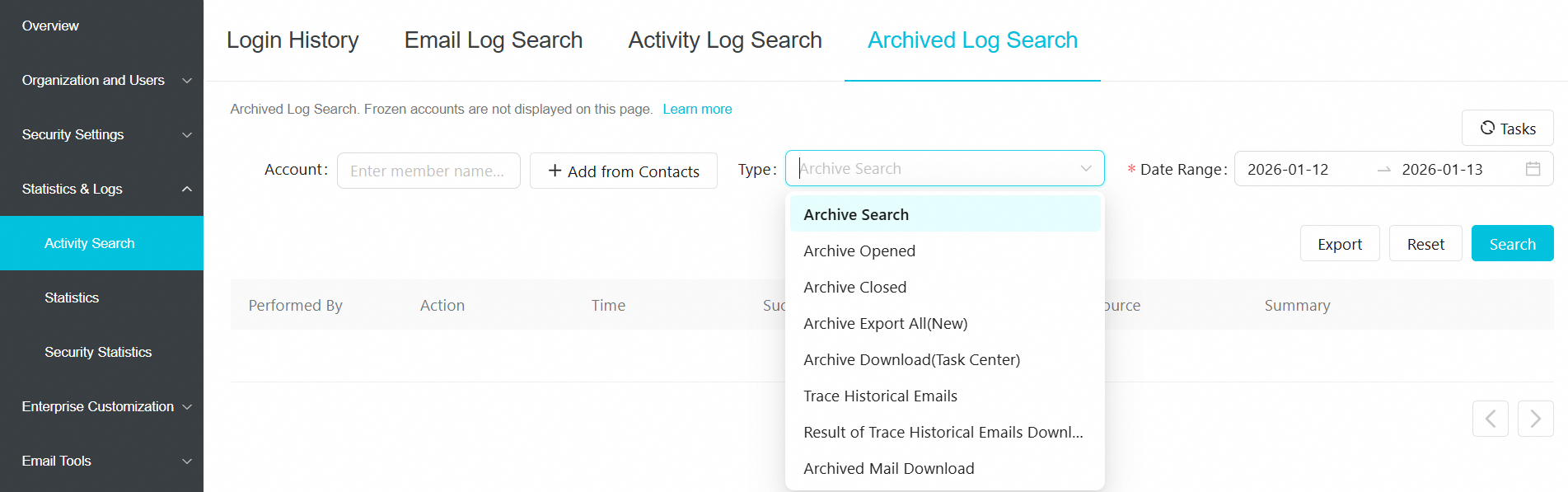
Navigate to Statistics & Logs > Behavior Query > Archive Log Query. Select an administrator and a time range, and enter a keyword or filter by operation type to refine your search. To search or download emails, go to Advanced Features > Mail Archiving > Query Archived Mail.
Step 6: Configure third-party archive integration
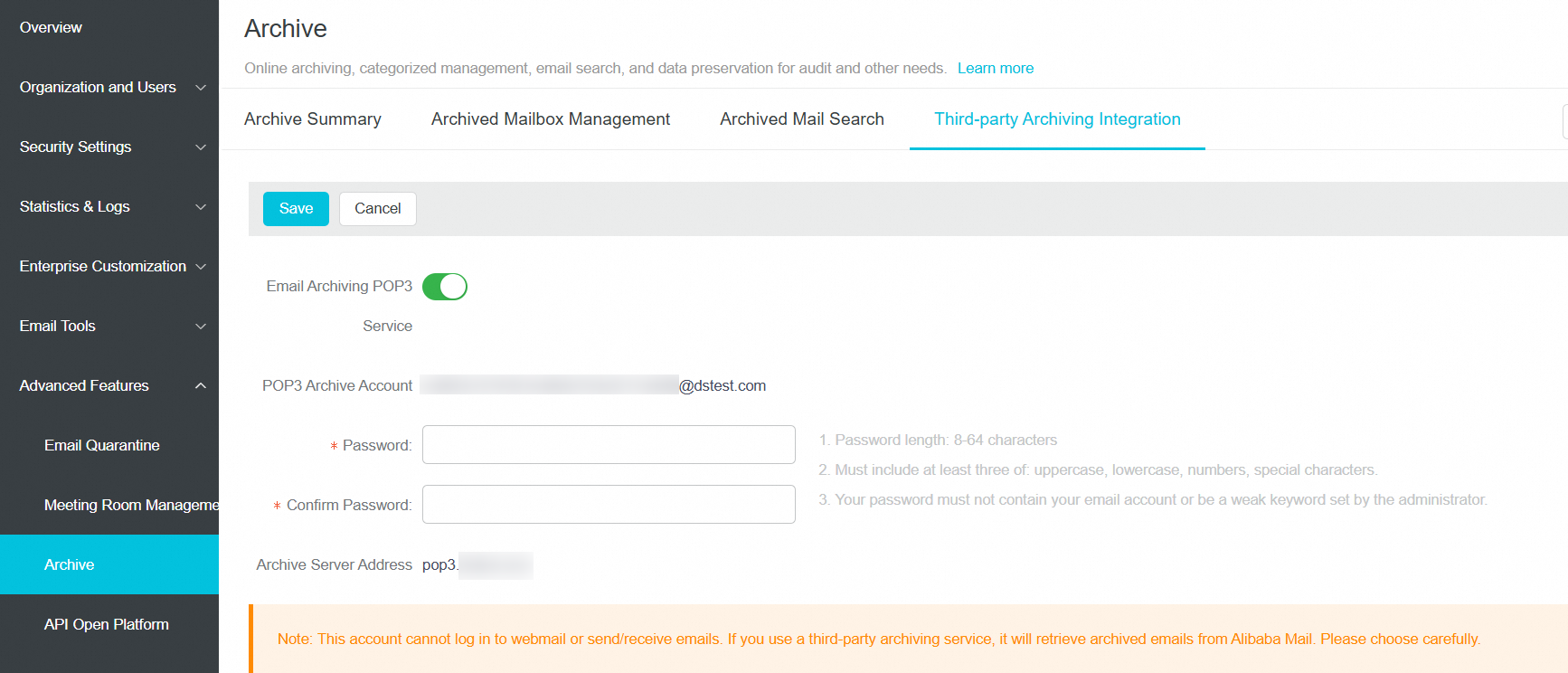
Navigate to Advanced Features > Mail Archiving > Third-party Archive Integration in the domain administration console, enable the mail archive POP3 service, enter a password, and click Save. Configure your third-party client with the POP3 archive account and server address to download archived emails locally.
Notes
Mail archive retention period
If you purchase the mail archiving add-on, the archive retention period matches your mailbox subscription period. For example, if you purchase a 6-year mailbox subscription and the archiving add-on, your emails will be retained in the archive for 6 years. If you do not renew your mailbox subscription, the archiving service will also be canceled, and Alibaba Cloud will not retain your archived emails. To purchase this service, contact presales consultation.
Archiving rules
1. An email sent to a single recipient is archived as one message.
2. One email sent to multiple recipients is archived as a single message.
3. Separate emails sent to multiple recipients are archived as multiple messages.
4. Monitored emails are not archived.
5. Auto-forwarded emails, auto-replies, and spam are also archived.
6. Emails automatically deleted by a user-defined rule are archived.
7. System notification emails are archived.
8. For users with outbound sending restrictions, successfully sent emails to external or internal accounts are archived.
9. Emails sent from an external domain to an account with inbound receiving restrictions are not archived if they are not successfully received.
10. Emails from deleted or disabled mailbox accounts remain in the archive.
11. Emails that users delete from their mailboxes remain in the archive.
12. Only an administrator can view archived emails. If you disable the mail archiving service, new emails are no longer archived, but existing archives are retained for the specified archive retention period.
13. The mail archiving service allows you to view, download, and bulk download emails.
14. The mail archiving service allows you to download and view attachments in archived emails. You cannot delete emails from the archive.
15. The service logs all operations related to mail archiving.
16. Integration with third-party archiving services is supported.