Disclaimer: this article may be contributed by the community or involve third-party product information. We recommend that you visit the community or the official website of third-party products for help and support. Third-party products will not be provided by Alibaba Cloud after-sales support. This document is for reference only. Alibaba Cloud makes no guarantee by express or any other means.
Problem Description
When you set up the Foxmail or Outlook, all email servers are correct but cannot be used properly, and a message similar to the following is displayed:
Send test e-mail message: This message could not be sent. Please verify the email address in the account properties.
Response server 553 authentication is required
Causes
This error occurs when the authentication settings of the sender server are incorrect or SMTP authentication option is not selected.
Solution
Outlook
Here we use Outlook 2016 as example.
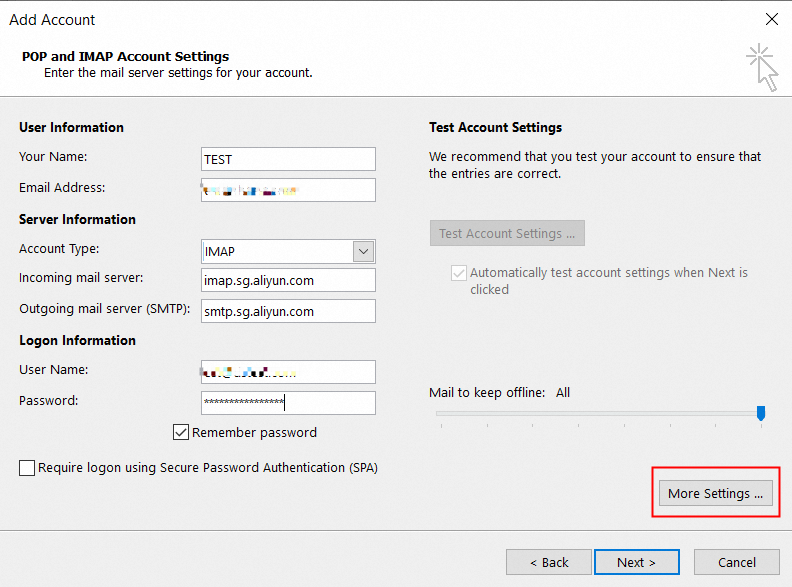
1. On the account setting page, click More Settings;
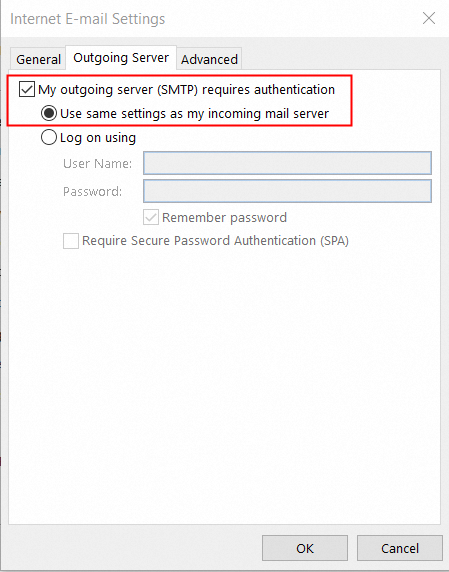
2. On the Internet E-mail Settings page, click Outgoing Server, select My outgoing sever (SMTP) requires authentication and Use same settings as my incoming mail server;
3. Click Next to test SMTP sever and confirm if the error is gone.
If the problem persists, please contact the Outlook service provider for troubleshooting.
Foxmail 7.2
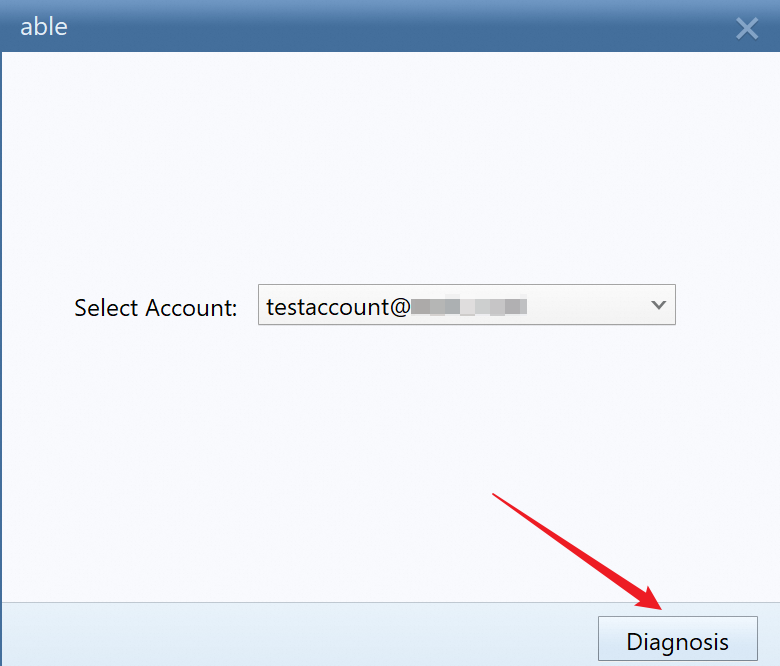
1. Open Foxmail and click Help-> Tools-> SendResCheck.

2. Select the related account and click Diagnosis.
3. Wait for the diagnostics to complete and proceed according to the suggestion from the result.
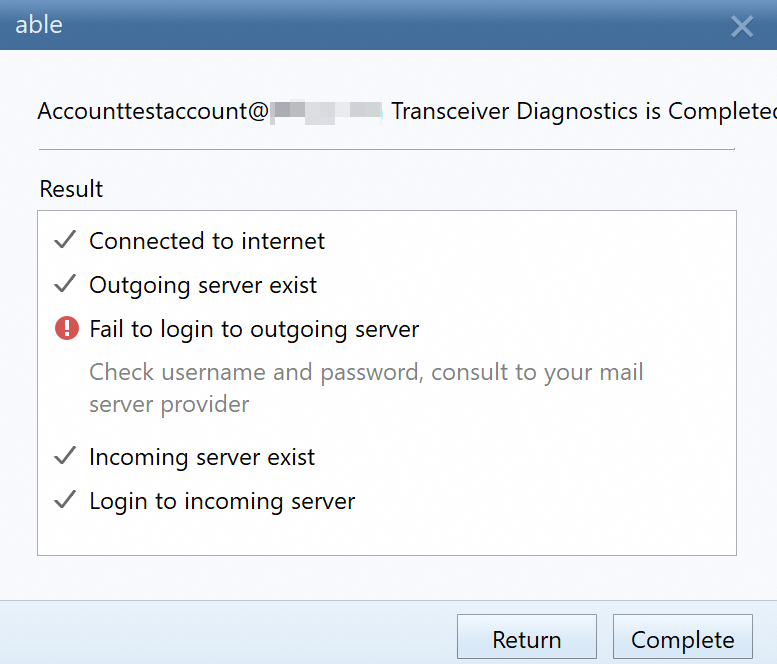
4. If the problem persists, please check if the Smtp authentication option has been set as Same with incoming server in the Account Settings-> Account-> Server.
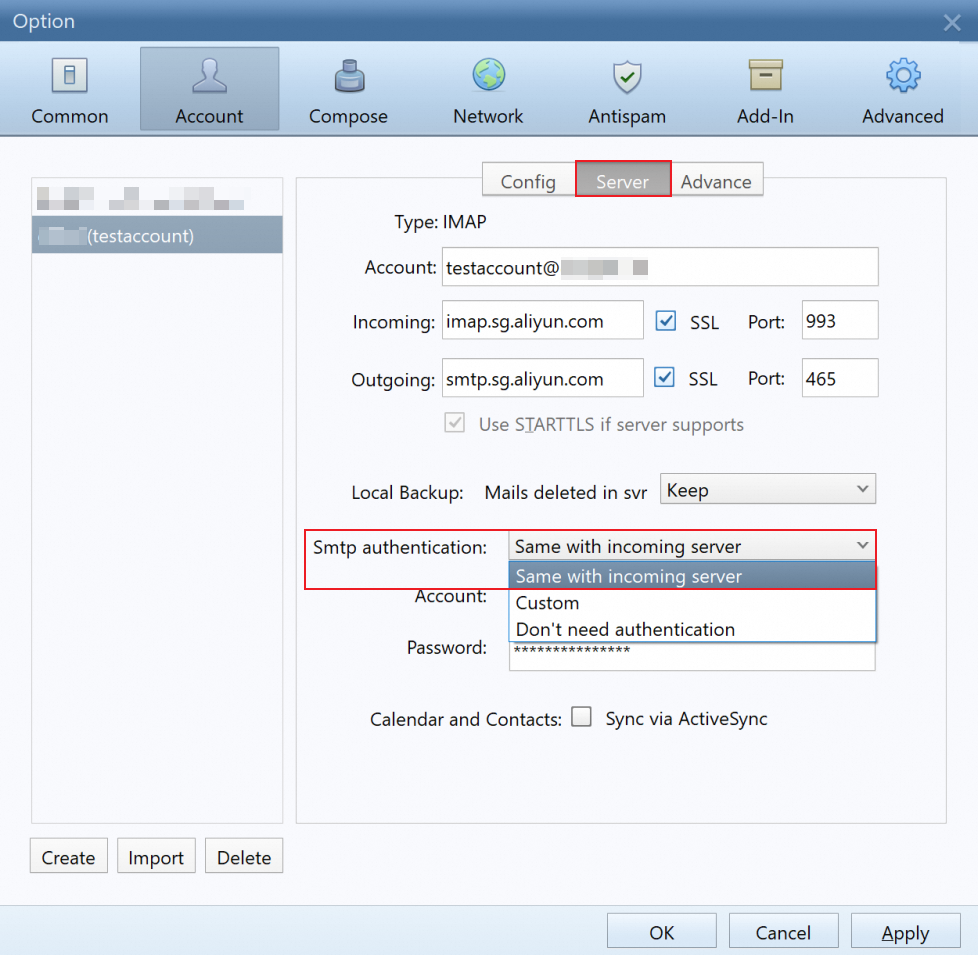
5. Please verify that the email account has enabled the sending and receiving service, and that the account password and email server parameters are correctly configured.
If the problem persists, please consult the Foxmail service provider for troubleshooting.