If your business requirements change, you can modify the rules of a delivery chain, such as image build rules, security scan blocking rules, image synchronization rules, and image distribution rules.
Modify the basic information of a delivery chain
You can modify basic information, such as the name and description of the delivery chain. Before you start, make sure that you have created a delivery chain.
This feature is available only for Container Registry Enterprise Edition instances of the Premium Edition.
Log on to the Container Registry console.
In the top navigation bar, select a region.
In the navigation pane on the left, choose Instances.
On the Instances page, click the Enterprise Edition instance that you want to manage.
In the navigation pane on the left of the instance management page, choose .
On the Chain page, select the namespace of the delivery chain that you want to modify from the Namespace drop-down list.
NoteBy default, the delivery chains in all namespaces are listed on the page.
Find the delivery chain that you want to modify and click Manage in the Actions column.
In the Basic Information section, click Edit next to the delivery chain name and description. Modify the name and description as needed, and then click OK.
Modify image build rules
You can modify, add, or delete build rules as needed.
Modify an image build rule
In the visualization area of the delivery chain, click Image Build.
Find the rule that you want to modify and click Modify in the Actions column.
In the Build Information wizard, set the parameters and click Next.
Parameter
Description
Type
The type of the source code repository. Valid values: Branch and Tag.
Branch/Tag
Select or enter a branch or tag. Regular expressions are supported. For example, if the regular expression is release-(?<imageTag>\w*), a change to the release-v1 source code automatically triggers a build for an image with the v1 tag. Immediate builds are not supported. For more information, see Use named capturing groups in regular expressions.
NoteAfter you set a regular expression, images can only be built automatically by the system. You cannot manually build images.
Dockerfile Directory
The directory where the Dockerfile is located. This is a relative path. The root directory of the code branch is the parent directory.
Dockerfile Filename
The name of the Dockerfile. The default value is Dockerfile.
In the Image Version wizard, set the parameters, click Save, and then click Next.
NoteClick Add Configuration to add image versions. You can add a maximum of three image versions.
Parameter
Description
Image Version
The image tag, such as latest. Named capturing is supported. For example, you can use the content captured from Branch/Tag.
Time
The time when the source code is pushed. The time is in UTC+8. Two formats are available, such as 20201015 and 202010151613.
NoteThis parameter is optional. If you set this parameter, images can only be built automatically by the system. You cannot manually build images.
Commit ID
The commit ID of the most recent code push. By default, the first 6 characters are used. You can move the slider to set the number of characters.
NoteThis parameter is optional. If you set this parameter, images can only be built automatically by the system. You cannot manually build images.
In the Build Information wizard, set the parameters and click Next.
Parameter
Description
Type
The type of the source code repository. Valid values: Branch or Tag.
Branch/Tag
Select or enter a branch or tag. Regular expressions are supported. For example, if the regular expression is release-(?<imageTag>\w*), a change to the release-v1 source code automatically triggers a build for an image with the v1 tag. Immediate builds are not supported. For more information, see Use named capturing groups in regular expressions.
NoteAfter you set a regular expression, images can only be built automatically by the system. You cannot manually build images.
Dockerfile Directory
The directory where the Dockerfile is located. This is a relative path. The root directory of the code branch is the parent directory.
Dockerfile Filename
The name of the Dockerfile.
In the Build Configuration wizard, set the build parameters and click OK.
Parameter
Description
Build Architecture
Select the build architecture. Parallel builds are supported. An image version can correspond to multiple images of different architectures.
Build Parameters
The runtime parameters for the image build. Build parameters consist of case-sensitive key-value pairs. You can set a maximum of 20 build parameters.
Delete a build rule
In the visualization area of the delivery chain, click Image Build.
Find the rule that you want to delete and click Delete in the Actions column.
In the Delete dialog box, click OK.
Modify the blocking rule for security scanning
You can modify the blocking rule for security scanning based on your security requirements.
In the visualization area of the delivery chain, click Security Scan.
In the Node Configuration section, set the blocking rule.
Scan engine: You can select Security Center Scan Engine or Trivy Scan Engine.
The Security Center Scan Engine supports one-click vulnerability fixing after vulnerabilities are detected. The Trivy Scan Engine does not.
To use the image scanning feature of Security Center, you must purchase the Ultimate edition of Security Center. For more information, see Purchase Security Center. If the Security Center option is not displayed in the console, it may be because Security Center is not available in the current region.
Block:
Block: When the blocking rule is met, the delivery chain stops subsequent steps.
You must set a blocking rule based on Vulnerability Level and Number Of Vulnerabilities. You also need to configure the actions to perform after the delivery chain is blocked, such as whether to delete the original image or back up the image.
Do not block: All image versions continue to the subsequent steps.
Modify image synchronization rules
Image synchronization rules for a delivery chain cannot be directly modified. To modify a synchronization rule, you must delete the existing rule and create a new one.
Create a synchronization rule
In the Chain section, click Trigger Synchronization. Then, click Create Rule.
In the Create Rule dialog box, enter a rule name, specify the destination Container Registry Enterprise Edition instance, and then click Next.
Select a region and select an existing instance as the destination instance.
If you cannot select an existing instance, click Create Instance to create an instance. For more information, see Create a Container Registry Enterprise Edition instance.
NoteIf Internet access is disabled, images can be automatically replicated in different regions.
In the Replication Information wizard, configure the replication information of the source instance and click Create Rule.
Parameter
Description
Replication Level
Select the replication level. Valid values: Namespaces and Repository.
Source Address
Specify a namespace and a repository. Enter a regular expression to filter image tags in the repositories of the namespace or in the specified repository. By default, all image tags are replicated. You can specify the source repository only if you set the Replication Level parameter to Repository.
Delete a synchronization rule
In the visualization area of the delivery chain, click Trigger Sync.
Click the
 icon in the Actions column for the rule that you want to delete.
In the Delete dialog box, click OK.
The Deletion Successful message appears.
Modify distribution triggers
If the redeployment rules for an application need to change, you can modify the distribution triggers for the image.
In the visualization area of the delivery chain, click Distribution Trigger.
Find the trigger that you want to modify and click Modify in the Actions column.
In the Modify Trigger dialog box, modify the information and click OK.
Parameter
Description
Name
The name of the trigger.
Trigger URL
The URL to which the trigger sends notifications. You can obtain the URL from the configurations of your Container Service for Kubernetes (ACK) cluster.
Trigger
The trigger method. Valid values:
All: Each time an image is updated, image distribution is triggered.
By RegExp: A regular expression is used to filter image tags. Image distribution is triggered only if an image tag matches the regular expression.
By Tags: Tags are used to filter images. Image distribution is triggered only if an image tag is in the specified tag list.
Modify event notifications
If the redeployment rules for an application need to change, you can modify the event notifications for the image. If no event rule exists, click Create Rule. For more information, see Create an event notification.
In the visualization area of the delivery chain, click Distribution Trigger.
Find the event rule that you want to modify and click Modify in the Actions column.
In the Modify Rule dialog box, modify the information and click OK.
Parameter
Description
Rule Name
Specify the name of the event rule.
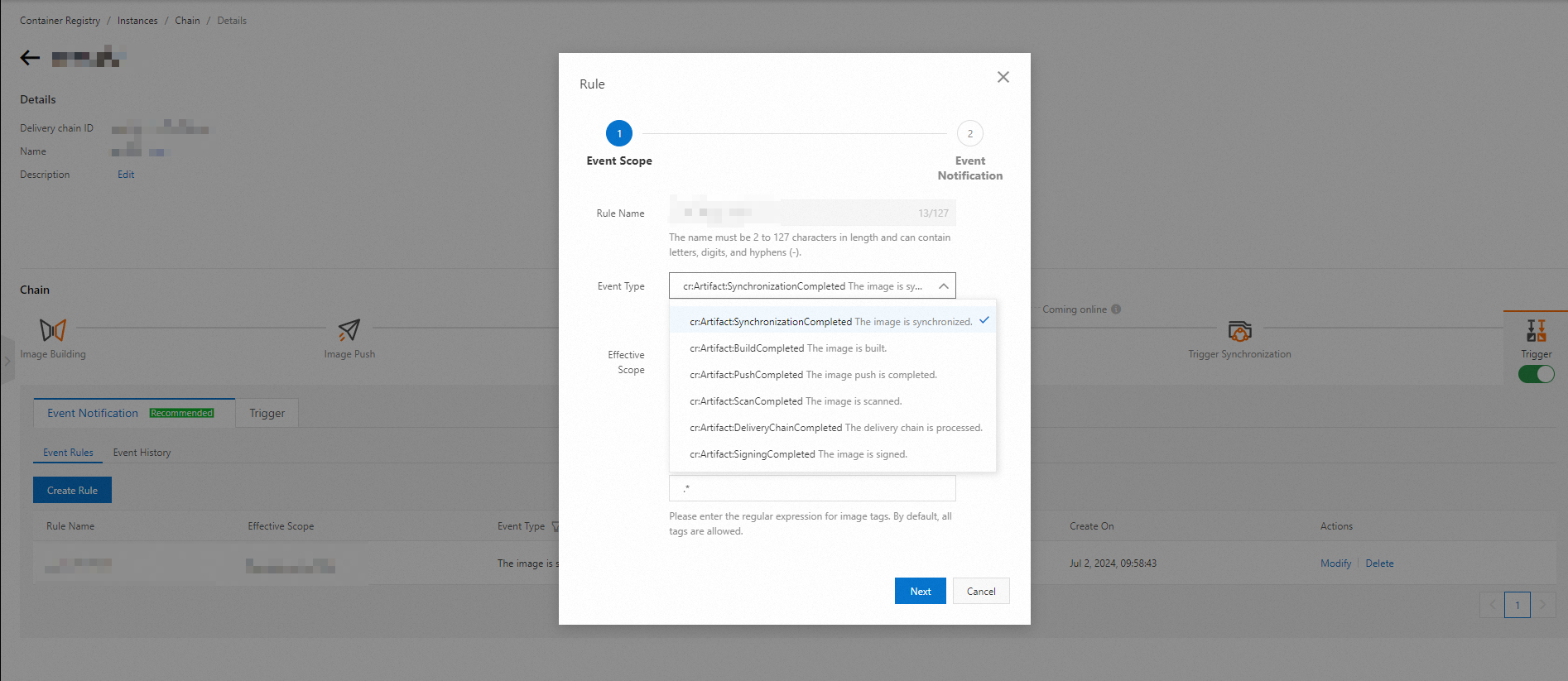
Event Type
Specify the type of the event that triggers event notifications. The following event types are supported:
cr:Artifact:SynchronizationCompleted: An image synchronization succeeds, fails, or is canceled.
cr:Artifact:BuildCompleted: An image build succeeds, fails, or is canceled.
cr:Artifact:ScanCompleted: An image scan succeeds or fails.
cr:Artifact:DeliveryChainCompleted: The processing of a delivery chain succeeds, fails, is canceled, or is denied.
cr:Artifact:SigningCompleted:: Image tagging succeeds or fails.
In this example, the event type of image scan is used. Select "cr:Artifact:ScanCompleted The image is scanned" and then select Scanned.
Effective scope
Specify the effective scope of the event:
Instance: Set the regular expression for image tags. An event notification is triggered when an image tag in the Enterprise Edition instance meets the regular expression.
Namespace: Select a namespace and set the regular expression for image tags. An event notification is triggered when an image tag in the namespace meets the regular expression.
Repository: Select a namespace and a repository, and then set the regular expression for image tags. An event notification is triggered when an image tag in the image repository meets the regular expression.
Delete a delivery chain
You can delete delivery chains that are no longer in use.
Log on to the Container Registry console.
In the top navigation bar, select a region.
In the navigation pane on the left, choose Instances.
On the Instances page, click the Enterprise Edition instance that you want to manage.
In the navigation pane on the left of the instance management page, choose .
On the Chain page, find the delivery chain that you want to delete and click Delete in the Actions column.
In the Delete dialog box, click OK.
The Deletion Successful message appears.