All Products
Search
Document Center

Container Service for Kubernetes:Create a Kubernetes event center for a registered cluster

Last Updated:Dec 01, 2025

You can create a Kubernetes event center to record events of a registered cluster. These events include changes to pod configurations and component exceptions. The Kubernetes event center collects, stores, and visualizes cluster events in real time. The event center allows you to query and analyze the events and configure alerts. This topic describes how to create a Kubernetes event center for a registered cluster.

Prerequisites

Background information

The architecture of Kubernetes is based on state machines. Events are generated when state transitions occur. Normal events are generated during transitions between normal states. Warning events are generated during transitions between normal and abnormal states.

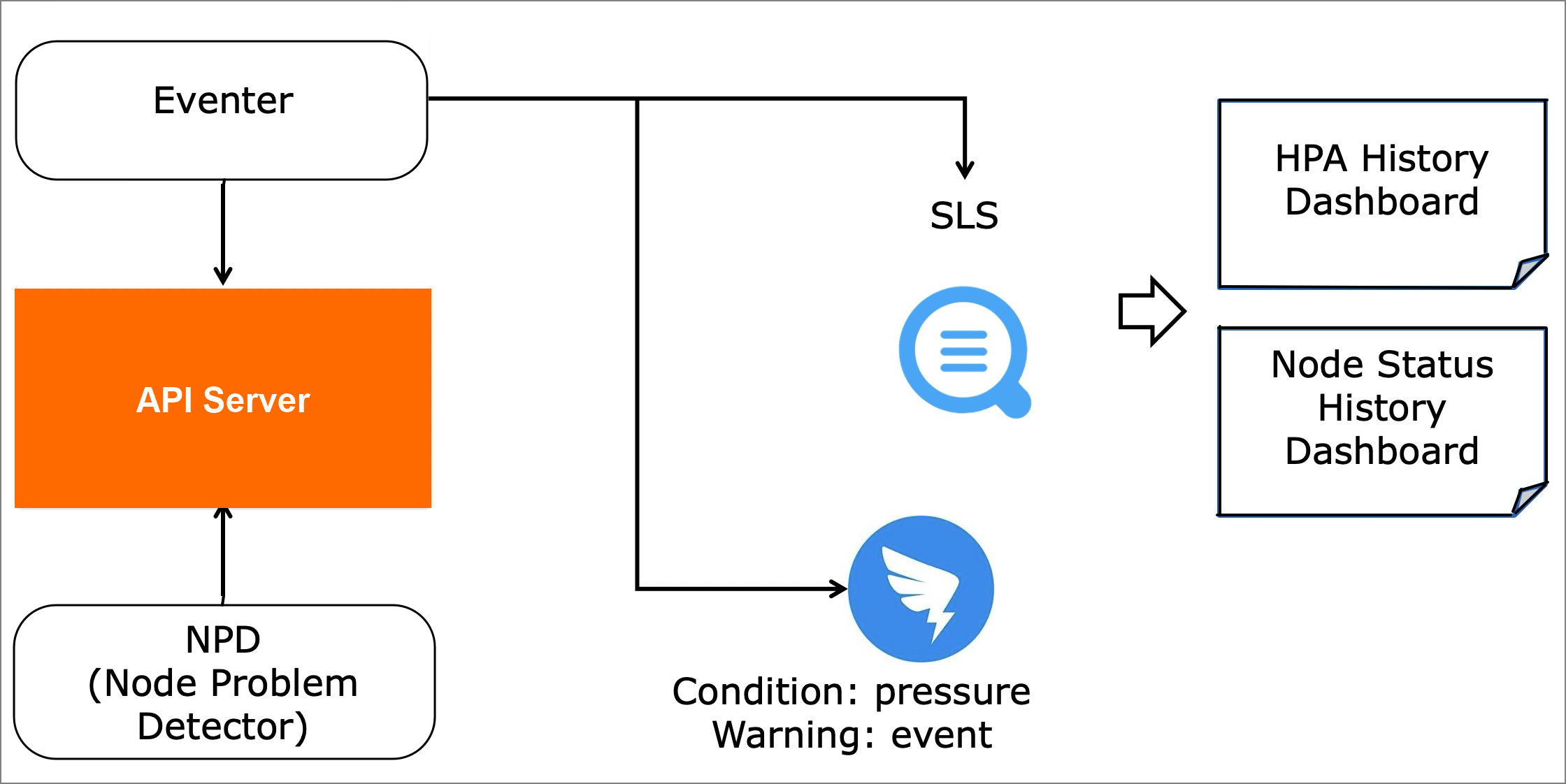
ACK provides out-of-the-box monitoring solutions for events in different scenarios. The node-problem-detector and kube-eventer tools that are maintained by ACK allow you to monitor Kubernetes events.事件监控关系图

  • node-problem-detector is a tool to diagnose Kubernetes nodes. node-problem-detector detects node exceptions, generates node events, and works with kube-eventer to raise alerts upon these events and enable closed-loop management of alerts. node-problem-detector generates node events when the following exceptions are detected: Docker engine hangs, Linux kernel hangs, outbound traffic exceptions, and file descriptor exceptions. For more information, see NPD.

  • kube-eventer is an open source event emitter that is maintained by ACK. kube-eventer sends Kubernetes events to sinks such as DingTalk, Log Service, and EventBridge. kube-eventer also provides filter conditions to filter different levels of events. You can use kube-eventer to collect events in real time, trigger alerts upon specific events, and asynchronously archive events. For more information, see kube-eventer.

Step 1: Grant RAM permissions to the event center component

Use onectl

  1. Install onectl on your on-premises machine. For more information, see Use onectl to manage registered clusters.

  2. Run the following command to grant Resource Access Management (RAM) permissions to the event center component:

    onectl ram-user grant --addon ack-node-problem-detector

    Expected output:

    Ram policy ack-one-registered-cluster-policy-ack-node-problem-detector granted to ram user ack-one-user-ce313528c3 successfully.

Use the console

Before you can install the component in a registered cluster, you must set the AccessKey pair to grant the registered cluster the permissions to access Alibaba Cloud resources. Before you set the AccessKey pair, create a Resource Access Management (RAM) user and grant the RAM user the permissions to access Alibaba Cloud resources.

  1. Create a RAM user.

  2. Create a custom policy.

    Expand to view the custom policy document required for Event Hub

    {
        "Version": "1",
        "Statement": [
            {
                "Action": [
                    "log:CreateProject",
                    "log:GetProject",
                    "log:DeleteProject",
                    "log:CreateLogStore",
                    "log:GetLogStore",
                    "log:UpdateLogStore",
                    "log:DeleteLogStore",
                    "log:CreateConfig",
                    "log:UpdateConfig",
                    "log:GetConfig",
                    "log:DeleteConfig",
                    "log:CreateMachineGroup",
                    "log:UpdateMachineGroup",
                    "log:GetMachineGroup",
                    "log:DeleteMachineGroup",
                    "log:ApplyConfigToGroup",
                    "log:GetAppliedMachineGroups",
                    "log:GetAppliedConfigs",
                    "log:RemoveConfigFromMachineGroup",
                    "log:CreateIndex",
                    "log:GetIndex",
                    "log:UpdateIndex",
                    "log:DeleteIndex",
                    "log:CreateSavedSearch",
                    "log:GetSavedSearch",
                    "log:UpdateSavedSearch",
                    "log:DeleteSavedSearch",
                    "log:CreateDashboard",
                    "log:GetDashboard",
                    "log:UpdateDashboard",
                    "log:DeleteDashboard",
                    "log:CreateJob",
                    "log:GetJob",
                    "log:DeleteJob",
                    "log:UpdateJob",
                    "log:PostLogStoreLogs",
                    "log:CreateSortedSubStore",
                    "log:GetSortedSubStore",
                    "log:ListSortedSubStore",
                    "log:UpdateSortedSubStore",
                    "log:DeleteSortedSubStore",
                    "log:CreateApp",
                    "log:UpdateApp",
                    "log:GetApp",
                    "log:DeleteApp",
                    "cs:DescribeTemplates",
                    "cs:DescribeTemplateAttribute"
                ],
                "Resource": [
                    "*"
                ],
                "Effect": "Allow"
            }
        ]
    }
  3. Attach the policy to the RAM user.

    You can create a custom policy or select the AliyunECIFullAccess policy to grant the permissions to the RAM user.

  4. Create an AccessKey pair for the RAM user.

    Warning

    We recommend that you configure AccessKey pair-based policies for network access control, limiting AccessKey invocation sources to trusted network environments to enhance AccessKey security.

  5. Use the AccessKey pair to create a Secret named alibaba-addon-secret in the registered cluster.

    The system automatically uses the AccessKey pair to access cloud resources when you install the components of the event center.

    Run the following command to create a Secret for the event center.

    kubectl -n kube-system create secret generic alibaba-addon-secret --from-literal='access-key-id=<your AccessKey ID>' --from-literal='access-key-secret=<your AccessKey Secret>'
    Note

    Replace <your AccessKey ID> and <your AccessKey Secret> with the AccessKey pair that you obtained in the previous step.

Step 2: Install the Kubernetes event center

Use onectl

Run the following command to install the event center component:

onectl addon install ack-node-problem-detector

Expected output:

Addon ack-node-problem-detector, version xxx installed.

Use the console

  1. Log on to the ACK console. In the left navigation pane, click Clusters.

  2. On the Clusters page, find the cluster you want and click its name. In the left-side pane, choose Operations > Event Center.

  3. On the Event Center page, click the Events Overview tab to view information about the Kubernetes event center.

    If the console prompts The ack-node-problem-detector component is not installed, click Install.

    The Kubernetes event center provides event overview, event details, and information about pod lifecycles. You can also customize queries and configure alerts.

Result

After the configuration is completed, you can use the Kubernetes event center. For more information, see Create and use a Kubernetes event center.

After the Kubernetes event center is created for the registered cluster, you can use the event center to check event overviews, view event details, check pod lifecycles, configure alerts, and customize queries.