Set up HistoryServer to persist Ray cluster logs and metrics to OSS for post-termination queries.
Complete the following six steps in order.
| Step | What you do |
|---|---|
| 1. Enable RRSA | Enable RRSA OIDC on your cluster |
| 2. Create an RRSA role | Create a RAM role with ARMS read and OSS full-access permissions |
| 3. Create an OAuth application | Register an OAuth app and create a Kubernetes Secret with its credentials |
| 4. Configure KubeRay | Install KubeRay and configure HistoryServer parameters |
| 5. Create a RayCluster | Submit a RayCluster with the ray.alibabacloud.com/enable-historyserver: "true" annotation |
| 6. Access HistoryServer | Connect via port-forward or configure public internet access |
Prerequisites
Ensure the following:
-
KubeRay
1.2.1.5or later installed. -
(Custom
postStarthook only) HistoryServer overwrites thepostStarthook on RayCluster pods. Append the following script to preserve your hook and write the Raynodeidto/tmp/ray/init.logfor the Collector sidecar:GetNodeId(){ while true; do nodeid=$(ps -ef | grep raylet | grep node_id | grep -v grep | grep -oP '(?<=--node_id=)[^ ]*' | tr -d '\n') if [ -n "$nodeid" ]; then echo "$(date) raylet started: \"$(ps -ef | grep raylet | grep node_id | grep -v grep | grep -oP '(?<=--node_id=)[^ ]*')\" => ${nodeid}" >> /tmp/ray/init.log echo $nodeid > /tmp/ray/alibabacloud_raylet_node_id break else echo "$(date) raylet not start >> /tmp/ray/init.log" sleep 1 fi done } GetNodeId -
(Custom ServiceAccount only) HistoryServer replaces the ServiceAccount on RayCluster pods with
ServiceAccountPrefix-RayClusterName. Ensure your configuration matches this naming convention.
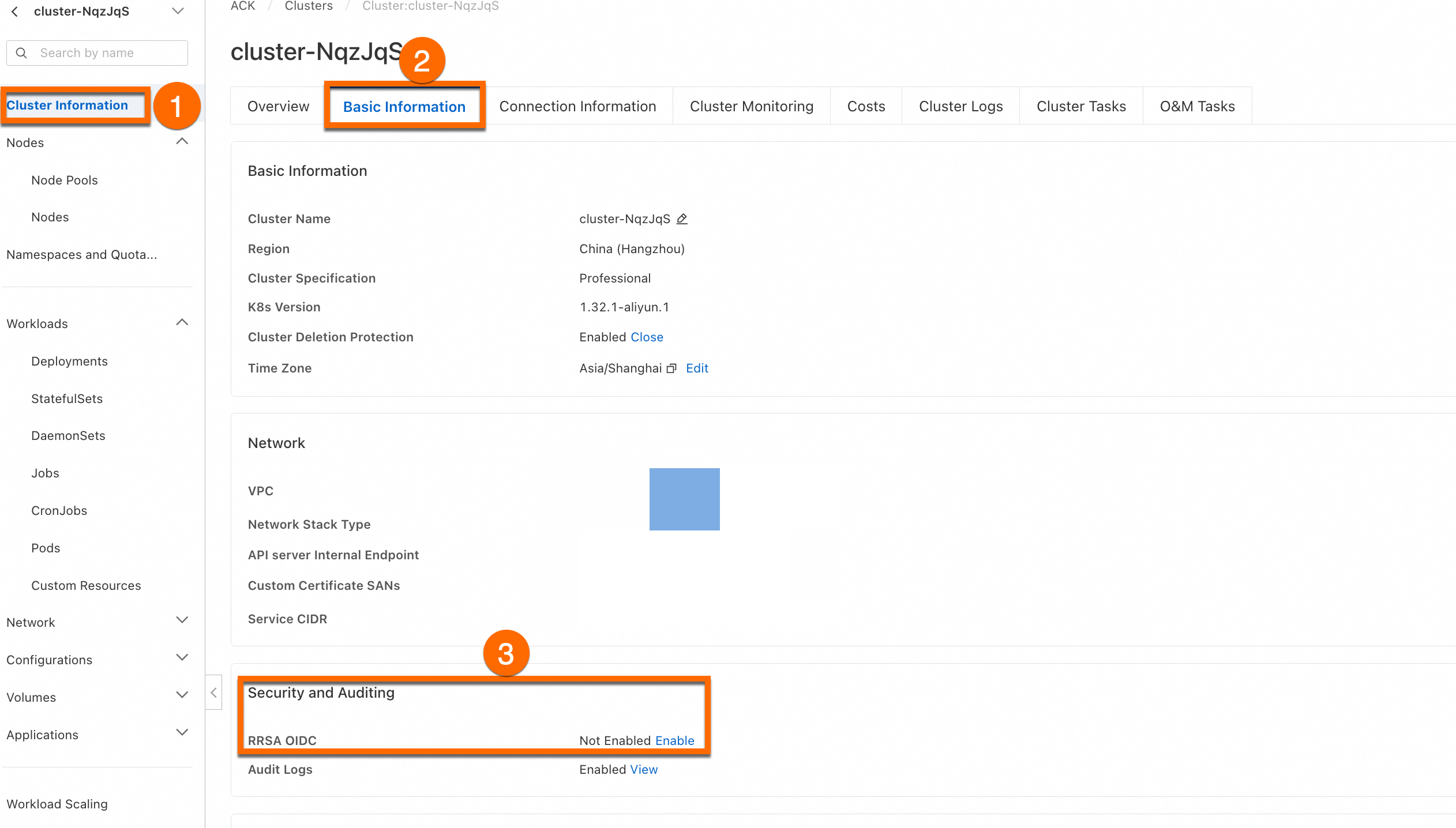
Step 1: Enable RRSA
-
Log in to the ACK console. In the left-side navigation pane, click Clusters.
-
On the Clusters page, click your target cluster, then click Cluster Information.
-
Go to Basic Information > Security and Auditing and click Enable next to RRSA OIDC. See Enable during cluster creation.
Step 2: Create an RRSA role
Create the role
-
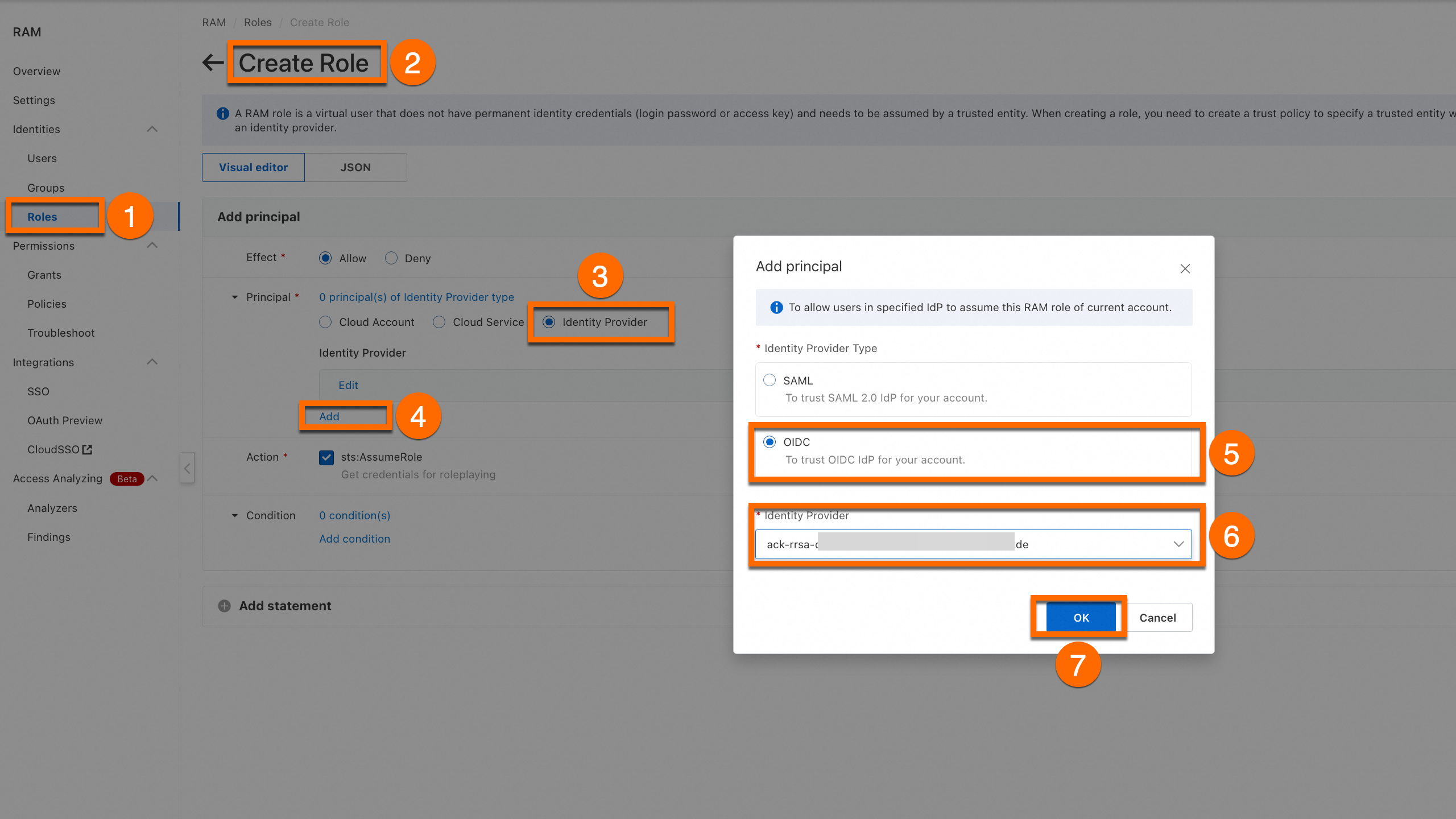
Log in to the RAM console as a RAM administrator. In the left-side navigation pane, choose Identities > Roles.
-
On the Roles page, click Create Role and select Identity Provider as the trusted principal type.
-
Add a principal: select the cluster for which you enabled RRSA OIDC.
-
Add a condition to bind a ServiceAccount to this role. If you use a custom ServiceAccount, click Add statement to add two principals to the RRSA role with the following service accounts:
system:serviceaccount:kuberay:ray-historyserverandsystem:serviceaccount:*:rhs*(rhsis customizable).*is a wildcard.ray-historyservermust match theServiceAccountPrefixspecified when installing HistoryServer.Field Value Key oidc:subOperator StringLikeValue system:serviceaccount:*:ray-historyserver*Field Value Key oidc:subOperator StringEqualsValue system:serviceaccount:kuberay:ray-historyserverField Value Key oidc:subOperator StringLikeValue system:serviceaccount:*:rhs*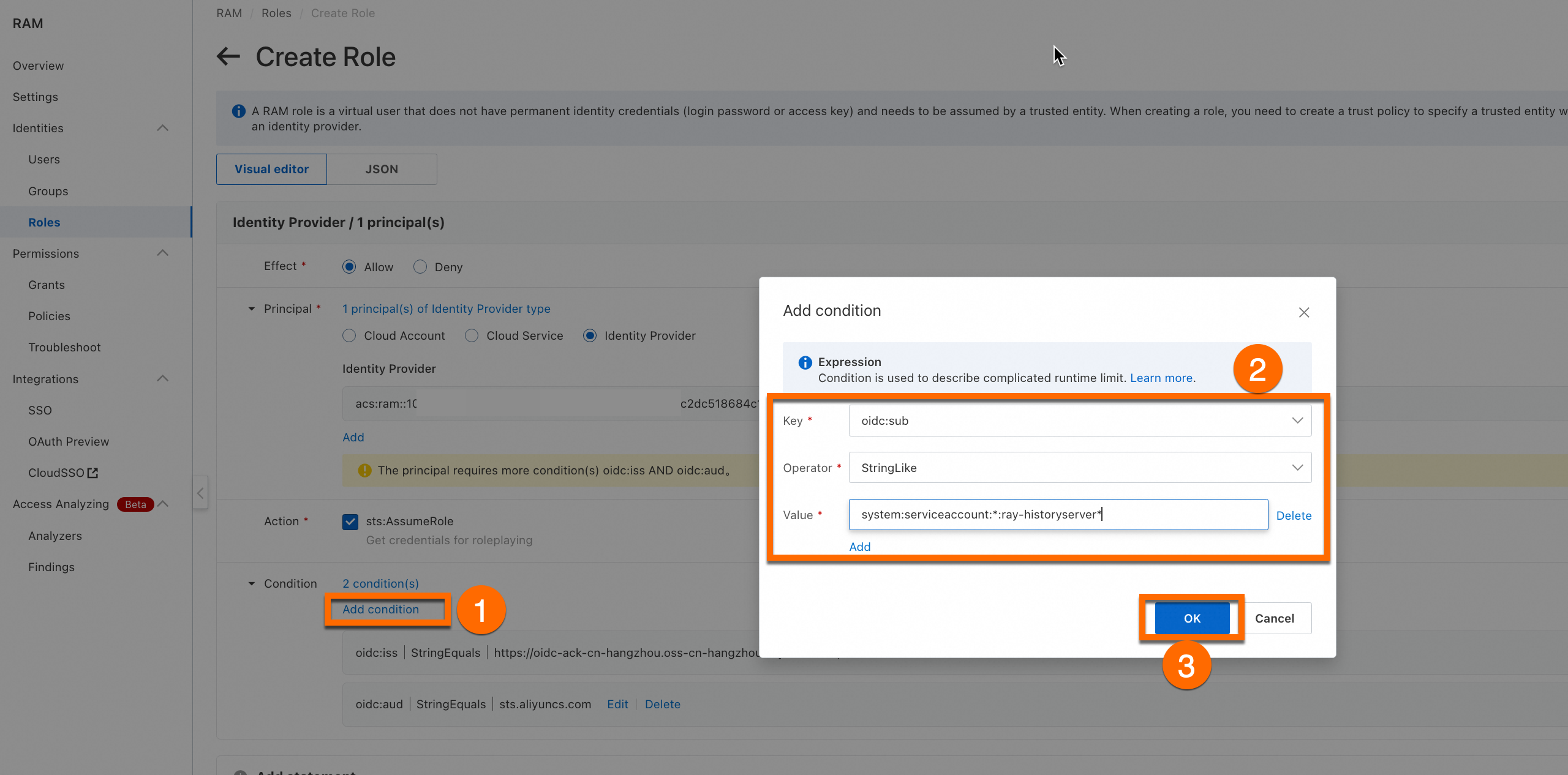
Add permissions
Add the following permissions to the role:
-
Add
AliyunARMSReadOnlyAccessfor ARMS read-only access.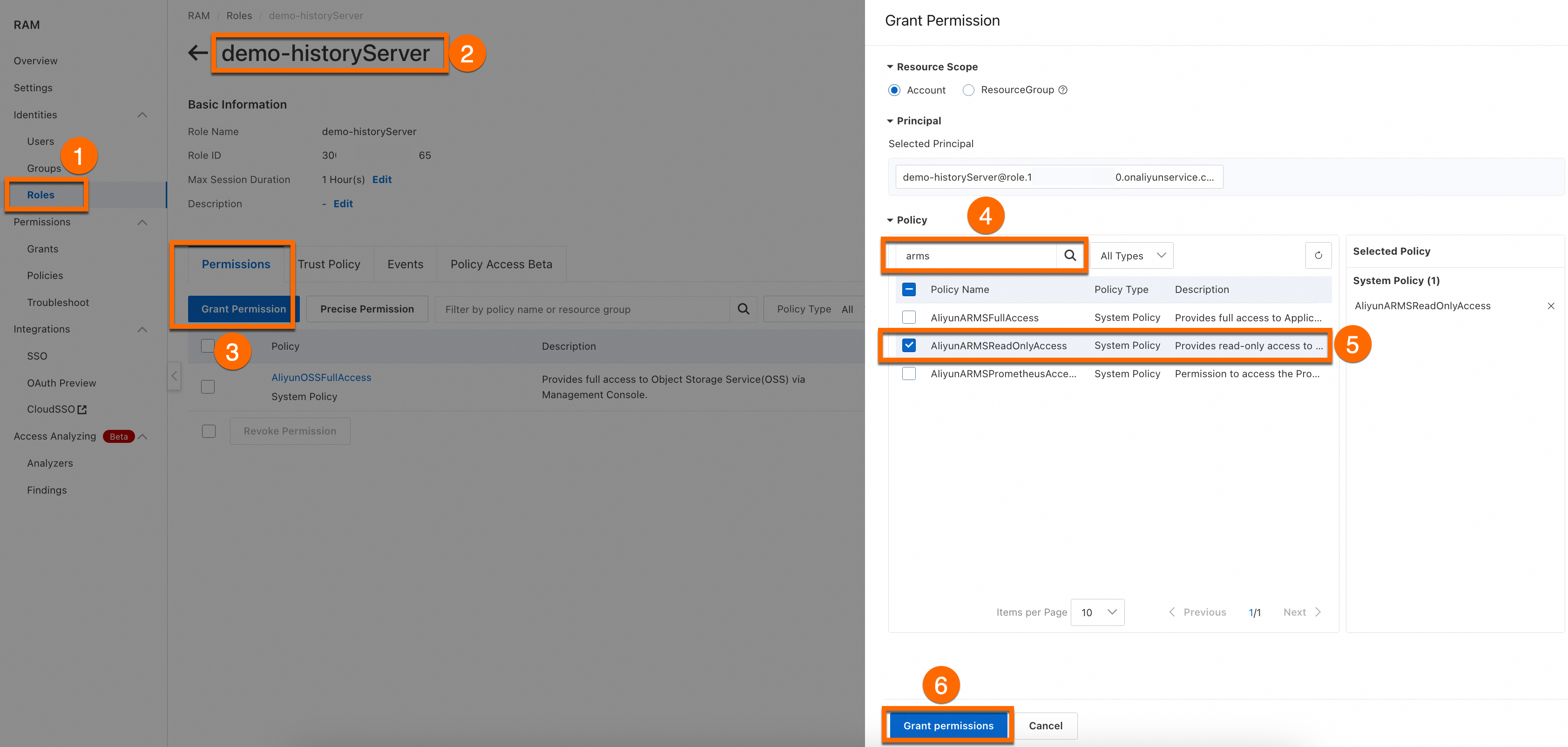
-
Add
AliyunOSSFullAccessfor OSS management.ImportantThis guide grants full OSS permissions. In production, use precise authorization to limit the scope.
Step 3: Create an OAuth application
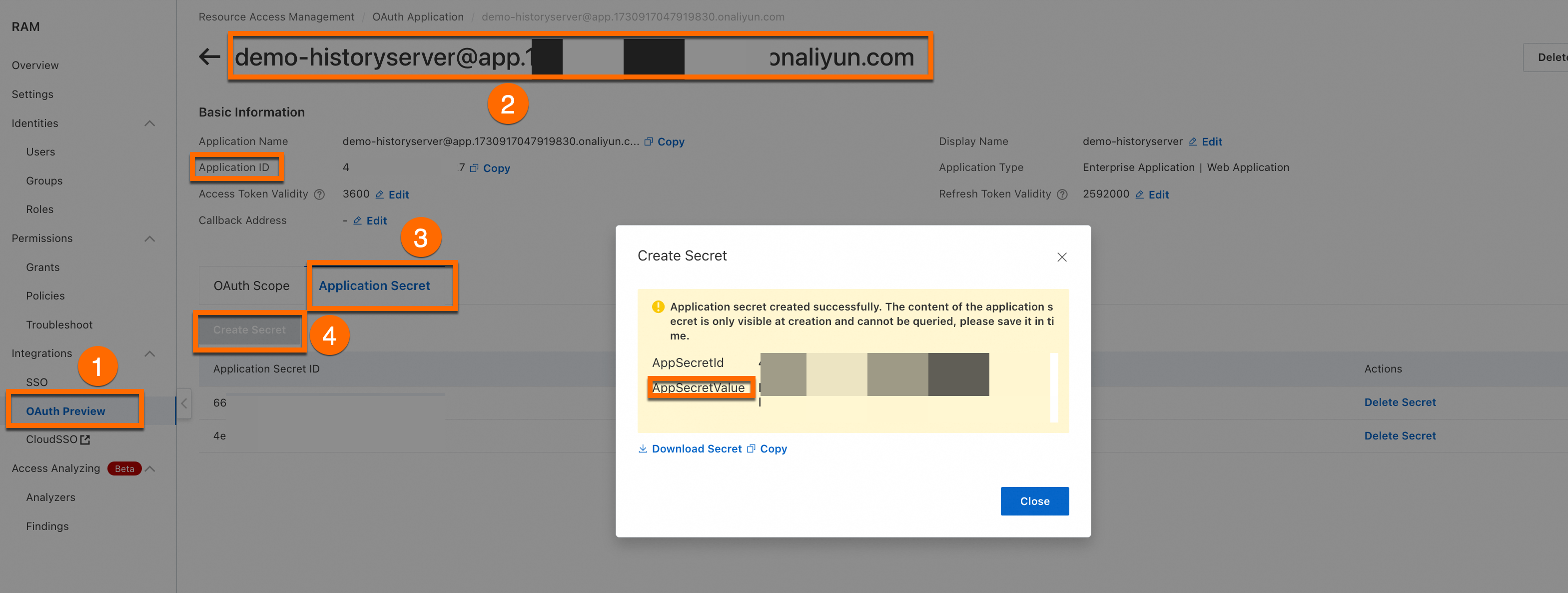
Set up the OAuth application
To connect over the internet, configure internet access.
-
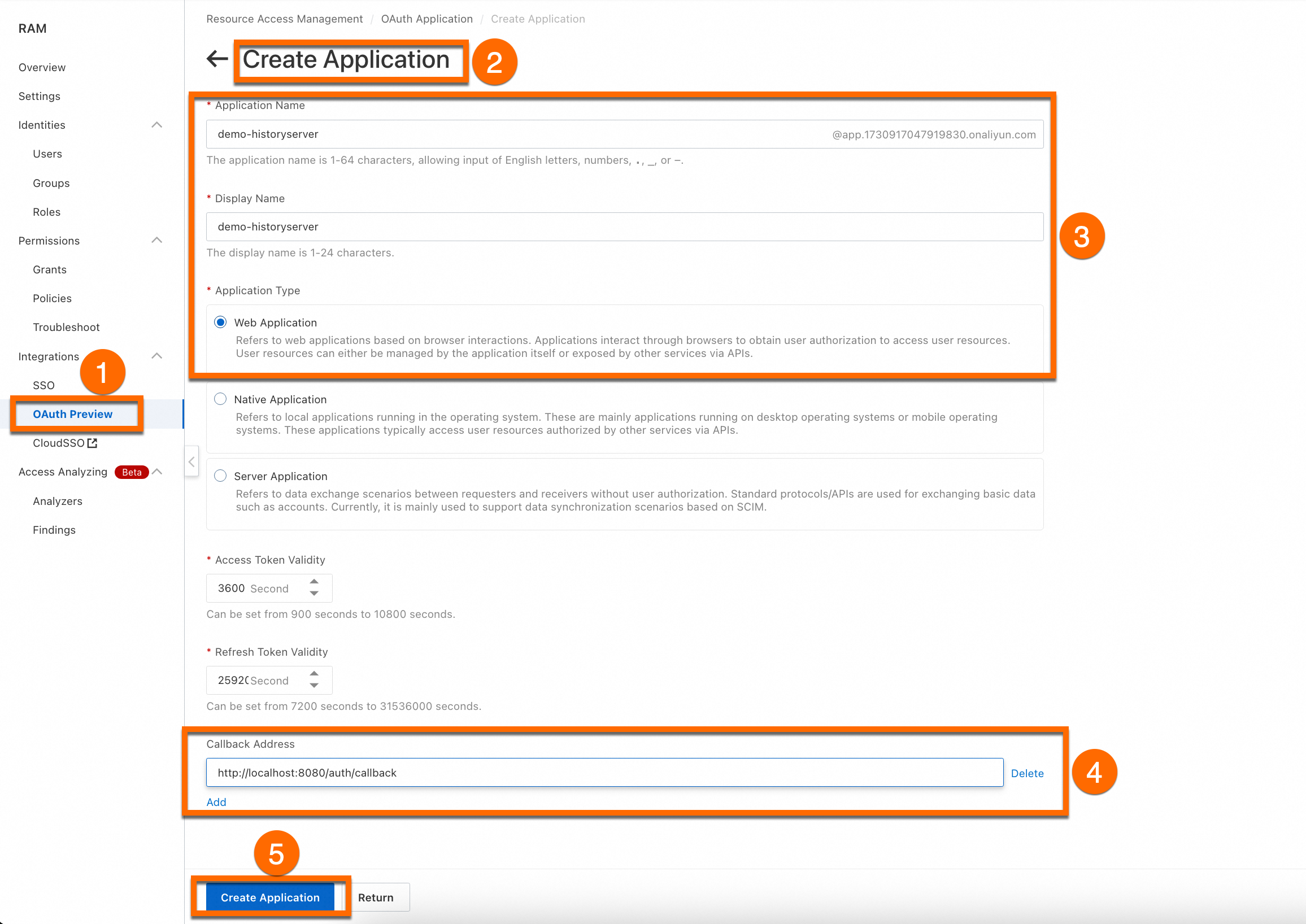
Create an OAuth enterprise application. Set the callback address to
http://localhost:8080/auth/callback, where:-
localhost:8080is the HistoryServer domain, matchingCallbackServiceNamein KubeRay configuration. -
/auth/callbackis a fixed path suffix.
-
-
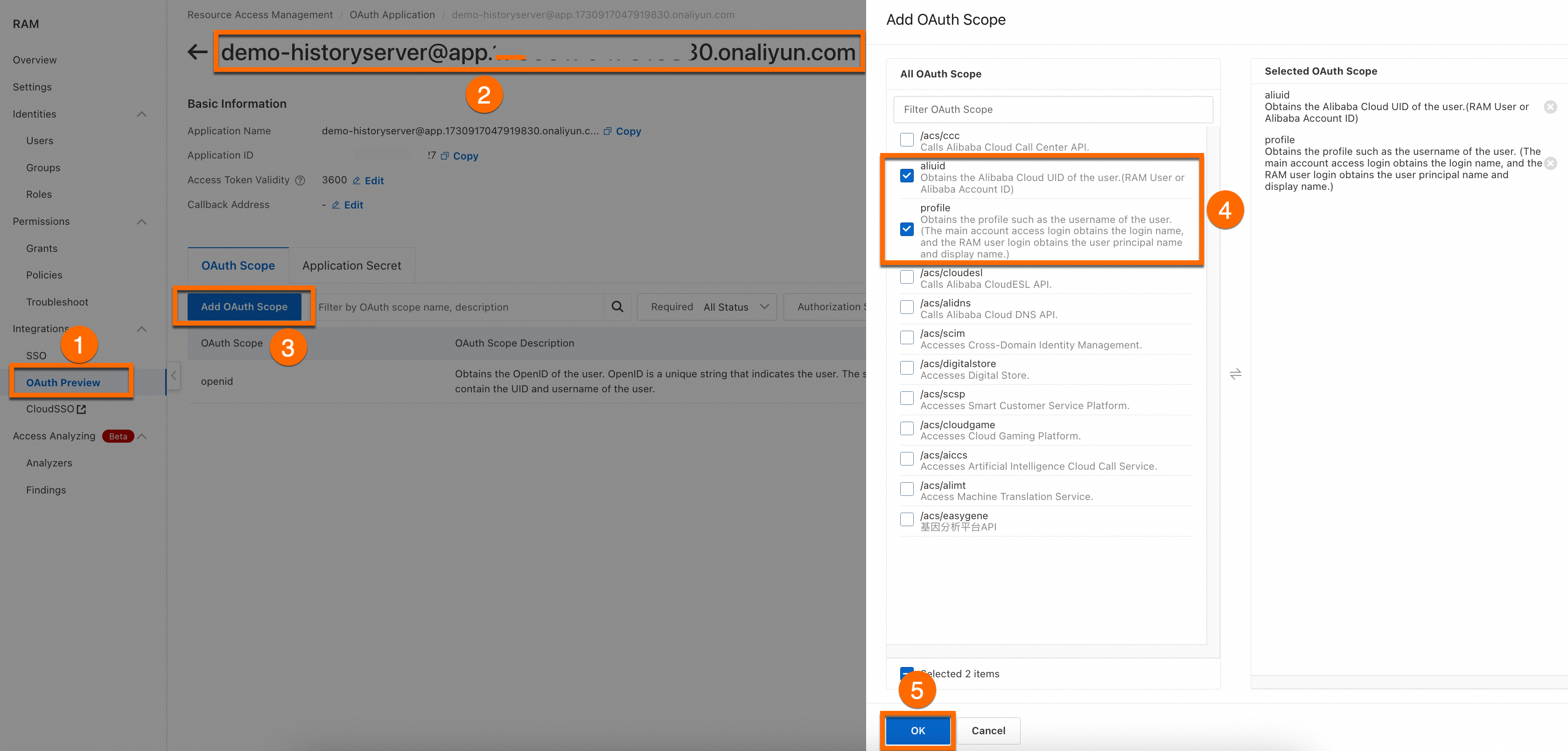
Add the following OAuth scopes:
-
aliuid— retrieves the Alibaba Cloud UID. -
profile— retrieves the username (login name for main accounts; UPN and display name for RAM users).
-
-
Create and save the OAuth application Secret.
ImportantRecord the Application ID and AppSecretValue for the next step.
Create a Kubernetes Secret
Connect to your ACK cluster and create the Secret:
kubectl create ns kuberay
kubectl create secret -n kuberay generic webapp-secret --from-literal=webapp-id="yours-AppID" --from-literal=webapp-secret=yours-AppSecretValue
Replace the placeholders:
| Placeholder | Description |
|---|---|
yours-AppID |
The OAuth application ID |
yours-AppSecretValue |
The OAuth AppSecretValue |
webapp-secret is a customizable Secret name.Step 4: Configure KubeRay parameters
-
Install KubeRay if you haven't already.
-
Configure the following parameters in the KubeRay Operator:
Parameter Description Enable HistoryServer Enable HistoryServer. CallbackServiceName The OAuth callback domain. Must match the OAuth application callback domain. Example: http://xx.com/auth/callback→xx.com.CloudRoleName The RRSA role name for HistoryServer. OSSBucket The OSS bucket name. OSSEndPoint The OSS bucket endpoint. OSSHistoryServerRootDir The OSS directory for logs and metadata. OSSRegion The OSS region, such as cn-hangzhouorap-southeast-1
Step 5: Create a RayCluster
Add the ray.alibabacloud.com/enable-historyserver: "true" annotation to your RayCluster manifest. See the following YAML example.
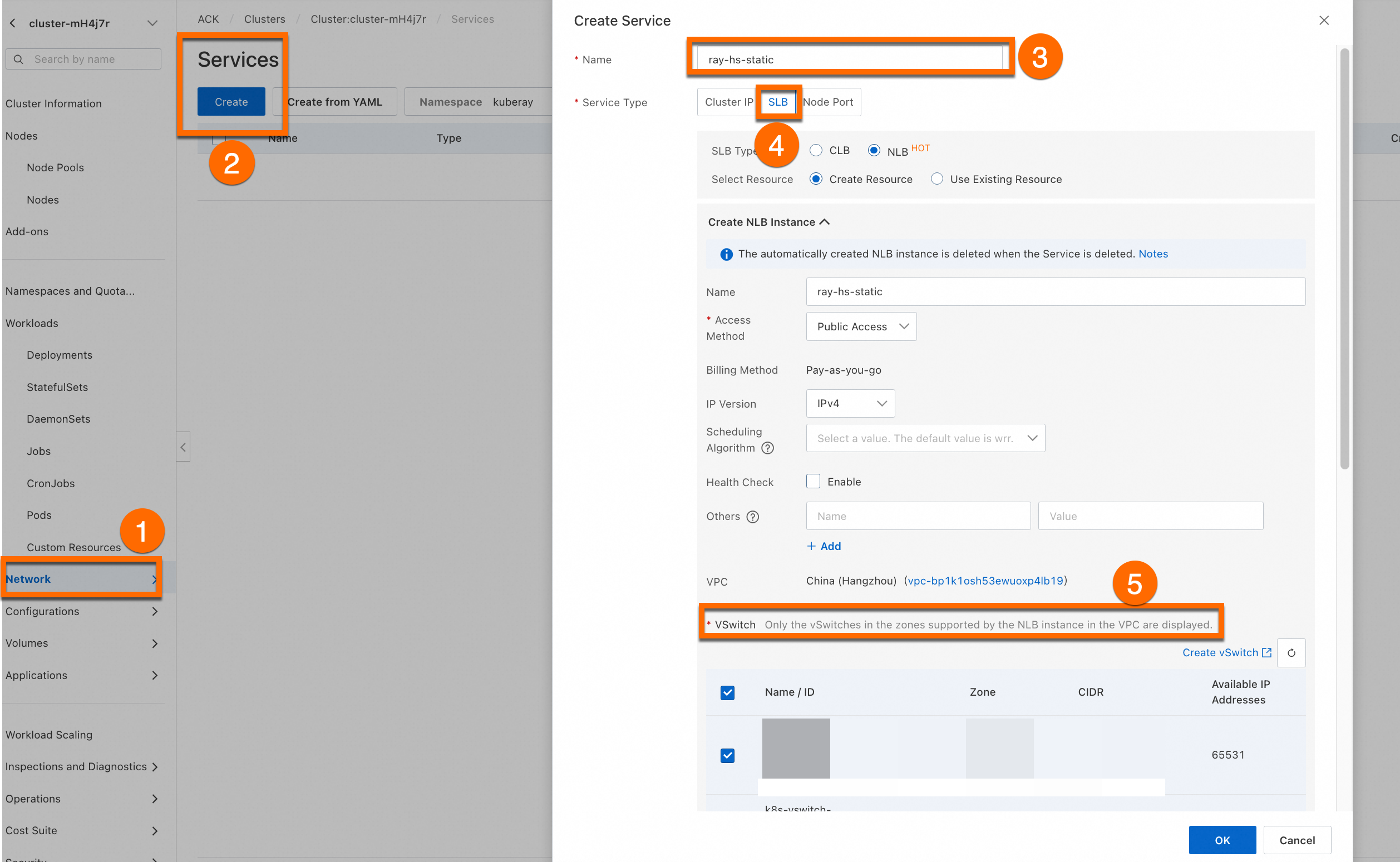
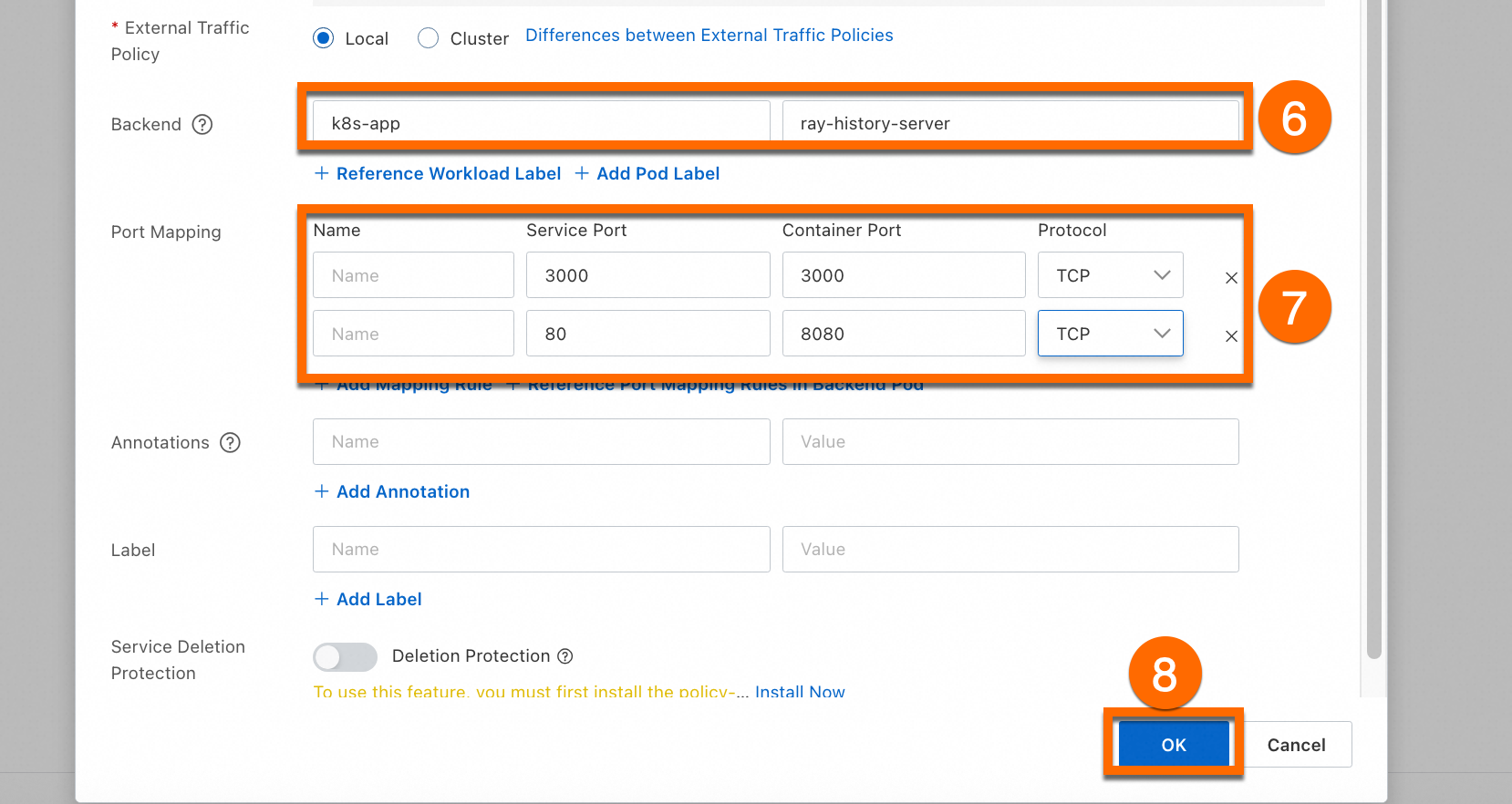
Step 6: Access HistoryServer
Access via localhost
Access HistoryServer via kubectl port-forward:
kubectl -n kuberay port-forward svc/ray-history-server --address 0.0.0.0 8080:80Open http://localhost:8080 in your browser. Monitoring data requires an additional port-forward in a separate terminal:
kubectl -n kuberay port-forward svc/ray-history-server --address 0.0.0.0 3000:3000Configure internet access
This example is for demonstration only. Enable Access Control in production to protect your data.
In the ACK console, go to the cluster details page. Configure the internet service as shown below, then set the OAuth callback address to http://${externalIP}/auth/callback (see Step 3).