Use the KubeRay Operator to deploy and manage Ray clusters for distributed AI workloads on ACK.
Prerequisites
Ensure the following:
-
An ACK managed Pro cluster running Kubernetes v1.24 or later (create | upgrade).
-
At least one node with 8 vCPUs and 32 GB memory (test). Size to your workload in production. For GPU workloads, use supported Elastic Compute Service (ECS) instance families.
-
kubectl installed and connected to your cluster.
-
(Optional) An ApsaraDB for Tair instance for Global Control Store (GCS) fault tolerance.
(Optional) Set up GCS fault tolerance
Create an ApsaraDB for Tair (Redis-compatible) instance:
-
Same region and Virtual Private Cloud (VPC) as your ACK cluster (create an instance).
-
A whitelist allowing access from the VPC CIDR block.
-
A VPC endpoint (recommended). View connection addresses.
-
The instance password (change or reset).
Install the KubeRay Operator
-
Log on to the ACK console.
-
In the left-side navigation pane, click Clusters. Click your cluster name.
-
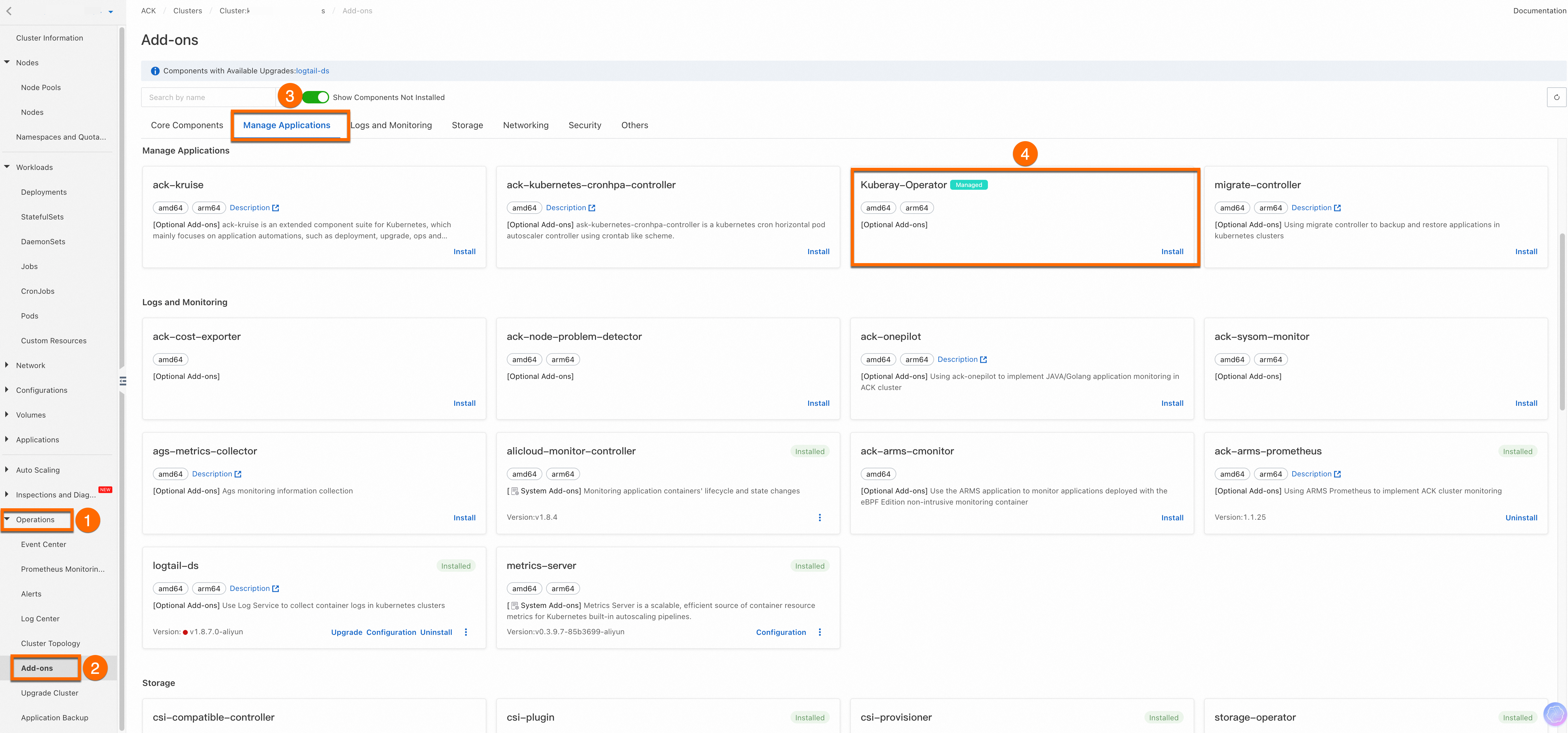
Go to Operations > Add-ons > Manage Applications.
-
Under Kuberay-Operator, click Install.
Deploy the Ray Cluster
This example uses rayproject/ray:2.36.1 from Docker Hub. If the pull fails, use one of these alternatives:
-
Mirror the image via Container Registry from outside the Chinese mainland (subscribe to images outside China).
-
Create a Global Accelerator instance to pull images from overseas.
Create a Ray Cluster named myfirst-ray-cluster:
The manifest configures:
| Component | Setting | Notes |
|---|---|---|
| Head node | num-cpus: "0" |
Reserves the head for cluster management |
Worker group work1 |
1 replica, scalable up to 1,000 | Adjust replicas to match your workload |
| Autoscaling | Disabled (enableInTreeAutoscaling: false) |
Enable after profiling your workload resource patterns |
Full manifest
cat <<EOF | kubectl apply -f -
apiVersion: ray.io/v1
kind: RayCluster
metadata:
  name: myfirst-ray-cluster
  namespace: default
spec:
  suspend: false
  autoscalerOptions:
    env: []
    envFrom: []
    idleTimeoutSeconds: 60
    imagePullPolicy: Always
    resources:
      limits:
        cpu: 2000m
        memory: 2024Mi
      requests:
        cpu: 2000m
        memory: 2024Mi
    securityContext: {}
    upscalingMode: Default
  enableInTreeAutoscaling: false
  headGroupSpec:
    rayStartParams:
      dashboard-host: 0.0.0.0
      num-cpus: "0"
    serviceType: ClusterIP
    template:
      spec:
        containers:
        - image: rayproject/ray:2.36.1
          imagePullPolicy: Always
          name: ray-head
          resources:
            limits:
              cpu: "4"
              memory: 4G
            requests:
              cpu: "1"
              memory: 1G
  workerGroupSpecs:
  - groupName: work1
    maxReplicas: 1000
    minReplicas: 0
    numOfHosts: 1
    rayStartParams: {}
    replicas: 1
    template:
      spec:
        containers:
        - image: rayproject/ray:2.36.1
          imagePullPolicy: Always
          name: ray-worker
          resources:
            limits:
              cpu: "4"
              memory: 4G
            requests:
              cpu: "4"
              memory: 4G
EOF
Verify the deployment
Confirm the cluster is running:
-
Check the Ray Cluster status:
kubectl get rayclusterExpected output:
NAME DESIRED WORKERS AVAILABLE WORKERS CPUS MEMORY GPUS STATUS AGE myfirst-ray-cluster 1 1 5 5G 0 ready 4m19s -
Check the Pods:
kubectl get podExpected output:
NAME READY STATUS RESTARTS AGE myfirst-ray-cluster-head-5q2hk 1/1 Running 0 4m37s myfirst-ray-cluster-work1-worker-zkjgq 1/1 Running 0 4m31s -
Check the Services:
kubectl get svcExpected output:
NAME                           TYPE        CLUSTER-IP    EXTERNAL-IP   PORT(S)                                         AGE
kubernetes                     ClusterIP   192.168.0.1   <none>        443/TCP                                         21d
myfirst-ray-cluster-head-svc   ClusterIP   None          <none>        10001/TCP,8265/TCP,8080/TCP,6379/TCP,8000/TCP   6m57s
When the Ray Cluster status is ready and all Pods show 1/1 Running, the deployment is complete.