Flowise lets you easily orchestrate personalized conversation flows. Its intuitive graphical interface and flexible workflow design enable both developers and non-technical staff to create complex, interactive chat applications. You can integrate these applications into your business scenarios to improve daily development and management efficiency. Additionally, when you deploy services on an ACK cluster, you can scale them smoothly and in real time as your business needs change, which supports continuous business growth.
Overview

Configure a general-purpose chatbot in three steps:
Install the Flowise component: Create an ACK cluster using Alibaba Cloud Container Service for Kubernetes (ACK) and install the Flowise component.
Build a general-purpose chatbot workflow: Access the Flowise service to create a general-purpose chatbot.
Orchestrate a personalized conversation flow: Set up a question and answer (Q&A) model and a prompt template, then connect them using a chain model.

1. Install the Flowise component
Flowise is an open-source, easy-to-use framework that helps developers build large language model (LLM) applications quickly and flexibly. It simplifies the use of LangChain by providing a low-code or no-code method for building applications. Flowise offers an intuitive user interface that lets you build workflows by dragging and dropping visual components. This makes it easy to configure LLM applications and helps developers move more quickly from testing to production.
1.1 Prerequisites
An ACK Pro cluster of version 1.22 or later is created. For more information, see Create an ACK managed cluster and Upgrade a cluster.
You have connected to the Kubernetes cluster using the kubectl tool. For more information, see Obtain the kubeconfig file of a cluster and use kubectl to connect to the cluster.
1.2 Deploy the component
Install and deploy the Flowise component.
Log on to the ACK console. In the left navigation pane, click Clusters.
Click the target cluster to go to its details page. Follow the numbered steps in the figure to configure the Flowise component for the target cluster.
You do not need to configure an Application Name or Namespace for the component. After you click ⑤Next, a Confirm dialog box appears. Click Yes to use the default application name (flowise) and namespace (flowise-system).

Set Chart Version to the latest version and click OK to complete the installation of the Flowise component.
On the Parameters tab, you can configure a custom username and password.
Verify that the Flowise component is running properly.
Run the following command to check whether the pods in the
flowise-systemnamespace are in the Running state.kubectl get pod -n flowise-systemThe following output indicates that the Flowise component is installed successfully.
NAME                       READY   STATUS    RESTARTS   AGE
flowise-596fb8bf88-7zdlr   1/1     Running   0          3h
flowise-postgresql-0       1/1     Running   0          3h
2. Create a workflow orchestration template
2.1 Access the Flowise service
Enable Internet access for the Flowise component.
If you are using a production environment, enable the Access Control feature to ensure that your application data is secure.

After the configuration is complete, you can view the External IP of the Flowise component. Enter this external IP address in your browser's address bar to access the Flowise service.

Access the Flowise service.
Go to the External IP address and enter the custom Username and Password as prompted to use the service.

If you did not specify a custom username and password when you installed the Flowise component, use the default values to access the service:
Username=flowiseuserandPassword=flowisepassword.
2.2 Create Chatflows
One of the powerful features of Flowise is that you can turn flows into tools. For example, you can have a main flow that coordinates when to use the necessary tools, and each tool is designed to perform a specific task.
Each child flow tool executes independently and has a separate memory to provide clearer output. The detailed output from each child flow is summarized into a final agent, which usually produces higher-quality output.
To create a Chatflow, perform the following steps.
Enter your username and password to log on to the Flowise service platform.
On the Flowise service platform page, click to create a new Chatflow.

3. Orchestrate a personalized conversation flow
3.1 Configure Chat Models
In the Flowise service, you can orchestrate LLM applications by creating nodes and building connections between them. Similar to building blocks, you can use all available nodes in the Flowise service to build a custom LLM application, such as an LLM orchestration flow, a chatbot, or an intelligent agent. The Flowise service currently supports concepts from frameworks such as LangChain and LlamaIndex, from which you can abstract various types of nodes, such as Agents, Chains, and Chat Models.
Click to enter the Chat Models Panel and drag to create a ChatOpenAI Custom Node. Then, click the Connect Credential drop-down list > Create New and enter the API key for Tongyi Qianwen to create a new Connect Credential.

Set Model Name to qwen-turbo. Then, on the Additional Parameters page, set BasePath to
https://dashscope.aliyuncs.com/compatible-mode/v1.
3.2 Set up a prompt template
Go to the Prompts panel, drag to create a Prompt Template node, and configure the Template information as follows.
Question: {question}
Answer: Let's think step by step.
3.3 Set up an LLM Chain
Go to the Chains panel and drag to create an LLM Chain node.

Connect the nodes of the created template to complete the orchestration of the general-purpose chatbot.

3.3 Verify the result
After you orchestrate the Chatflow, click the Save button in the upper-right corner of the page. Then, you can use the Message button in the upper-right corner to debug the chatbot. The result is shown in the following figure.

Summary
Apply to a production environment
There are two methods to introduce the developed AI Q&A assistant into your enterprise or personal production environment:
Use the conversation flow as an API and link it to a frontend application.
Flowise provides APIs for all applications based on the Backend as a Service (BaaS) concept. This allows developers to directly access the powerful capabilities of LLMs in their frontend applications without worrying about complex backend architecture and deployment processes. For more information, see Develop with APIs.
Embed the general-purpose chatbot on your personal or business website.
Simply copy and paste the provided embed code into the tag of your HTML file.
Use the Flowise service to create your own general-purpose chatbot in minutes and then use the features supported by Flowise to embed your AI application into your business website. For more information, see Embed in websites.
Example: Embed an AI application into a website
This section describes how to embed a developed LLM application into your enterprise or personal website. Follow the steps in the example.
This example is for demonstration purposes. To ensure that your application data is secure, enable the Access Control feature in your production environment.
Enable Internet access for the Flowise component. Enter the external IP address in your browser's address bar to access the Flowise service. For more information, see Access the Flowise service.
Build a simple web application in an ACK cluster to debug your general-purpose chatbot.
The following example shows how to deploy a web application in an ACK cluster. It runs on your ACK cluster, and you can embed the LLM application developed in the Flowise service.
Obtain the Flowise service code.
As shown in the following figure, select a method to embed the corresponding code of the chat application into your website.

In the ACK cluster, create a deployment to run your web application and create a service to expose the application.
The following is a simple YAML example that shows how to deploy an Nginx server that contains static HTML.
Log on to the ACK console. On the Configurations > ConfigMaps page, select the default namespace and click Create From YAML. Copy the following YAML content to the template and replace
window.difyChatbotConfig,scr, andidwith the Flowise service code that you obtained.For more information about the code, see the following example.
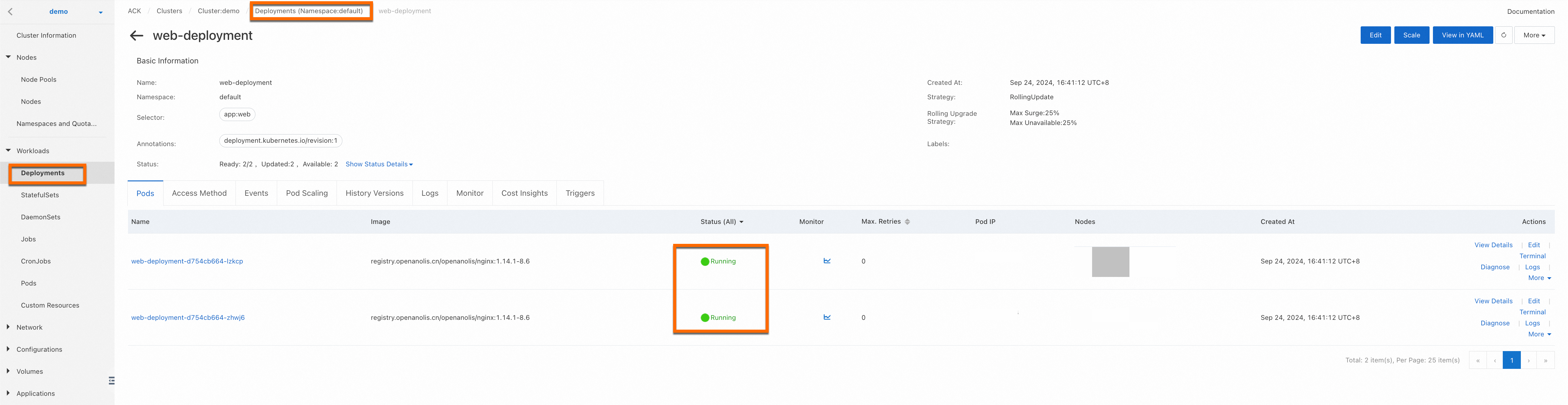
A successful deployment is shown in the following figure:
Enable Internet access for the deployed service.
To ensure that your application data is secure, enable the Access Control feature in your production environment.
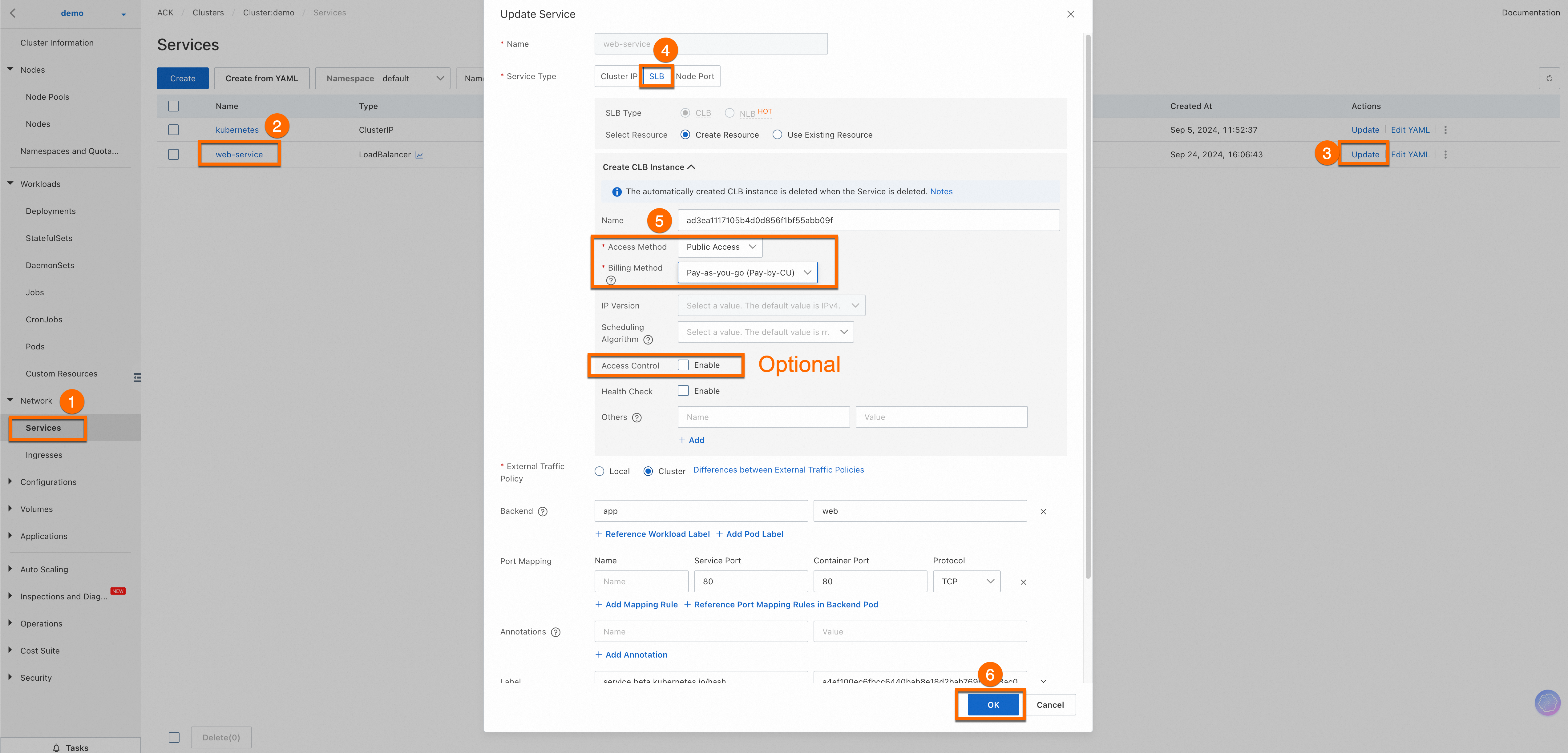
After the configuration is complete, you can view the External IP of the web-service. Enter this external IP address in your browser's address bar to access the web service.
 Important
If you want other devices to access the service, make sure that your cluster's firewall or security group allows traffic on port 80. For more information, see Add a security group rule.
Ensure that your code and any third-party code are secure to prevent potential cross-site scripting (XSS) or malicious code injection. This document provides a basic example for demonstration. You can extend and modify it as needed.
View the result.
Continuous improvement
To learn more about how to integrate customized LLM applications, see Build a customized AI Q&A assistant for a website using Dify.
Using Dify, you can integrate enterprise or personal knowledge bases into large model applications. This lets you create highly customized AI Q&A solutions and integrate them into your business scenarios, which helps you improve daily development and management efficiency.
Billing
This feature charges management fees for ACK Pro clusters and fees for the Alibaba Cloud resources that are used. The Alibaba Cloud products involved in this feature include Elastic Compute Service (ECS), Server Load Balancer (SLB), elastic IP addresses (EIPs), and Apsara File Storage NAS. You are charged for the resources that you use based on the billing rules of each product. For more information about cluster management fees and resource fees, see Billing overview.