As workloads grow, disk volumes mounted to pods can run out of space. Container Service for Kubernetes (ACK) supports online disk volume expansion using FlexVolume in Kubernetes 1.16 and later — no pod restart is required in most cases. This topic covers both expansion scenarios: expanding while the pod stays Running, and expanding after restarting the pod.
Prerequisites
Before you begin, make sure you have:
-
A kubeconfig file for your cluster and kubectl configured to connect to it. See Connect to an ACK cluster by using kubectl.
-
A dynamically provisioned persistent volume (PV) mounted via a persistent volume claim (PVC) that includes the
storageClassNameparameter. -
The FlexVolume plugin at version v1.14.8.109-5f88ade-aliyun or later. Check the cluster components page in the ACK console to upgrade.
Limitations
Before you expand a disk volume, review the following constraints:
| Constraint | Details |
|---|---|
| Dynamically provisioned PVs only | Only PVs provisioned dynamically with a StorageClass can be expanded online. Inline volumes and volumes backed by basic disks cannot be expanded without service interruption. |
| Maximum disk size | Disks of 2,000 GiB or smaller can be expanded without service interruption. |
| Pod must be Running | The pod must remain in Running state during expansion. If it is not Running, use the restart-based method instead. |
StorageClass requirement
The StorageClass must have allowVolumeExpansion: true. ACK-created StorageClasses set this automatically. For manually created StorageClasses, set it explicitly:
apiVersion: storage.k8s.io/v1
kind: StorageClass
metadata:
  name: alicloud-disk-available
provisioner: alicloud/disk
allowVolumeExpansion: true
Back up your data
Before expanding, create a disk snapshot to protect against data loss from errors during the expansion process.
Grant the ResizeDisk permission to the RAM role
Before expanding a disk volume, grant the ResizeDisk permission to the cluster's Master RAM role. Without this permission, the expansion request returns an authorization error.
-
Log on to the ACK console.
-
In the left-side navigation pane, click Clusters.
-
Find the cluster and click Details in the Actions column.
-
In the left-side navigation pane, click Cluster Information.
-
Click the Cluster Resources tab, then click the hyperlink next to Master RAM Role.
-
In the RAM console, grant the ResizeDisk permission to the role. For details, see Modify the document and description of a custom policy.
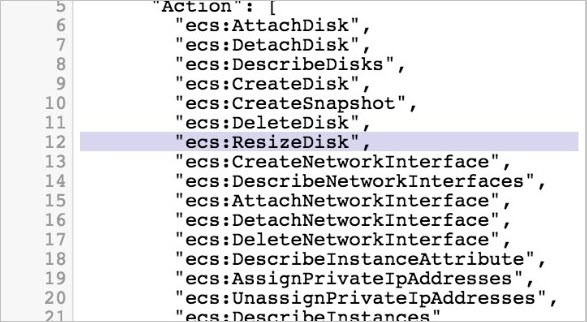
For ACK dedicated clusters using FlexVolume or ACK managed clusters, follow steps 1–4 above and click the hyperlink next to Master RAM Role.
Expand a disk volume without restarting the pod
Use this method when the pod is in Running state. The disk is resized online with no service interruption.
Check the current state
-
Verify the pod is Running:
kubectl get podExpected output:
web-0 1/1 Running 0 42s -
Check the current disk usage inside the pod:
kubectl exec web-0 -- df /dataExpected output:
Filesystem   1K-blocks    Used  Available  Use%  Mounted on
/dev/vdb      20511312   45080   20449848    1%  /data
Note the current size: 20 GiB.
-
Confirm the PVC is bound and check its current capacity:
kubectl get pvcExpected output:
NAME             STATUS   VOLUME                   CAPACITY   ACCESS MODES   STORAGECLASS              AGE
disk-ssd-web-0   Bound    d-wz9hpoifm43yn9zie6gl   20Gi       RWO            alicloud-disk-available   57s
Expand the volume
-
Patch the PVC to request the new storage size:
kubectl patch pvc disk-ssd-web-0 -p '{"spec":{"resources":{"requests":{"storage":"30Gi"}}}}'Wait about one minute for the expansion to complete.
Verify the expansion
-
Confirm the PV is updated to 30 GiB:
kubectl get pv d-wz9hpoifm43yn9zie6glExpected output:
NAME CAPACITY ACCESS MODES RECLAIM POLICY STATUS CLAIM STORAGECLASS REASON AGE d-wz9hpoifm43yn9zie6gl 30Gi RWO Delete Bound default/disk-ssd-web-0 alicloud-disk-available 5m23s -
Confirm the PVC reflects the new capacity:
kubectl get pvcExpected output:
NAME STATUS VOLUME CAPACITY ACCESS MODES STORAGECLASS AGE disk-ssd-web-0 Bound d-wz9hpoifm43yn9zie6gl 30Gi RWO alicloud-disk-available 5m10s -
Verify the new disk size is visible inside the pod:
kubectl exec web-0 -- df /dataExpected output:
Filesystem   1K-blocks    Used  Available  Use%  Mounted on
/dev/vdb      30832548   45036   30771128    1%  /data
The disk volume has been expanded from 20 GiB to 30 GiB with no downtime.
Restart the pod to expand the disk volume
Use this method when the file system does not reflect the new size until the pod is restarted, or when the pod is not in Running state.
Check the current state
-
Verify the pod status and note the current disk size:
kubectl get podExpected output:
web-0 1/1 Running 0 42s -
Check the current disk usage inside the pod:
kubectl exec web-0 -- df /dataExpected output:
Filesystem 1K-blocks Used Available Use% Mounted on /dev/vdb 20511312 45080 20449848 1% /data -
Confirm the PVC and PV are bound:
kubectl get pvc
kubectl get pv
Prevent the pod from rescheduling
-
Find the zone label of the PV:
kubectl get pv d-wz9g2j5qbo37r2lamkg4 -oyaml | grep failure-domain.beta.kubernetes.io/zoneExpected output:
failure-domain.beta.kubernetes.io/zone: cn-shenzhen-e -
Change the zone label to an invalid value so the pod cannot be scheduled:
kubectl label pv d-wz9g2j5qbo37r2lamkg4 failure-domain.beta.kubernetes.io/zone=cn-shenzhen-e-nozone --overwriteExpected output:
persistentvolume/d-wz9g2j5qbo37r2lamkg4 labeled -
Delete the pod to trigger a restart. The pod enters Pending state because the zone label no longer matches any node:
kubectl delete pod web-0Verify the pod is Pending:
kubectl get podExpected output:
web-0 0/1 Pending 0 27s
Expand the volume
-
Patch the PVC to request the new storage size:
kubectl patch pvc disk-ssd-web-0 -p '{"spec":{"resources":{"requests":{"storage":"30Gi"}}}}'
Restore the pod
-
Restore the original zone label so the pod can be scheduled again:
kubectl label pv d-wz9g2j5qbo37r2lamkg4 failure-domain.beta.kubernetes.io/zone=cn-shenzhen-e --overwriteExpected output:
persistentvolume/d-wz9g2j5qbo37r2lamkg4 labeledWait about one minute for the pod to restart and the expansion to complete.
Verify the expansion
-
Confirm the pod is Running:
kubectl get podExpected output:
web-0 1/1 Running 0 3m23s -
Confirm the PVC reflects the new capacity:
kubectl get pvcExpected output:
disk-ssd-web-0 Bound d-wz9g2j5qbo37r2lamkg4 30Gi RWO alicloud-disk-available 17m -
Confirm the PV reflects the new capacity:
kubectl get pv d-wz9g2j5qbo37r2lamkg4Expected output:
d-wz9g2j5qbo37r2lamkg4 30Gi RWO Delete Bound default/disk-ssd-web-0 alicloud-disk-available 17m -
Verify the new disk size is visible inside the pod:
kubectl exec web-0 -- df /dataExpected output:
/dev/vdb 30832548 45036 30771128 1% /dataThe disk volume has been expanded from 20 GiB to 30 GiB.