When you use an Application Load Balancer (ALB) Ingress to expose Services, configure access control lists (ACLs) to allow or deny requests based on client source IP addresses. Associate an ACL with a listener in your AlbConfig to enforce whitelist or blacklist rules.
ACLs support access control using IPv4 addresses only.
How it works
An ACL contains a group of CIDR blocks. After you associate an ACL with a listener using an AlbConfig, the listener matches incoming source IP addresses against the ACL entries and applies one of the following rules:
-
Whitelist: Allows only requests from IP addresses that match ACL entries.
-
Blacklist: Denies requests from IP addresses that match ACL entries.
The following figure shows how ACLs work.

Choose a configuration method
Two methods are available for associating a listener with an ACL. Use aclIds when you need to manage ACL entries frequently or reuse existing ACLs.
| Item | aclIds (recommended) |
aclEntries |
|---|---|---|
| Supported controller version | ALB Ingress controller v2.7.0 and later | All versions |
| Associate with an existing ACL | Yes — use the ACL ID directly | No — v2.7.0 and later cannot associate an existing ACL |
| How to create an ACL | Create manually in the SLB console | Defined inline in the AlbConfig |
| Best for | Frequent ACL entry changes; cost-effective ACL maintenance | Small number of listeners with few ACL entries |
aclIds and aclEntries are mutually exclusive. Using both parameters simultaneously causes an error. In ALB Ingress controller v2.7.0 and later, use only aclIds to associate an existing ACL with a listener.
Prerequisites
Before you begin, ensure that you have:
-
An AlbConfig with at least one listener configured
-
The
aclConfigparameter associated with the target listener
Use the aclIds parameter (recommended)
Use this method to associate an existing ACL with a listener by its ID. Each listener supports up to three associated ACLs.
Step 1: Create an ACL
-
Log on to the ALB console.
-
In the top navigation bar, select the region where you want to create the ACL.
-
In the left-side navigation pane, choose ALB > Access Control.
-
On the Access Control page, click Create Access Control List.
-
In the Create ACL dialog box, configure the following parameters, then click OK.
Parameter Description ACL Name Name for the ACL. Tag Key / Tag Value Tags for filtering ACLs on the Access Control page. Resource Group Select a resource group from the drop-down list.
Step 2: Add entries to the ACL
ACL entries specify the source IP addresses or CIDR blocks to match against incoming requests.
-
On the Access Control page, find the ACL and click Manage in the Actions column.
-
On the Entry tab of the ACL details page, add entries using one of the following methods:
-
Single entry: Click Add Entry, configure the IP/CIDR Block and Remarks fields, then click Add.
-
Multiple entries: Click Add ACL Entries, enter multiple CIDR blocks with remarks, then click Add. When adding multiple entries at once:
-
Enter one entry per line. Press Enter to start a new line.
-
Use a vertical bar (
|) to separate an IP address or CIDR block from the remarks. For example:192.168.1.0/24|Remarks. -
Add up to 20 entries at a time.
-
-
-
After adding entries, you can:
-
View added CIDR blocks in the Entry column.
-
Delete entries by clicking Delete in the Actions column, or by selecting multiple entries and clicking Delete.
-
Export entries by clicking the
 icon in the upper-right corner of the list. To export specific entries, select them first, then click the icon.
-
Step 3: Associate the ACL with a listener
Add the spec.listeners.aclConfig parameter to your AlbConfig and specify the ACL ID in aclIds.
apiVersion: alibabacloud.com/v1
kind: AlbConfig
metadata:
  name: default
spec:
  config:
  #...
  listeners:
    - port: #...
      protocol: #...
      aclConfig:
        aclType: White   # Whitelist mode
        aclIds:
          - acl-wtg***   # Replace with your ACL ID
#...
The following table describes the aclConfig parameters.
| Parameter | Description |
|---|---|
aclType |
The ACL type. Valid values: Black (blacklist), White (whitelist). |
aclIds |
The ID of the ACL to associate with the listener. Each listener supports up to three ACLs. |
Step 4: Verify the access control effect
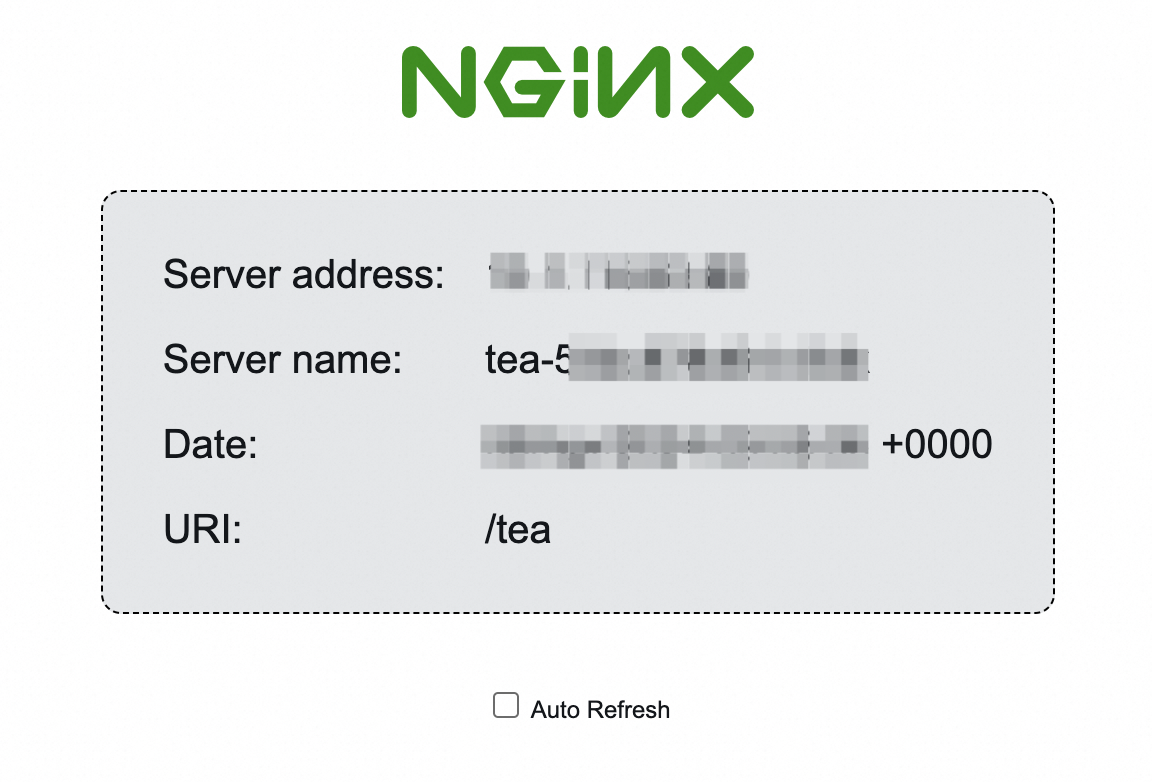
Use a client whose public IP address matches a whitelist entry (or does not match any blacklist entry) to access the backend Service.
This example uses the resources created in Get started with ALB Ingress.
If access is allowed, the client reaches the backend Service as expected.
Step 5: (Optional) Disassociate the ACL from the listener
To disassociate an ACL, remove its ID from the aclIds field or set aclIds to null.
apiVersion: alibabacloud.com/v1
kind: AlbConfig
metadata:
  name: default
spec:
  config:
   #...
  listeners:
    - port: #...
      protocol: #...
      aclConfig:
        aclType: White
        aclIds: null   # Removes the associated ACL
  #...
To delete the ACL itself, log on to the SLB console. You cannot delete an ACL from an AlbConfig.
Use the aclEntries parameter
Use this method to define ACL entries inline in the AlbConfig. The controller creates and manages the ACL automatically.
-
In ALB Ingress controller v2.7.0 and later, the
aclNameparameter no longer associates an existing ACL with a listener. Each time you updateaclName, a new ACL is created and associated. -
In ALB Ingress controller v2.6.0 and earlier, the write-back mechanism is enabled by default:
-
If
aclConfigis empty in the AlbConfig, ACL entries from the associated listener are written back to the AlbConfig. -
If
aclConfigis configured or entries have already been written back, the AlbConfig remains unchanged. When Ingress resources change, the controller uses the AlbConfig to overwrite the ACL configuration in the console — keep both in sync.
Step 1: Configure ACL entries in the AlbConfig
Add or update spec.listeners.aclConfig in the AlbConfig. Specify CIDR blocks in aclEntries and, optionally, a name in aclName.
If aclName is set, the ACL uses that name. If aclName is not set, the ACL name is auto-generated in the format acl-{albName}-{port}.
apiVersion: alibabacloud.com/v1
kind: AlbConfig
metadata:
  name: default
spec:
  config:
   #...
  listeners:
    - port: #...
      protocol: #...
      aclConfig:
        aclEntries:
          - 192.168.XX.XX/16
          - 172.10.XX.XX/16
        aclType: White   # Whitelist mode
        aclName: "acl-test"   # Creates an ACL named acl-test
  #...
The following table describes the aclConfig parameters.
| Parameter | Description |
|---|---|
aclEntries |
The ACL entries. Must be CIDR blocks, for example 127.0.0.1/32. |
aclType |
The ACL type. Valid values: Black (blacklist), White (whitelist). |
aclName |
The name of the ACL. If not specified, a name is auto-generated in the format acl-{albName}-{port}. |
Step 2: Verify the access control effect
Use a client whose public IP address matches a whitelist entry (or does not match any blacklist entry) to access the backend Service.
This example uses the resources created in Get started with ALB Ingress.
If access is allowed, the client reaches the backend Service as expected.
Step 3: (Optional) Remove ACL entries
Update the aclEntries field in the AlbConfig. The controller syncs the changes to the associated ACL.
The following example removes the 172.10.XX.XX/16 entry from the acl-test ACL, keeping only 192.168.XX.XX/16. Setting aclEntries to an empty list removes all entries from the ACL.
apiVersion: alibabacloud.com/v1
kind: AlbConfig
metadata:
  name: default
spec:
  config:
   #...
  listeners:
    - port: #...
      protocol: #...
      aclConfig:
        aclEntries:
          - 192.168.XX.XX/16   # 172.10.XX.XX/16 is removed from acl-test
        aclType: White
        aclName: "acl-test"
  #...
To delete the ACL itself, log on to the SLB console. You cannot delete an ACL from an AlbConfig.