Update CoreDNS manually when the Upgrade option is unavailable on the ACK console Add-ons page.
Prerequisites
You need:
Update notes
If kube-proxy uses IP Virtual Server (IPVS) mode, all DNS queries may fail or time out for about 5 minutes after the CoreDNS update. Avoid this with one of the following methods:
Modify the IPVS UDP session timeout in the kube-proxy configuration. See Configure the UDP timeout for an IPVS cluster.
Use NodeLocal DNSCache to optimize DNS resolution.
The update takes about 2 minutes, depending on the number of CoreDNS replicas. Existing replicas are not terminated, so service resolution is not affected.
Query the CoreDNS version
Console
-
Log on to the ACK console. In the left navigation pane, click Clusters.
On the Clusters page, click the name of your cluster. In the left navigation pane, click .
On the Deployments page, set Namespace to kube-system and check the CoreDNS version in the Image column.

kubectl
Query the CoreDNS version:
kubectl get deployment coredns -n kube-system -o jsonpath="{.spec.template.spec.containers[0].image}"Expected output:
registry-vpc.cn-hangzhou.aliyuncs.com/acs/coredns:1.6.2 # Version 1.6.2 is used in this example.Confirm the update version
The following table lists the CoreDNS versions compatible with each Kubernetes version. Use the latest compatible version.
Kubernetes version range | CoreDNS version(s) |
1.11 to 1.16 | 1.6.2 (discontinued) |
1.14.8 to 1.22 | 1.6.7 (discontinued) and 1.7.0 |
1.20.4 and later | 1.8.4 and 1.9.3 Important v1.8.4 and v1.9.3 have multiple minor versions, such as |
1.21 and later | 1.11.3 |
Update manually
Console
(Optional) Replace the
proxyfield with theforwardfield.The Proxy plugin was deprecated in CoreDNS v1.6.2. If upgrading from an earlier version, modify the CoreDNS configuration as follows.
-
Log on to the ACK console. In the left navigation pane, click Clusters.
On the Clusters page, click the name of your cluster. In the left navigation pane, click .
On the ConfigMap page, set Namespace to kube-system. Find the coredns ConfigMap and click Edit YAML in the Actions column.
In the View in YAML panel, replace proxy with forward and click OK.
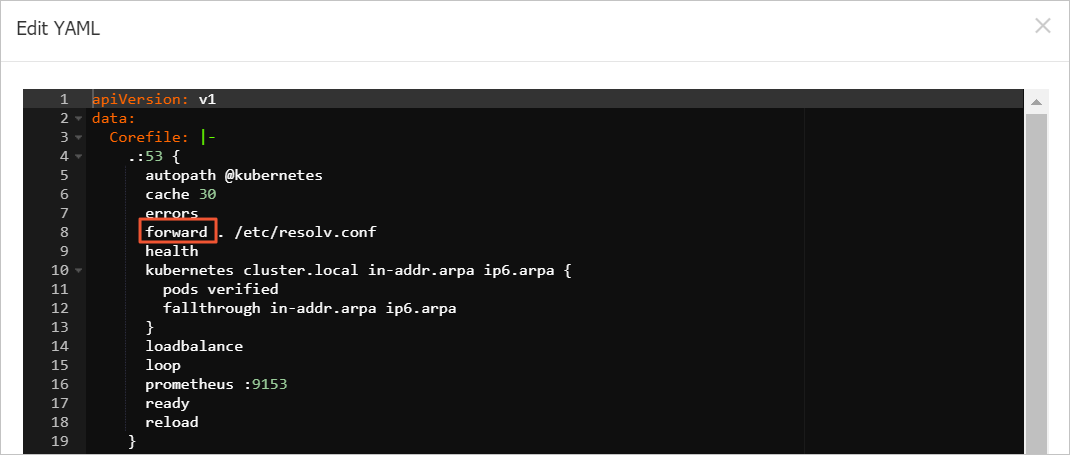
In the coredns ConfigMap YAML editor, locate the forward plugin line and modify it as needed. The complete ConfigMap is shown below:
apiVersion: v1
data:
  Corefile: |-
    .:53 {
      autopath @kubernetes
      cache 30
      errors
      forward . /etc/resolv.conf
      health
      kubernetes cluster.local in-addr.arpa ip6.arpa {
          pods verified
          fallthrough in-addr.arpa ip6.arpa
      }
      loadbalance
      loop
      prometheus :9153
      ready
      reload
    }
kind: ConfigMap
-
Change the image version of CoreDNS.
-
Log on to the ACK console. In the left navigation pane, click Clusters.
On the Clusters page, click the name of your cluster. In the left navigation pane, click .
On the Deployments page, set Namespace to kube-system. Find coredns and choose
 > Edit YAML in the Actions column.
In the Edit YAML dialog box, change the version number in the
imagefield and click Update.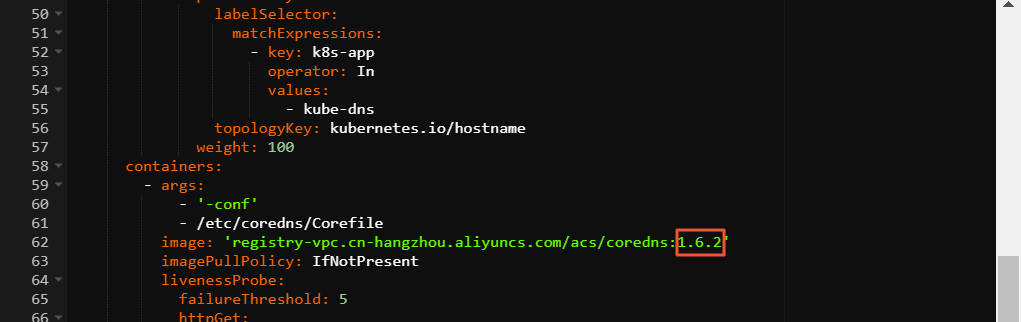
In the YAML edit dialog, locate the CoreDNS Deployment configuration and confirm the image version in the
imagefield (for example,1.6.2). Key YAML snippet:labelSelector: matchExpressions: - key: k8s-app operator: In values: - kube-dns topologyKey: kubernetes.io/hostname weight: 100 containers: - args: - '-conf' - /etc/coredns/Corefile image: 'registry-vpc.cn-hangzhou.aliyuncs.com/acs/coredns:1.6.2' imagePullPolicy: IfNotPresent livenessProbe: failureThreshold: 5 httpGet: ...
-
Verify the update.
Query the CoreDNS version:
kubectl get deployment coredns -n kube-system -o jsonpath="{.spec.template.spec.containers[0].image}"Expected output:
registry-cn-shanghai-vpc.ack.aliyuncs.com/acs/coredns:v1.9.3.10-5e7ba42d-aliyunCheck whether all CoreDNS pods are in the Running state:
kubectl get pods -n kube-system | grep corednsExpected output:
coredns-78d4b8****-6g62w                           1/1     Running   0          9d
coredns-78d4b8****-n6wjm                           1/1     Running   0          9d
kubectl
(Optional) Replace the
proxyfield with theforwardfield.The Proxy plugin was deprecated in CoreDNS v1.6.2. If upgrading from an earlier version, modify the CoreDNS configuration as follows.
Change the version number in the
imagefield of the CoreDNS Deployment, then save and exit:kubectl edit deployment/coredns -n kube-systemVerify the update.
Query the CoreDNS version:
kubectl get deployment coredns -n kube-system -o jsonpath="{.spec.template.spec.containers[0].image}"Expected output:
registry-cn-shanghai-vpc.ack.aliyuncs.com/acs/coredns:v1.9.3.10-5e7ba42d-aliyunCheck whether all CoreDNS pods are in the Running state:
kubectl get pods -n kube-system | grep corednsExpected output:
coredns-78d4b8****-6g62w                           1/1     Running   0          9d
coredns-78d4b8****-n6wjm                           1/1     Running   0          9d
Configure the UDP timeout for an IPVS cluster
If your cluster uses kube-proxy in IPVS mode, reduce the IPVS UDP session persistence timeout to 10 seconds to limit post-upgrade DNS failures.
If your cluster has UDP-based services, evaluate the impact of reducing the UDP timeout before you proceed.
Kubernetes 1.18 or later
Using the console
-
Log on to the ACK console and click Clusters in the left navigation pane.
-
On the Clusters page, click the cluster name. Choose Configurations > ConfigMaps in the left navigation pane.
-
On the ConfigMaps page, select the kube-system namespace, find kube-proxy-worker, and click Edit YAML in the Actions column.
-
In the Edit YAML panel, add
udpTimeout: 10sunder theipvsfield and click OK.apiVersion: v1 data: config.conf: | apiVersion: kubeproxy.config.k8s.io/v1alpha1 kind: KubeProxyConfiguration # Other irrelevant fields are omitted. mode: ipvs # If the ipvs key does not exist, add it. ipvs: udpTimeout: 10s -
Recreate all kube-proxy-worker Pods.
-
On the cluster details page, choose Workloads > DaemonSets in the left navigation pane.
-
In the DaemonSet list, click kube-proxy-worker.
-
On the kube-proxy-worker page, click the Pods tab. For each Pod, choose More > Delete and click OK. The system recreates them automatically.
-
-
Verify the UDP timeout configuration.
-
Install
ipvsadm:sudo yum install -y ipvsadm -
On any ECS node in the cluster, run:
sudo ipvsadm -L --timeoutIf the third number in the output is
10, the UDP timeout is set correctly.Important: After you configure the timeout, wait at least five minutes before upgrading CoreDNS.
-
Using the command line
-
Edit the kube-proxy-worker ConfigMap:
kubectl -n kube-system edit configmap kube-proxy-worker -
Add
udpTimeout: 10sunder theipvsfield, then save and exit.apiVersion: v1 data: config.conf: | apiVersion: kubeproxy.config.k8s.io/v1alpha1 kind: KubeProxyConfiguration # Other irrelevant fields are omitted. mode: ipvs # If the ipvs key does not exist, add it. ipvs: udpTimeout: 10s -
Recreate all kube-proxy-worker Pods.
-
List the kube-proxy-worker Pods:
kubectl -n kube-system get pod -o wide | grep kube-proxy-worker -
Delete each Pod. The system recreates them automatically.
kubectl -n kube-system delete pod <kube-proxy-worker-****>Replace
<kube-proxy-worker-****>with the Pod names from the previous step.
-
-
Verify the UDP timeout configuration.
-
Install
ipvsadm:sudo yum install -y ipvsadm -
On any ECS node in the cluster, run:
sudo ipvsadm -L --timeoutIf the third number in the output is
10, the UDP timeout is set correctly.Important: After you configure the timeout, wait at least five minutes before upgrading CoreDNS.
-
Kubernetes 1.16 or earlier
kube-proxy in clusters running Kubernetes 1.16 or earlier does not support the udpTimeout parameter. Use Operation Orchestration Service (OOS) to run these ipvsadm commands in batches on all cluster nodes:
sudo yum install -y ipvsadm
sudo ipvsadm -L --timeout > /tmp/ipvsadm_timeout_old
sudo ipvsadm --set 900 120 10
sudo ipvsadm -L --timeout > /tmp/ipvsadm_timeout_new
diff /tmp/ipvsadm_timeout_old /tmp/ipvsadm_timeout_new
See Batch operation instances for running batch operations in OOS.
Next steps
After the update, optimize CoreDNS configurations for your workload.