OSS persistent volumes (PVs) support multiple clients, but full write support degrades read performance. Read/write splitting addresses this by routing reads and writes through separate mount paths, improving throughput in read-intensive workloads such as model training, inference, and data analytics.
Implement read/write splitting for OSS PVs with ossfs or the OSS SDK, demonstrated through an MNIST handwriting recognition training job.
Prerequisites
Ensure that you have:
The latest Container Storage Interface (CSI) component is installed. Different clients require different CSI versions. See Manage csi-plugin and csi-provisioner components.
An OSS bucket in the same Alibaba Cloud account as the cluster.
Cross-account OSS access is not recommended.
Choose a client
OSS PVs support three clients — ossfs 1.0, ossfs 2.0, and strmvol — Each client supports read-only access; write capabilities differ:
Client | Read-only | Read/write | Best for |
ossfs 1.0 | Yes | Full write | General read/write workloads; direct read mode available (v1.91+) |
ossfs 2.0 | Yes | Sequential append writes only | Read-heavy workloads; requires CSI >= 1.33.1 |
strmvol | Yes | — | Many small files (datasets, time-series logs, quantitative backtesting) |
Use cases
Read-only access
Set the PV access mode to ReadOnlyMany to prevent accidental data modification — suitable for inference, data analytics, and log queries.
For read-heavy workloads, use ossfs 2.0 (CSI >= 1.33.1). See Use ossfs 2.0 PVs.
For many small files, use strmvol. See Use strmvol PVs.
Configure these otherOpts parameters to tune ossfs 1.0 for read-only scenarios. Most workloads can use the defaults.
Parameter | Default | Description |
| Disabled | Enables the kernel buffer cache for non-real-time reads. Uses free memory for caching. |
| 20 | Concurrent shards for large file uploads and downloads. |
| 20 | Maximum concurrent metadata listing requests. Must be >= |
| 1000 | Number of cached metadata entries. Set to |
| Disabled | Direct read mode for read-only scenarios (ossfs >= 1.91). See Features and performance testing of the new ossfs 1.0 version and Performance optimization for read-only scenarios. |
Read/write access
Set the PV access mode to ReadWriteMany for workloads that write data.
ossfs does not guarantee consistency for concurrent writes — multiple writers on the same objects can cause data corruption. Use a single writer per path for checkpoint writes.
Deleting or modifying files in the mounted path also deletes or modifies objects in the OSS bucket. Enable versioning to protect against data loss.
For read-intensive workloads with separate read and write paths (such as model training), mount the read path as ReadOnlyMany with caching enabled, and handle writes through a ReadWriteMany PV or the OSS SDK.
How read/write splitting works
Read/write splitting routes reads and writes through separate mount points, each pointing to a different subpath of the same OSS bucket. This isolates read I/O from write I/O.
Read path — Mount a subpath (e.g.,
/tf-train/train/data) asReadOnlyManywith caching enabled. Repeated reads are served from memory.Write path — Mount a different subpath (e.g.,
/tf-train/training_logs) asReadWriteMany, or write directly via the SDK.
Example: MNIST handwriting recognition training
The training job:
Reads the training dataset from
/tf-train/train/datain the OSS bucket using a read-only PV.Writes training checkpoints to
/tf-train/training_logsusing either a read/write PV or the OSS SDK.
Download the MNIST dataset and upload it to /tf-train/train/data in your OSS bucket:
File organization in the OSS bucket:

Implement read/write operations using ossfs
Because checkpoint writes are sequential appends, both ossfs 1.0 and ossfs 2.0 work for the write path.
Deploy the training application. The application mounts the
/tf-trainsubpath of the OSS bucket to the/mntdirectory of the pod. See Use ossfs 1.0 statically provisioned volumes or Use ossfs 2.0 PVs.Create an ossfs 1.0 PV:
cat << EOF | kubectl apply -f -
apiVersion: v1
kind: Secret
metadata:
  name: oss-secret
  namespace: default
stringData:
  akId: "<your-accesskey-id>"
  akSecret: "<your-accesskey-secret>"
---
apiVersion: v1
kind: PersistentVolume
metadata:
  name: tf-train-pv
  labels:
    alicloud-pvname: tf-train-pv
spec:
  capacity:
    storage: 10Gi
  accessModes:
    - ReadWriteMany
  persistentVolumeReclaimPolicy: Retain
  csi:
    driver: ossplugin.csi.alibabacloud.com
    volumeHandle: tf-train-pv
    nodePublishSecretRef:
      name: oss-secret
      namespace: default
    volumeAttributes:
      bucket: "<your-bucket-name>"
      url: "oss-<region>.aliyuncs.com"
      otherOpts: "-o max_stat_cache_size=0 -o allow_other"
      path: "/tf-train"
---
apiVersion: v1
kind: PersistentVolumeClaim
metadata:
  name: tf-train-pvc
spec:
  accessModes:
  - ReadWriteMany
  resources:
    requests:
      storage: 10Gi
  selector:
    matchLabels:
      alicloud-pvname: tf-train-pv
EOF
Create the training pod:
During training, ossfs uploads files from
/mnt/training_logs(pod) to/tf-train/training_logs(OSS bucket).cat << EOF | kubectl apply -f - apiVersion: v1 kind: Pod metadata: labels: app: tfjob name: tf-mnist namespace: default spec: containers: - command: - sh - -c - python /app/main.py env: - name: NVIDIA_VISIBLE_DEVICES value: void - name: gpus value: "0" - name: workers value: "1" - name: TEST_TMPDIR value: "/mnt" image: registry.cn-beijing.aliyuncs.com/tool-sys/tf-train-demo:rw imagePullPolicy: Always name: tensorflow ports: - containerPort: 20000 name: tfjob-port protocol: TCP volumeMounts: - name: train mountPath: "/mnt" workingDir: /root priority: 0 restartPolicy: Never securityContext: {} terminationGracePeriodSeconds: 30 volumes: - name: train persistentVolumeClaim: claimName: tf-train-pvc EOF
Verify data reads and writes.
Check the pod status:
kubectl get pod tf-mnistWait for the status to change from
RunningtoCompleted:NAME READY STATUS RESTARTS AGE tf-mnist 0/1 Completed 0 2m12sCheck the data load time:
kubectl logs tf-mnist | grep dataloadExpected output:
dataload cost time: 1.54191803932Log in to the OSS Management Console and verify that files exist under
/tf-train/training_logsin the bucket.
Optimize read performance using read/write splitting
Split the single read/write PV into two: a read-only PV with cache tuning for the dataset, and a write PV for checkpoints. Only the mount configuration changes — the training code stays the same.
Two write options:
Option 1: Use a separate read/write ossfs PV for checkpoint writes.
Option 2: Use the OSS SDK to write checkpoints directly, bypassing ossfs entirely.
Option 1: Write using a read/write ossfs PV
Create a read-only ossfs 1.0 PV for the dataset. The key configuration changes:
Set
accessModestoReadOnlyManyon both the PV and PVC. Mount the dataset subpath/tf-train/train/data.In
otherOpts, add-o kernel_cache -o max_stat_cache_size=10000 -o umask=022:kernel_cacheenables in-memory read caching.max_stat_cache_size=10000caches 10,000 metadata entries (~40 MB). Adjust based on instance type and dataset size.umask=022grants read access to non-root container processes.
cat << EOF | kubectl apply -f -
apiVersion: v1
kind: Secret
metadata:
  name: oss-secret
  namespace: default
stringData:
  akId: "<your-accesskey-id>"
  akSecret: "<your-accesskey-secret>"
---
apiVersion: v1
kind: PersistentVolume
metadata:
  name: tf-train-pv
  labels:
    alicloud-pvname: tf-train-pv
spec:
  capacity:
    storage: 10Gi
  accessModes:
    - ReadOnlyMany
  persistentVolumeReclaimPolicy: Retain
  csi:
    driver: ossplugin.csi.alibabacloud.com
    volumeHandle: tf-train-pv
    nodePublishSecretRef:
      name: oss-secret
      namespace: default
    volumeAttributes:
      bucket: "<your-bucket-name>"
      url: "oss-<region>.aliyuncs.com"
      otherOpts: "-o kernel_cache -o max_stat_cache_size=10000 -o umask=022 -o allow_other"
      path: "/tf-train/train/data"
---
apiVersion: v1
kind: PersistentVolumeClaim
metadata:
  name: tf-train-pvc
spec:
  accessModes:
  - ReadOnlyMany
  resources:
    requests:
      storage: 10Gi
  selector:
    matchLabels:
      alicloud-pvname: tf-train-pv
EOF
Create a read/write ossfs 1.0 PV for checkpoints, mounting the subpath
/tf-train/training_logs. Metadata caching is disabled (max_stat_cache_size=0) because sequential checkpoint writes do not benefit from caching.cat << EOF | kubectl apply -f - apiVersion: v1 kind: PersistentVolume metadata: name: tf-logging-pv labels: alicloud-pvname: tf-logging-pv spec: capacity: storage: 10Gi accessModes: - ReadWriteMany persistentVolumeReclaimPolicy: Retain csi: driver: ossplugin.csi.alibabacloud.com volumeHandle: tf-logging-pv nodePublishSecretRef: name: oss-secret namespace: default volumeAttributes: bucket: "<your-bucket-name>" url: "oss-<region>.aliyuncs.com" otherOpts: "-o max_stat_cache_size=0 -o allow_other" path: "/tf-train/training_logs" --- apiVersion: v1 kind: PersistentVolumeClaim metadata: name: tf-logging-pvc spec: accessModes: - ReadWriteMany resources: requests: storage: 10Gi selector: matchLabels: alicloud-pvname: tf-logging-pv EOFDeploy the training pod with both PVs mounted.
No code changes needed. Mount both PVs — the read-only PV at
/mnt/train/dataand the read/write PV at/mnt/training_logs.cat << EOF | kubectl apply -f - apiVersion: v1 kind: Pod metadata: labels: app: tfjob name: tf-mnist namespace: default spec: containers: - command: - sh - -c - python /app/main.py env: - name: NVIDIA_VISIBLE_DEVICES value: void - name: gpus value: "0" - name: workers value: "1" - name: TEST_TMPDIR value: "/mnt" image: registry.cn-beijing.aliyuncs.com/tool-sys/tf-train-demo:rw imagePullPolicy: Always name: tensorflow ports: - containerPort: 20000 name: tfjob-port protocol: TCP volumeMounts: - name: train mountPath: "/mnt/train/data" - name: logging mountPath: "/mnt/training_logs" workingDir: /root priority: 0 restartPolicy: Never securityContext: {} terminationGracePeriodSeconds: 30 volumes: - name: train persistentVolumeClaim: claimName: tf-train-pvc - name: logging persistentVolumeClaim: claimName: tf-logging-pvc EOF
Option 2: Write using the OSS SDK
Write checkpoints directly to OSS with the SDK — no read/write PV needed. The pod reads from a read-only PV and writes via the SDK.
Add the OSS Python SDK to the container image:
RUN pip install oss2See Installation.
Modify the training code to upload checkpoints using the SDK. The original code saves checkpoints to
log_direvery 100 iterations usingtf.train.Saverwithmax_to_keep=0, producing 10 checkpoint sets after 1,000 iterations.Set
max_to_keep=1to retain only the latest checkpoint, reducing memory usage.Upload each checkpoint to OSS with
put_object_from_fileafter saving.
Use asynchronous I/O with the SDK to further improve throughput when read and write paths are separated.
def train():
    ...
saver = tf.train.Saver(max_to_keep=0)

    for i in range(FLAGS.max_steps):
        if i % 10 == 0:  # Record summaries and test-set accuracy
            summary, acc = sess.run([merged, accuracy], feed_dict=feed_dict(False))
            print('Accuracy at step %s: %s' % (i, acc))
            if i % 100 == 0:
                print('Save checkpoint at step %s: %s' % (i, acc))
                saver.save(sess, FLAGS.log_dir + '/model.ckpt', global_step=i)
Replace with SDK-based uploads. Two changes reduce memory usage and eliminate the read/write PV: read the AccessKey and bucket settings from environment variables. See Configure access credentials.
import oss2
from oss2.credentials import EnvironmentVariableCredentialsProvider

auth = oss2.ProviderAuth(EnvironmentVariableCredentialsProvider())
url = os.getenv('URL','<default-url>')
bucketname = os.getenv('BUCKET','<default-bucket-name>')
bucket = oss2.Bucket(auth, url, bucketname)

...
def train():
  ...
  saver = tf.train.Saver(max_to_keep=1)

 for i in range(FLAGS.max_steps):
    if i % 10 == 0:  # Record summaries and test-set accuracy
      summary, acc = sess.run([merged, accuracy], feed_dict=feed_dict(False))
      print('Accuracy at step %s: %s' % (i, acc))
      if i % 100 == 0:
        print('Save checkpoint at step %s: %s' % (i, acc))
        saver.save(sess, FLAGS.log_dir + '/model.ckpt', global_step=i)
        # FLAGS.log_dir = os.path.join(os.getenv('TEST_TMPDIR', '/mnt'),'training_logs')
        for path,_,file_list in os.walk(FLAGS.log_dir) :
          for file_name in file_list:
            bucket.put_object_from_file(os.path.join('tf-train/training_logs', file_name), os.path.join(path, file_name))
The modified container image is
registry.cn-beijing.aliyuncs.com/tool-sys/tf-train-demo:ro.Deploy the pod with the read-only PV and SDK credentials. The pod sets
accessModestoReadOnlyManyand passesOSS_ACCESS_KEY_IDandOSS_ACCESS_KEY_SECRETso the SDK authenticates with the same credentials as the PV.cat << EOF | kubectl apply -f - apiVersion: v1 kind: Secret metadata: name: oss-secret namespace: default stringData: akId: "<your-accesskey-id>" akSecret: "<your-accesskey-secret>" --- apiVersion: v1 kind: PersistentVolume metadata: name: tf-train-pv labels: alicloud-pvname: tf-train-pv spec: capacity: storage: 10Gi accessModes: - ReadOnlyMany persistentVolumeReclaimPolicy: Retain csi: driver: ossplugin.csi.alibabacloud.com volumeHandle: tf-train-pv nodePublishSecretRef: name: oss-secret namespace: default volumeAttributes: bucket: "<your-bucket-name>" url: "oss-<region>.aliyuncs.com" otherOpts: "-o kernel_cache -o max_stat_cache_size=10000 -o umask=022 -o allow_other" path: "/tf-train/train/data" --- apiVersion: v1 kind: PersistentVolumeClaim metadata: name: tf-train-pvc spec: accessModes: - ReadOnlyMany resources: requests: storage: 10Gi selector: matchLabels: alicloud-pvname: tf-train-pv --- apiVersion: v1 kind: Pod metadata: labels: app: tfjob name: tf-mnist namespace: default spec: containers: - command: - sh - -c - python /app/main.py env: - name: NVIDIA_VISIBLE_DEVICES value: void - name: gpus value: "0" - name: workers value: "1" - name: TEST_TMPDIR value: "/mnt" - name: OSS_ACCESS_KEY_ID #The source of the AccessKey is the same as that of the PV. valueFrom: secretKeyRef: name: oss-secret key: akId - name: OSS_ACCESS_KEY_SECRET #The source of the AccessKey is the same as that of the PV. valueFrom: secretKeyRef: name: oss-secret key: akSecret - name: URL #You can ignore this if a default URL is configured. value: "https://oss-<region>.aliyuncs.com" - name: BUCKET #You can ignore this if a default BUCKET is configured. value: "<bucket-name>" image: registry.cn-beijing.aliyuncs.com/tool-sys/tf-train-demo:ro imagePullPolicy: Always name: tensorflow ports: - containerPort: 20000 name: tfjob-port protocol: TCP volumeMounts: - name: train mountPath: "/mnt/train/data" workingDir: /root priority: 0 restartPolicy: Never securityContext: {} terminationGracePeriodSeconds: 30 volumes: - name: train persistentVolumeClaim: claimName: tf-train-pvc EOF
Verify read/write splitting
After deploying with either write option:
Check the pod status:
kubectl get pod tf-mnistWait for the status to change to
Completed:NAME READY STATUS RESTARTS AGE tf-mnist 0/1 Completed 0 2m25sCheck the data load time:
kubectl logs tf-mnist | grep dataloadWith read/write splitting and kernel cache enabled, the data load time drops:
dataload cost time: 0.843528985977The baseline without splitting is approximately 1.54 seconds. Larger training jobs and repeated data loads show greater improvement.
Log in to the OSS Management Console and verify that checkpoint files are present under
/tf-train/training_logsin the bucket.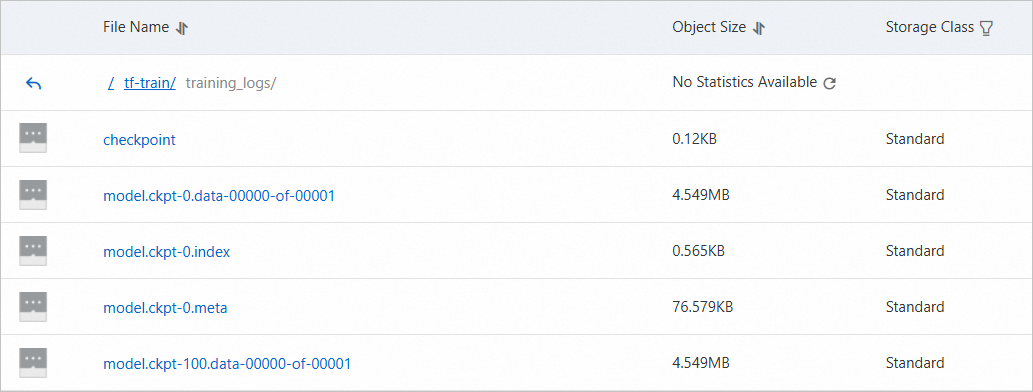
References
OSS SDK reference
This topic uses the Python SDK. Other available SDKs:
For other SDKs (PHP, Node.js, Browser.js, .NET, Android, iOS, Ruby), see SDK Reference.
Other write tools
These tools also support writing to OSS:
Tool | Reference |
OpenAPI | |
ossutil command line interface | |
ossbrowser graphical management tool |