
The csi-secrets-store-provider-alibabacloud plug-in lets you pull encryption parameters from CloudOps Orchestration Service (OOS) directly into your Container Service for Kubernetes (ACK) cluster—either by mounting them as files via CSI inline volumes or by synchronizing them into Kubernetes Secrets. The plug-in also supports automatic secret rotation to keep your pods up to date without manual intervention.
Security notes
Before proceeding, assess the following security risks:
File system exposure: When secrets are accessible through the file system, attackers can exploit Common Vulnerabilities and Exposures (CVE) vulnerabilities in applications to traverse cluster directories and exfiltrate secrets.
Environment variable risks: Debugging breakpoints and misconfigured log permissions can expose secrets stored as environment variables. Avoid mounting secrets as environment variables.
Least privilege: When enabling secret synchronization, strictly follow the least privilege principle to limit access permissions.
If your application does not need to persist secrets, grant least-privilege access to pods using RRSA authorization, then configure your application to call the GetSecretParameter API directly. This approach avoids exposing encryption parameters in the pod file system or Kubernetes Secrets.
Prerequisites
Before you begin, ensure that you have:
An ACK cluster that meets the following requirements:
Kubernetes version 1.20 or later
Cluster type: ACK managed cluster, ACK dedicated cluster, or registered cluster (ACK Serverless is not supported)
The cluster and OOS encryption parameters are in the same region
An OOS encryption parameter. See Create an encrypted parameter and CreateSecretParameter
Step 1: Configure authentication
The plug-in needs permission to read encryption parameters from OOS. Choose the authentication method that matches your cluster type and Kubernetes version.
| Method | Supported cluster types | Kubernetes version |
|---|---|---|
| RRSA (recommended) | ACK managed clusters | 1.22 or later |
| Worker RAM role | ACK managed, dedicated, and registered clusters | Any |
| AccessKey pair | All cluster types | Any |
RRSA is recommended when available—it isolates permissions at the pod level and avoids the security risks of embedding AccessKey credentials.
Grant permissions by using RRSA
RAM Roles for Service Accounts (RRSA) applies to ACK managed clusters running Kubernetes 1.22 or later.
Enable RRSA in the ACK consoleACK console to create an identity provider. For details, see Enable RRSA.
Create a RAM role with Identity Provider as the Principal Type. Configure the following key parameters. For full steps, see Create a RAM role for an OIDC IdP.
Install components in the default
kube-systemnamespace. If you install csi-secrets-store-provider-alibabacloud in a different namespace, replacekube-systemwith that namespace.Parameter Value Identity provider type OIDC Identity provider Select the provider named ack-rrsa-<cluster_id>, where<cluster_id>is your cluster IDConditions: oidc:iss Keep the default value Conditions: oidc:aud Keep the default value Conditions: oidc:sub Add a StringEqualscondition with valuesystem:serviceaccount:<namespace>:<serviceAccountName>. For the test application in this topic, usesystem:serviceaccount:kube-system:csi-secrets-store-provider-alibabacloudCreate a custom RAM policy and attach it to the RAM role.
Create a policy with the following content. For details, see Create custom policies. ``
json { "Action": [ "oos:GetSecretParameter", "kms:GetSecretValue" ], "Resource": [ "*" ], "Effect": "Allow" }``Attach the policy to the RAM role. See Grant permissions to a RAM role.
Create the
alibaba-credentialsSecret in the cluster.Create a file named
secretstore-rrsa.yamlwith the following content. Replace{rolearn}with the Base64-encoded ARN of the RAM role you created in step 2, and{oidcproviderarn}with the Base64-encoded provider ARN generated when you enabled RRSA.yaml apiVersion: v1 data: rolearn: {rolearn} oidcproviderarn: {oidcproviderarn} kind: Secret metadata: name: alibaba-credentials namespace: kube-system type: OpaqueDeploy the Secret: ``
bash kubectl apply -f secretstore-rrsa.yaml``
Grant permissions to the worker RAM role
This method applies to ACK managed clusters, ACK dedicated clusters, and registered clusters.
Create a custom policy with the following content. See Create custom policies.
{
  "Action": [
    "oos:GetSecretParameter",
    "kms:GetSecretValue"
  ],
  "Resource": [
    "*"
  ],
  "Effect": "Allow"
}
Attach the policy to the worker RAM role. See Grant permissions to the worker RAM role.
Specify an AccessKey pair to assume a RAM role
This method works with all ACK cluster types.
Create a RAM role for a trusted Alibaba Cloud account. See Create a RAM role for a trusted Alibaba Cloud account.
Create a custom policy granting OOS access and attach it to the RAM role.
Create a policy with the following content. See Create custom policies. ``
json { "Action": [ "oos:GetSecretParameter", "kms:GetSecretValue" ], "Resource": [ "*" ], "Effect": "Allow" }``Attach the policy to the RAM role. See Grant permissions to a RAM role.
Create a custom RAM policy granting
sts:AssumeRolepermission and attach it to the RAM user.Create a policy with the following content, replacing the ARN with the Alibaba Cloud Resource Name (ARN) of the RAM role you created in step 1. See Create custom policies.
json { "Statement": [ { "Action": "sts:AssumeRole", "Effect": "Allow", "Resource": "acs:ram::*:role/**" } ], "Version": "1" }Attach the policy to the RAM user. See Grant permissions to RAM users.
Create the
alibaba-credentialsSecret in the cluster.Create a file named
alibaba-credentials.yamlwith the following content. Replace{rolearn}with the Base64-encoded ARN of the RAM role,{ak}with the Base64-encoded AccessKey ID of the RAM user, and{sk}with the Base64-encoded AccessKey secret of the RAM user.yaml apiVersion: v1 data: id: {ak} secret: {sk} rolearn: {rolearn} kind: Secret metadata: name: alibaba-credentials namespace: kube-system type: OpaqueDeploy the Secret: ``
bash kubectl apply -f alibaba-credentials.yaml``
Step 2: Install the csi-secrets-store-provider-alibabacloud component
Log on to the ACK consoleACK console. In the left-side navigation pane, click Clusters.
On the Clusters page, click the name of the cluster you want to manage. In the left-side navigation pane, choose Applications > Helm.
On the Helm page, click Deploy. In the Chart section, search for csi-secrets-store-provider-alibabacloud and keep the default settings for other parameters. Click Next. In the dialog box that appears, confirm that the component is installed in the default
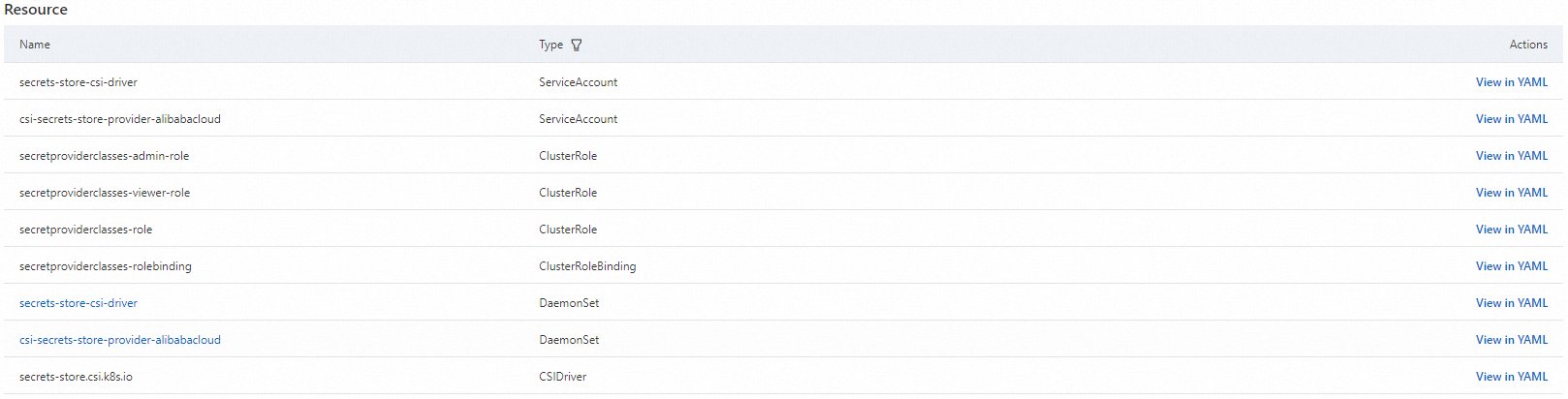
kube-systemnamespace. To use a custom namespace and application name, configure them as prompted.Set Chart Version to the latest version. In the Parameters section, configure parameters based on your authentication method and click OK. After installation, you are redirected to the csi-secrets-store-provider-alibabacloud page. If all resources shown in the following figure are created, the component is installed successfully.
RRSA: Set
rrsa.enabletotrueand configure the following parameters:
yaml envVarsFromSecret: # ACCESS_KEY_ID: # secretKeyRef: alibaba-credentials # key: id # SECRET_ACCESS_KEY: # secretKeyRef: alibaba-credentials # key: secret ALICLOUD_ROLE_ARN: secretKeyRef: alibaba-credentials key: rolearn # ALICLOUD_ROLE_SESSION_NAME: # secretKeyRef: alibaba-credentials # key: rolesessionname # ALICLOUD_ROLE_SESSION_EXPIRATION: # secretKeyRef: alibaba-credentials # key: rolesessionexpiration ALICLOUD_OIDC_PROVIDER_ARN: secretKeyRef: alibaba-credentials key: oidcproviderarnWorker RAM role: Use the default parameter settings.
AccessKey pair: Configure the following parameters:
yaml envVarsFromSecret: ACCESS_KEY_ID: secretKeyRef: alibaba-credentials key: id SECRET_ACCESS_KEY: secretKeyRef: alibaba-credentials key: secret ALICLOUD_ROLE_ARN: secretKeyRef: alibaba-credentials key: rolearn # ALICLOUD_ROLE_SESSION_NAME: # secretKeyRef: alibaba-credentials # key: rolesessionname # ALICLOUD_ROLE_SESSION_EXPIRATION: # secretKeyRef: alibaba-credentials # key: rolesessionexpiration # ALICLOUD_OIDC_PROVIDER_ARN: # secretKeyRef: alibaba-credentials # key: oidcproviderarnSecret rotation (optional): To enable automatic synchronization of encryption parameter updates, configure the following parameters:

Parameter Description secrets-store-csi-driver.enableSecretRotationSet to trueto enable automatic rotationsecrets-store-csi-driver.rotationPollIntervalSpecify the frequency at which the encryption parameters are synchronized. In this example, this parameter is set to 120seconds, which specifies that the encryption parameters are synchronized every 2 minutes. You can adjust the value as needed
Step 3: Configure data synchronization
Use a SecretProviderClass resource to define which OOS encryption parameters to pull into your cluster and how to expose them to pods.
SecretProviderClass parameters
All SecretProviderClass resources for this plug-in use provider: alibabacloud.
apiVersion: secrets-store.csi.x-k8s.io/v1alpha1
kind: SecretProviderClass
metadata:
  name: <NAME>
spec:
  provider: alibabacloud
  parameters:
The parameters section supports the following fields:
| Parameter | Required | Description |
|---|---|---|
objects | Yes | YAML configuration listing the encryption parameters to mount. Each entry supports the subfields described below |
region | No | The OOS region to send requests to. If omitted, the region of the current node is used. Specify this field explicitly when your application runs across many pods to avoid performance overhead |
pathTranslation | No | The character used to replace path separators (/) in parameter names. Defaults to underscore (_). For example, My/Path/Secret becomes My_Path_Secret. Set to "False" to disable replacement |
`objects` subfields:
| Subfield | Required | Description |
|---|---|---|
objectName | Yes | The name of the encryption parameter in the OOS parameter store |
objectType | No | The Alibaba Cloud service to read from. Supported values: kms (default) and oos. Must be set to oos for OOS encryption parameters |
objectAlias | No | The filename used when mounting the parameter to the pod. Defaults to the value of objectName |
jmesPath | No | Extracts specific key-value pairs from JSON-formatted encryption parameters. When used, specify path (required, a JMESPath expression) and objectAlias (optional, the mounted filename) |
Example: parsing a JSON encryption parameter
If an OOS encryption parameter contains:
{
  "username": "testuser",
  "password": "testpassword"
}
Use jmesPath to mount username and password as separate files:
objects: |
  - objectName: "MySecret"
    objectType: "oos"
    jmesPath:
      - path: "username"
        objectAlias: "username"
      - path: "password"
        objectAlias: "password"
Deploy an example application
This example imports the OOS encryption parameter test into an ACK managed cluster in the same region.
Create a file named
secretstore.yamlwith the following content:apiVersion: secrets-store.csi.x-k8s.io/v1 kind: SecretProviderClass metadata: name: test-secrets spec: provider: alibabacloud parameters: objects: | # objectType defaults to kms; set to oos for OOS parameters - objectName: "test" - objectType: "oos"Apply the SecretProviderClass:
kubectl apply -f secretstore.yamlCreate a file named
deploy.yamlwith the following content. The Deployment mounts the encryption parameter at/mnt/secrets-storein the pod using a CSI inline volume. For additional examples, see Deployment examples.apiVersion: apps/v1 kind: Deployment metadata: name: nginx-deployment-basic labels: app: nginx spec: replicas: 2 selector: matchLabels: app: nginx template: metadata: labels: app: nginx spec: volumes: - name: secrets-store-inline csi: driver: secrets-store.csi.k8s.io readOnly: true volumeAttributes: secretProviderClass: "test-secrets" containers: - name: nginx image: anolis-registry.cn-zhangjiakou.cr.aliyuncs.com/openanolis/nginx:1.14.1-8.6 ports: - containerPort: 80 resources: limits: cpu: "500m" volumeMounts: - name: secrets-store-inline mountPath: "/mnt/secrets-store" readOnly: trueDeploy the application:
kubectl apply -f deploy.yamlVerify that the secret is mounted. Log on to a pod, check whether the encryption parameter specified in the SecretProviderClass is created in the mount target
/mnt/secrets-store, and then check whether the encryption parameter contains the corresponding ciphertext stored in OOS.
What's next
To import OOS encryption parameters into ACK Serverless clusters, see Use ack-secret-manager to import OOS encryption parameters.
To protect Kubernetes Secrets synchronized from OOS and cached in ACK clusters, enable Secret encryption. See Use KMS to encrypt Kubernetes Secrets.