ACK clusters do not support HTTPS access by default. To secure traffic between external clients and your applications, configure a TLS/SSL certificate using one of two approaches: terminate TLS at the Server Load Balancer (SLB) instance, or terminate TLS at the Ingress layer. This topic describes how to set up each approach.
Choose an approach
| SLB-level TLS | Ingress-level TLS | |
|---|---|---|
| How it works | TLS is terminated at the SLB instance. Traffic from SLB to the cluster travels over HTTP. | TLS is terminated at the Ingress controller. Certificates are stored as Kubernetes Secrets. |
| Best for | Applications exposed via LoadBalancer Services | Applications that require per-app certificates, or that must only be accessible over HTTPS |
| Trade-off | You must maintain domain-to-IP mappings manually as apps scale | No changes needed to SLB configuration |
Prerequisites
Before you begin, ensure that you have:
-
An ACK managed cluster. See Create an ACK managed cluster
-
An SSL/TLS certificate consisting of a public key certificate and a private key. Either:
-
Generate a self-signed certificate:
openssl req -x509 -nodes -days 365 -newkey rsa:2048 -keyout tls.key -out tls.crtThe command prompts for certificate details and saves
tls.crt(public key) andtls.key(private key) in the current directory. The following shows sample input values:Generating a 2048 bit RSA private key .......+++ .......+++ writing new private key to 'tls.key' ----- You are about to be asked to enter information that will be incorporated into your certificate request. What you are about to enter is what is called a Distinguished Name or a DN. There are quite a few fields but you can leave some blank For some fields there will be a default value, If you enter '.', the field will be left blank. ----- Country Name (2 letter code) []:CN State or Province Name (full name) []:zhejiang Locality Name (eg, city) []:hangzhou Organization Name (eg, company) []:alibaba Organizational Unit Name (eg, section) []:test Common Name (eg, fully qualified host name) []:foo.bar.com # The domain name must be valid. Email Address []:te**@alibaba.com -
Purchase a certificate from Alibaba Cloud. See Use a certificate from Alibaba Cloud SSL Certificates Service
-
Terminate TLS at the SLB instance
TLS termination at the SLB instance means the SLB handles the HTTPS handshake. Traffic from SLB to the cluster pods travels over HTTP. Use this approach when your applications are exposed via LoadBalancer Services rather than Ingresses.
Steps overview:
-
Deploy an NGINX application with a LoadBalancer Service.
-
Upload your certificate to Alibaba Cloud.
-
Add annotations to the Service to enable HTTPS on port 443.
-
Verify HTTPS access using the SLB IP address.
Preparation: Deploy an NGINX application in the cluster and expose it using a LoadBalancer Service. See Create a stateless application by using a Deployment.
Steps:
-
Log on to the ACK console.
-
In the left-side navigation pane, click Clusters.
-
On the Clusters page, click the cluster name or click Details in the Actions column.
-
In the left-side navigation pane of the cluster details page, choose Network > Services.
-
Select the namespace where the Service is deployed and click the external endpoint to verify the application is reachable. The endpoint is in
<SLB IP>:<Port>format.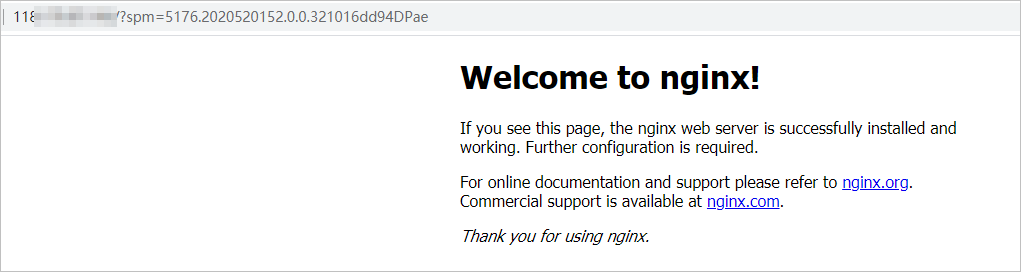
-
Log on to the SLB console and configure an SSL certificate: Note the certificate ID — you will need it in the next step.
-
If you generated a self-signed certificate, upload it to Alibaba Cloud. See Upload a third-party certificate.
-
If you purchased a certificate from Alibaba Cloud, skip this step.
-
-
Back in the ACK console, go to Network > Services, find the Service, and click Update in the Actions column.
-
In the Update Service dialog box, add the following annotations: Replace
${YOUR_CERT_ID}with the certificate ID from step 6. Alternatively, apply the annotations using a YAML file:Set
targetPortto80. Inbound HTTPS requests on port 443 are forwarded to the container on HTTP port 80.Annotation Name Value Annotation 1 service.beta.kubernetes.io/alibaba-cloud-loadbalancer-protocol-porthttps:443Annotation 2 service.beta.kubernetes.io/alibaba-cloud-loadbalancer-cert-id${YOUR_CERT_ID}apiVersion: v1 kind: Service metadata: annotations: service.beta.kubernetes.io/alibaba-cloud-loadbalancer-protocol-port: "https:443" service.beta.kubernetes.io/alibaba-cloud-loadbalancer-cert-id: "${YOUR_CERT_ID}" name: nginx namespace: default spec: ports: - name: https port: 443 protocol: TCP targetPort: 80 - name: http port: 80 protocol: TCP targetPort: 80 selector: run: nginx type: LoadBalancer
-
Enter
https://<slb-instance-ip>in your browser to verify HTTPS access.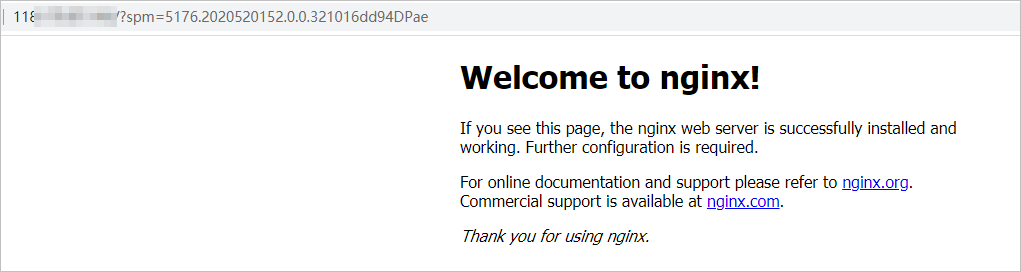
Terminate TLS at the Ingress
Storing the certificate in a Kubernetes Secret and referencing it in an Ingress lets you manage certificates per application without modifying SLB configuration. Use this approach when each application needs its own certificate, or when an application must only be reachable over HTTPS.
Steps overview:
-
Create a Kubernetes Secret from your certificate files.
-
Create an Ingress that references the Secret for TLS termination.
-
Add a local hosts entry for testing.
-
Verify HTTPS access using the domain name.
Preparation: Create a Tomcat application in the cluster and expose it using a ClusterIP Service. See Create a stateless application by using a Deployment.
Steps:
-
Create a Kubernetes Secret from the certificate files:
kubectl create secret tls secret-https --key tls.key --cert tls.crt -
Log on to the ACK console.
-
In the left-side navigation pane, click Clusters.
-
On the Clusters page, click the cluster name or click Details in the Actions column.
-
In the left-side navigation pane of the cluster details page, choose Network > Ingresses.
-
In the upper-right corner of the Ingresses page, click Create Ingress.
-
In the Create Ingress dialog box, configure the following parameters and click OK. For general Ingress configuration, see Create an NGINX Ingress. Alternatively, create the Ingress using a YAML file:
ImportantThe domain in
tls[].hostsmust exactly match the domain inrules[].hostand the Common Name in the certificate. A mismatch causes HTTPS connections to fail.Parameter Value Name Enter a name for the Ingress Domain name The domain name used when generating the certificate — it must match the Common Name in the SSL/TLS certificate Service Select the Tomcat application Service; set the port to 8080 TLS settings Enable TLS and select the Secret created in step 1 apiVersion: networking.k8s.io/v1 kind: Ingress metadata: name: tomcat-https spec: tls: - hosts: - foo.bar.com secretName: secret-https rules: - host: foo.bar.com http: paths: - path: / backend: serviceName: tomcat-svc servicePort: 8080 -
Return to the Ingresses page and confirm the new Ingress appears with an endpoint and domain name. For testing with a local domain (such as
foo.bar.com), add a mapping to your local hosts file:47.110.119.203 foo.bar.com # Replace with the actual Ingress endpoint IP
-
Enter
https://foo.bar.comin your browser to verify HTTPS access.Because TLS is configured on the Ingress, the application is only accessible over HTTPS. For production deployments, the domain must have an ICP filing number.

What's next
-
To automate certificate provisioning and renewal, consider integrating cert-manager with your Ingress controller.
-
To manage certificates centrally across multiple clusters, use Alibaba Cloud SSL Certificates Service.