Video watermarking adds identifying information to a video, such as a company logo, TV station icon, user nickname, or user ID. Watermarking helps highlight your brand, protect your copyright, and increase product recognition. ApsaraVideo VOD supports three types of watermarks: static images, animated images, and text. You can choose the type that best suits your needs.
How it works
Watermarking in ApsaraVideo VOD is based on transcoding. During the transcoding process, information such as images and text is embedded into the video stream. This process creates a new video file that contains the watermark.
Scenarios
Short videos
In short video applications, downloaded and shared videos usually have an image watermark, such as a product logo, and a text watermark, such as a user ID, to protect copyright.
Audio and video websites
Audio and video websites often add brand logos to videos to indicate copyright ownership. In variety shows, stickers are also added to increase engagement or display advertisements.
Watermark types
Type | Supported formats | Instructions |
Image |
|
|
Text | - | Set the font, font size, color, opacity, and outline effects for the text. |
Billing
Watermarking is based on transcoding, and the transcoding process incurs fees. For more information about billing, see Media transcoding billing.
How to use
Step 1: Create a watermark template
To simplify watermarking, ApsaraVideo VOD uses templates to store complex watermark parameters. These parameters include the position, size, font, and color of a watermark. Each template has a unique ID.
Details about watermark position and size parameters
Image watermarks
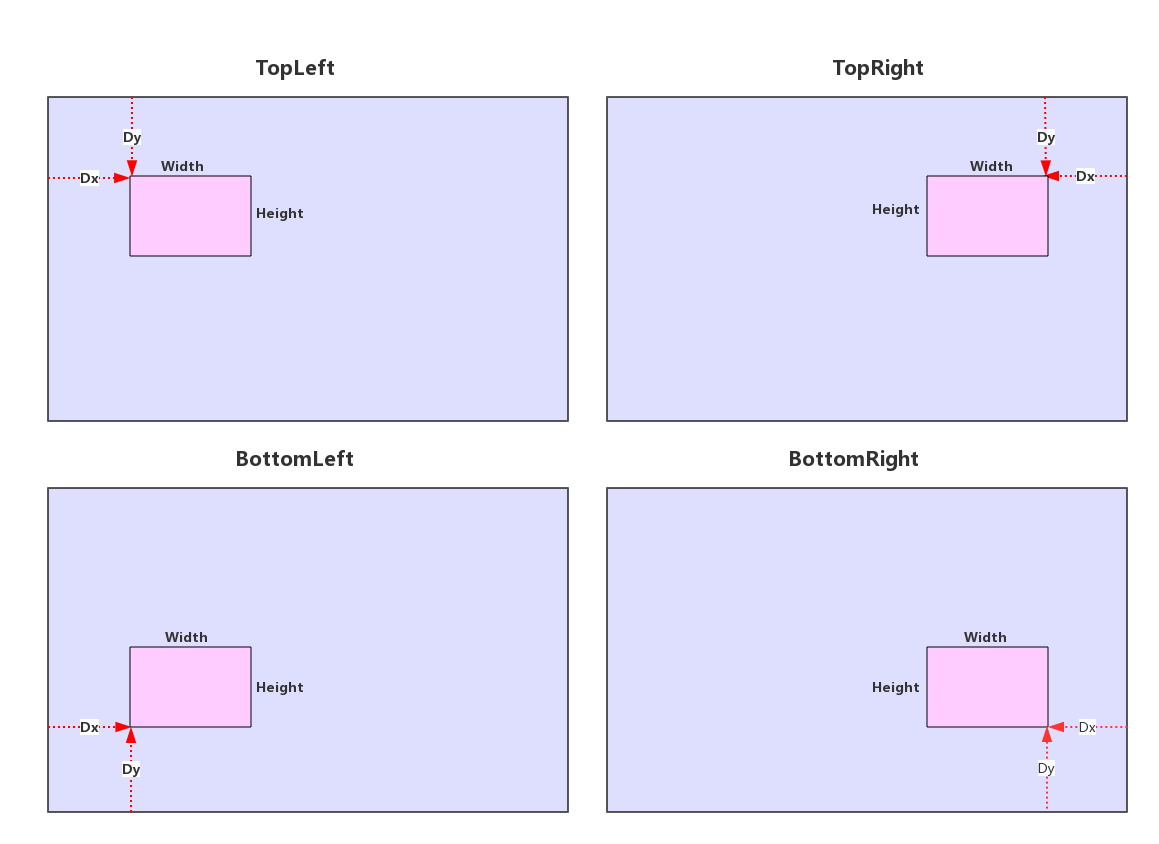
Use the ReferPos, Dx, Dy, Width, and Height parameters to control the display position and size of the image in the output video.
API parameter
Console parameter
Description
ReferPos
Position
The approximate position of the watermark relative to the output video.
Upper-left corner: TopLeft
Lower-left corner: BottomLeft
Upper-right corner: TopRight
Lower-right corner: BottomRight
Dx
Horizontal offset
The horizontal offset of the watermark in the output video. Valid values:
Positive integer. The unit is pixel. The value must be an integer from 8 to 4096.
Percentage of video. The unit is %. The value must be a number from 0 to 1, exclusive of 0.
Dy
Vertical offset
The vertical offset of the watermark in the output video. Valid values:
Positive integer. The unit is pixel. The value must be an integer from 8 to 4096.
Percentage of video. The unit is %. The value must be a number from 0 to 1, exclusive of 0.
Width
Size (Width)
The width of the watermark in the output video. Valid values:
Positive integer. The unit is pixel. The value must be an integer from 8 to 4096.
Percentage of video. The unit is %. The value must be a number from 0 to 1, exclusive of 0.
Height
Size (Height)
The height of the watermark in the output video. Valid values:
Positive integer. The unit is pixel. The value must be an integer from 8 to 4096.
Percentage of video. The unit is %. The value must be a number from 0 to 1, exclusive of 0.
Timeline
Timeline
The timeline of a watermark. This parameter specifies the start time and duration of the image watermark in the video. You can configure multiple watermarks to create dynamic display effects for the image watermark. For more information, see Watermark timeline.
ImportantThis parameter is not supported for text watermarks.
Diagram
To center the watermark, set the Dx and Dy parameters to 0.5. This sets the offset of the watermark to 50% of the width and height of the output video.
Text watermarks
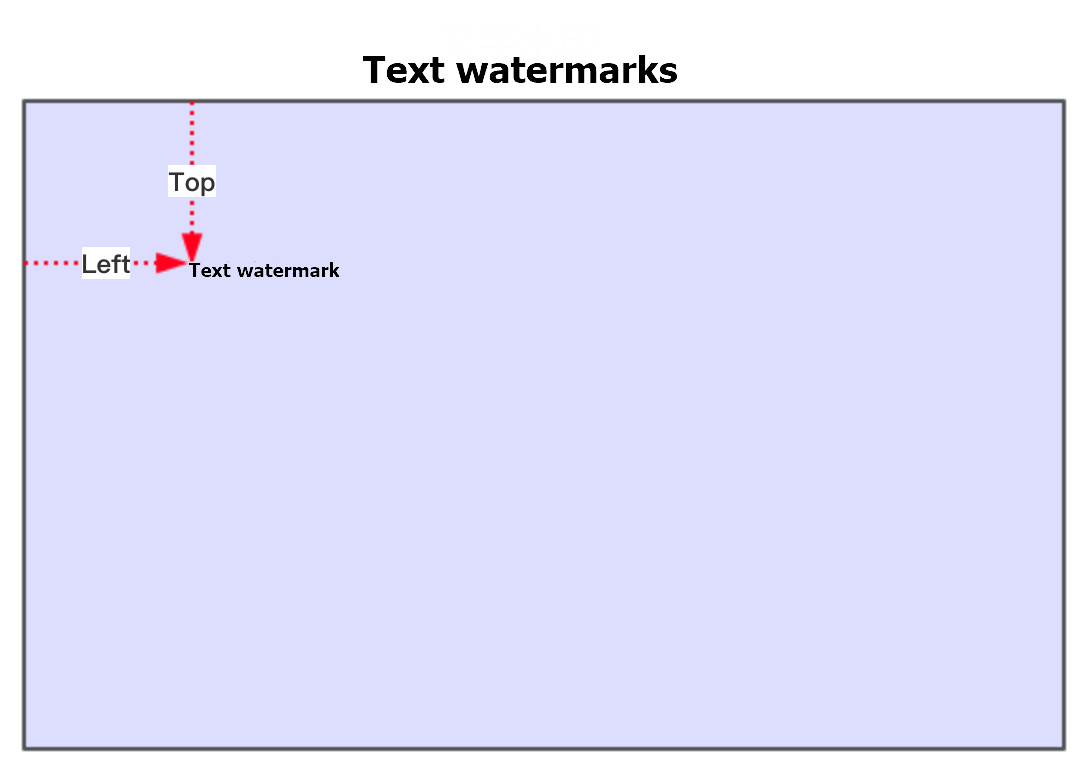
Text watermarks can be offset only from the upper-left corner of the output video. The Top and Left parameters are used for the offset. Only pixel values are supported. Percentage values are not supported.
API parameter
Console parameter
Description
Top
Vertical offset
The distance between the text watermark and the top of the output video. The unit is pixel. The value must be an integer from 8 to 4096.
Left
Horizontal offset
The distance between the text watermark and the left side of the output video. The unit is pixel. The value must be an integer from 8 to 4096.
Diagram
Calculation methods
The Dx, Dy, Width, and Height parameters for image watermarks support pixel and percentage values. The Top and Left parameters for text watermarks support only pixel values. The details are as follows:
Pixel value: An integer from 8 to 4096. The unit is pixels.
ImportantIf the specified value exceeds the size of the output video, the watermark may be partially displayed or not displayed at all.
For example, if the output video is 640 × 360 pixels, the reference position is TopLeft, and you set Dx and Dy to 4000, the watermark is not visible in the output video. This also applies to text watermarks.
Percentage value: The value is a percentage of the width and height of the output video. The value must be a number greater than 0 and up to 1, accurate to four decimal places.
ImportantIf the aspect ratio of the output video is variable and cannot be controlled, set the watermark position and size parameters as percentages.
For example, 0.9999. Calculation example: Width/Video width = 0.1. Height/Video height = 0.06. Dx/Video width = 0.02. Dy/Video height = 0.03.
Default values
If you do not set the width and height of the watermark: The watermark width is set to 12% of the output video width. The watermark height is scaled to maintain the aspect ratio of the source watermark image.
If you set only the width or height: The specified dimension is used. The other dimension is scaled to maintain the aspect ratio of the source watermark image. For example, if you set Width to 44 and the aspect ratio of the source image is 2:1, the height is set to 22.
If you set both the width and height: The specified dimensions are used for the watermark.
If you do not set Dx and Dy: The default value 0 is used.
Step 2: Create a transcoding template group and associate the watermark template
Video watermarking is based on transcoding. Transcoding jobs are initiated based on a transcoding template group. You can associate multiple watermark templates with a single transcoding template.
Step 3 (Optional): Create a workflow and associate the transcoding template group
A workflow lets you orchestrate media processing tasks, such as transcoding, content moderation, and snapshotting, in a specific order. When you upload a media file or trigger a workflow, the media file is automatically processed based on the predefined task flow. You can create workflows only in the ApsaraVideo VOD console. For more information, see Workflows.
Step 4 (Optional): Configure transcoding event notifications
Before you start a transcoding job, you can configure event notifications for ApsaraVideo VOD. This lets you receive callback messages that contain the status and result of the transcoding job after it is complete. For more information about how to configure event notifications, see Event notifications.
The following event notification types are related to transcoding:
Step 5: Start a watermarking transcoding job
ApsaraVideo VOD lets you trigger transcoding when you upload media or process media. You can start transcoding based on a transcoding template group or a workflow that contains a media transcoding node.
Step 6: Get the result
Asynchronous result notifications
If you have configured event notifications, you can receive callback messages for Single Transcoding Job Complete or All Transcoding Jobs Complete to obtain information about the watermarking transcoding job.
Synchronous queries
Application examples
This section provides examples of how to use ApsaraVideo VOD for common watermarking scenarios, such as setting multiple watermarks and dynamically replacing watermark content using APIs.
Short video copyright statement: Dynamic text watermark replacement
Scenario description
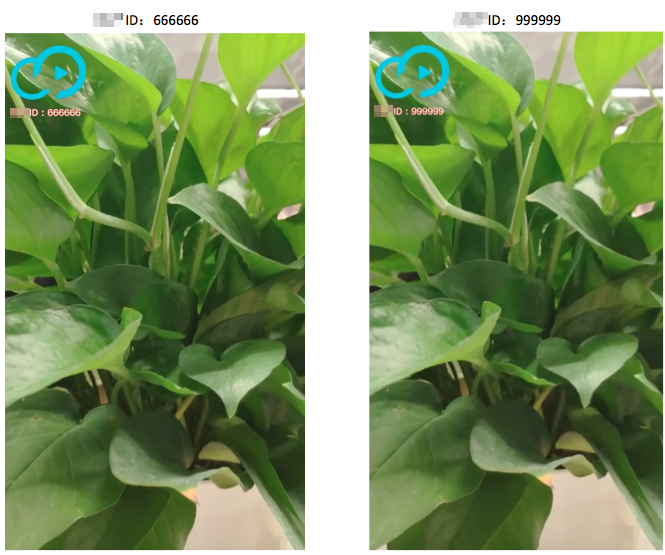
In short video applications, when a video uploaded by a user to a short video platform is downloaded or shared by other users, the video usually carries the logo of the short video platform and the ID or nickname of the original creator.
Expected result
A watermark that combines an image with text content that is unique to each user.
Procedure
Create two watermark templates: an image watermark template for the platform logo and a text watermark template for the creator's ID or nickname. For more information, see Step 1: Create a watermark template.
Create a transcoding template group and associate the two watermark templates that you created in the previous step. For more information, see Step 2: Create a transcoding template group and associate the watermark template.
Call the SubmitTranscodeJobs operation to start a transcoding job. When you start the job, use the
OverrideParamsparameter with theWatermarkIdandContentparameters to overwrite the text content of the specified watermark template.Example of the
OverrideParamsparameter:{"Watermarks":[{"WatermarkId":"The ID of the image watermark template"},{"WatermarkId":"The ID of the text watermark template","Content":"The text to replace the original watermark content"}]}Design the trigger logic for the transcoding job as needed. For example, you can trigger transcoding when a user uploads a video. During transcoding, the ID or nickname of the original video creator is automatically retrieved and used to replace the content of the text watermark.
Video website brand promotion: Dynamic image watermark replacement
Scenario description
A video website obtains the copyright of a film or TV series and then sub-licenses it to multiple other video websites. The videos distributed on each video website must display that website's brand logo.
Expected result
Image watermarks vary among video websites.

Procedure
Call the GetAuxiliaryUploadAddressAndAuth operation to upload the watermark images (brand logos of each video website) to ApsaraVideo VOD. For more information about how to upload a file, see Upload media files using ApsaraVideo VOD APIs.
Create an image watermark template and set the watermark image to a brand logo. For more information, see Step 1: Create a watermark template.
Create a transcoding template group and associate the image watermark template that you created in the previous step. For more information, see Step 2: Create a transcoding template group and associate the watermark template.
Call the SubmitTranscodeJobs operation to start a transcoding job. When you start the job, use the
OverrideParamsparameter with theWatermarkIdandFileUrlparameters to overwrite the watermark image of the specified watermark template.Example of the
OverrideParamsparameter:{"Watermarks":{"WatermarkId":"The ID of the image watermark template","FileUrl":"The URL of the image to replace the original watermark image"}}Design the trigger logic for the transcoding job as needed. For example, you can trigger transcoding when a video is uploaded.
FAQ
Failure to add a watermark image in the ApsaraVideo VOD console with an 'unavailable image URL' error
If you have configured an accelerated domain name in ApsaraVideo VOD, you must configure an HTTPS certificate for the domain name. For more information, see HTTPS secure acceleration.
Related documents
To deter infringement, you can display the viewer's nickname or ID in real time during playback. You can use the marquee feature of ApsaraVideo Player SDK for this purpose. For more information, see Official components.