Pour rechercher et analyser les données de production de votre base de données ApsaraDB RDS for MySQL à l'aide d'Alibaba Cloud Elasticsearch, utilisez Data Transmission Service (DTS) afin de synchroniser ces données vers un cluster Elasticsearch en temps réel. Cette synchronisation s'appuie sur une tâche de synchronisation en temps réel. Cette solution convient aux scénarios exigeant des performances élevées lors de la synchronisation en temps réel. Cette rubrique décrit comment créer une tâche de synchronisation en temps réel pour transférer les données d'une base de données ApsaraDB RDS for MySQL vers un cluster Alibaba Cloud Elasticsearch. Elle explique également comment vérifier les résultats de synchronisation des données complètes et incrémentielles.
Informations générales
DTS est un service de transmission de données qui regroupe la migration, l'abonnement et la synchronisation des données en temps réel. Pour plus d'informations, consultez DTS. Ce service prend en charge la synchronisation des modifications générées par les opérations d'insertion, de suppression et de mise à jour. Pour connaître les versions des sources de données compatibles avec DTS, reportez-vous à la rubrique Présentation des scénarios de synchronisation des données.
DTS permet de synchroniser des données complètes ou incrémentielles de MySQL vers Elasticsearch. Privilégiez cette approche lorsque vous avez besoin de hautes performances de synchronisation en temps réel depuis une base de données relationnelle, ou pour transférer des données complètes ou incrémentielles d'une base relationnelle vers un cluster Alibaba Cloud Elasticsearch.
Précautions
DTS ne synchronise pas les modifications issues des opérations DDL. Si une opération DDL est exécutée sur une table de la base de données source pendant la synchronisation, procédez comme suit : retirez la table de la tâche de synchronisation, supprimez l'index correspondant dans le cluster Elasticsearch, puis ajoutez de nouveau la table à la tâche. Pour plus de détails, consultez les rubriques Retirer un objet de synchronisation et Ajouter un objet à une tâche de synchronisation des données.
Pour ajouter des colonnes à la table source, modifiez d'abord les mappages de l'index associé à cette table. Exécutez ensuite l'opération DDL correspondante sur la table source, mettez la tâche de synchronisation en pause, puis redémarrez-la.
-
Lors de la synchronisation initiale des données complètes, DTS sollicite les ressources de lecture et d'écriture de la source et de la destination, ce qui peut augmenter leur charge. Des performances insuffisantes, des spécifications trop faibles ou un volume de données important risquent de rendre la source ou la destination indisponible. Par exemple, DTS consomme beaucoup de ressources de lecture et d'écriture si la source exécute un grand nombre de requêtes SQL lentes, si certaines tables n'ont pas de clé primaire, ou si un interblocage survient sur la destination. Évaluez donc l'impact de la synchronisation sur les performances avant de lancer l'opération. Nous recommandons de synchroniser les données pendant les heures creuses, notamment lorsque l'utilisation du CPU de la source et de la destination reste inférieure à 30 %.
Une synchronisation des données complètes pendant les heures de pointe risque d'échouer. Dans ce cas, redémarrez la tâche.
Si vous synchronisez des données incrémentielles pendant les heures de pointe, une latence de synchronisation peut apparaître.
ApsaraDB RDS for MySQL et Elasticsearch prennent en charge des types de données différents. Lors de la synchronisation initiale du schéma, DTS établit des mappages entre les champs sources et les champs de destination selon les types pris en charge par la destination. Pour plus d'informations, consultez la rubrique Mappages des types de données pour la synchronisation des schémas.
Processus
Préparer l'environnement : ajoutez les données à synchroniser dans la base de données ApsaraDB RDS for MySQL source, créez un cluster Alibaba Cloud Elasticsearch et activez la fonctionnalité Auto Indexing sur ce cluster.
Créer et exécuter une tâche de synchronisation des données : créez puis lancez la tâche depuis la console DTS.
Vérifier les résultats de synchronisation : connectez-vous à la console Kibana du cluster Elasticsearch pour contrôler la synchronisation des données complètes. Ajoutez ensuite des données dans la base ApsaraDB RDS for MySQL source, puis retournez sur la console Kibana pour valider la synchronisation des données incrémentielles.
Procédure
Étape 1 : Préparer l'environnement
Cet exemple s'appuie sur une instance ApsaraDB RDS exécutant MySQL 8.0 et un cluster Alibaba Cloud Elasticsearch V7.10.
Préparer la base de données source et les données à synchroniser
Créez une instance ApsaraDB RDS exécutant MySQL 8.0. Pour plus d'informations, consultez la rubrique Créer une instance ApsaraDB RDS for MySQL.
Créez un compte de base de données ainsi qu'une base nommée
test_mysql. Pour plus d'informations, consultez la rubrique Créer des bases de données et des comptes.-
Dans la base de données
test_mysql, créez la tablees_testet insérez-y des données. Voici l'instruction de création et les données associées :-- create table CREATE TABLE `es_test` ( `id` bigint(32) NOT NULL, `name` varchar(32) NULL, `age` bigint(32) NULL, `hobby` varchar(32) NULL, PRIMARY KEY (`id`) ) ENGINE=InnoDB DEFAULT CHARACTER SET=utf8; -- insert data INSERT INTO `es_test` (`id`,`name`,`age`,`hobby`) VALUES (1,'user1',22,'music'); INSERT INTO `es_test` (`id`,`name`,`age`,`hobby`) VALUES (2,'user2',23,'sport'); INSERT INTO `es_test` (`id`,`name`,`age`,`hobby`) VALUES (3,'user3',43,'game'); INSERT INTO `es_test` (`id`,`name`,`age`,`hobby`) VALUES (4,'user4',24,'run'); INSERT INTO `es_test` (`id`,`name`,`age`,`hobby`) VALUES (5,'user5',42,'basketball');
Préparer le cluster Elasticsearch de destination
Créez un cluster Alibaba Cloud Elasticsearch V7.10. Pour plus d'informations, consultez la rubrique Créer un cluster Alibaba Cloud Elasticsearch.
-
Activez la fonctionnalité Auto Indexing sur le cluster Elasticsearch. Pour plus d'informations, consultez la rubrique Configurer le fichier YML.
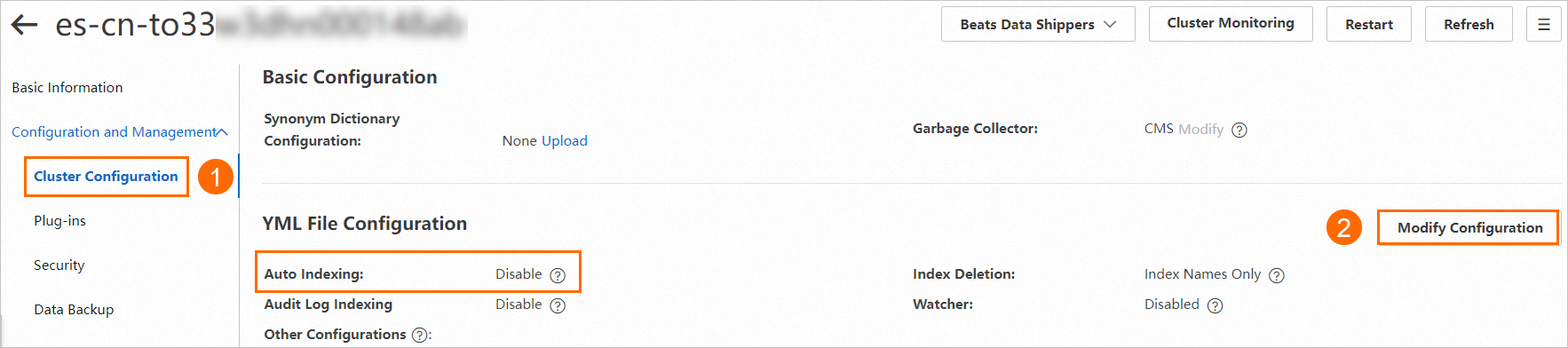
Étape 2 : Créer et exécuter une tâche de synchronisation des données
Accédez à la page Data Synchronization de la nouvelle console DTS.
Cliquez sur Create Task.
-
Sur la page qui s'affiche, créez et configurez la tâche de synchronisation en suivant les instructions.
RemarquePour plus d'informations sur les paramètres utilisés dans les étapes suivantes, consultez la rubrique Synchroniser des données d'une instance ApsaraDB RDS for MySQL vers un cluster Elasticsearch.
-
Configurez la source et la destination. En bas de la page, cliquez sur Test Connectivity and Proceed.
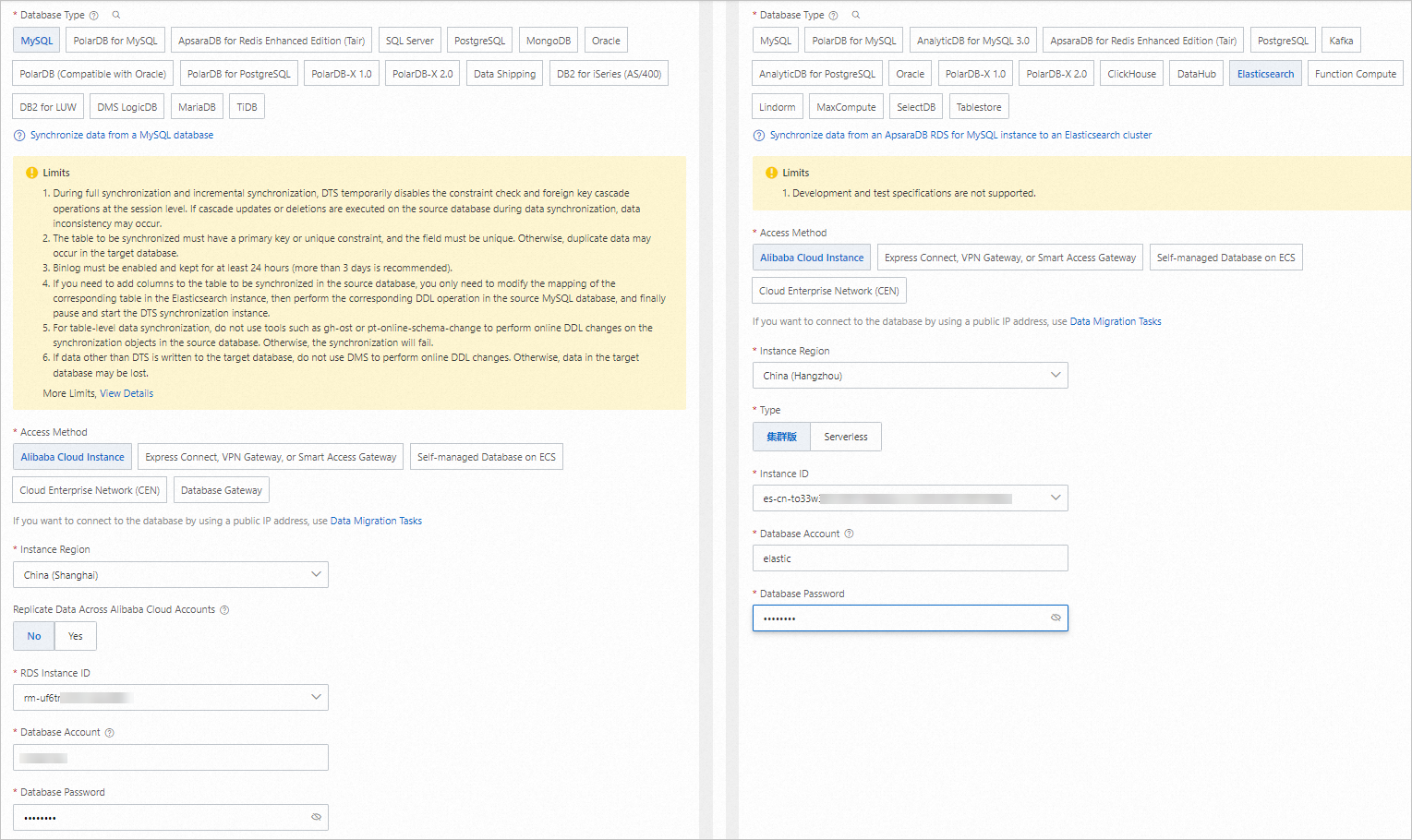
-
Définissez les objets dont vous souhaitez synchroniser les données.
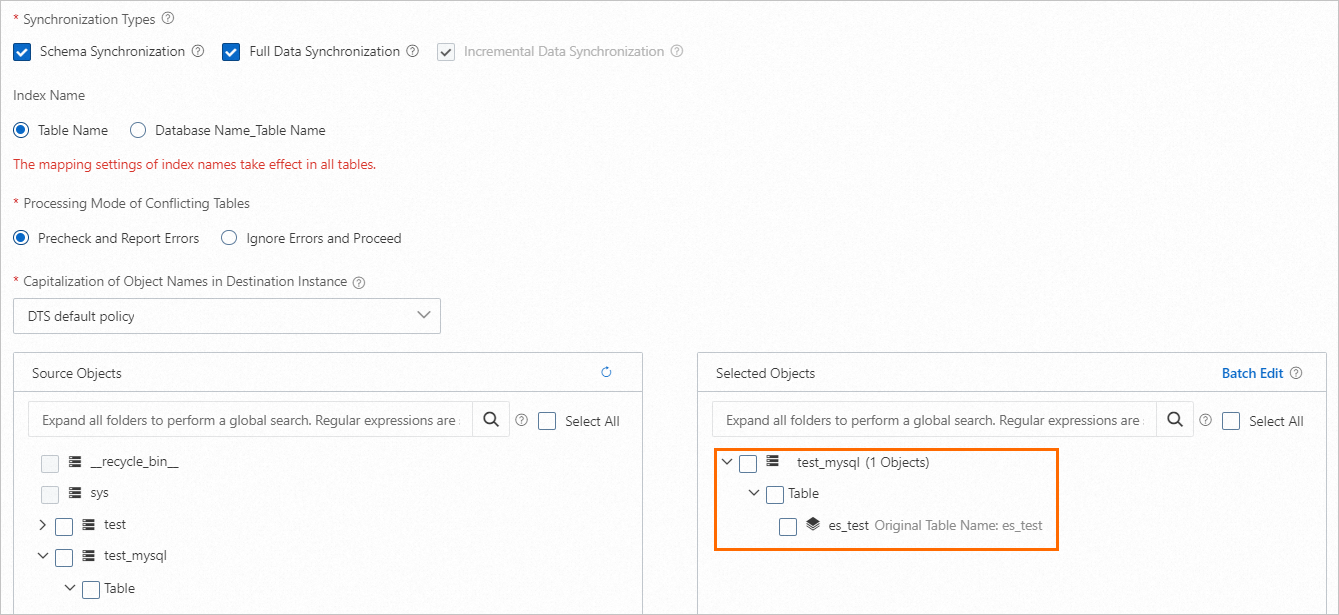
Configurez les paramètres avancés. Cet exemple conserve les valeurs par défaut.
-
À la sous-étape Data Verification, sélectionnez Apply _routing Policy to No Tables.
RemarqueSi le cluster Elasticsearch de destination est en version 7.X, vous devez sélectionner Apply _routing Policy to No Tables.
-
-
Une fois la configuration terminée, enregistrez la tâche de synchronisation, lancez sa pré-vérification, puis achetez une instance DTS pour démarrer la synchronisation.
Après l'achat de l'instance DTS, la tâche de synchronisation démarre automatiquement. Suivez sa progression sur la page Data Synchronization. Une fois les données complètes synchronisées, elles deviennent consultables dans le cluster Elasticsearch.

Étape 3 (facultatif) : Vérifier les résultats de synchronisation
-
Connectez-vous à la console Kibana du cluster Elasticsearch.
Pour plus d'informations, consultez la rubrique Se connecter à la console Kibana.
Dans l'angle supérieur gauche de la page Kibana, accédez à
 > Management > Dev Tools, puis exécutez les commandes suivantes dans Console.
-
Vérifiez le résultat de synchronisation des données complètes.
Exécutez la commande suivante :
GET /es_test/_searchSi la commande s'exécute correctement, le résultat suivant s'affiche :
{ "took" : 10, "timed_out" : false, "_shards" : { "total" : 5, "successful" : 5, "skipped" : 0, "failed" : 0 }, "hits" : { "total" : { "value" : 5, "relation" : "eq" }, "max_score" : 1.0, "hits" : [ { "_index" : "es_test", "_type" : "es_test", "_id" : "3", "_score" : 1.0, "_source" : { "id" : 3, "name" : "user3", "age" : 43, "hobby" : "game" } }, { "_index" : "es_test", "_type" : "es_test", "_id" : "5", "_score" : 1.0, "_source" : { "id" : 5, "name" : "user5", "age" : 42, "hobby" : "basketball" } }, { "_index" : "es_test", "_type" : "es_test", "_id" : "4", "_score" : 1.0, "_source" : { "id" : 4, "name" : "user4", "age" : 24, "hobby" : "run" } }, { "_index" : "es_test", "_type" : "es_test", "_id" : "2", "_score" : 1.0, "_source" : { "id" : 2, "name" : "user2", "age" : 23, "hobby" : "sport" } }, { "_index" : "es_test", "_type" : "es_test", "_id" : "1", "_score" : 1.0, "_source" : { "id" : 1, "name" : "user1", "age" : 22, "hobby" : "music" } } ] } } -
Contrôlez le résultat de synchronisation des données incrémentielles.
-
Exécutez l'instruction suivante pour insérer un enregistrement dans la table source :
INSERT INTO `test_mysql`.`es_test` (`id`,`name`,`age`,`hobby`) VALUES (6,'user6',30,'dance'); -
Une fois la synchronisation incrémentielle terminée, relancez la commande
GET /es_test/_searchpour vérifier le résultat.Si la commande s'exécute correctement, le résultat suivant s'affiche :
{
  "took" : 541,
  "timed_out" : false,
  "_shards" : {
    "total" : 5,
    "successful" : 5,
    "skipped" : 0,
    "failed" : 0
  },
  "hits" : {
    "total" : {
      "value" : 6,
      "relation" : "eq"
    },
    "max_score" : 1.0,
    "hits" : [
      {
        "_index" : "es_test",
        "_type" : "es_test",
        "_id" : "3",
        "_score" : 1.0,
        "_source" : {
          "id" : 3,
          "name" : "user3",
          "age" : 43,
          "hobby" : "game"
        }
      },
      {
        "_index" : "es_test",
        "_type" : "es_test",
        "_id" : "5",
        "_score" : 1.0,
        "_source" : {
          "id" : 5,
          "name" : "user5",
          "age" : 42,
          "hobby" : "basketball"
        }
      },
      {
        "_index" : "es_test",
        "_type" : "es_test",
        "_id" : "4",
        "_score" : 1.0,
        "_source" : {
          "id" : 4,
          "name" : "user4",
          "age" : 24,
          "hobby" : "run"
        }
      },
      {
        "_index" : "es_test",
        "_type" : "es_test",
        "_id" : "2",
        "_score" : 1.0,
        "_source" : {
          "id" : 2,
          "name" : "user2",
          "age" : 23,
          "hobby" : "sport"
        }
      },
      {
        "_index" : "es_test",
        "_type" : "es_test",
        "_id" : "6",
        "_score" : 1.0,
        "_source" : {
          "name" : "user6",
          "id" : 6,
          "age" : 30,
          "hobby" : "dance"
        }
      },
      {
        "_index" : "es_test",
        "_type" : "es_test",
        "_id" : "1",
        "_score" : 1.0,
        "_source" : {
          "id" : 1,
          "name" : "user1",
          "age" : 22,
          "hobby" : "music"
        }
      }
    ]
  }
}
-