Systematically troubleshoot missing heartbeat issues for machine groups in a host environment.
Machine group installation examples
|
Installation method |
Scenarios |
|
The server is an Alibaba Cloud ECS instance, and the ECS instance and the project belong to the same Alibaba Cloud account and the same region. |
|
|
The server is an Alibaba Cloud ECS instance, and the ECS instance and the project belong to the same Alibaba Cloud account but different regions. |
|
|
The server is an Alibaba Cloud ECS instance, and the ECS instance and the project belong to the same region but different Alibaba Cloud accounts. |
|
|
Troubleshooting checklist
-
Step 2: Confirm that the IP address in the machine group matches the IP address obtained by Logtail. A mismatch causes heartbeat failures.
-
Step 3: Check whether the project region configured in the
ilogtail_config.jsonfile is correct. -
Step 4: Verify network connectivity between the server and the project.
-
Step 5: Check whether the system time on the Logtail server is correct. If the system time deviates significantly from the actual time, update it.
-
Step 8: After completing the preceding changes, restart Logtail.
What to do next
If logs are still not collected after the heartbeat status becomes OK, troubleshoot based on Logtail error messages. For more information, see How to view Logtail collection errors.
Step 1: Verify that Logtail runs as expected
Linux
-
Log on to the server where Logtail is installed.
-
Run the following command.
ps -ef | grep ilogtail-
If the output includes two entries similar to the following (representing the Logtail daemon process and the Logtail worker process), Logtail is running as expected.
UID PID PPID C STIME TTY TIME CMD ... root 12 1 0 Nov10 ? 00:00:00 /usr/local/ilogtail/ilogtail root 14 12 0 Nov10 ? 03:07:43 /usr/local/ilogtail/ilogtail ...ImportantIf the output shows three or more Logtail processes, multiple Logtail instances are running on the server, which may cause duplicate log collection. Verify whether this behavior is expected.
-
If the output shows no Logtail-related processes:
-
Logtail is installed but not started. For more information, see Start and stop Logtail (Linux).
-
Logtail is not installed. Install Logtail. For details, see Install Logtail (Linux).
ImportantWhen installing Logtail, ensure the operating system supports Logtail, select installation parameters based on the region of your Simple Log Service project, and choose an installation method based on your network type. For more information about network types, see Logtail network types, startup parameters, and configuration files.
-
-
Windows
-
Log on to the server where Logtail is installed.
-
Open the Run dialog box and enter
services.msc. -
Check the status of the LogtailDaemon service (Logtail 1.0.0.0 or later) or the LogtailWorker service (Logtail 0.x.x.x).
If the service is not running:
-
Logtail is installed but not started. For more information, see Manually start and stop Logtail (Windows).
-
Logtail is not installed. Install Logtail. For details, see Install Logtail (Windows).
ImportantWhen installing Logtail, ensure the operating system supports Logtail, select installation parameters based on the region of your Simple Log Service project, and choose an installation method based on your network type. For more information about network types, see Logtail network types, startup parameters, and configuration files.
-
Step 2: Verify that the machine group IP address matches the Logtail IP address
Logtail obtains the IP address of a Linux server as follows:
-
If no hostname binding is configured, Logtail uses the IP address of the server's first network interface controller (NIC).
-
To specify a custom IP address, set the
working_ipparameter in theilogtail_config.jsonfile described in Step 3. After setting this parameter, theipfield in theapp_info.jsonfile automatically syncs with theworking_ipvalue. For more information about working_ip, see Set startup parameters. -
If hostname binding is configured in the
/etc/hostsfile, Logtail uses the IP address mapped to the hostname.
-
Obtain the value of the
ipfield from the app_info.json file.The default paths to this file on different systems are listed in the following table:
Operating system
Logtail
Path to app_info.json
Linux
Logtail (64-bit)
/usr/local/ilogtail/app_info.json
Windows (64-bit)
Logtail (64-bit)
C:\Program Files\Alibaba\Logtail\app_info.json
Logtail (32-bit)
C:\Program Files (x86)\Alibaba\Logtail\app_info.json
Windows (32-bit)
Logtail (32-bit)
C:\Program Files\Alibaba\Logtail\app_info.json
Logtail records the obtained IP address in the
ipfield of the app_info.json file.{ "UUID" : "", "hostname" : "iZ8vbdlzf******azuhZ", "instance_id" : "E9633380-***********-00163E1AA597_172.16.2.200_166****11", "ip" : "172.**.**.200", "logtail_version" : "1.3.1", "os" : "Linux; 4.19.91-26.1.al7.x86_64; #1 SMP Tue Jul 26 17:52:28 CST 2022; x86_64", "update_time" : "2022-12-27 05:38:33" } -
Verify that the machine group uses the IP address that Logtail obtains.
Simple Log Service machine groups include IP address-based machine groups and custom identifier-based machine groups. For more information, see Machine groups.
-
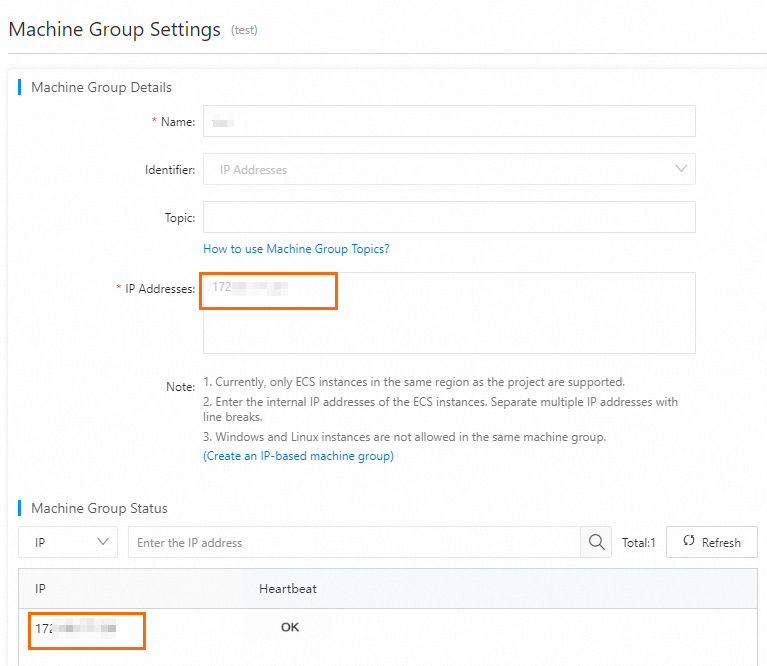
IP address-based machine group: Verify that the IP Address field contains the IP address from the previous step.
If the IP address does not match, confirm the correct IP address of the host. If the IP Address text box contains a different IP address for the host, such as a public IP address, update the IP address in the machine group. If the IP address obtained in the previous step is incorrect, modify the working_ip parameter in Logtail startup parameters and restart Logtail. Then, monitor the machine heartbeat. If the heartbeat recovers, troubleshooting is complete.
-
Custom identifier-based machine group: Check whether the Machine Group Status includes the IP address obtained in the previous step. If the heartbeat status shows OK, troubleshooting is complete.
-
Step 3: Verify Logtail startup parameters
The ilogtail_config.json file stores Logtail's startup parameters.
-
Log on to the server where Logtail is installed.
-
Locate the ilogtail_config.json file.
The default paths to this file on different systems are listed in the following table:
Operating system
Logtail
Path to ilogtail_config.json
Linux
Logtail (64-bit)
/usr/local/ilogtail/ilogtail_config.json
Windows (64-bit)
Logtail (64-bit)
C:\Program Files\Alibaba\Logtail\ilogtail_config.json
Logtail (32-bit)
C:\Program Files (x86)\Alibaba\Logtail\ilogtail_config.json
Windows (32-bit)
Logtail (32-bit)
C:\Program Files\Alibaba\Logtail\ilogtail_config.json
-
Open the ilogtail_config.json file and verify that the configuration parameters are correct.
{ "config_server_address" : "http://logtail.<config_region>.log.aliyuncs.com", "data_server_list" : [ { "cluster" : "<project region>", "endpoint" : "<endpoint>" } ], ... }-
If the startup parameters in the ilogtail_config.json file match the descriptions in the following table, the Logtail startup parameters are correct.
-
If the Logtail startup parameters are incorrect, update the ilogtail_config.json file based on the following table and restart Logtail. For details, see Restart Logtail.
For project region information, see Supported regions.
Scenario
Network type
<config_region>
<endpoint>
Server is an ECS instance in the same region as the project
Alibaba Cloud internal network
<project region>-intranet
<project region>-intranet.log.aliyuncs.com
Other scenarios
Internet
<project region>
<project region>.log.aliyuncs.com
Transfer acceleration
log-global.aliyuncs.com
-
-
Step 4: Verify network connectivity
For Logtail to upload data, the server must be able to connect to the following addresses.
If using an internal network, append -intranet to <endpoint>.
-
The address specified by the
config_server_addressfield in theilogtail_config.jsonfile and its HTTPS version. -
http://<project name>.<endpoint>.-
View the project name and region as shown below.

-
<endpoint>is the address specified by thedata_server_list.endpointfield in theilogtail_config.jsonfile.
-
-
http://ali-<project region>-sls-admin.<endpoint>. Here,<endpoint>is the address specified by thedata_server_list.endpointfield in theilogtail_config.jsonfile.
Perform the following checks and solutions:
Linux
-
Log on to the server where Logtail is installed.
-
Run the
curlcommand to connect to the preceding addresses.curl http://<project name>.cn-hangzhou-intranet.log.aliyuncs.comIf all responses resemble the following, the network is available.
{"Error":{"Code":"OLSInvalidMethod","Message":"The script name is invalid : /","RequestId":"5D****09"}}If the network is unavailable, check whether ports 80 and 443 are open, whether the destination address is blocked, and other network settings (such as DNS configuration and security groups).
Windows
-
Log on to the server where Logtail is installed.
-
Run the
telnetcommand to connect to the preceding addresses.telnet <project name>.cn-hangzhou-intranet.log.aliyuncs.com 80 # For HTTPS, use port 443.If all responses resemble the following, the network is available.
Trying 100*0*7*5...
Connected to xxx.
Escape character is '^]'.
If the network is unavailable, check whether ports 80 and 443 are open, whether the destination address is blocked, and other network settings (such as DNS configuration and security groups).
Step 5: Verify the system time on the Logtail server
Linux
-
Log on to the server where Logtail is installed.
-
Run the
datecommand to view the system time.Wed Dec 28 06:59:26 UTC 2022If the system time deviates significantly from the actual time, take one of the following actions.
-
Adjust the system time to the actual time.
-
If you cannot change the system time, add the configuration item
"enable_log_time_auto_adjust": trueto the ilogtail_config.json file. After modifying the file, restart Logtail. For details, see Restart Logtail. For the ilogtail_config.json file path, see Step 3: Verify Logtail startup parameters.
-
Windows
-
Log on to the server where Logtail is installed.
-
Check the time in the taskbar in the lower-right corner of the desktop.
-
Adjust the system time to the actual time.
-
If you cannot change the system time, add the configuration item "enable_log_time_auto_adjust": true to the ilogtail_config.json file. After modifying the file, restart Logtail. For details, see Restart Logtail. For the ilogtail_config.json file path, see Step 3: Verify Logtail startup parameters.
-
Step 6: Verify the user identifier for cross-account collection
-
If the server is not an ECS instance or the ECS instance and the project belong to different Alibaba Cloud accounts, you must verify that the correct user identifier exists.
-
The user identifier must be the Alibaba Cloud account ID (root account ID). For details, see Configure a user identifier.
Check the user identifier file in the specified directory. If the result is empty, verify whether the user identifier file exists in the specified path. The user identifier confirms that the account has permission to access the server.
User identifier file paths:
-
Linux: /etc/ilogtail/users/
-
Windows: C:\LogtailData\users\
-
If no user identifier file exists in the specified path or the file is misconfigured, resolve the issue as follows.
-
Linux: Run the command
cd /etc/ilogtail/users/ && touch <uid>to create a user identifier file. Replace<uid>with the Alibaba Cloud account ID of the project. -
Windows: Go to the
C:\LogtailData\users\directory and create an empty file named<uid>. Replace<uid>with the Alibaba Cloud account ID of the project.
-
-
If a file named with the Alibaba Cloud account ID of the current project exists in the specified path, the user identifier is correctly configured.
Step 7: Verify the custom identifier for custom identifier-based machine groups
If you use a custom identifier-based machine group, check the user_defined_id file in the specified directory to verify whether the custom identifier is configured on the server.
-
If the result is empty, check whether the
user_defined_idfile exists and whether it contains the custom identifier.NotePaths to the user_defined_id file:
-
Linux: /etc/ilogtail/user_defined_id
-
Windows: C:\LogtailData\user_defined_id
-
If the user_defined_id file does not exist, create a file named user_defined_id and enter the custom identifier of the machine group. For details, see Configure a custom identifier.
-
If the user_defined_id file does not contain the custom identifier or the identifier is incorrect, add a new line and enter the custom identifier of the machine group. For details, see Configure a custom identifier.
-
If the user_defined_id file already contains the custom identifier you set for the machine group, the custom identifier is correctly configured.
-
Step 8: Restart Logtail
After you complete the preceding changes, restart Logtail.
Linux
-
Log on to the server where Logtail is installed.
-
Run the following command.
sudo /etc/init.d/ilogtaild restart
Windows
-
Log on to the server where Logtail is installed.
-
Open the Run dialog box and enter
services.msc. -
Restart the LogtailDaemon service (Logtail 1.0.0.0 or later) or the LogtailWorker service (Logtail 0.x.x.x).