Build and test models using Designer workflows. Create from templates, blank canvases, or imports.
Prerequisites
Create a workspace. For more information, see Create and manage workspaces.
Create a workflow
Log on to the PAI console. Select your target workspace and go to the Designer page.
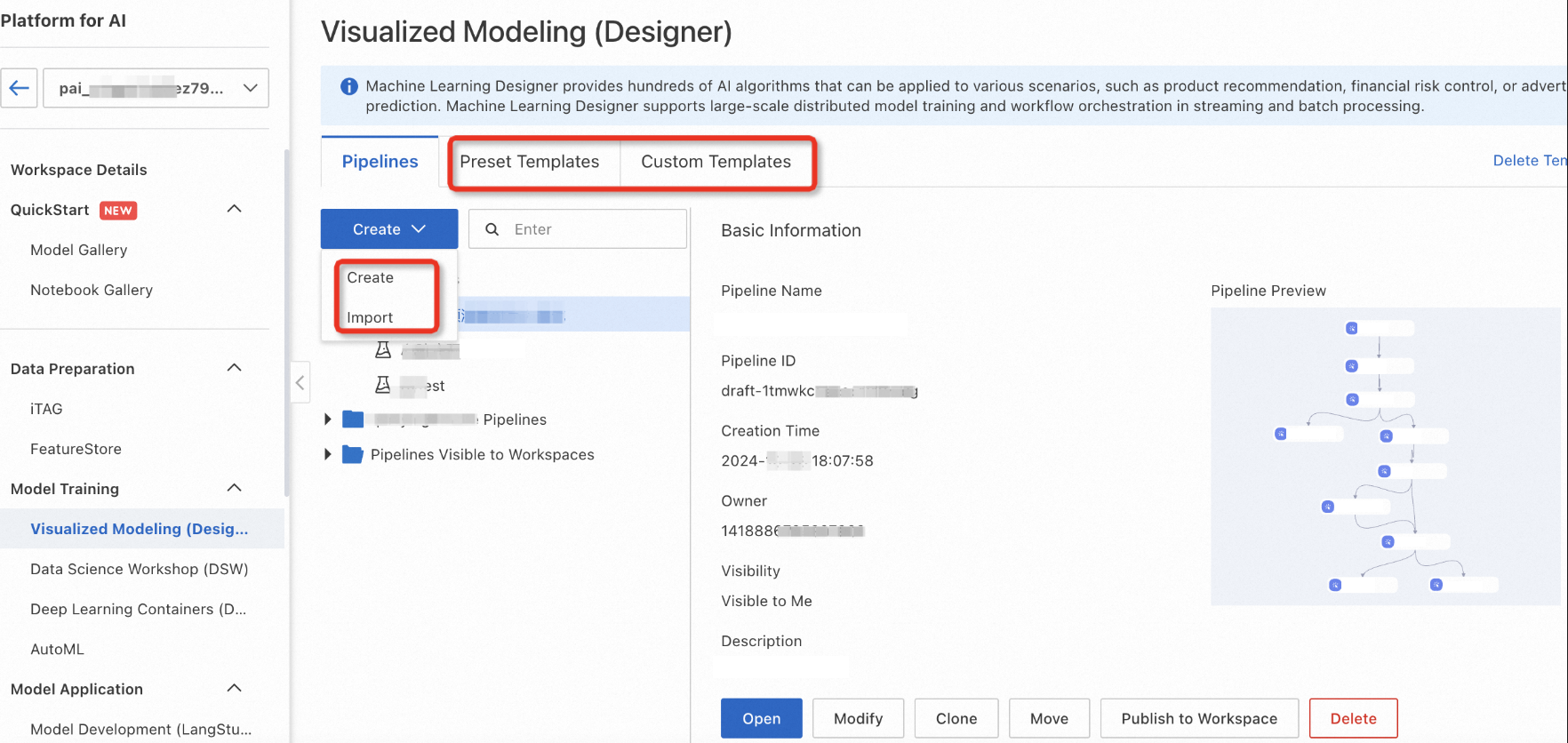
Create a workflow in one of the following ways:
Use a preset template
Designer includes dozens of built-in templates for different frameworks and industry scenarios. Create a workflow from a preset template and modify components or configurations to quickly build a model.
|
Parameter |
Description |
|
Workflow name |
Custom workflow name. |
|
Workflow data storage |
OSS Bucket storage path for temporary data and models generated during runtime. If not configured, uses default workspace storage. For each run, Designer automatically creates a temporary folder at |
|
Visibility |
|
Create blank pipeline
Add components to a blank canvas and build a model from scratch.
|
Parameter |
Description |
|
Workflow name |
Custom workflow name. |
|
Workflow data storage |
OSS Bucket storage path for temporary data and models generated during runtime. If not configured, uses default workspace storage. For each run, Designer automatically creates a temporary folder at |
|
Visibility |
|
Use custom template
In enterprise scenarios, algorithm experts develop algorithm flows and convert stable workflows into templates. Business experts use these templates to quickly build, deploy, and validate models.
Designer provides custom templates to support this workflow. Generate a custom template from a successfully run workflow and share it with other algorithm developers in the workspace. Other members can then create workflows directly from this template.
Use custom template
Members with the Developer role can clone a workflow from a template and continue development.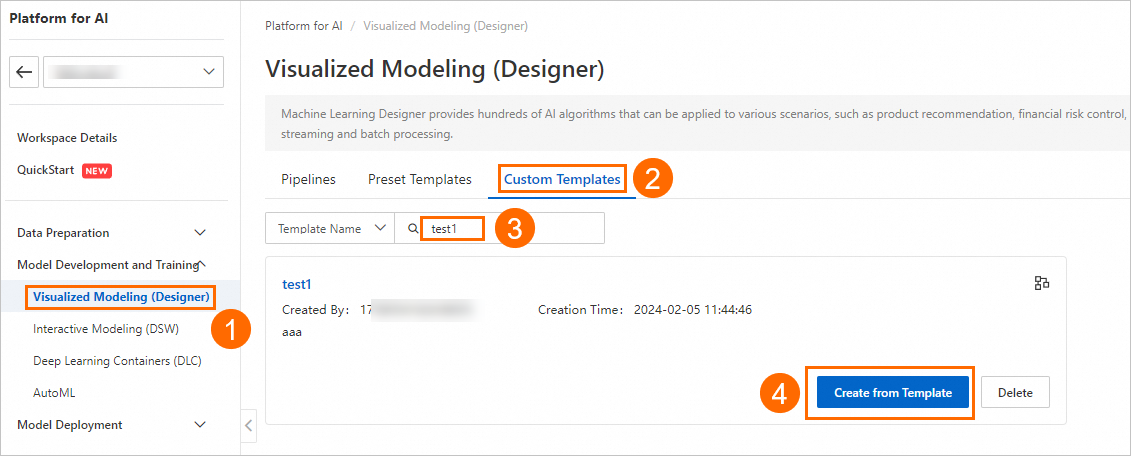
|
Parameter |
Description |
|
Workflow name |
Custom workflow name. |
|
Workflow data storage |
OSS Bucket storage path for temporary data and models generated during runtime. If not configured, uses default workspace storage. For each run, Designer automatically creates a temporary folder at |
|
Visibility |
|
If you do not have a custom template, see Create custom template.
Create custom template
After creating a custom template, other algorithm developers in the workspace can view it and create workflows from it.
-
Double-click a successfully run workflow name to open its details page.
-
Click Publish as Template above the canvas.
-
In the Publish as Template dialog box, configure Template Name, Description, and Documentation Link (optional), then click Publish.
For Documentation Link, enter an accessible HTTP address that describes the custom template.
-
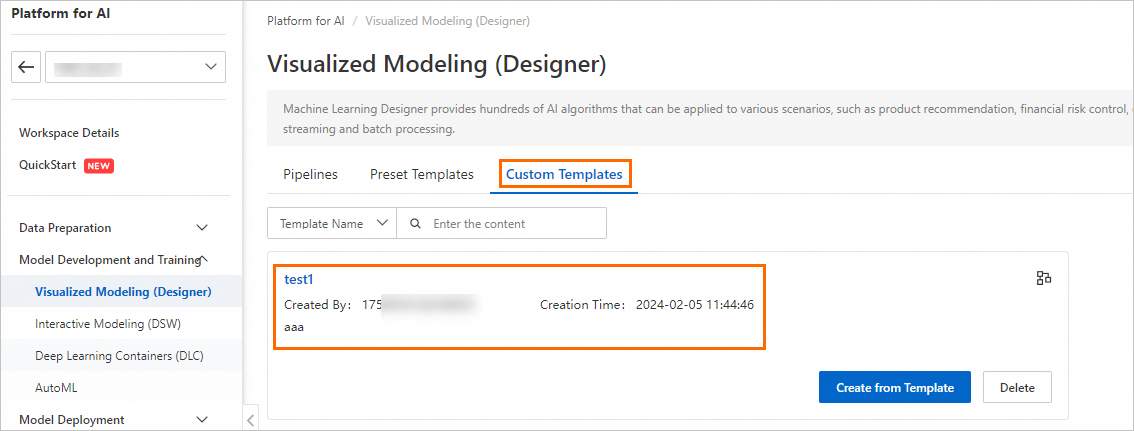
After publishing the template, click OK. Designer automatically redirects you to the Custom Templates tab to view the created template.
Import existing workflow
Import a workflow file in JSON format to create a new workflow in your workspace. Designer imports components and their configurations from the original workflow. Modify components or configurations to build a model.
|
Parameter |
Description |
|
Workflow name |
Custom workflow name. |
|
Workflow data storage |
OSS Bucket storage path for temporary data and models generated during runtime. If not configured, uses default workspace storage. For each run, Designer automatically creates a temporary folder at |
|
Visibility |
|
References
-
After creating a workflow, build and test the model. For more information, see Build and test a model.
-
For quick start with Designer workflow processes, use a template workflow or a custom pipeline.
-
Click Export Pipeline above the Designer workflow canvas to export the workflow to local machine.