Overview
You can export the address book through the Webmail and import to the email client to synchronize the address book.
Details
This topic uses Outlook 2016 as an example to describe how to import the address book.
Export The Address Book
Please refer to How to Import/Export Personal Address Book in Batch?.
Import The Address Book
1. Open Outlook 2016 and select File > Open & Export > Import/Export.
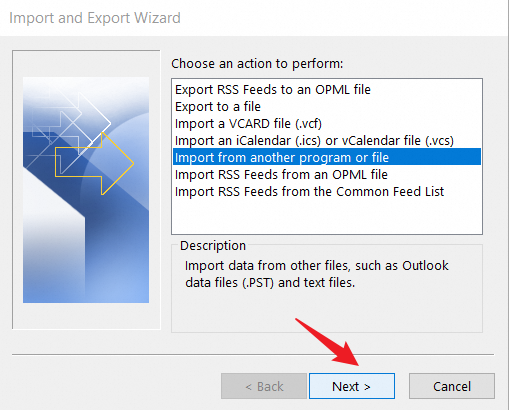
2. In the Import and Export Wizard, select Import from another program or file and click Next.
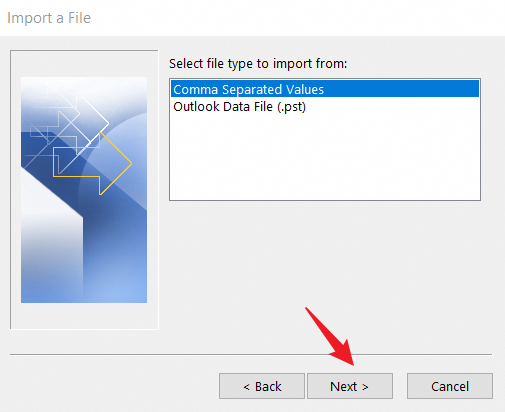
3. Set the file type to Comma Separated Values and click Next.
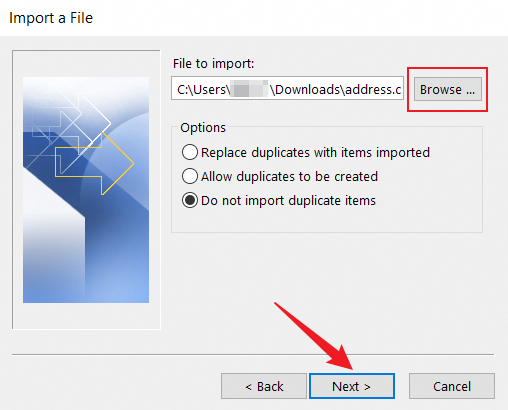
4. Click Browse to select the file that you exported, select the appropriate settings from the options, and then click Next.
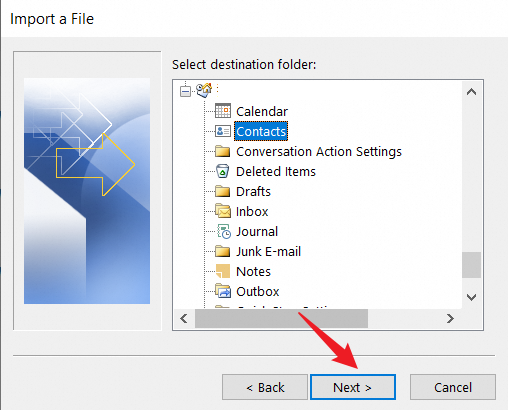
5. Select Contacts as the destination folder and click Next.
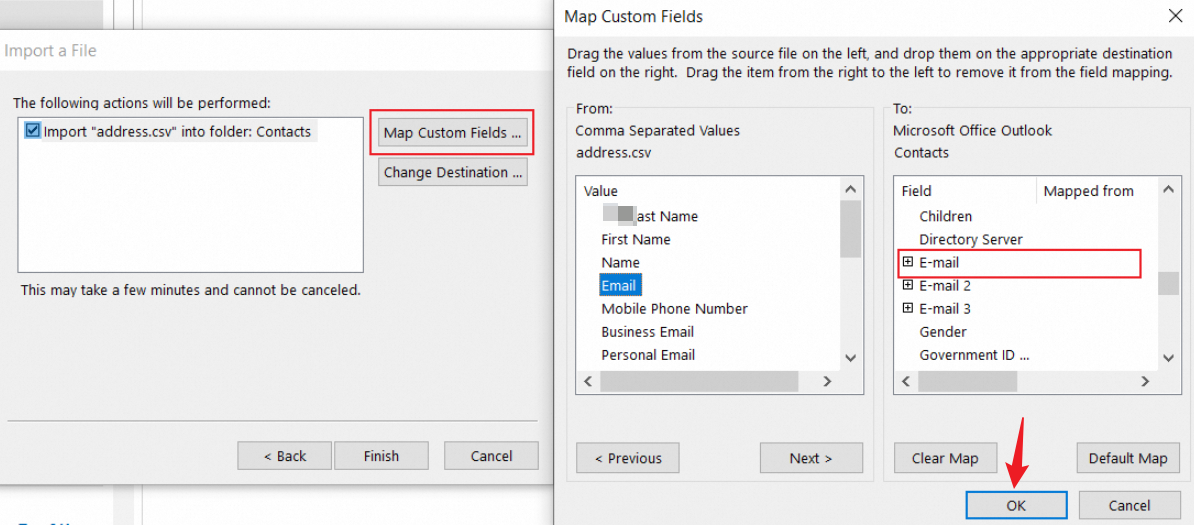
6. Since the exported contacts and Outlook contacts may be in different languages, they must be mapped manually. Click Map Custom Field to map the email address to an email address. Select a field based on your business requirements and click OK.
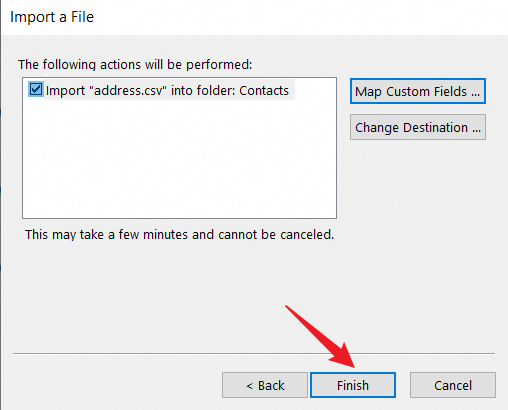
7. Click Finish and wait until the data is imported.
References
If your email client uses Outlook, you can also use one of the following methods to synchronize the address book to the email client:
How to Sync Address Book of Alibaba Mail to Outlook via LDAP Protocol
Two-way synchronization of mailbox contacts and calendars using the Outlook plug-in
Applicable Scope
Alibaba Mail