Employees who transfer sensitive files through peripherals such as USB flash drives, Bluetooth, or AirDrop can expose your organization to significant data loss. The data loss prevention (DLP) feature of Secure Access Service Edge (SASE) lets you control which peripherals employees can use, monitor outbound file transfers in real time, and investigate sensitive behavior events.
This topic describes how to create peripheral control policies, review sensitive behavior detection results, manage the peripheral whitelist, and perform other policy management tasks.
Supported peripherals
| OS | Peripherals | Device ports |
|---|---|---|
| Windows | USB flash drives, USB storage devices, printers, portable devices, card readers, optical drives | Bluetooth |
| macOS | USB flash drives and USB storage devices | Bluetooth, AirDrop |
Control options by device type:
USB flash drives and USB storage devices: Disable Use, Read/Write, or Read-only
All other peripherals and device ports: Disable Use only
When USB Flash Drive and USB Storage is set to Read/Write, DLP triggers sensitive behavior detection whenever a user transfers internal files using a USB flash drive or USB storage device.
Prerequisites
Before you begin, ensure that you have:
Purchased Internet Access DLP Edition of SASE. For more information, see Billing overview and Service purchase
Added users and created user groups. For more information, see Connect an LDAP IdP to SASE and Configure a user group
Create a peripheral control policy
Log on to the SASE console.
In the left-side navigation pane, choose Data Loss Prevention > Policy Center.
Click the Peripheral Management tab, then click Create Policy.
In the Create Policy panel, configure the following parameters.
Parameter Description Policy Name A name for the policy. Must be 2–32 characters and can contain letters, digits, hyphens (-), and underscores (_). Policy Description An optional description of the policy. Status Enable or disable the policy. The policy takes effect only when the switch is turned on. Priority A number from 1 to 10. A lower number means higher priority. Applicable User The users or user groups to which this policy applies. Windows Select peripherals and device ports to control. For USB flash drives and USB storage devices, choose Disable Use, Read/Write, or Read-only. For all other peripherals and Bluetooth, the only option is Disable Use. macOS Select peripherals and device ports to control. For USB flash drives and USB storage devices, choose Disable Use, Read/Write, or Read-only. For Bluetooth and AirDrop, the only option is Disable Use. Approval Process Configuration Specify whether users can submit an application for approval when the users want to use an at-risk peripheral. If you enable this option, select an approval workflow. For more information, see Create an approval workflow. Prompt Display Configuration Configure the prompt message that appears in the dialog box when users want to use an at-risk peripheral. Supports Chinese and English. Click OK.
The policy appears in the policy list and DLP manages peripherals based on the policy.
Example: To give your finance team read-only access to USB drives while allowing your IT team full read/write access, create two policies — one targeting the finance user group with Read-only, and another targeting the IT user group with Read/Write. Assign a lower priority number to the IT policy so it takes precedence if a user belongs to both groups.
View sensitive behavior detection results
When USB Flash Drive and USB Storage is set to Read/Write, DLP automatically detects internal file transfers and logs them as sensitive behavior events. DLP analyzes data from the last 30 days, 7 days, or 24 hours.
The following event details are recorded for each detected transfer: Sensitive Message, Hit Policy, Office Terminal, and Outbound Transfer Channel.
In the left-side navigation pane, choose Data Loss Prevention > Sensitive Behavior Detection.
On the Sensitive Behavior Detection page, review the statistics about outbound transfers of sensitive files performed using USB flash drives or USB storage devices within the selected time period.
In the user list at the bottom of the page, find a user and click Details in the Actions column to see that user's activity.
Find a file in the results and click Details in the Actions column to view the full event information.
Configure the peripheral whitelist
Add users to the whitelist to exempt them from all peripheral control policies. The whitelist is designed for users who have a legitimate, ongoing need to use peripherals freely — for example, IT administrators who routinely manage USB-connected devices. Keep the whitelist short and limit it to users with a clear business justification.
On the Peripheral Management page, click Peripheral Whitelist.
On the Whitelist tab, add the users to exempt.
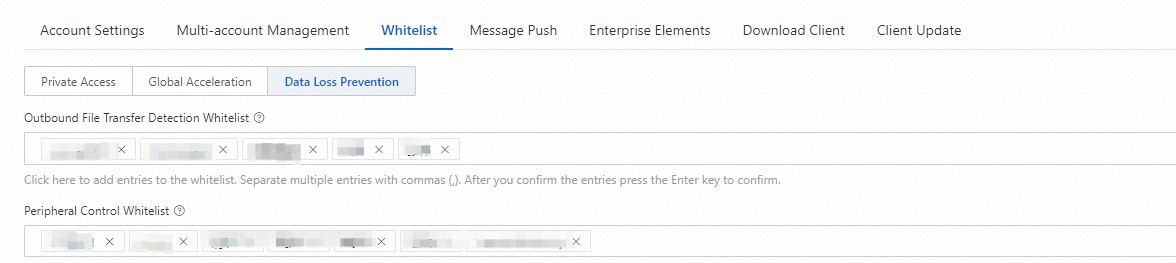
Click Submit.
More policy operations
Change a policy's priority
Click the  icon next to the policy and enter a new priority value (1–10). A lower number means higher priority.

Disable a policy
Find the policy and turn off the switch in the Policy Status column. The policy is retained and can be re-enabled at any time.
Delete a policy
Find the policy and click Delete in the Actions column.
Deleted policies cannot be restored.
What's next
To view and trace the logs of sensitive file transfers, see Sensitive file detection.
To monitor files transferred through other channels, see Monitor outbound file transfers to ensure data security.
To manage screen and printer watermarks, see Manage watermarks to ensure data security.