Hermes Agent is a self-evolving AI agent framework developed by Nous Research. It features a closed-loop learning mechanism that automatically creates skills from experience and persists memory across sessions. It supports multiple messaging platforms, including Telegram, DingTalk, and Lark. Deploy Hermes Agent on PAI-EAS to build a personalized assistant that learns from your interactions.
Deploy an EAS service
-
Log on to the PAI console. Select a region on the top of the page. Then, select the desired workspace and click Elastic Algorithm Service (EAS).
On the Inference Service tab, click Deploy Service. In the Scenario-based Model Deployment section, click Hermes Agent Deployment.
-
Configure the following parameters:
Parameter
Description
Service Name
Example:
hermes_demo.Image Configuration
Select the latest version.
Resource Configuration
Select CPU and choose an instance type based on your resource requirements. The default is
ecs.c7a.large.Model Settings
Specify an OSS path to persist Hermes Agent configurations, for example,
oss://examplebucket/hermes/.VPC
Create and configure a VPC, vSwitch, and security group.
NoteQwenPaw search or browser-based web access requires internet connectivity. Select a VPC with Configure public internet access enabled.
Click Deploy. When the service status changes to Running, the deployment is complete.
Configure public internet access
The EAS service accesses the public internet through an Internet NAT Gateway. For more information, see Internet NAT Gateway.
1. Create Internet NAT Gateway and bind EIP
Go to the NAT Gateway - Internet NAT Gateway purchase page.
Billing Method: Select pay-as-you-go.
Region: Select the region where your EAS service is deployed.
Network and Zone: Select the VPC configured for your EAS service. You cannot change this setting after creation.
EIP: Select an EIP that is not associated with any instance, or purchase a new EIP.
2. Configure an SNAT entry
Go to the Internet NAT Gateway page. Find the Internet NAT Gateway that you created. In the Actions column, click Configure SNAT , and click Create SNAT Entry.
SNAT Entry: Select VPC granularity.
Select EIP: Select the Elastic IP Address (EIP) that you configured.
Use in WebUI
1. Access the WebUI
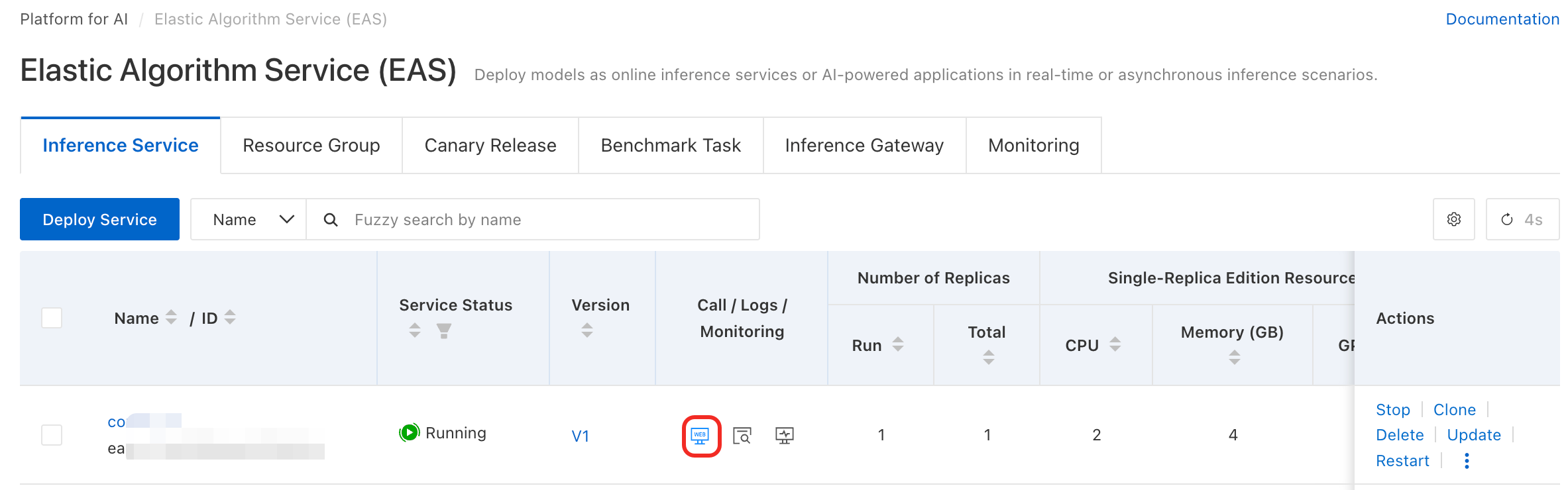
In the Invoke/Log/Monitoring column, click the  button to open the web UI page.
2. Configure a model
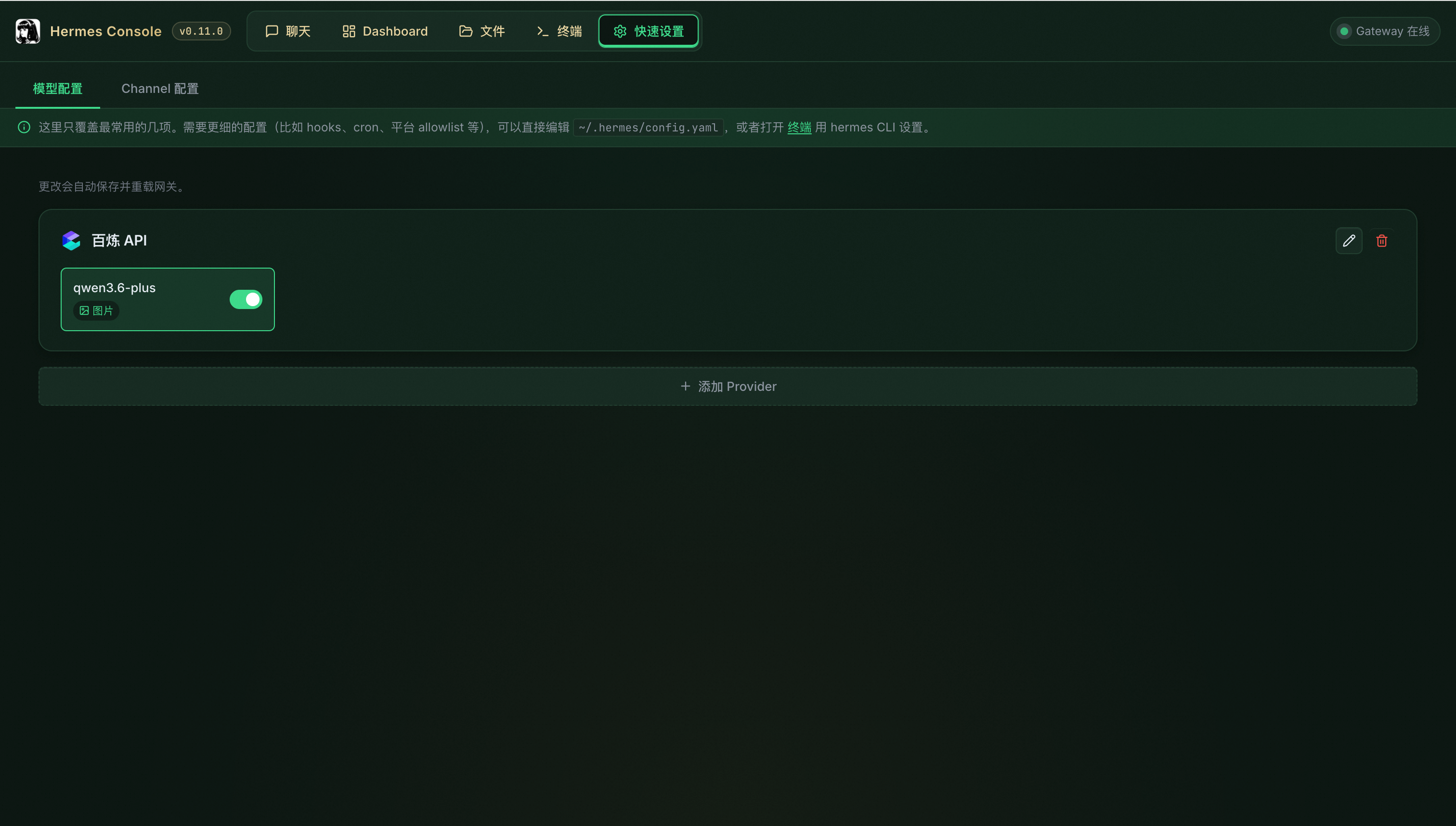
In Quick Settings > Model Configuration, configure Model Studio (Bailian) API, Token Plan, Coding Plan, and custom OpenAI-compatible model services.
For EAS model services, select Custom and set Base URL and API Key based on Obtain the endpoint and token. Append
/v1to the endpoint.
3. Start a conversation
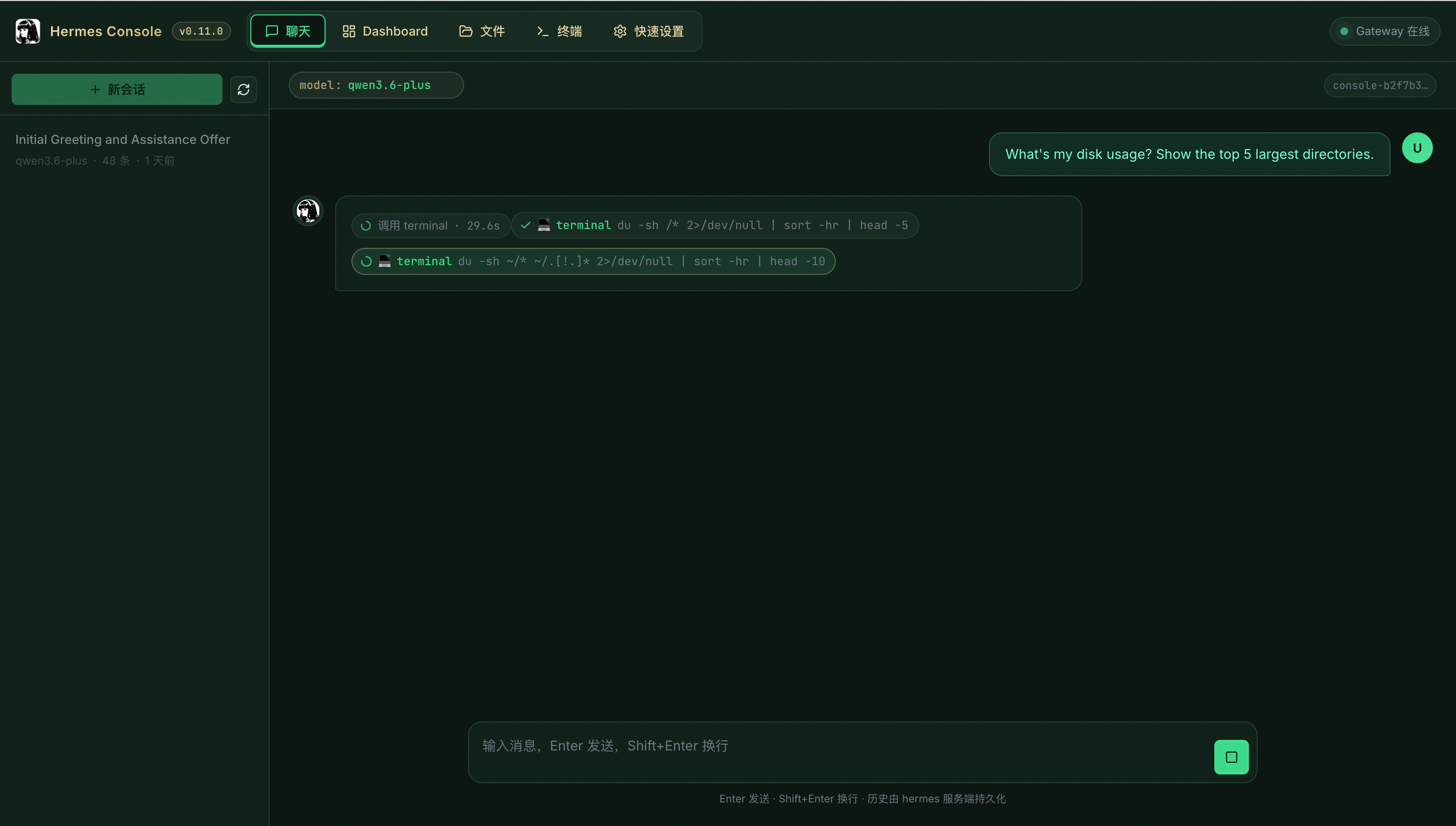
Send a message on the Chat page to start interacting with the agent.
Channel configuration
In the WebUI, go to Quick Settings > Channel Configuration and configure the Client ID and Secret for your DingTalk enterprise application, and the App ID and Secret for your Lark application.
For details, see DingTalk configuration and Lark configuration.