DataWorks provides a recycle bin to protect against accidental data loss when you delete a workspace. Deleted workspaces retain some of their core assets for 14 days, during which you can recover them. This topic covers the required permissions, pre-deletion checks, how to delete a workspace, and how to recover one from the recycle bin.
Permissions
To delete or recover a workspace, your account must meet one of the following conditions:
-
Your account is an Alibaba Cloud account.
-
Your account is a Resource Access Management (RAM) user with the AliyunDataWorksFullAccess access policy. For more information, see Product and console permissions: RAM Policy.
Pre-deletion checks
Deleting a workspace permanently removes all development assets in that workspace, including code. This action cannot be undone. Complete the following checks before you proceed.
Check PAI assets
DataWorks and PAI share the same underlying workspace structure. Deleting a DataWorks workspace also deletes the associated PAI workspace. Confirm the deletion with your PAI team before proceeding.
Stop billable items
Auto triggered tasks continue to bill even after the workspace is deleted. Before you delete the workspace, go to Operation Center and freeze or delete any related auto triggered tasks. If billing continues after deletion, submit a ticket for assistance.
For more information about billing scenarios, see Core billing scenarios.
Delete a workspace
After completing the pre-deletion checks, follow these steps to delete a workspace.
-
Log on to the DataWorks console.
-
In the left navigation pane, click Workspaces.
-
Find the target workspace. In the Actions column, click
 > Delete Workspace.
 -
In the confirmation dialog box, review the list of core assets in the DataWorks and associated PAI workspaces. The list includes computing resources, resources, and nodes.
-
Read the risk warning carefully. Enter the workspace name and click OK.
After deletion, the following core assets are moved to the recycle bin: data sources, computing resources, nodes, and resources.
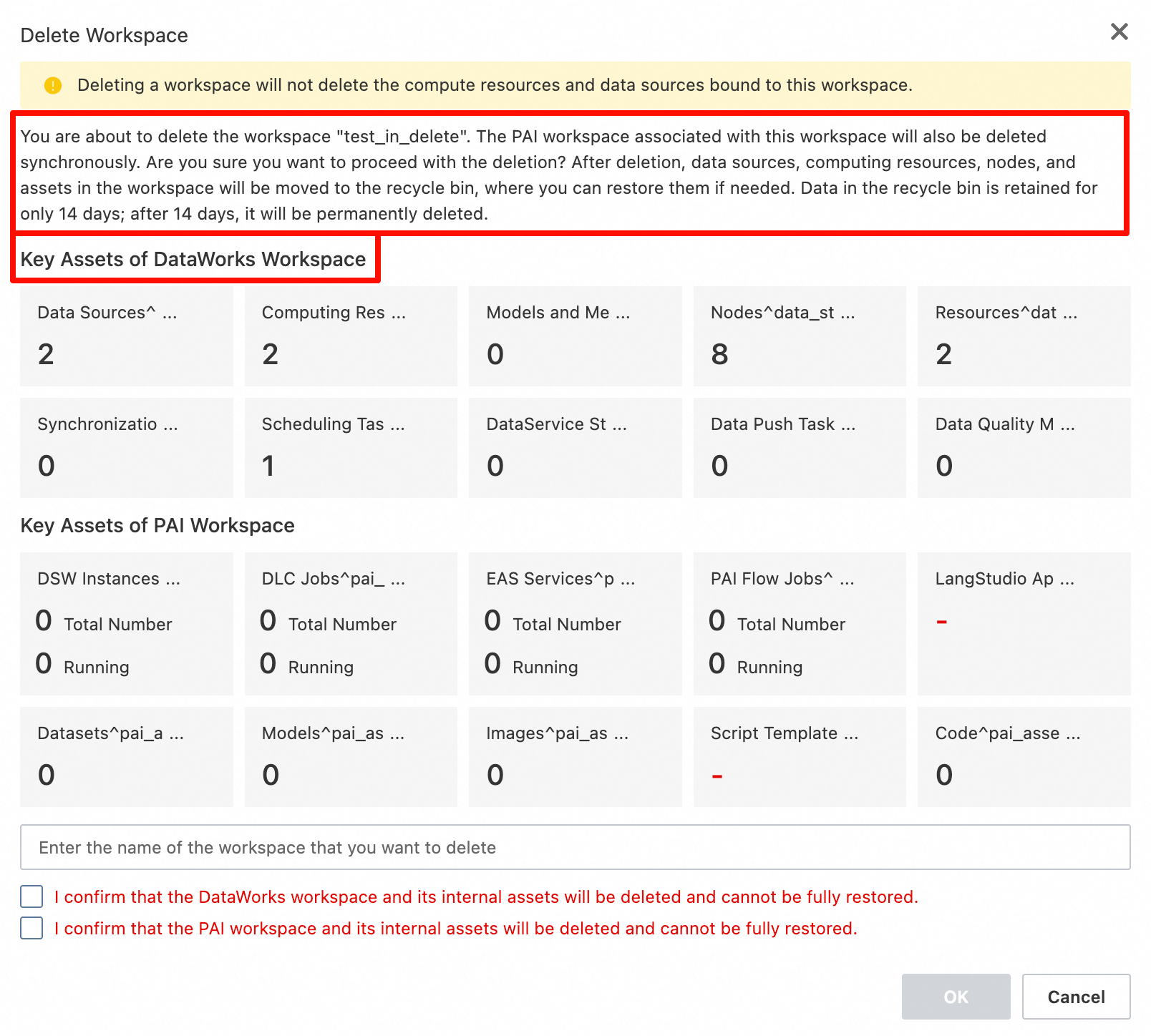
If the DataWorks data modeling feature is not enabled, Models and Metrics are not displayed under core assets on the workspace deletion confirmation page.
Recover a workspace
DataWorks automatically moves some core assets to the recycle bin when a workspace is deleted. You have 14 days from the deletion date to recover these assets. After this period, the workspace is permanently deleted and cannot be recovered.
Recovering a workspace only restores the asset types listed in the table below. Other asset types, such as scheduling tasks and data integration tasks, are not covered. If other types of assets appear to be restored, this behavior is not a guaranteed product feature—do not rely on it for disaster recovery or backup purposes.
What gets recovered
| Asset type | Recoverable |
|---|---|
| Data sources | Yes |
| Computing resources | Yes |
| Nodes | Yes |
| Resources | Yes |
| Scheduling tasks | No |
| Data integration tasks | No |
After a node is recovered from the recycle bin, you can edit, commit, and publish it again in DataStudio. After you publish the node, it is synced to Operation Center for scheduling and operations management.
Recover from the recycle bin
-
On the Workspaces page, click Recycle Bin in the upper-right corner.
-
On the Recycle Bin page, check the Deletion Time and Physical Deletion Countdown columns to confirm the workspace is still within the 14-day retention period.
-
Find the workspace you want to recover and click Recover in the Actions column.
FAQ
Can I immediately create a new workspace with the same name as one that is still in the recycle bin?
No. While a workspace is in the recycle bin, the system reserves its name to maintain the integrity of the recovery process—this reservation lasts up to 14 days.
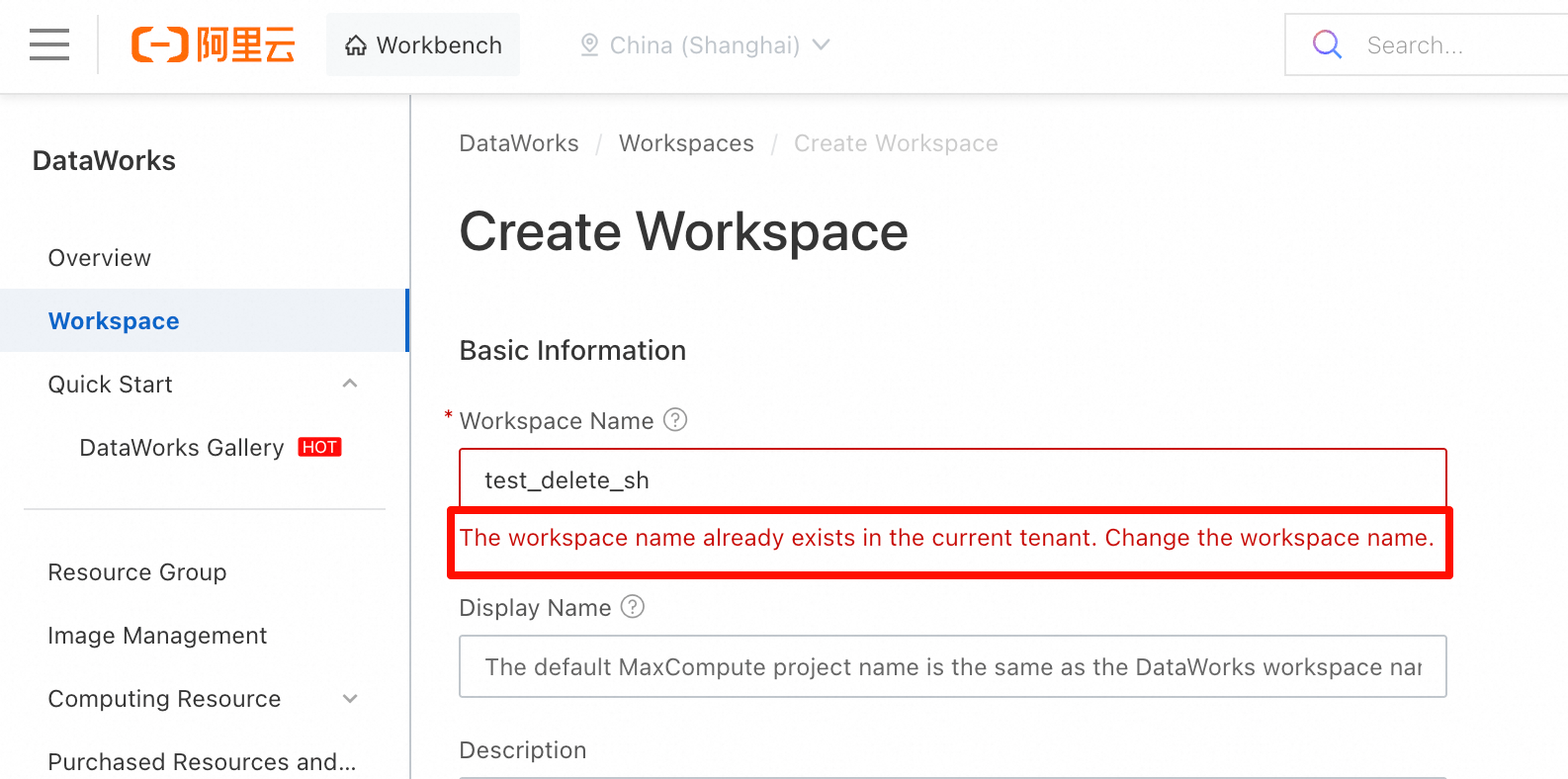
To use the name immediately, choose one of the following options:
-
Wait for automatic purging: After the 14-day retention period ends, the system permanently deletes the workspace and releases the name.
-
Use a new name: Create the new workspace with a unique name that meets the naming conventions.
Can the 14-day retention period be extended?
No. The 14-day retention period is a fixed policy and cannot be extended. Recover the workspace within this period, or the data is permanently lost.