RAY resource groups let you run distributed data processing jobs on Lindorm's managed Ray clusters. This guide covers how to set up a Ray client, submit a job, and monitor its progress.
RAY resource groups are in invitational preview. To request access, contact Lindorm technical support (DingTalk ID: s0s3eg3).
Prerequisites
Before you begin, ensure that you have:
LindormTable enabled
The compute engine for Lindorm enabled
RAY resource groups enabled
The client IP address added to the Lindorm whitelist
Set up your environment
Log in to the Lindorm console. In the upper-left corner, select the region where the instance is deployed. On the Instance List page, click the instance ID or click Manage in the Actions column.
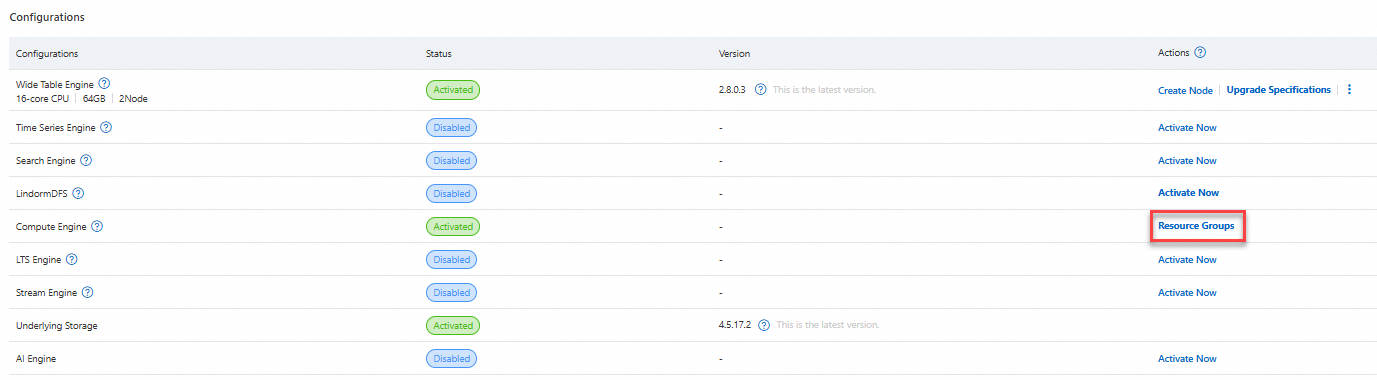
On the Instance Details page, go to the Configurations section and click Resource Groups in the Actions column for Compute Engine.
On the Resource Group Details page, hover over WebUI in the Actions column for the RAY resource group to get the Ray Dashboard URL. For example:
http://alb-57k7r581oht8rd****.cn-hangzhou.alb.aliyuncsslb.com/ray/raycg/dashboard/Save this URL — you'll use it as
RAY_ADDRESSwhen submitting jobs.Install the Ray client:
pip3 install ray[default]Verify the installation:
ray --version
Submit a job
Step 1: Write the job script
The following example script, ray-oss-example.py, reads files from an Object Storage Service (OSS) bucket and uploads the processed results back to OSS. Save the script in a directory called ray_job_test.
import ray
import sys

from ossfs import OSSFileSystem
import tempfile
import ossfs

ray.init()

@ray.remote
def process(oss_key: str, oss_secret: str, filename: str):
    print("Processing %s" % filename)
    fs = oss_filesystem(oss_key, oss_secret)
    # Download to local
    tmp_filename = tempfile.NamedTemporaryFile(delete=False).name
    fs.get_file(filename, tmp_filename)
    print("tmp file name is %s" % tmp_filename)

    with open(tmp_filename, 'rb') as f:
        content = f.read()
        print(content)

    # Put to OSS
    result_remote_filename = f"{filename}_result"
    fs.put_file(tmp_filename, result_remote_filename)
    return "success"

def oss_filesystem(oss_key: str, oss_secret: str) -> OSSFileSystem:
    return ossfs.OSSFileSystem(
        endpoint="oss-cn-hangzhou-internal.aliyuncs.com", # The OSS endpoint
        key=oss_key,
        secret=oss_secret
    )

if __name__ == "__main__":
    if (len(sys.argv) < 2):
        raise ValueError("python %s oss_key oss_secret" % __file__)

    oss_key = sys.argv[1]
    oss_secret = sys.argv[2]
    base = "/test-bucket/test-data/"  # /<bucketname>/path
    fs = oss_filesystem(oss_key, oss_secret)

    files = [item['name'] for item in fs.ls(base) if item['name'] != base]

    for file in files:
        print("Head processing %s" % file)
        result = ray.get(process.remote(oss_key, oss_secret, file))
        print(f"{file} is processed, status is {result}")

ray.shutdown()
Script parameters
| Parameter | Example | Description |
|---|---|---|
endpoint | oss-cn-hangzhou-internal.aliyuncs.com | The OSS endpoint. For more information, see Regions and endpoints. |
base | /test-bucket/test-data/ | The OSS path to process, in the format /<bucketname>/path. |
Use the @ray.remote() annotation to declare compute resources for each Task or Actor — for example, num_cpus and num_gpus. See Specifying task or actor resource requirements for details. Ray also supports scheduling tasks as a pipeline across heterogeneous resources (CPUs and GPUs) on multiple nodes, which can significantly improve throughput compared to traditional batch processing.
Step 2: Submit the job
From the ray_job_test directory, run:
ray job submit --runtime-env-json '{"working_dir": "."}' --address <RAY_ADDRESS> -- python my_job.py oss_key oss_secretReplace the following placeholders:
| Placeholder | Example | Description |
|---|---|---|
<RAY_ADDRESS> | http://alb-57k7r581oht8rd****.cn-hangzhou.alb.aliyuncsslb.com/ray/raycg/dashboard/ | The Ray Dashboard URL obtained in Set up your environment. |
my_job.py | ray-oss-example.py | The name of the script file to execute. |
oss_key | yourAccessKeyID | The AccessKey ID of the Alibaba Cloud account or Resource Access Management (RAM) user used to access OSS. See Obtain an AccessKey. |
oss_secret | yourAccessKeySecret | The AccessKey secret corresponding to the AccessKey ID. |
Example command
ray job submit --runtime-env-json '{"pip": ["ossfs"], "working_dir": "."}' --address http://alb-57k7r581oht8rd****.cn-hangzhou.alb.aliyuncsslb.com/ray/raycg/dashboard/ -- python ray-oss-example.py yourAccessKeyID yourAccessKeySecretThe command returns the SUBMISSION_ID of the submitted job, such as raysubmit_gmSnPSFqmEXG****. Use it to check status, view logs, or stop the job.
Monitor and manage jobs
Open the Ray Dashboard URL in a browser to monitor job status, job logs, and the job list in real time using the RAY Dashboard.
Ray also provides three ways to view and manage jobs:
| Method | Best for |
|---|---|
| CLI | Scripting and automation |
| Python SDK | Programmatic access from application code |
| REST API | HTTP-based access from any environment |
Use the CLI
Ray provides ray job subcommands to view and manage jobs. See the Ray Jobs CLI API reference for the full command reference.
The following examples use the syntax:
ray job <subcommand> --address <RAY_ADDRESS> [SUBMISSION_ID]View job status
ray job status --address http://alb-57k7r581oht8rd****.cn-hangzhou.alb.aliyuncsslb.com/ray/raycg/dashboard/ raysubmit_gmSnPSFqmEXG****View job logs
ray job logs --address http://alb-57k7r581oht8rd****.cn-hangzhou.alb.aliyuncsslb.com/ray/raycg/dashboard/ raysubmit_gmSnPSFqmEXG****List all jobs
ray job list --address http://alb-57k7r581oht8rd****.cn-hangzhou.alb.aliyuncsslb.com/ray/raycg/dashboard/Stop a job
ray job stop --address http://alb-57k7r581oht8rd****.cn-hangzhou.alb.aliyuncsslb.com/ray/raycg/dashboard/ raysubmit_gmSnPSFqmEXG****Python SDK
Ray provides JobSubmissionClient for programmatic job management. See the Python SDK API reference.
REST API
Ray provides a REST API for HTTP-based job management. Use the Ray Dashboard URL as the entry point. See the Ray Jobs REST API reference.