This topic describes how to use Data Transmission Service (DTS) to synchronize data from a PolarDB for PostgreSQL (Compatible with Oracle) cluster to Alibaba Cloud Message Queue for Apache Kafka.
Prerequisites
Set the wal_level parameter of the source PolarDB for PostgreSQL (Compatible with Oracle) cluster to logical. This setting adds information required for logical decoding to the write-ahead log (WAL). For more information, see Configure cluster parameters.
Create a destination Alibaba Cloud Message Queue for Apache Kafka instance with storage space larger than the storage space used by the source PolarDB for PostgreSQL (Compatible with Oracle) instance.
NoteFor supported versions of the source and destination databases, see Overview of synchronization scenarios.
Create a topic in the destination Alibaba Cloud Message Queue for Apache Kafka instance to receive synchronized data. For more information, see Step 1: Create a topic.
Notes
Type | Description |
Source database limits |
|
Other limits |
|
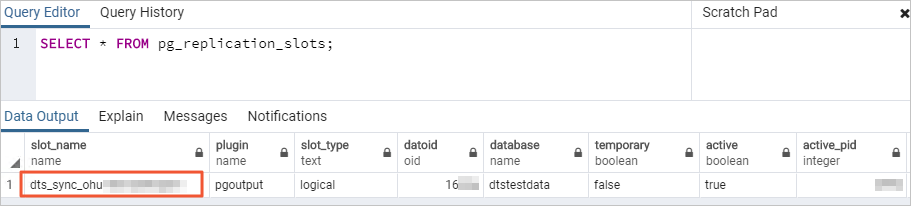
Billing
Synchronization type | Pricing |
Schema synchronization and full data synchronization | Free of charge. |
Incremental data synchronization | Charged. For more information, see Billing overview. |
SQL operations supported for incremental synchronization
Operation type | SQL statements |
DML | INSERT, UPDATE, DELETE |
DDL |
Note DDL statements are not synchronized in the following scenarios:
|
Database account permissions
Database | Permission requirements | Account creation and authorization method |
PolarDB for PostgreSQL (Compatible with Oracle) cluster | Privileged account |
Procedure
Go to the data synchronization task list page in the destination region. You can do this in one of two ways.
DTS console
Log on to the DTS console.
In the navigation pane on the left, click Data Synchronization.
In the upper-left corner of the page, select the region where the synchronization instance is located.
DMS console
NoteThe actual steps may vary depending on the mode and layout of the DMS console. For more information, see Simple mode console and Customize the layout and style of the DMS console.
Log on to the DMS console.
In the top menu bar, choose .
To the right of Data Synchronization Tasks, select the region of the synchronization instance.
Click Create Task to open the task configuration page.
Configure the source and destination databases.
NoteFor information about how to obtain parameters for the destination Alibaba Cloud Message Queue for Apache Kafka instance, see Configure parameters for a Message Queue for Apache Kafka instance.
Category
Configuration
Description
None
Task Name
DTS automatically generates a task name. We recommend that you specify a descriptive name for easy identification. The name does not need to be unique.
Source Database
Select Existing Connection
Select the registered database instance with DTS from the drop-down list. The database information below is automatically configured.
NoteIn the DMS console, this configuration item is Select a DMS database instance.
If you have not registered the database instance or do not need to use a registered instance, manually configure the database information below.
Database Type
Select PolarDB (Compatible with Oracle).
Access Method
Select Alibaba Cloud Instance.
Instance Region
Select the region where the source PolarDB for PostgreSQL (Compatible with Oracle) cluster resides.
Replicate Data Across Alibaba Cloud Accounts
For this example, select No, as the database instance belongs to the current Alibaba Cloud account.
Instance ID
Select the ID of the source PolarDB for PostgreSQL (Compatible with Oracle) cluster.
Database Name
Enter the name of the database in the source PolarDB for PostgreSQL (Compatible with Oracle) cluster that contains the objects to be synchronized.
Database Account
Enter the database account of the source PolarDB for PostgreSQL (Compatible with Oracle) cluster. For permission requirements, see Database account permissions.
Database Password
Enter the password for the specified database account.
Destination Database
Select Existing Connection
Select the registered database instance with DTS from the drop-down list. The database information below is automatically configured.
NoteIn the DMS console, this configuration item is Select a DMS database instance.
If you have not registered the database instance or do not need to use a registered instance, manually configure the database information below.
Database Type
Select Kafka.
Access Method
Select Express Connect, VPN Gateway, or Smart Access Gateway.
NoteHere, the Alibaba Cloud Message Queue for Apache Kafka instance is configured as a self-managed Kafka database for data synchronization.
Instance Region
Select the region where the destination Alibaba Cloud Message Queue for Apache Kafka instance resides.
Connected VPC
Select the VPC ID of the destination Alibaba Cloud Message Queue for Apache Kafka instance.
Domain Name or IP
Enter any IP address from the Default Endpoint of the destination Alibaba Cloud Message Queue for Apache Kafka instance.
Port Number
Enter the service port of the destination Alibaba Cloud Message Queue for Apache Kafka instance. The default port is 9092.
Database Account
This example does not require this field.
Database Password
Kafka Version
Select the version that matches your Kafka instance.
Encryption
Based on your business and security requirements, select Non-encrypted or SCRAM-SHA-256.
Topic
Select the topic that receives data from the drop-down list.
Use Kafka Schema Registry
Kafka Schema Registry is a metadata service layer that provides a RESTful interface for storing and retrieving Avro schemas.
No: Do not use Kafka Schema Registry.
Yes: Use Kafka Schema Registry. Enter the URL or IP address where the Avro schema is registered in Kafka Schema Registry in the URL or IP Address of Schema Registry text box.
After completing the configuration, click Test Connectivity and Proceed at the bottom of the page.
NoteEnsure that you add the CIDR blocks of the DTS servers (either automatically or manually) to the security settings of both the source and destination databases to allow access. For more information, see Add the IP address whitelist of DTS servers.
If the source or destination is a self-managed database (i.e., the Access Method is not Alibaba Cloud Instance), you must also click Test Connectivity in the CIDR Blocks of DTS Servers dialog box.
Configure the task objects.
On the Configure Objects page, specify the objects to synchronize.
Configuration
Description
Synchronization Types
DTS always selects Incremental Data Synchronization. By default, you must also select Schema Synchronization and Full Data Synchronization. After the precheck, DTS initializes the destination cluster with the full data of the selected source objects, which serves as the baseline for subsequent incremental synchronization.
NoteWhen the Access Method of the destination Kafka instance is Alibaba Cloud Instance, Schema Synchronization is not supported.
Processing Mode of Conflicting Tables
Precheck and Report Errors: Checks for tables with the same names in the destination database. If any tables with the same names are found, an error is reported during the precheck and the data synchronization task does not start. Otherwise, the precheck is successful.
NoteIf you cannot delete or rename the table with the same name in the destination database, you can map it to a different name in the destination. For more information, see Database Table Column Name Mapping.
Ignore Errors and Proceed: Skips the check for tables with the same name in the destination database.
WarningSelecting Ignore Errors and Proceed may cause data inconsistency and put your business at risk. For example:
If the table schemas are consistent and a record in the destination database has the same primary key or unique key value as a record in the source database:
During full data synchronization, DTS retains the destination record and skips the source record.
During incremental synchronization, DTS overwrites the destination record with the source record.
If the table schemas are inconsistent, data initialization may fail. This can result in only partial data synchronization or a complete synchronization failure. Use with caution.
Data Format in Kafka
Select a data storage format for synchronization to the Kafka instance as needed.
If you select Canal JSON, see Canal JSON description for parameter descriptions and examples.
NoteCurrently, only the China (Qingdao) and China (Beijing) regions support Canal JSON.
If you select DTS Avro, you must parse the data based on the DTS Avro schema definition. For more information, see DTS Avro schema definition and DTS Avro deserialization sample code.
If you select Shareplex JSON, see Shareplex JSON for parameter descriptions and examples.
Kafka Data Compression Format
Select the compression format for Kafka messages as needed.
LZ4 (default): low compression ratio and high compression speed.
GZIP: high compression ratio and low compression speed.
NoteThis format consumes more CPU resources.
Snappy: medium compression ratio and medium compression speed.
Policy for Shipping Data to Kafka Partitions
Select a strategy as needed.
Message acknowledgement mechanism
Select a message acknowledgment mechanism as needed.
Topic That Stores DDL Information
Select a topic from the drop-down list to store DDL information.
NoteIf you do not select a topic, the DDL information is stored in the topic that receives data by default.
Capitalization of Object Names in Destination Instance
Configure the case-sensitivity policy for database, table, and column names in the destination instance. By default, the DTS default policy is selected. You can also choose to use the default policy of the source or destination database. For more information, see Case policy for destination object names.
Source Objects
In the Source Objects box, click the objects, and then click
 to move them to the Selected Objects box.Note
The selection granularity for synchronization objects is table.
Selected Objects
This example does not require additional configuration. You can use the mapping feature to set the topic name, number of partitions, and partition key for the source table in the destination Kafka instance. For more information, see Mapping information.
NoteIf you use the object name mapping feature, synchronization of other objects that depend on this object may fail.
To select SQL operations for incremental synchronization, right-click the object to be synchronized in Selected Objects and select the required SQL operations in the dialog box that appears.
Click Next: Advanced Settings.
Configuration
Description
Dedicated Cluster for Task Scheduling
By default, DTS uses a shared cluster for tasks, so you do not need to make a selection. For greater task stability, you can purchase a dedicated cluster to run the DTS synchronization task. For more information, see What is a DTS dedicated cluster?.
Retry Time for Failed Connections
If the connection to the source or destination database fails after the synchronization task starts, DTS reports an error and immediately begins to retry the connection. The default retry duration is 720 minutes. You can customize the retry time to a value from 10 to 1,440 minutes. We recommend a duration of 30 minutes or more. If the connection is restored within this period, the task resumes automatically. Otherwise, the task fails.
NoteIf multiple DTS instances (e.g., Instance A and B) share a source or destination, DTS uses the shortest configured retry duration (e.g., 30 minutes for A, 60 for B, so 30 minutes is used) for all instances.
DTS charges for task runtime during connection retries. Set a custom duration based on your business needs, or release the DTS instance promptly after you release the source/destination instances.
Retry Time for Other Issues
If a non-connection issue (e.g., a DDL or DML execution error) occurs, DTS reports an error and immediately retries the operation. The default retry duration is 10 minutes. You can also customize the retry time to a value from 1 to 1,440 minutes. We recommend a duration of 10 minutes or more. If the related operations succeed within the set retry time, the synchronization task automatically resumes. Otherwise, the task fails.
ImportantThe value of Retry Time for Other Issues must be less than that of Retry Time for Failed Connections.
Enable Throttling for Full Data Synchronization
During full data synchronization, DTS consumes read and write resources from the source and destination databases, which can increase their load. To mitigate pressure on the destination database, you can limit the migration rate by setting Queries per second (QPS) to the source database, RPS of Full Data Migration, and Data migration speed for full migration (MB/s).
NoteThis parameter is available only if Synchronization Types is set to Full Data Synchronization.
You can also adjust the rate of full data synchronization when the synchronization instance is running.
Enable Throttling for Incremental Data Synchronization
You can also limit the incremental synchronization rate to reduce pressure on the destination database by setting RPS of Incremental Data Synchronization and Data synchronization speed for incremental synchronization (MB/s).
Environment Tag
Select an environment label to identify the instance as needed. This example does not require selection.
Configure ETL
Choose whether to enable the extract, transform, and load (ETL) feature. For more information, see What is ETL? Valid values:
-
Yes: Enables the ETL feature. Enter data processing statements in the code editor. For more information, see Configure ETL in a data migration or data synchronization task.
-
No: Disables the ETL feature.
Monitoring and Alerting
Choose whether to set up alerts. If the synchronization fails or the latency exceeds the specified threshold, DTS sends a notification to the alert contacts.
No: No alerts are configured.
Yes: Configures alerts. You must also set the alert threshold and alert notifications. For more information, see Configure monitoring and alerting during task configuration.
Save the task and perform a precheck.
To view the parameters for configuring this instance via an API operation, hover over the Next: Save Task Settings and Precheck button and click Preview OpenAPI parameters in the tooltip.
If you have finished viewing the API parameters, click Next: Save Task Settings and Precheck at the bottom of the page.
NoteBefore a synchronization task starts, DTS performs a precheck. You can start the task only if the precheck passes.
If the precheck fails, click View Details next to the failed item, fix the issue as prompted, and then rerun the precheck.
If the precheck generates warnings:
For non-ignorable warning, click View Details next to the item, fix the issue as prompted, and run the precheck again.
For ignorable warnings, you can bypass them by clicking Confirm Alert Details, then Ignore, and then OK. Finally, click Precheck Again to skip the warning and run the precheck again. Ignoring precheck warnings may lead to data inconsistencies and other business risks. Proceed with caution.
Purchase the instance.
When the Success Rate reaches 100%, click Next: Purchase Instance.
On the Purchase page, select the billing method and link specifications for the data synchronization instance. For more information, see the following table.
Category
Parameter
Description
New Instance Class
Billing Method
Subscription: You pay upfront for a specific duration. This is cost-effective for long-term, continuous tasks.
Pay-as-you-go: You are billed hourly for actual usage. This is ideal for short-term or test tasks, as you can release the instance at any time to save costs.
Resource Group Settings
The resource group to which the instance belongs. The default is default resource group. For more information, see What is Resource Management?.
Instance Class
DTS offers synchronization specifications at different performance levels that affect the synchronization rate. Select a specification based on your business requirements. For more information, see Data synchronization link specifications.
Subscription Duration
In subscription mode, select the duration and quantity of the instance. Monthly options range from 1 to 9 months. Yearly options include 1, 2, 3, or 5 years.
NoteThis option appears only when the billing method is Subscription.
Read and select the checkbox for Data Transmission Service (Pay-as-you-go) Service Terms.
Click Buy and Start, and then click OK in the OK dialog box.
You can monitor the task progress on the data synchronization page.
Mapping information
In the Selected Objects area, place the mouse pointer over the destination topic name (at the table level).
Click Edit next to the destination topic name.
In the Edit Table dialog box that appears, configure mapping information.
NoteAt the schema level, the dialog box is Edit Schema, which supports fewer configurable parameters. At the table level, the dialog box is Edit Table.
If the granularity of synchronization objects is not the entire schema, you cannot modify the Name of target Topic and Number of Partitions in the Edit Schema dialog box.
Configuration
Description
Name of target Topic
The destination topic name for synchronizing the source table. By default, it is the Topic selected in Destination Database during the Configurations for Source and Destination Databases step.
ImportantWhen the destination database is an Alibaba Cloud Message Queue for Apache Kafka instance, the topic name you enter must exist in the destination Kafka instance. Otherwise, data synchronization fails. When the destination database is a self-managed Kafka database and the synchronization instance includes schema and table tasks, DTS attempts to create the topic you enter in the destination database.
If you modify the Name of target Topic, data is written to the topic you enter.
Filter Conditions
For more information, see Set filter conditions.
Number of Partitions
The number of partitions for writing data to the destination topic.
Partition Key
When Policy for Shipping Data to Kafka Partitions is set to Ship Data to Separate Partitions Based on Hash Values of Primary Keys, configure this parameter to specify one or more columns as the Partition Key for hash calculation. DTS delivers different rows to partitions in the destination topic based on the calculated hash value. Otherwise, this delivery strategy does not take effect during incremental writes.
NoteYou can select Partition Key only in the Edit Table dialog box.
Click OK.
FAQ
Can I modify the Kafka Data Compression Format?
Yes, you can. You can use the Modify Sync Objects feature.
Can I modify the Message acknowledgement mechanism?
Yes, you can. You can use the Modify Sync Objects feature.