DataWorks' batch database synchronization feature periodically replicates table schemas and data from a source database to a destination. You can perform batch full or incremental synchronization, making this a key solution for efficient data migration. This topic uses a MySQL to MaxCompute migration as an example to describe the general process for configuring these tasks.
Prerequisites
Data sources
You have created source and destination data sources. For more information, see Data Source Management.
Ensure that your data sources support batch database synchronization. For more information, see Supported data sources.
Resource group: You have purchased and configured a serverless resource group.
Network connectivity: You have established network connectivity between the resource group and the data sources.
Usage notes
You can configure batch database synchronization tasks in the DataStudio and Data Integration modules, and they are functionally interchangeable.
Consistent configuration: The configuration UI, parameters, and functions are identical, whether you create the task in Data Studio or Data Integration.
Bidirectional synchronization: Tasks created in Data Integration are automatically synchronized and displayed in the
data_integration_jobsdirectory within Data Studio. These tasks are categorized by theirSourceType-DestinationTypechannel for centralized management.
Configure a synchronization task
Step 1: Create a synchronization task
Log on to the DataWorks console. In the top navigation bar, select the desired region. In the left-side navigation pane, choose . On the page that appears, select the desired workspace from the drop-down list and click Go to Data Integration.
In the left navigation bar, click Synchronization Task, and then click Create Synchronization Task at the top of the page and configure the task information:
Data Source Type:
MySQL.Data Source Type:
MaxCompute.Specific Type:
Full database offline.Synchronization Mode: Synchronization Step works in conjunction with the Full and Incremental Control configuration item. You can combine them to create different synchronization solutions. For more information, see Full and Incremental Control.
Schema Migration: Automatically creates database objects (such as tables, fields, and data types) in the destination that match those in the source, but does not include data.
Full Synchronization (Optional): Completely copies all historical data from specified objects, such as tables, from the source to the destination in a single operation. It is typically used for initial data migration or data initialization.
Incremental Sync (Optional): After a full synchronization is complete, it continuously captures new data from the source based on the incremental condition and synchronizes it to the destination.
Step 2: Configure data sources and runtime resources
In the Source Data Source area, select the
MySQLdata source that has been added to the workspace, and in the Destination area, select theMaxComputedata source.In the Running Resources area, select the Resource Group for the synchronization task and assign Resource Group CUs. If your synchronization task encounters an Out of Memory (OOM) error due to insufficient resources, adjust the Resource Group CUs allocation accordingly.
Ensure that the source data source and the destination data source both pass the Connectivity Check.
Step 3: Configure the synchronization solution
1. Configure the data source
In this step, select the source tables to synchronize from the Source tables area and click the  icon to move them to the Selected tables list on the right.
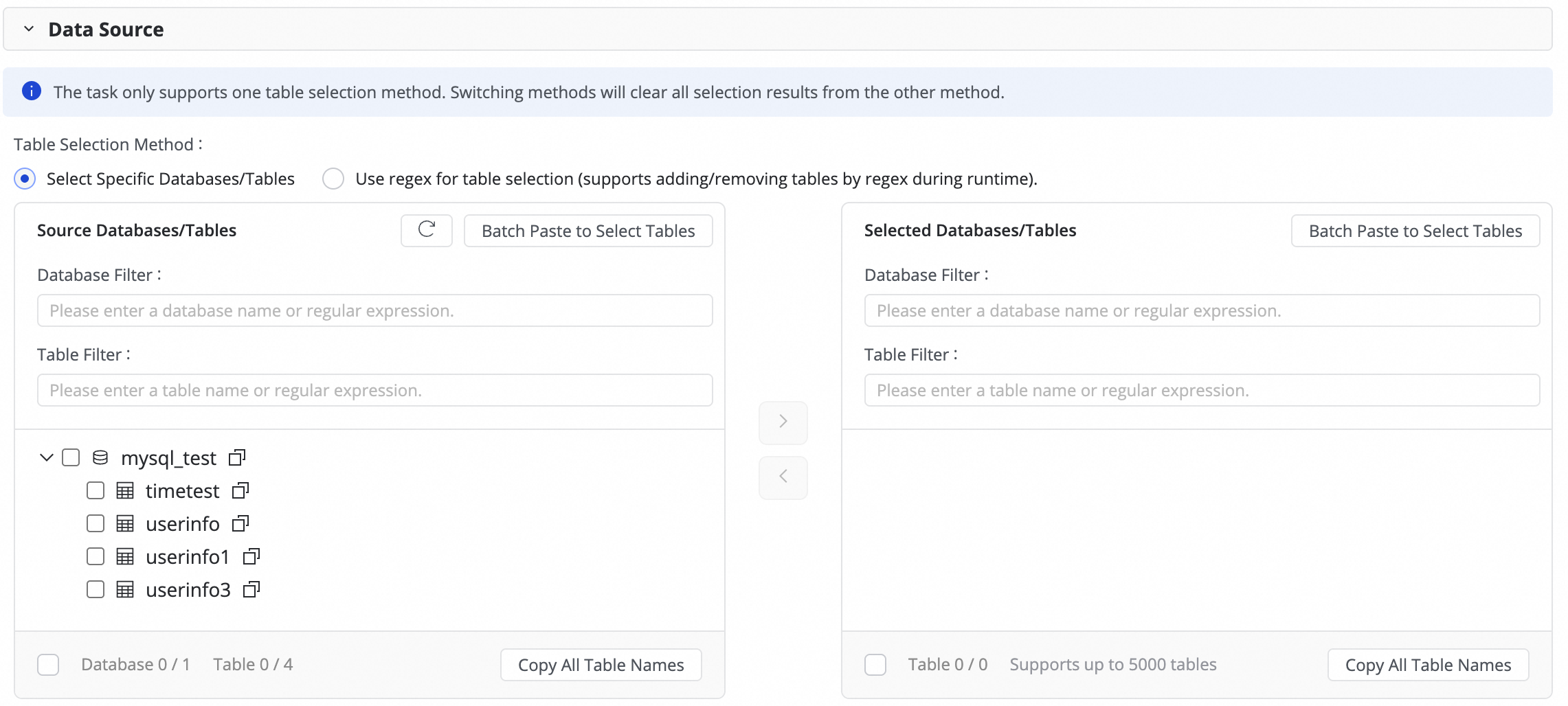
If you have a large number of databases and tables, you can use Database Filtering or Table filtering to select the tables to synchronize by configuring regular expressions.
2. Configure the data destination
Click the Configuration button next to Partition Initialization Configuration to uniformly initialize the partitions for new target tables. Changes made here will overwrite the partition settings for all new target tables. Configured target tables are not affected.
3. Configure the solution (full and incremental control)
Configure the task execution frequency
If you select "full synchronization" or "incremental synchronization," you can run the task as a One-time or Recurring task.
If you select both "full synchronization" and "incremental synchronization," the system uses the built-in mode: "A one-time full synchronization followed by recurring incremental synchronization." This option cannot be changed.
Synchronization steps
Sync control
Description
Use cases
full synchronization
One-time
After the task starts, it synchronizes all data from the source table at once to the destination table or a specified partition.
Data initialization, system migration
Recurring
It periodically synchronizes all data from the source table to the destination table or a specified partition based on the configured schedule.
Data reconciliation, T+1 full snapshot
incremental synchronization
One-time
After the task starts, it synchronizes incremental data at once to a specified partition based on the specified incremental condition.
Manual data repair for a specific batch
Recurring
After the task starts, it periodically synchronizes incremental data to a specified partition based on the configured scheduling cycle and incremental condition.
Daily ETL, building slowly changing dimension tables
Full synchronization & incremental synchronization
(Built-in mode, not selectable)
First run: Automatically performs an initial schema migration and a full synchronization of historical data.
Subsequent runs: Periodically synchronizes incremental data to a specified partition based on the configured scheduling cycle and incremental condition.
One-click data warehousing/data lake ingestion
NoteThe system generates instances for scheduled tasks by using the Generate immediately after publishing method. For more information, see Instance generation method: Generate immediately after publishing.
The partition generation method can be defined in the subsequent Value assignment, where you can use constants, or dynamically generate partitions by using system-predefined variables and periodic scheduling parameters.
The configurations for the scheduling cycle, incremental condition, and partition generation method are interconnected. For more information, see 6. Configure the incremental condition.
Configure recurring schedule parameters.
If your task involves periodic synchronization, click Scheduling Parameters for Periodical Scheduling to configure the schedule. You can use these parameters to configure the incremental condition and field assignment for the target table mapping.
4. Destination table mapping
In this step, you define the mapping rules between the source and destination tables. You also define the Recurring Schedule and incremental condition to specify how data is written.

Actions | Description | ||||||||||||
Refresh mapping | The system automatically lists the source tables that you selected. However, you must refresh the mapping to apply the properties of the destination tables.
| ||||||||||||
Edit field type mapping (Optional) | The system has a default mapping between source and destination field types. You can click Edit Mapping of Field Data Types in the upper-right corner of the table to customize the field type mapping between the source and destination tables. After you complete the configuration, click Apply and Refresh Mapping. Incorrect type conversion rules can cause dirty data and task failures. | ||||||||||||
Customize destination table name mapping (Optional) | The system has a default naming rule for tables:
This feature enables the following scenarios:
| ||||||||||||
Customize destination database name mapping (Optional) | Some destination data sources, such as Hologres, allow you to define mapping rules for destination databases. The configuration method is similar to that for Customize destination table name mapping. | ||||||||||||
Customize destination schema name mapping (Optional) | Some destination data sources, such as Hologres, allow you to define mapping rules for destination schemas. The configuration method is similar to that for Customize destination table name mapping. | ||||||||||||
Edit destination table schema (Optional) | The system automatically generates the destination table schema based on the source table schema, which typically requires no manual changes. If you require special handling, you can customize the schema in the following ways:
| ||||||||||||
Value assignment | The system automatically maps standard fields based on matching names between the source and destination tables. You must manually assign values to partition fields and any new fields that you added. Perform the following operations:
You can assign constants and variables. For Table Fields and Partition Fields, you can switch the assignment type in the Value Type field. The supported methods are as follows:
At runtime, the system automatically replaces variables and recurring schedule parameters with date-specific values. | ||||||||||||
Set source sharding column | In the source sharding column, you can select a field from the source table or select Disable. When the synchronization task runs, it is sharded into multiple tasks based on this field to allow data to be read in parallel and in batches. Use the table's primary key as the source sharding column. String, float, and date types are not supported. Currently, the source sharding column is supported only when the source is MySQL. | ||||||||||||
Customize advanced parameters | You can separately configure the Writer Configuration and Runtime Configuration for each subtask. Modify these settings only after you fully understand the meaning of the corresponding parameters to prevent unexpected issues, such as task latency, excessive resource consumption that blocks other tasks, or data loss. | ||||||||||||
Table type | Table type: MaxCompute supports standard tables, PK Delta Tables, and Append Delta Tables. If the destination table status is "To be created", you can select the table type when you edit the destination table schema. The type of an existing table cannot be changed. For more information about Delta Tables, see Delta Table. |
 button and combining Manually enter and Built-in Variable. The supported variables include the source data source name, source database name, and source table name.

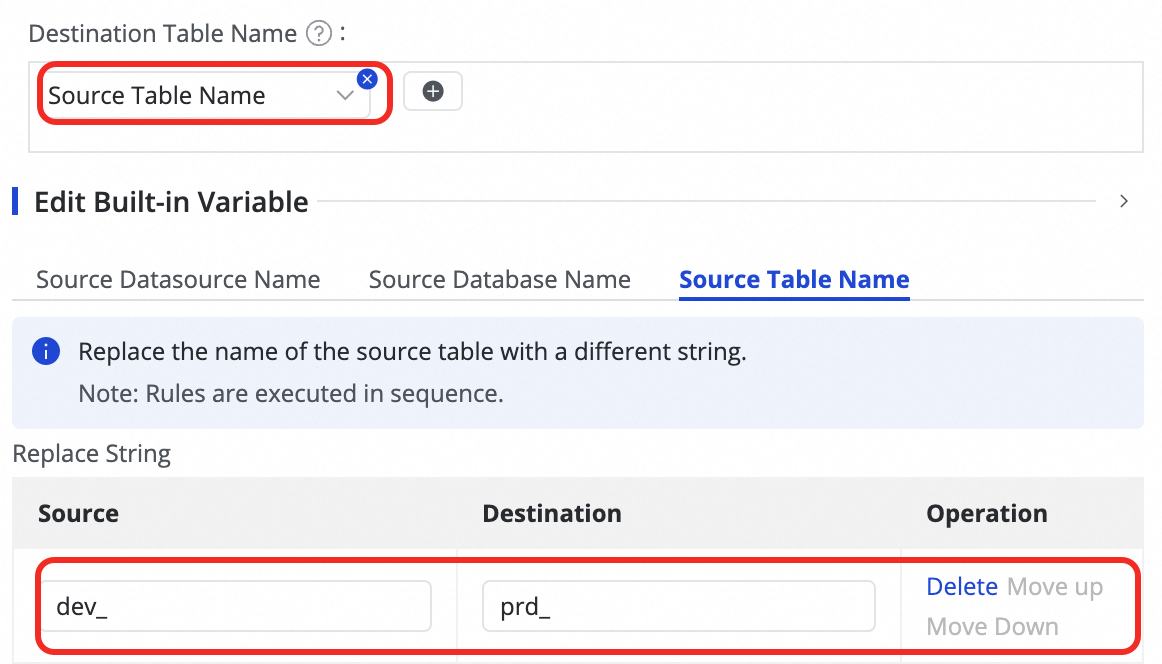

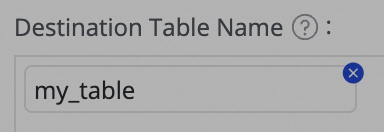

 button in the Target Table column to add a field.
 icon.
icon.5. Configure the recurring schedule
If incremental synchronization is configured as Periodic, you need to configure the scheduling configuration for the target table. This includes Scheduling Frequency, Data Timestamp, and Resource Group for Scheduling. The scheduling configuration for the current synchronization is the same as the scheduling configuration for nodes in Data Studio. For more information about the parameters, see Node Scheduling Configuration.
If a one-time synchronization task involves many tables, we recommend staggering the execution times when you configure the schedule to prevent task backlogs and resource contention.
6. Configure the incremental condition
If the task needs to synchronize incremental data, you must configure an incremental condition. This condition determines which data each instance of a scheduled task synchronizes.
Function and syntax
Function: The incremental condition is essentially a
WHEREclause that filters the source data.Syntax: When you configure the condition, you only need to enter the conditional expression that follows
WHERE. Do not include theWHEREkeyword.
Use scheduling parameters for incremental synchronization
Use scheduling parameters in the incremental condition to perform periodic incremental synchronization. For example, set the condition to
STR_TO_DATE('${bizdate}', '%Y%m%d') <= columnName AND columnName < DATE_ADD(STR_TO_DATE('${bizdate}', '%Y%m%d'), INTERVAL 1 DAY)Write to a specific partition
By combining the incremental condition with the destination table's partition field, you can ensure that each batch of incremental data is written to the correct partition.
For example, with the incremental condition from the previous step, you can set the partition field to
ds=${bizdate}and partition the destination table by day. This way, each daily instance synchronizes only the data from the corresponding date at the source and writes it to the partition with the same name in the destination table.
By properly combining the time range from the incremental condition, the time interval for partition generation, and the scheduling cycle from the recurring schedule, you can create an automated T+n incremental ETL pipeline where business rules and physical partitions are strictly aligned.
Step 4: Configure advanced settings
Advanced parameters
To perform fine-grained configuration for the task to meet custom synchronization requirements, you can modify the advanced parameters.
In the upper-right corner of the page, click Advanced Configuration to go to the advanced parameter configuration page.
Modify the parameter values according to the prompts. The description for each parameter is provided next to its name.
AI-assisted configuration is also supported. You can enter modification instructions in natural language, such as adjusting task concurrency. The large language model (LLM) will then generate recommended parameter values, which you can choose to accept based on your needs.
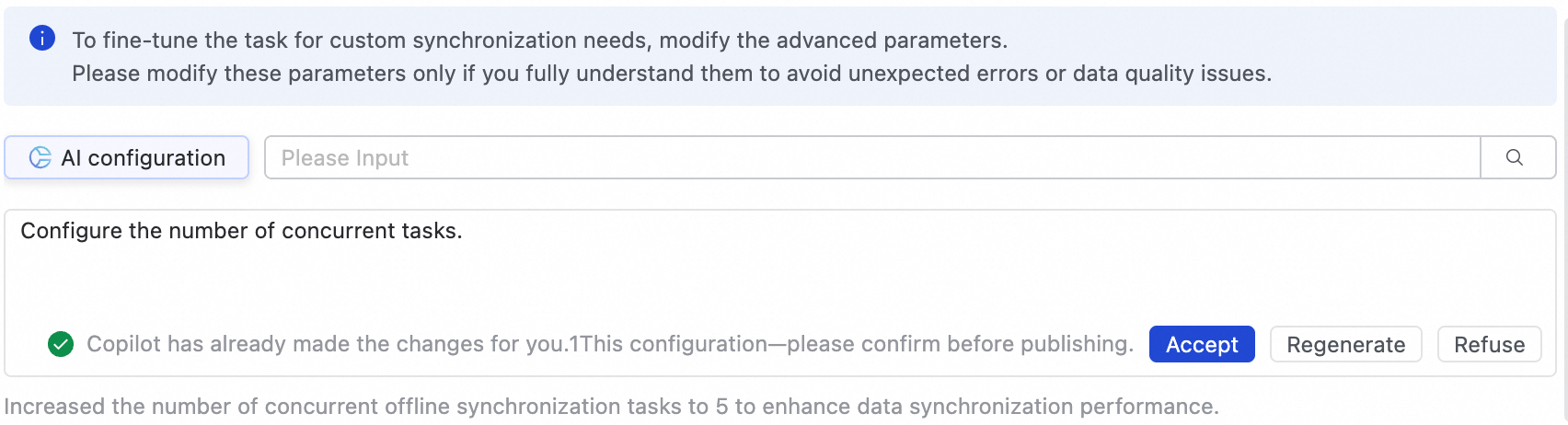
To prevent issues such as task latency, excessive resource consumption, or data loss, modify these parameters only if you fully understand their purpose.
Engine parameters
You do not need to configure engine parameters under normal circumstances. If you need to do so, follow the guidance of internal experts or contact technical support for assistance.
Step 5: Deploy and run the task
After you complete all configurations, click Save at the bottom of the page to complete the task configuration.
Entire database synchronization tasks do not support direct debugging and must be deployed to the Operation Center to run. Therefore, you must Deploy new or edited tasks for the changes to take effect.
If you select Start immediately after deployment when you deploy a task, the task starts automatically. Otherwise, after the deployment is complete, go to the page and manually start the task in the Actions column of the target task.
Click the Name/ID of the corresponding task in the Tasks to view the detailed execution process.
Step 6: Configure an alert rule
To configure an alert rule for a batch database synchronization task, you need to find the corresponding subtask in Operation Center.
In the column, obtain the target Task ID.
In the column, find the corresponding full-database offline subtask by using the integration task ID, and then click for the task to go to the Rule Management page. For example, if the integration task ID is
34862, the name of the incremental synchronization scheduled subtask isoffline_odps_cyc_sync_mysql_test_timetest_to_mysql_test_timetest_34862.In the Create Custom Rule dialog box, configure parameters such as Rule Object, Trigger Method, and Alert Details. For more information, see Rule Management.
You can search for the subtask ID in the Rule Object to find the target task and set an alert for it.
Manage synchronization tasks
Edit task
On the page, find the synchronization task that you created. In the Operation column, click More and then click Edit to modify the task information. The steps are the same as those for configuring the task.
For a task that is not in the running state, you can directly modify the configuration and save it. The changes take effect after you deploy the task.
For a task that is in the Running state, if you edit and deploy it without selecting the Start immediately after deployment option, the original action button changes to Apply Updates. You must click this button for the changes to take effect in the online environment.
After you click Apply Updates, the system performs three steps to apply the changes: Stop, Deploy, and Restart.
If you add a table:
After you apply the updates, the system adds a sync subtask for the new table. This subtask's schema migration and one-time full synchronization start immediately. Then, incremental synchronization proceeds according to the schedule.
If you switch the destination table (equivalent to deleting the old table and adding a new one):
After you apply the updates, the system deletes the subtask for the old table and generates a new one. The new subtask's schema migration and one-time full synchronization start immediately. It then proceeds with incremental synchronization according to the schedule.
If you modify other information:
The schema migration and one-time full synchronization for the table are not affected. New incremental synchronization instances will use the updated configuration. Existing instances are not affected.
Unmodified tables are not affected and will not be re-run.
View task
After creating a synchronization task, you can view the list of created synchronization tasks and their basic information on the synchronization task page.

In the Actions column, you can Start or Stop a synchronization task. In the More menu, you can perform other operations, such as Edit and View.
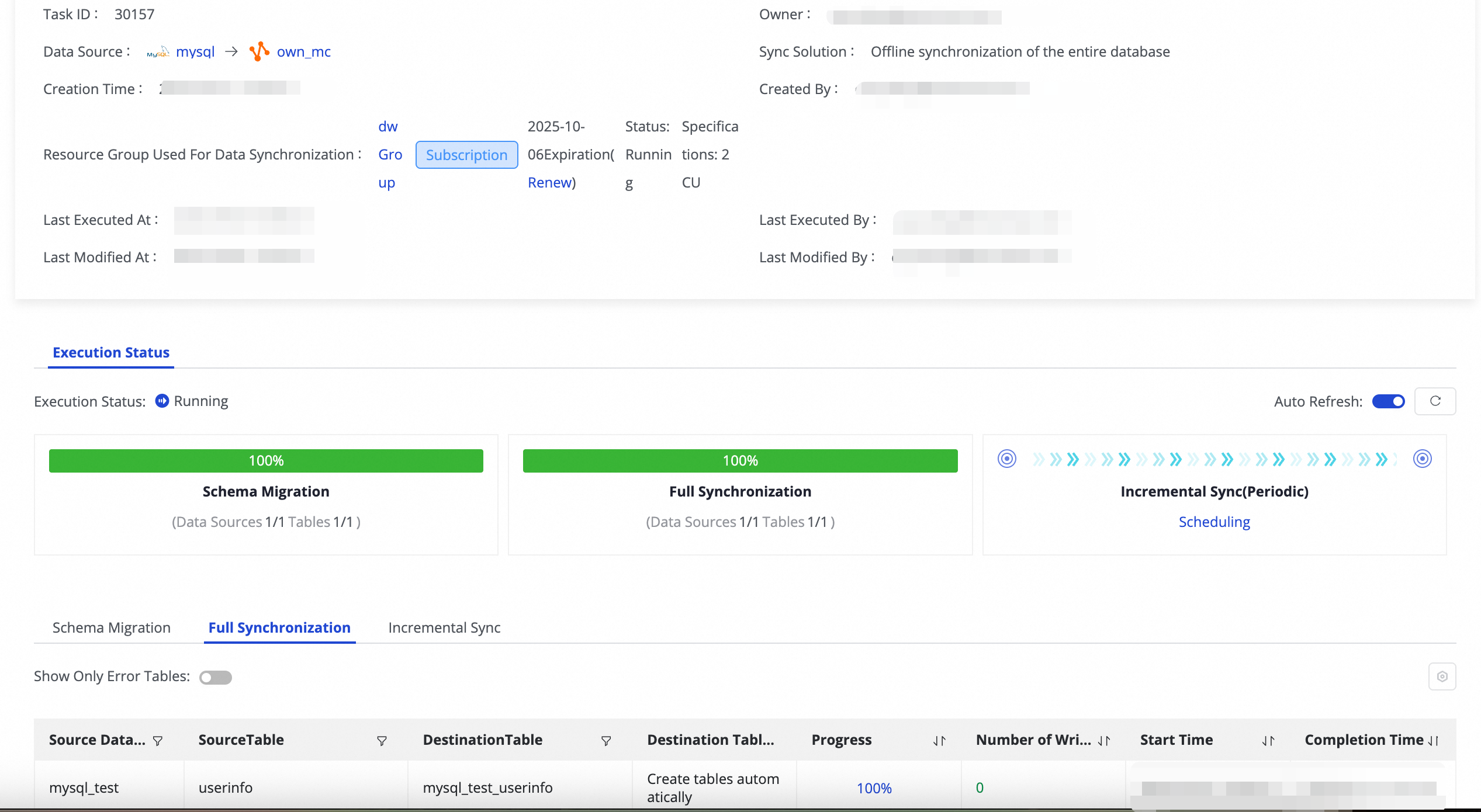
Once a task has started, you can view basic information about its run in Execution Overview. You can also click the corresponding overview area to view the execution details.
Quotas and limits
Debugging limitations: You cannot debug batch synchronization tasks directly in the Data Integration or Data Studio UI. They must be deployed to Operation Center to run.
Sharding column limitations: The Set source sharding column feature is currently supported only when the source is MySQL. The sharding column must be a numeric type. String, float, or date types are not supported.
Schema change limitations: When you Edit destination table schema, you cannot rename columns. For existing destination tables, you cannot change their Table type.
Next steps
After the task starts, you can click the task name to view its running details and perform task O&M and tuning.
FAQ
For frequently asked questions about batch database synchronization tasks, see FAQ about full and incremental synchronization tasks.