Continuous profiling helps you identify performance bottlenecks in your Go applications caused by CPU, memory, and I/O. It provides detailed statistics broken down by method name, class name, and line number, which helps you optimize code, reduce latency, increase throughput, and save costs. This topic describes how to enable the continuous profiling feature for Go applications in ARMS and view the profiling data.
Prerequisites
Ensure your application is connected to Application Monitoring and the Go agent is updated to version 1.3.0 or later. You can check the agent version on the page.
Enable continuous profiling
Log on to the ARMS console. In the left-side navigation pane, choose .
On the Application List page, select the region in the top navigation bar and then click the name of the application.
NoteIcons in the Language column have the following meanings:
 : a Java application connected to Application Monitoring.
 : a Golang application connected to Application Monitoring.
 : a Python application connected to Application Monitoring.
-: an application connected to Managed Service for OpenTelemetry.
-
In the top navigation bar, choose .
-
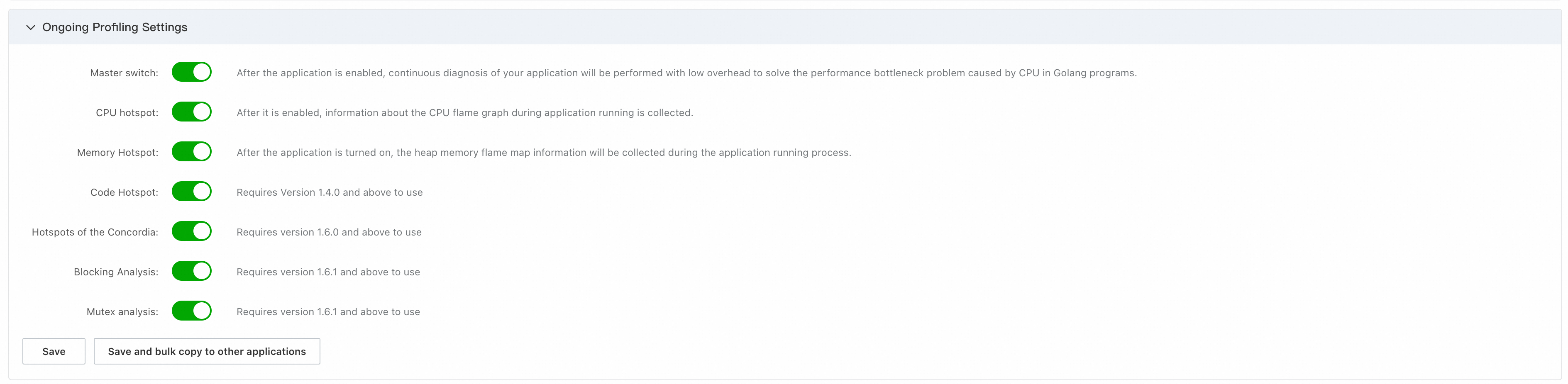
In the Continuous Performance Profiling section, enable the master switch and other feature switches as needed.
-
Click Save. The settings take effect in about 2 minutes.
View profiling data
Log on to the ARMS console. In the left-side navigation pane, choose .
On the Application List page, select the region in the top navigation bar and then click the name of the application.
NoteIcons in the Language column have the following meanings:
- : a Java application connected to Application Monitoring.
- : a Golang application connected to Application Monitoring.
- : a Python application connected to Application Monitoring.
-: an application connected to Managed Service for OpenTelemetry.
-
In the top navigation bar, choose .
-
From the instance list on the left, select a target instance. Then, set the time range for the data on the right.
-
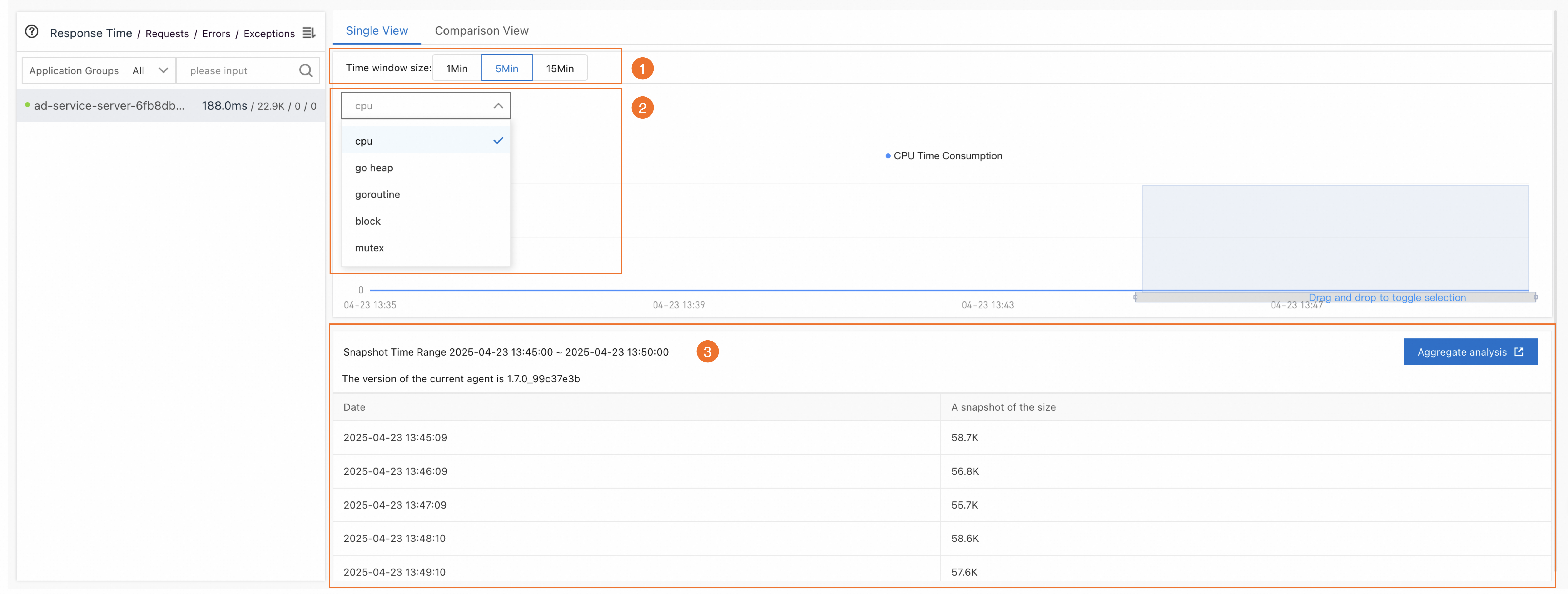
On the Search tab, you can filter data and view the aggregate analysis.
-
In the Time window size section (labeled ①), select a snapshot duration, and then drag your pointer on the chart to select a snapshot time range.
-
From the drop-down list (labeled ②), select a data type: cpu, go heap, goroutine, mutex, or block.
-
The data list for the selected time range is displayed in the area labeled ③. Click Aggregation & Analysis in the upper-right corner to view snapshot details.
Performance analysis
-
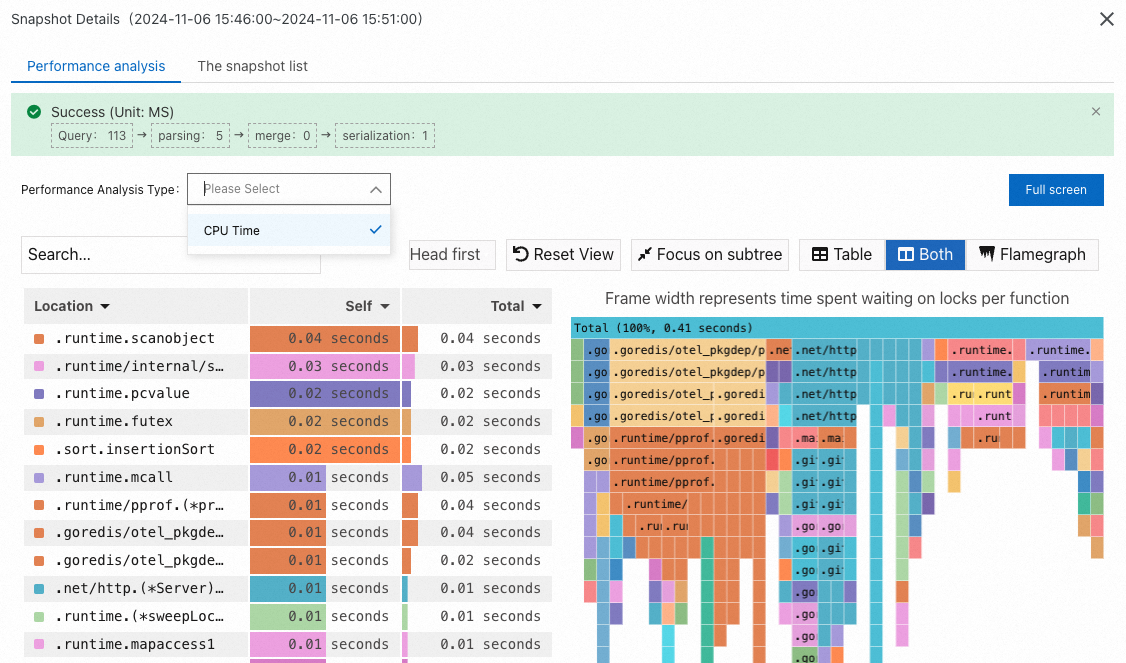
CPU Time: Profiling data for cpu hotspots.
-
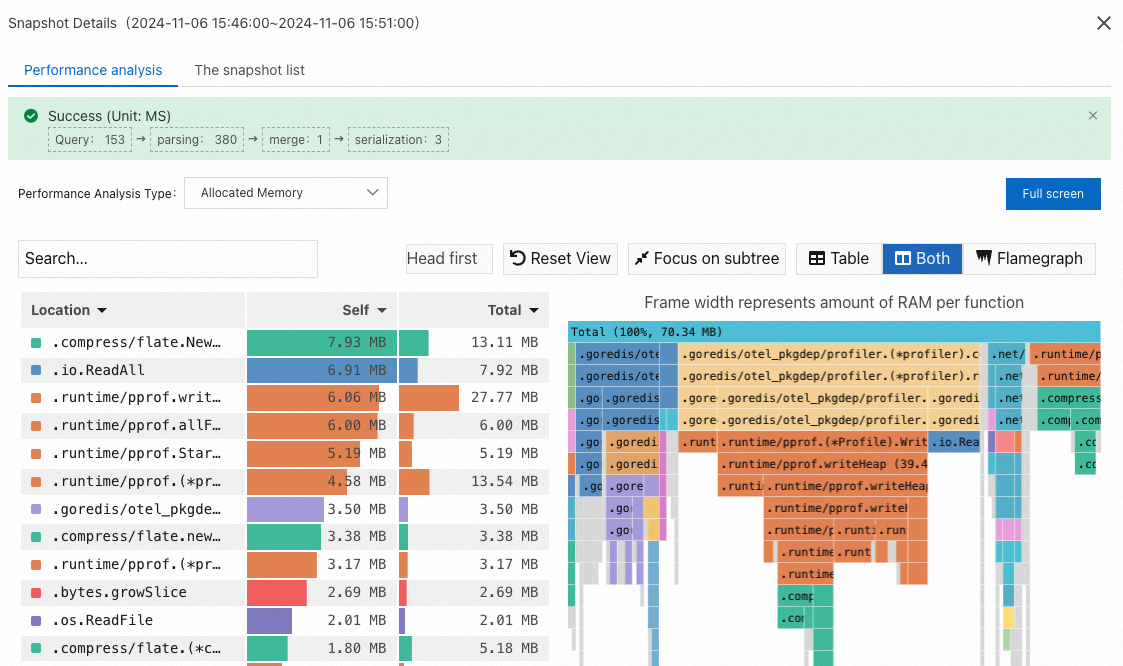
Allocated Memory: Profiling data for memory hotspots.
-
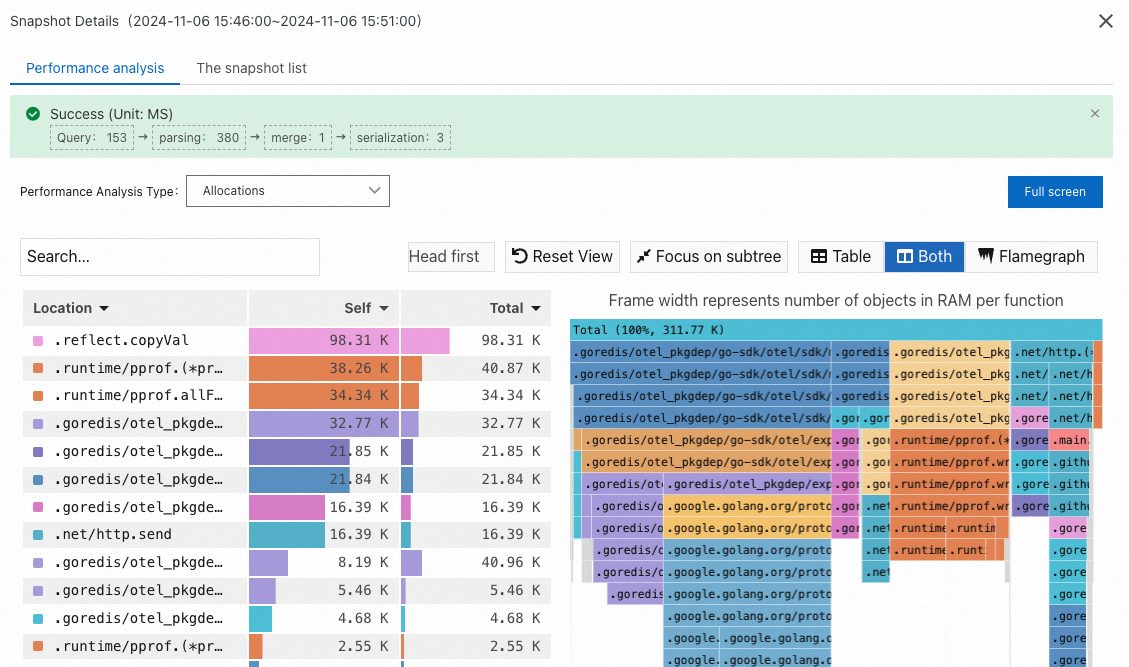
Allocations: Profiling data for memory allocation frequency hotspots. This data identifies which methods allocate memory frequently.
-
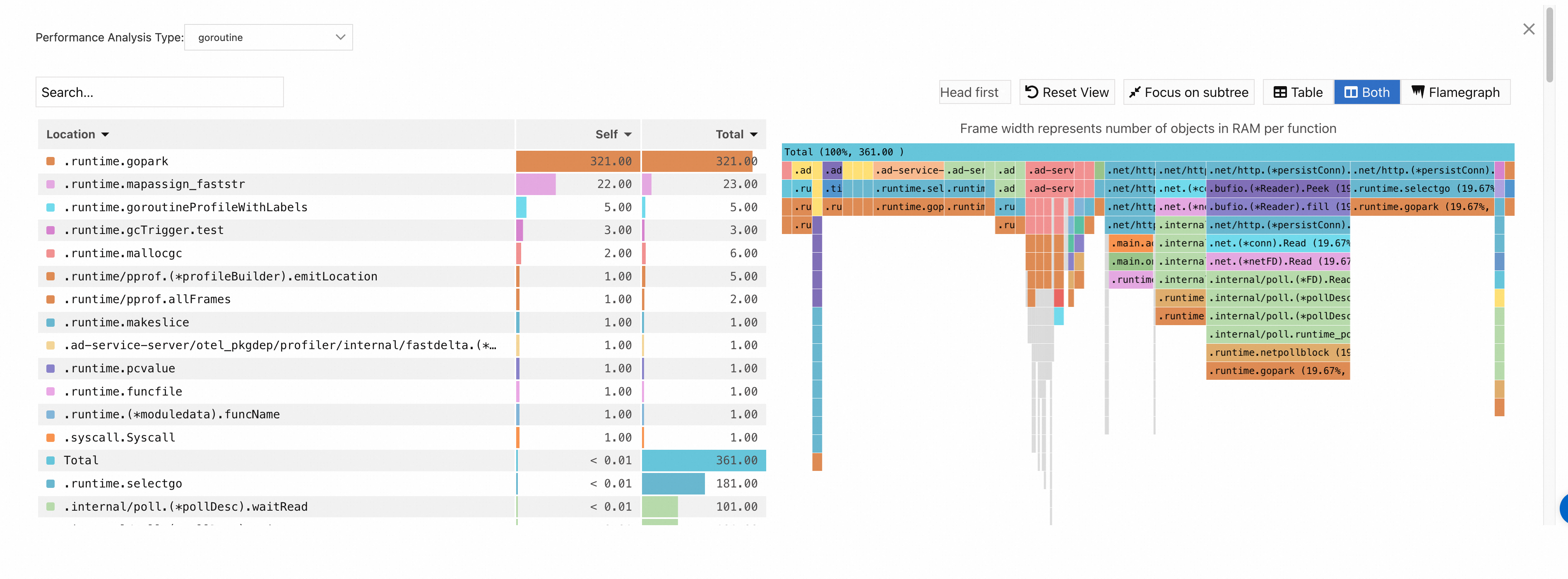
goroutine:
-
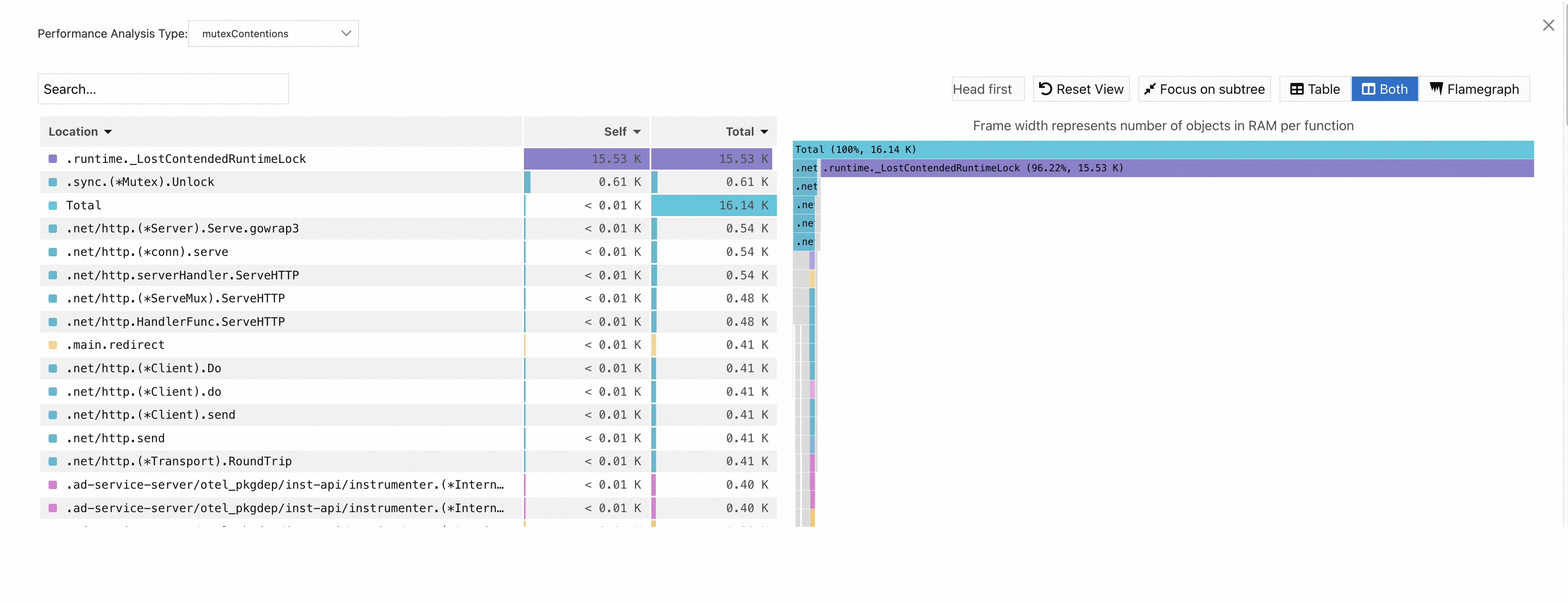
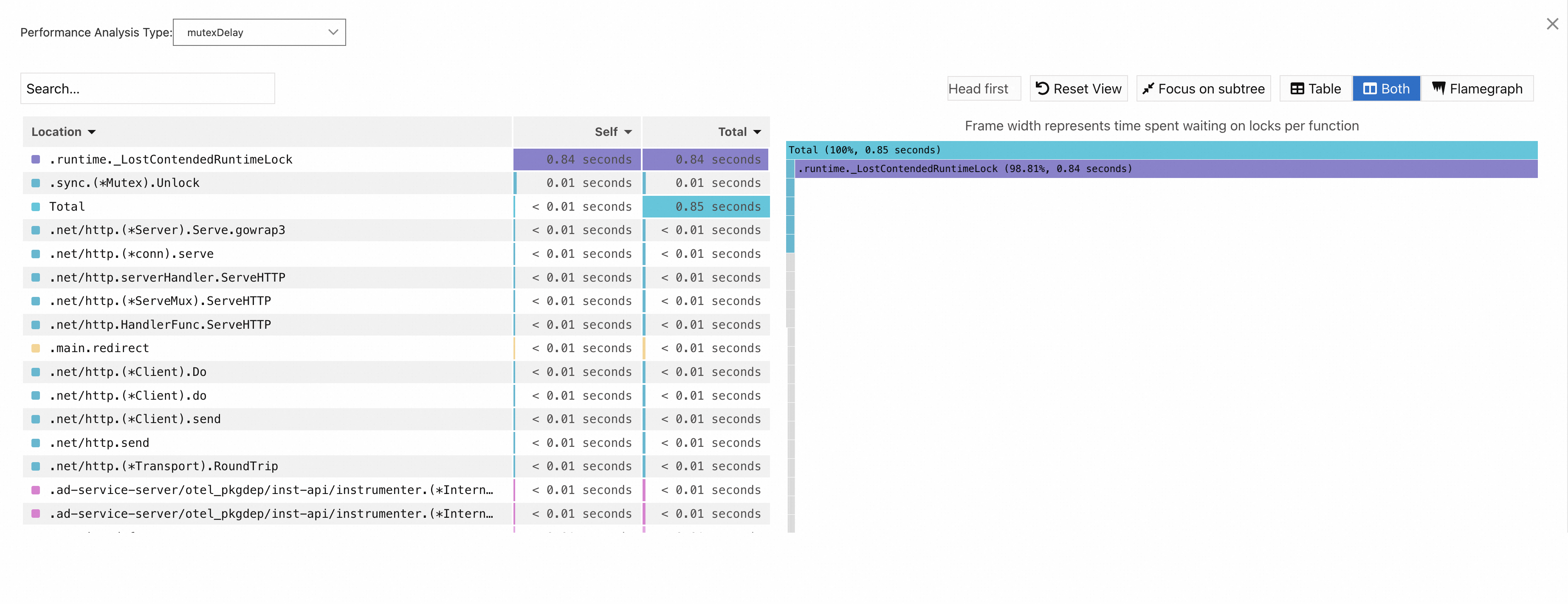
mutex analysis
mutexContentions:
mutexDelay:
-
block analysis
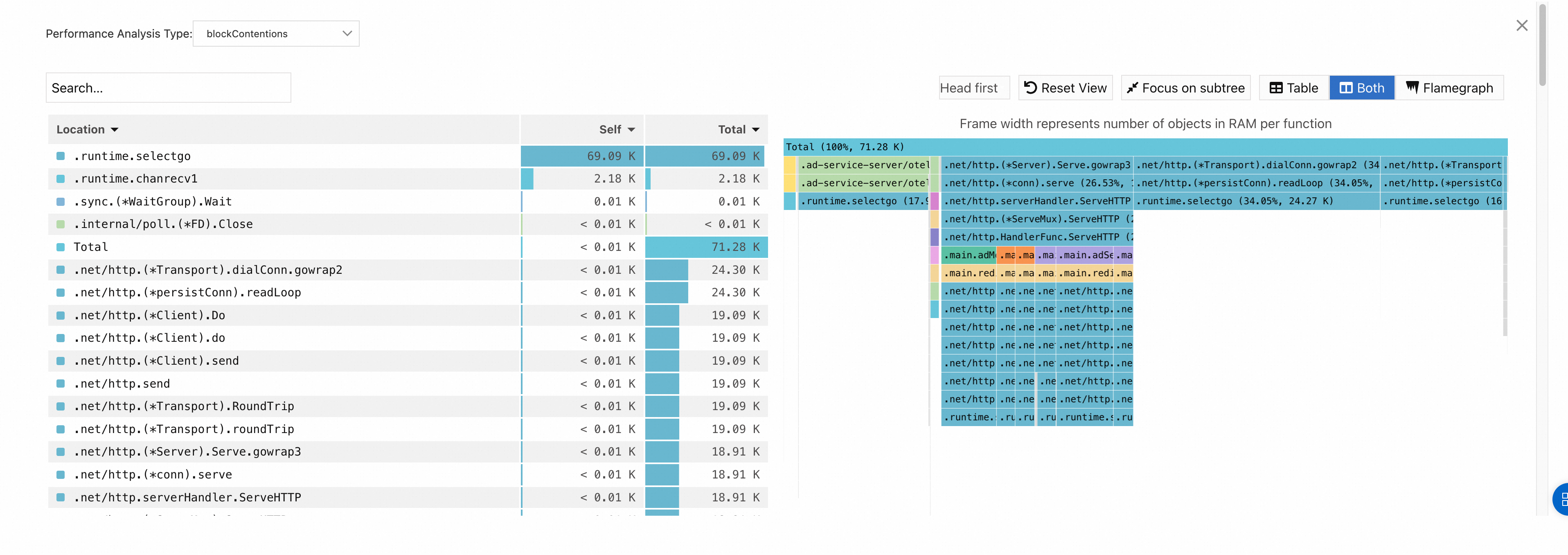
blockContentions:
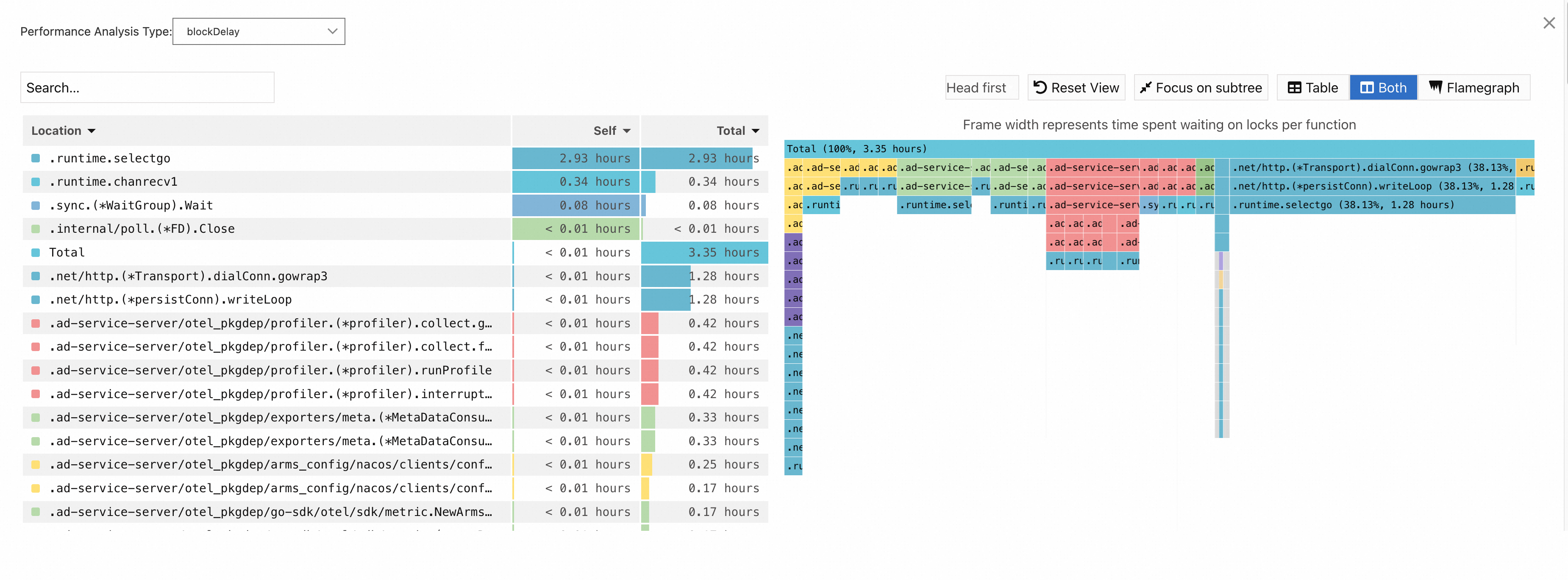
blockDelay:
Note-
The Self column shows the resources consumed by the method itself, excluding resources consumed by any methods it calls (its children). This helps identify methods that are inherently expensive.
-
The Total column shows the resources consumed by the method and all methods it calls. This helps identify the overall impact of a method on resource consumption across the entire call stack.
To investigate specific hotspot code, focus on the Self column or look for wide bars at the bottom of the flame graph. These wide bars represent the root cause of high consumption in the upper layers of the call stack and typically indicate the primary performance bottlenecks. You should focus your optimization efforts on these methods.
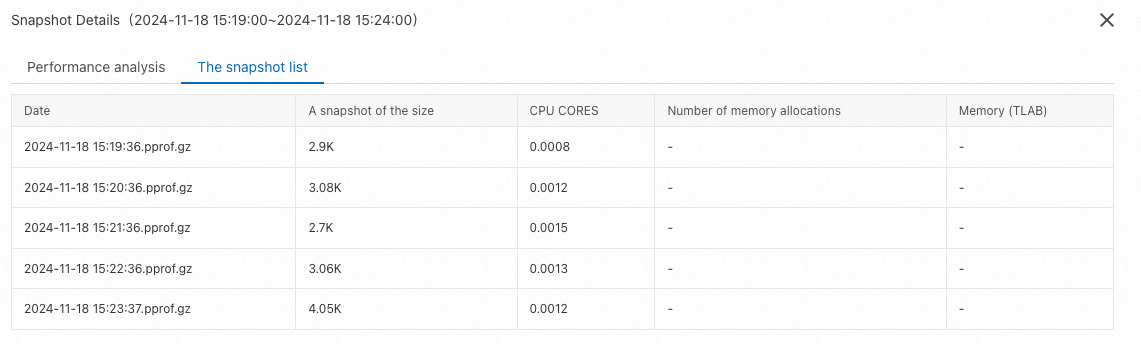
Snapshot list
-
-
Related documents
You can use continuous profiling to troubleshoot issues such as high CPU and memory usage. For more information, see the following topics: