by Sunny Jovita, Solution Architect Alibaba Cloud Indonesia
Qoder is an agent-based programming platform developed by Cloud Intelligence, designed for real-world software development. Whether you're building features, debugging complex systems, or refactoring legacy code, Qoder helps you move faster by combining:
Qoder Advantages:
● Flexible interaction modes: IDE integration, CLI, and JetBrains plugin
● Enhanced context engineering: AI agents that deeply understand your codebase
● Systematic task execution: From planning to implementation, Qoder helps you ship with confidence
Official website: https://qoder.com/
Quick start documentation: https://docs.qoder.com/quick-start
Follow this guide to set up Qoder for your teams via Alibaba Cloud Marketplace.
Tip: Use a dedicated admin email for team management to simplify onboarding
Choose the plan that fits your team:
🔹 Qoder Teams Plan (core licenses): Marketplace Link
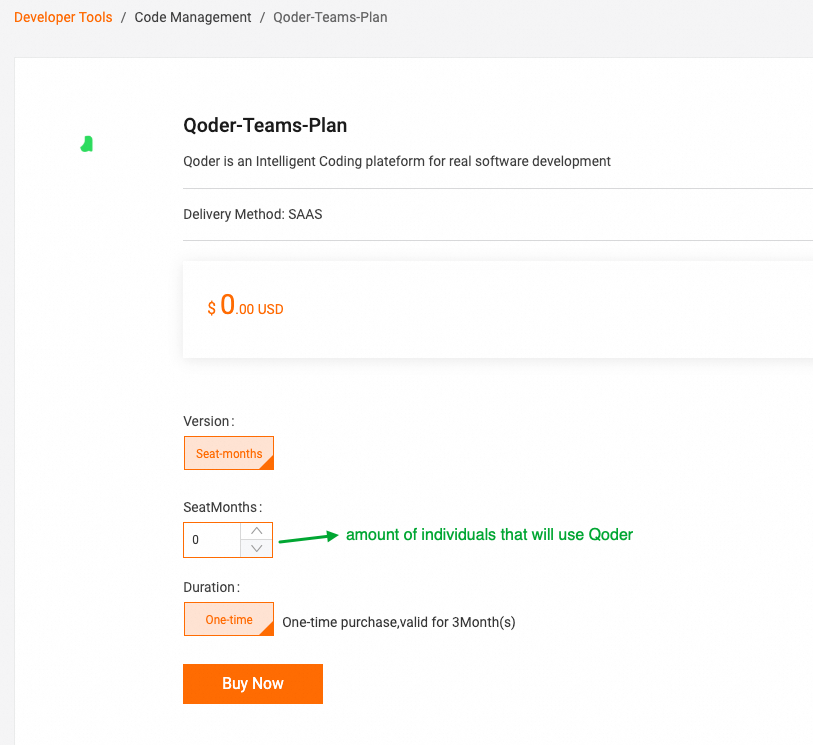
Note: Each seat gets 2000 credits once purchase, if it's not enough, you can buy shared add-on credits.
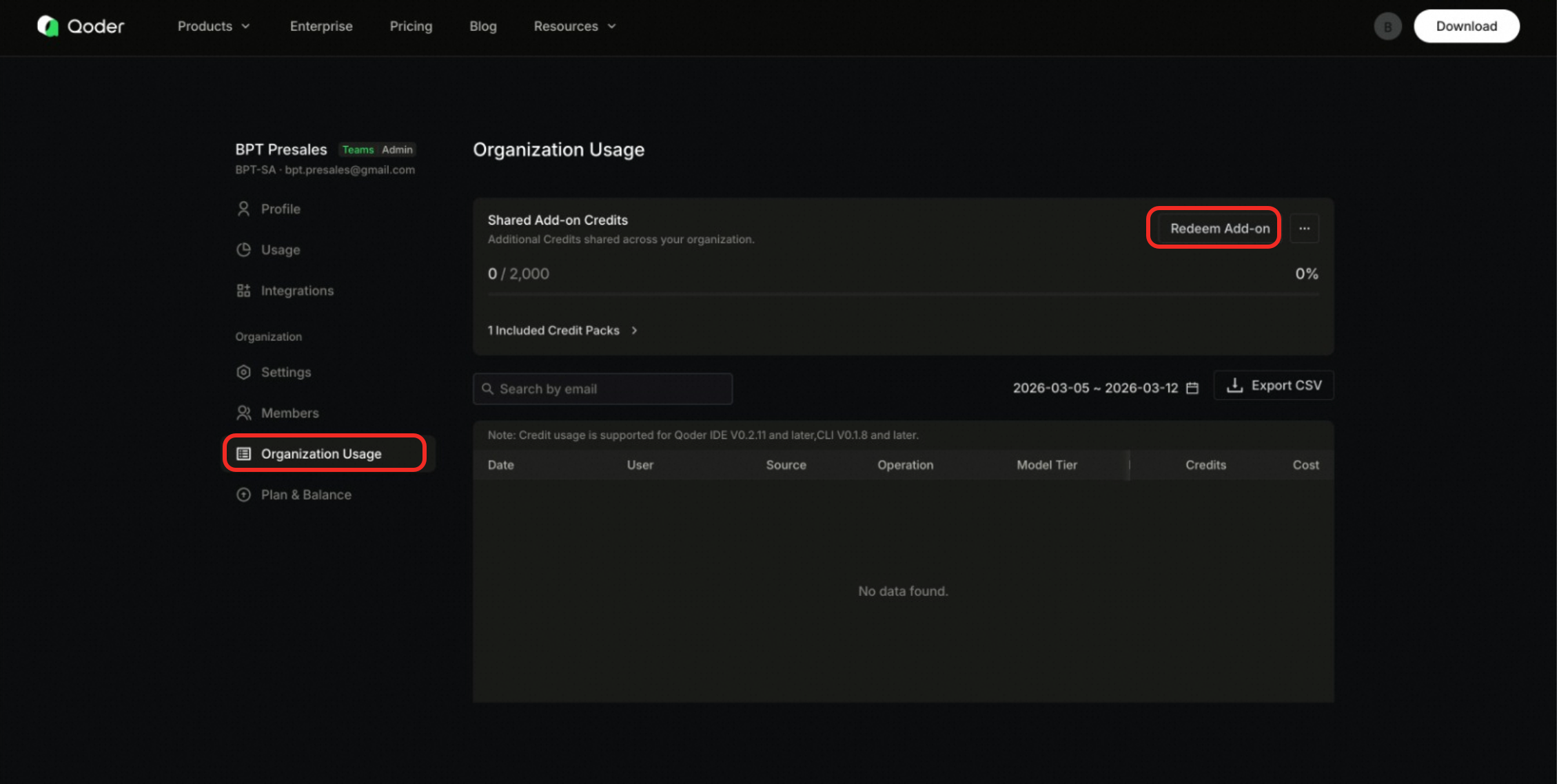
🔹 Shared Add-on Credits (for extra usage beyond seat credits): Marketplace Link
Important:
- Licenses are monthly charged
- Redemption must be completed within 3 months of purchase
- Shared add-on credits are pooled resources - useful for scaling usage across your team
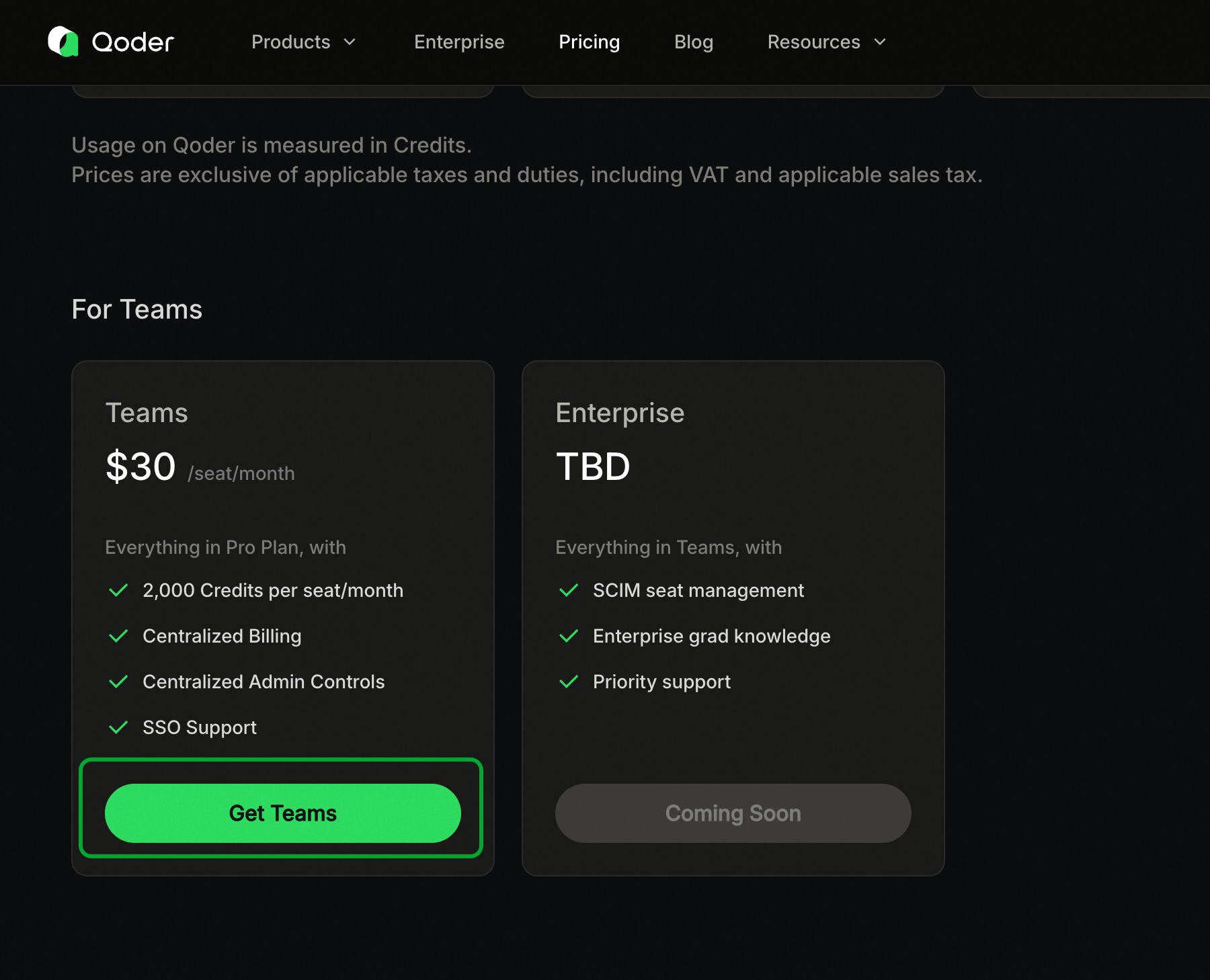
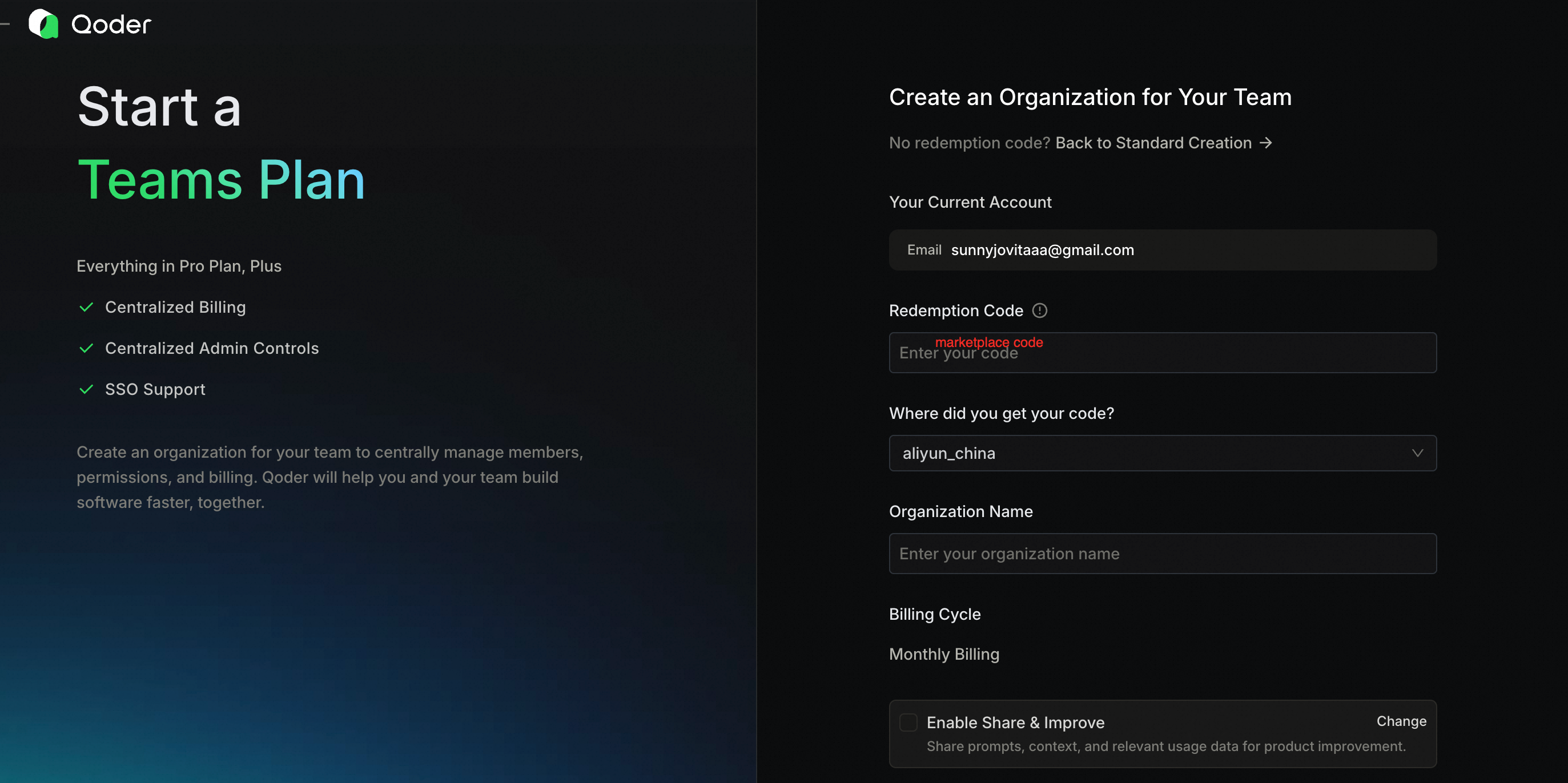
You have two options to onboard your team:
Administrators can navigate to Organization Settings > Member Configuration to enable the invite link feature, set an expiration period, and generate an invite link.
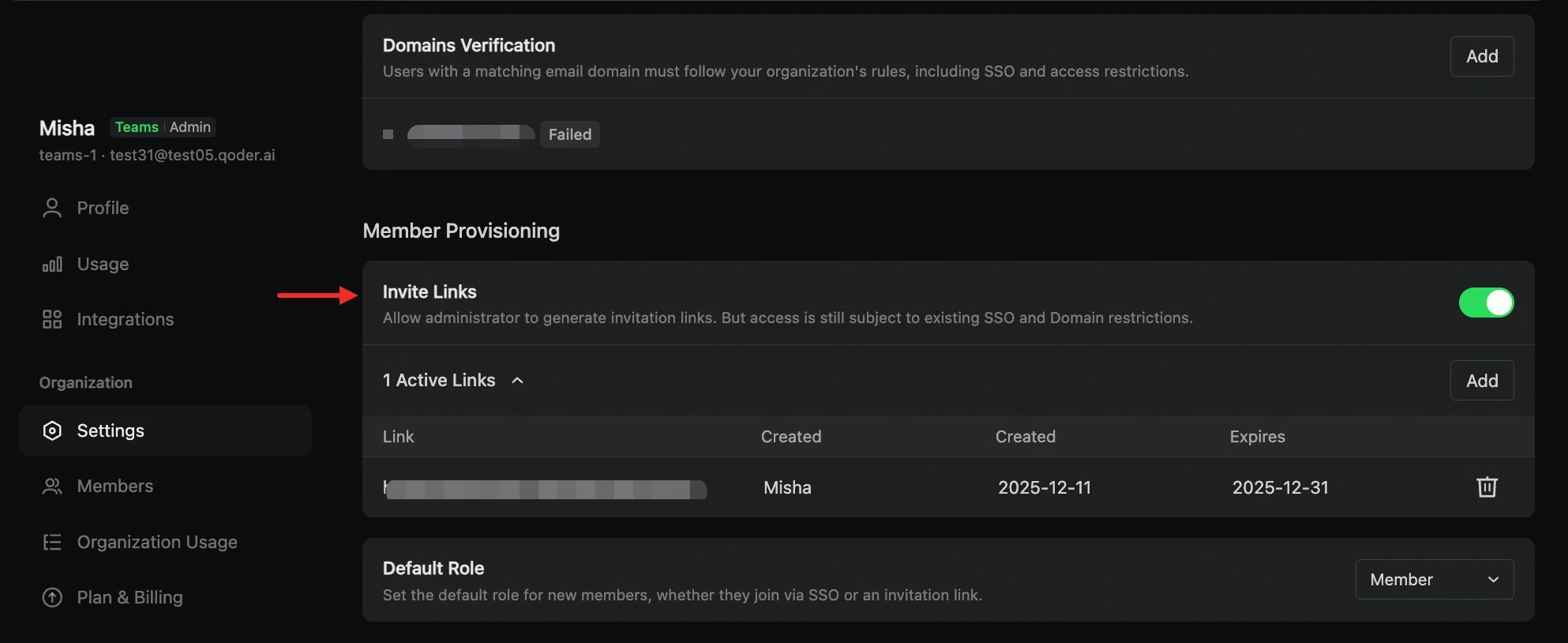
Share this link with the users you wish to invite. If a user is not already part of another organization and meets your domain check requirements (if any), they can use this link to apply to join your organization.
When a user applies, you will see a join request on the Member Management page. For security, you must review and approve this request. Once approved, the user will be immediately added to the organization with their assigned role.
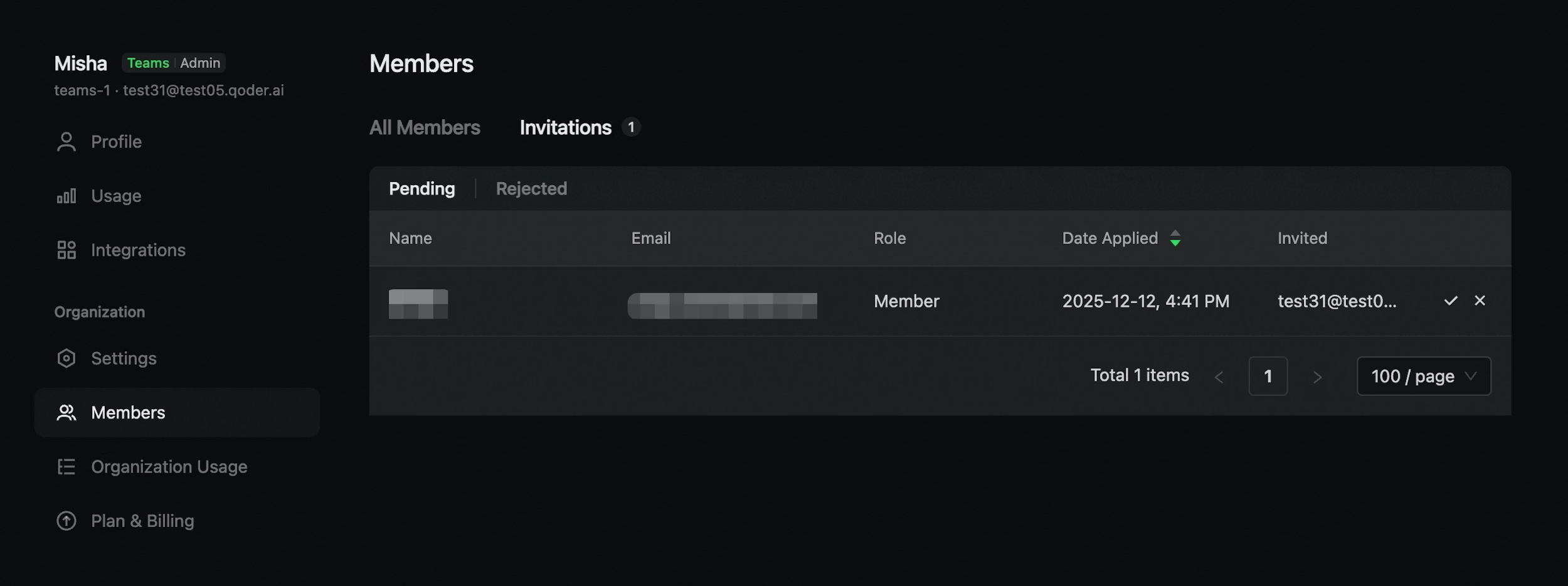
Administrators can revoke a created link at any time. Once revoked, the link will become invalid.
For security purposes, only Administrators are allowed to generate invite links.
Docs: Invite via Link Guide
Administrators can navigate to Organization Settings > Security & Identity to configure Domain Verification and SAML Single Sign-On (SSO). See:
● Configure Domain Verification
Tips: Use SSO for larger teams to simplify access control and improve security
● Admins can view pending invitations and confirm joins in the Qoder console
● Set usage limits per member to control shared credit consumption
● Monitor usage dashboards to optimize resource allocation
Docs: Shared-add-on
● Add more seats/new individuals:
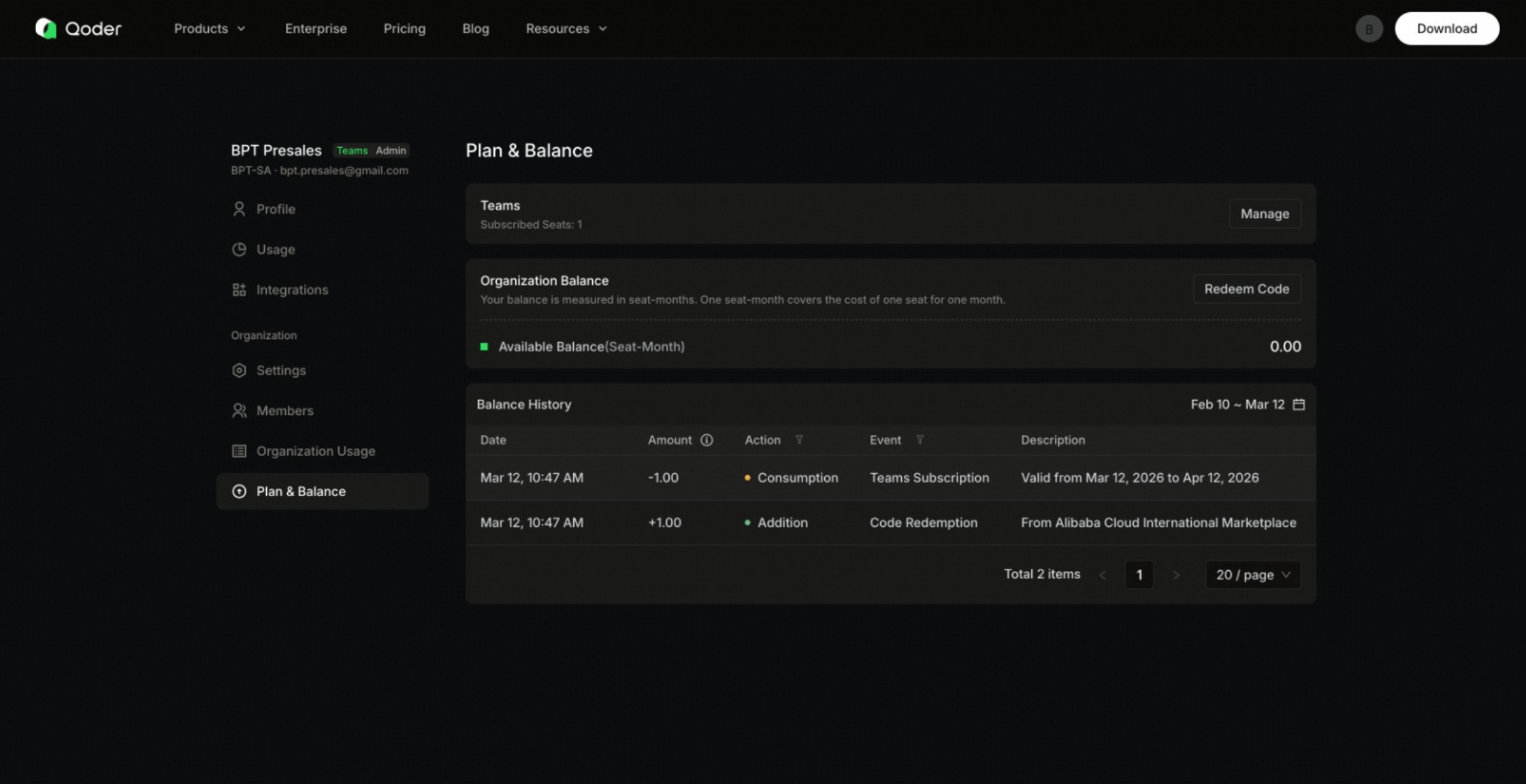
● Add shared-add ons credits:
Qoder isn't just another AI coding tool, it's a development partner that scales with your team's complexity. By combining contextual awareness, agent-based task execution, and flexible deployment options, it helps engineering teams move from idea to production with greater velocity and fewer roadblocks.
If you're evaluating AI-assisted development tools, I highly recommend testing Qoder with a teams with invite via link. The onboarding process is straightforward, and the value becomes apparent quickly, especially for teams managing large or distributed codebases.
Will AI Replace You? The Risks, Opportunities, and How to Prepare Across Seven Key Industries
Entering the AI-Native Era: How DAS Leverages LLMs to Revolutionize Database Autonomy

126 posts | 22 followers
FollowAlibaba Cloud Indonesia - March 11, 2026
Muhamad Miftah - March 31, 2026
Alibaba Cloud Community - December 17, 2025
Data Geek - April 28, 2024
Alibaba Cloud Native Community - March 13, 2026
Alibaba Cloud Native Community - April 16, 2026
126 posts | 22 followers
Follow Alibaba Cloud Model Studio
A one-stop generative AI platform to build intelligent applications that understand your business, based on Qwen model series such as Qwen-Max and other popular models
Learn More Qwen
Qwen
Full-range, open-source, multimodal, and multi-functional
Learn More AI Acceleration Solution
Accelerate AI-driven business and AI model training and inference with Alibaba Cloud GPU technology
Learn More Network Intelligence Service
Self-service network O&M service that features network status visualization and intelligent diagnostics capabilities
Learn MoreMore Posts by Alibaba Cloud Indonesia

