O controle de custos é uma parte essencial do FinOps. Após extrair insights dos dados de custos e implementar estratégias de otimização, utilize o controle de custos para manter todo o processo de governança sob supervisão e evitar estouro de orçamento em clusters, departamentos e aplicações.
Controle de custos em diferentes níveis
O Container Service for Kubernetes (ACK) oferece suporte ao controle de custos em três níveis:
|
Nível |
Unidade |
Funcionamento |
|
Cluster |
Cluster |
O ACK aplica automaticamente tags em todos os recursos da Alibaba Cloud em um cluster com a chave |
|
Departamento |
Departamento (menor unidade de alocação) |
Administradores de departamento definem orçamentos e os comparam com os custos reais para detectar e agir rapidamente sobre estouros de orçamento. |
|
Aplicação |
Aplicação (menor unidade orçamentária) |
Administradores de aplicação estabelecem linhas de base de custos para monitorar tendências e prevenir excessos. |
Visualizar custos do cluster
Esta seção demonstra como ativar a tag de cluster do ACK, configurar um centro de custo e visualizar os custos por cluster em Expenses and Costs.
Pré-requisitos
Antes de começar, certifique-se de que você possui:
Um cluster ACK ativo
Acesso ao console do ACK
Acesso ao Expenses and Costs
Obter o ID do cluster
Faça login no console do ACK. No painel de navegação à esquerda, clique em console do ACKClusters.
Na lista de clusters, copie o ID do cluster na coluna Cluster Name /ID.
Ativar a tag do cluster
O ACK adiciona automaticamente a tag ack.aliyun.com a todos os recursos do seu cluster. Ative a tag em Expenses and Costs para disponibilizá-la na alocação de custos.
Faça login no Expenses and Costs.Expenses and Costs
In the left-side navigation pane, choose Manage Split > Cost allocation tags.
On the Cost allocation tags page, enter
ack.aliyun.comin the Tag Key field and click Search. In the Actions column of ack.aliyun.com, click Enable.
Criar um centro de custo
In the left-side navigation pane of the Expenses and Costs console, choose .
In the left-side navigation pane, choose .
-
In the middle navigation pane, click the
 icon next to Cost Center below Unallocated Resources. In the Add Cost Center dialog box, enter a name and click OK.
In the left-side navigation pane, choose .
In the Overview section, under Unallocated Resources, click the
 icon next to Cost Center. In the Add Cost Center dialog box, enter a name for the center, such as
test, then click OK.In the Overview section, click the name of the Cost Center. On the Automatic Allocation Rule tab, click Add Rule.
Click the
 icon, set the condition option to Labels, the tag Key to ack.aliyun.com, and the tag Value to the cluster ID, leave the other settings at their default values, and then click Submit.
In the middle navigation pane, click the name of the cost center, then click Create Rule on the Automatic Allocation Rule tab.
-
Click the
 icon. Set Condition1 to Tag, select
ack.aliyun.comas the tag key, and select the cluster ID as the tag value. Keep the default settings for other parameters, then click Submit.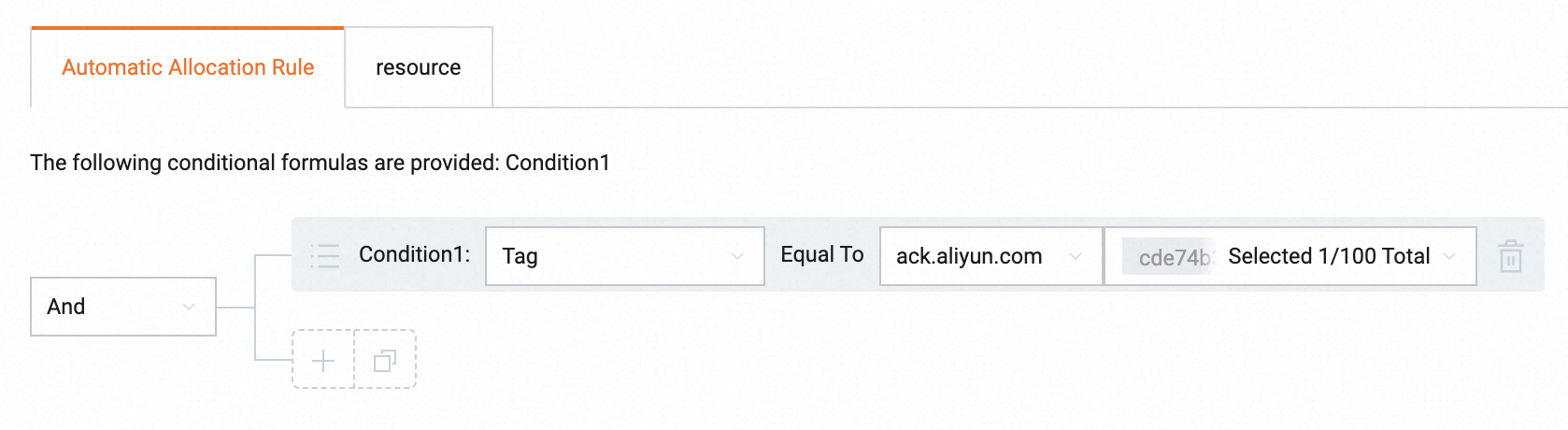
Visualizar custos do cluster
In the left-side navigation pane of the Expenses and Costs console, choose Cost Management > Cost Analysis.
-
In the Filters section, click Cost Center, select the cost center you created, and then click Apply. The Cost Analysis page shows the monthly cost of the cluster.Apply
Os dados de um novo centro de custo ficam disponíveis após 24 horas.
