このトピックでは、Terraform を使用してリソースディレクトリのメンバーを作成または削除する方法について説明します。
サンプルコードは数クリックで実行できます。こちら をクリックしてサンプルコードを実行してください。
前提条件
情報セキュリティリスクを軽減するために、リソースディレクトリの管理アカウントの RAM ユーザーを使用してこのチュートリアルの操作を完了し、AliyunResourceDirectoryFullAccess 権限を RAM ユーザーに付与することをお勧めします。詳細については、「RAM ユーザーを作成する」および「RAM ユーザーに権限を付与する」をご参照ください。
メンバーが属するリソースディレクトリでメンバー削除機能が有効になっている場合にのみ、メンバーを削除できます。詳細については、「メンバー削除機能を有効または無効にする」をご参照ください。
リソースディレクトリで作成されたメンバーのみを削除できます。招待後にリソースディレクトリに追加されたクラウドアカウントタイプのメンバーは削除できません。メンバーの削除方法の詳細については、「リソースアカウントタイプのメンバーを削除する」をご参照ください。
Terraform の実行環境は、次のいずれかの方法で準備します。
Terraform Explorer で Terraform を使用する: Alibaba Cloud は Terraform のオンライン実行環境を提供しています。環境にログインして、Terraform をインストールせずに使用できます。低コスト、効率的、かつ便利な方法で Terraform を使用およびデバッグする必要があるシナリオに適しています。
Cloud Shell で Terraform を使用する: Cloud Shell には Terraform がプリインストールされており、ID 資格情報が構成されています。Cloud Shell で Terraform コマンドを実行できます。低コスト、効率的、かつ便利な方法で Terraform を使用およびアクセスする必要があるシナリオに適しています。
オンプレミス マシンに Terraform をインストールして構成する: ネットワーク接続が不安定な場合、またはカスタム開発環境が必要な場合に適しています。
Resources
alicloud_resource_manager_account: リソースディレクトリのメンバー。
alicloud_resource_manager_account_deletion_check_task: リソースディレクトリからメンバーを削除する前のアカウントチェック。
手順 1: メンバーを作成する
作業ディレクトリを作成します。次に、ディレクトリに main.tf という名前の構成ファイルを作成します。次のコードは、メンバーを作成し、メンバー UID を生成します。コードを main.tf ファイルにコピーします。
resource "random_integer" "default" {
  min = 10000
  max = 99999
}
resource "alicloud_resource_manager_account" "default" {
  display_name = "RDAccount_auto_${random_integer.default.result}"
}

output "created_account_id" {
  value = alicloud_resource_manager_account.default.id
}
次のコマンドを実行して、Terraform 実行環境を初期化します。
terraform init次の情報が返された場合、Terraform は初期化されています。
Terraform has been successfully initialized!

You may now begin working with Terraform. Try running "terraform plan" to see
any changes that are required for your infrastructure. All Terraform commands
should now work.

If you ever set or change modules or backend configuration for Terraform,
rerun this command to reinitialize your working directory. If you forget, other
commands will detect it and remind you to do so if necessary.
次のコマンドを実行して、コードを実行します。
terraform applyコードの実行中に、プロンプトが表示されたら
yesと入力し、[Enter] キーを押します。コマンドが実行されるまで待ちます。次の情報が返された場合、コードは実行されています。後続のメンバーの削除のために、メンバー UID を記録します。You can apply this plan to save these new output values to the Terraform state, without changing any real infrastructure. Do you want to perform these actions? Terraform will perform the actions described above. Only 'yes' will be accepted to approve. Enter a value: yes Apply complete! Resources: 2 added, 0 changed, 0 destroyed. Outputs: created_account_id = 10638349********結果を確認します。
terraform show コマンドを実行する
作業ディレクトリで次のコマンドを実行して、Terraform を使用して作成されたリソースの詳細をクエリします。
terraform show
コンソールにログインする
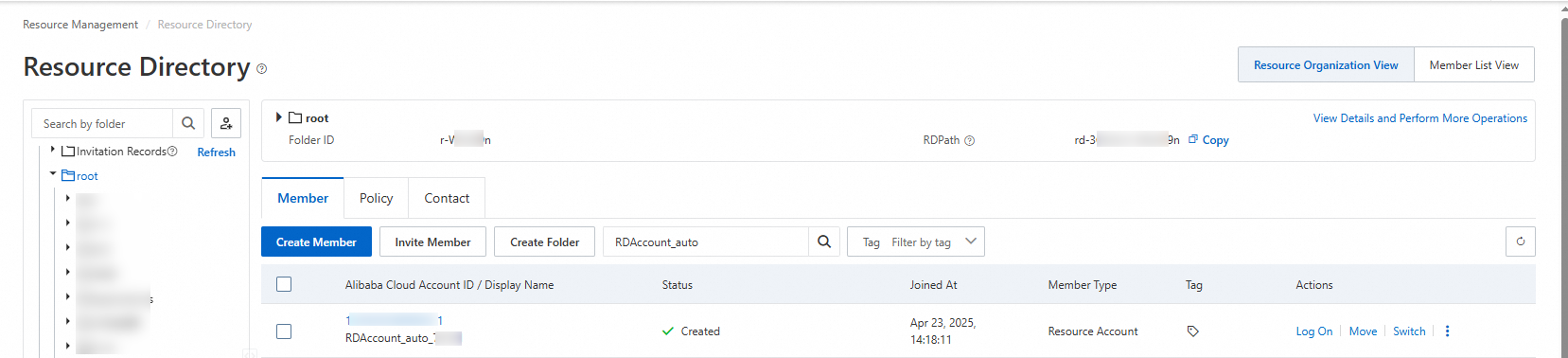
リソース管理コンソール にログインします。 を選択し、[リソース組織ビュー] または [メンバーリストビュー] で作成したメンバーを表示します。
手順 2: メンバーを削除する
main.tf ファイルを変更し、メンバーを削除する前に行われるアカウントチェックを追加し、account_id の値をメンバー UID に変更します。次のサンプルコードを参照してください。
resource "random_integer" "default" {
  min = 10000
  max = 99999
}

# メンバー。
resource "alicloud_resource_manager_account" "example" {
  display_name          = "RDAccount_auto_${random_integer.default.result}"
  abandon_able_check_id = data.alicloud_resource_manager_account_deletion_check_task.task.abandon_able_checks.*.check_id
}

# メンバーを削除する前の事前チェック。
data "alicloud_resource_manager_account_deletion_check_task" "task" {
  account_id = "10638349********"
}
次のコマンドを実行して、リソースディレクトリからメンバーを削除する前のアカウントチェックを開始します。
terraform applyコードの実行中に、プロンプトが表示されたら
yesと入力し、[Enter] キーを押します。コマンドが実行されるまで待ちます。次の情報が返された場合、コードは実行されています。You can apply this plan to save these new output values to the Terraform state, without changing any real infrastructure. Do you want to perform these actions? Terraform will perform the actions described above. Only 'yes' will be accepted to approve. Enter a value: yes Apply complete! Resources: 0 added, 1 changed, 0 destroyed.次のコマンドを実行して、メンバーを削除します。
terraform destroyコードの実行中に、プロンプトが表示されたら
yesと入力し、[Enter] キーを押します。コマンドが実行されるまで待ちます。次の情報が返された場合、コードは実行されています。random_integer.default: Refreshing state... [id=*****] data.alicloud_resource_manager_account_deletion_check_task.task: Refreshing state... alicloud_resource_manager_account.example: Refreshing state... [id=10638349********] Plan: 0 to add, 0 to change, 2 to destroy. Do you really want to destroy all resources? Terraform will destroy all your managed infrastructure, as shown above. There is no undo. Only 'yes' will be accepted to confirm. Enter a value: yes Destroy complete! Resources: 2 destroyed.結果を確認します。
リソース管理コンソール にログインします。上部のナビゲーションウィンドウで、 を選択します。右上隅にある [リソース組織ビュー] または [メンバーリストビュー] をクリックします。メンバーは [削除中] 状態として表示されます。
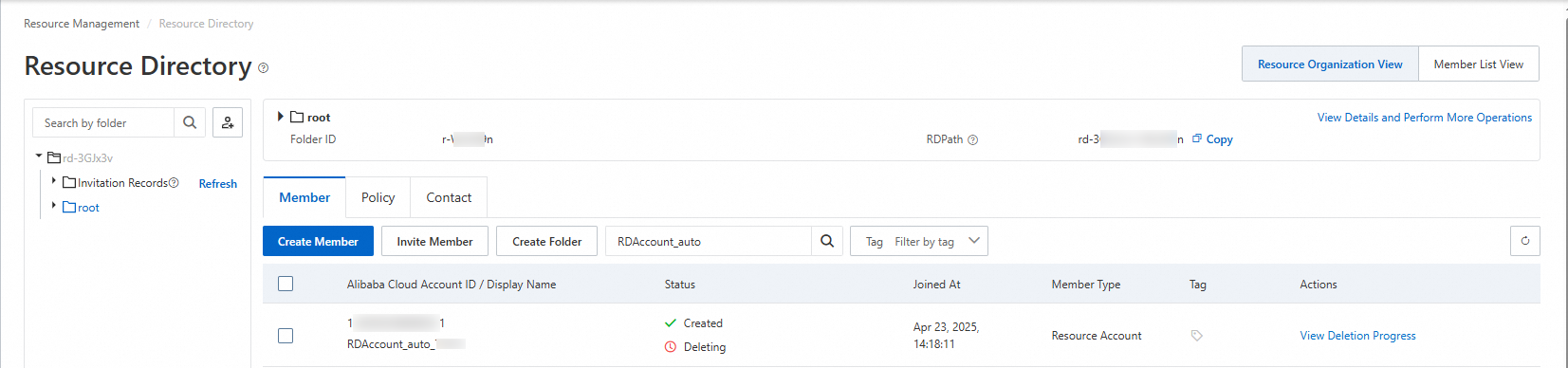
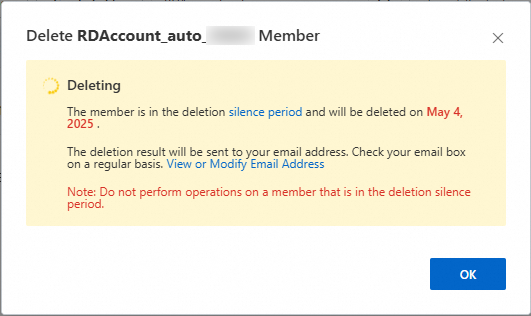
メンバーの [操作] 列にある [削除の進捗状況を表示] をクリックします。メッセージは、メンバーが [メンバー削除の猶予期間中] であることを示しています。猶予期間の詳細については、「メンバー削除の猶予期間とは」をご参照ください。猶予期間が終了すると、システムは自動的にメンバーの削除を開始します。