KMS SDKでKMSインスタンスAPIリクエストを開始するには、まずGoクライアントを初期化する必要があります。 このトピックでは、クライアントの初期化プロセスについて説明します。
クライアントの初期化
クライアントインスタンスを作成します。
KMS SDKクライアントオブジェクトをインスタンス化するには、ClientKeyコンテンツまたはClientKeyファイルパスを使用します。 ニーズに合った方法を選択してください。
import (
    dedicatedkmsopenapi "github.com/aliyun/alibabacloud-dkms-gcs-go-sdk/openapi"
    dedicatedkmssdk "github.com/aliyun/alibabacloud-dkms-gcs-go-sdk/sdk"
  "github.com/alibabacloud-go/tea/tea"
)

// Use ClientKey content to create a KMS instance SDK client object
func getDkmsClientByClientKeyContent() *dedicatedkmssdk.Client {
	// Create KMS instance SDK client configuration
	config := &dedicatedkmsopenapi.Config{
	        // Set the connection protocol to "https". The KMS instance service only allows access through the HTTPS protocol.
		Protocol: tea.String("https"),
		// Replace with the content of the ClientKey file
		ClientKeyContent: tea.String("<CLIENT_KEY_CONTENT>"),
		// Replace with the encryption password entered when creating the ClientKey
		Password: tea.String("<CLIENT_KEY_PASSWORD>"),
		// Set the endpoint to <your KMS Instance Id>.cryptoservice.kms.aliyuncs.com.
		Endpoint: tea.String("<ENDPOINT>"),
	}
	// Create a KMS instance SDK client object
	client, err := dedicatedkmssdk.NewClient(config)
	if err != nil {
		// Abnormal handling
		panic(err)
	}
	return client
}

// Use ClientKey file path to create a KMS instance SDK client object
func getDkmsClientByClientKeyFile() *dedicatedkmssdk.Client {
	// Create DKMS client configuration
	config := &dedicatedkmsopenapi.Config{
		// Set the connection protocol to "https". The KMS instance service only allows access through the HTTPS protocol.
		Protocol: tea.String("https"),
		// Replace with the path of the ClientKey file
		ClientKeyFile: tea.String("<CLIENT_KEY_FILE>"),
		// Replace with the encryption password entered when creating the ClientKey
		Password: tea.String("<CLIENT_KEY_PASSWORD>"),
                 // Set the endpoint to <your KMS Instance Id>.cryptoservice.kms.aliyuncs.com.
		Endpoint: tea.String("ENDPOINT"),
	}
	// Create a KMS instance SDK client object
	client, err := dedicatedkmssdk.NewClient(config)
	if err != nil {
		// Abnormal handling
		panic(err)
	}
	return client
}
ランタイムパラメーター (
RuntimeOptions) を設定して、KMSインスタンスのCA証明書を設定します。重要運用環境内の通信を保護するために、インスタンスのCA証明書を設定することが重要です。 その主な機能は、SSL/TLS証明書の有効性を認証することです。 このセキュリティ機能を有効にしておくことをお勧めします。 SSL/TLS証明書認証を無効にする必要があるオフラインテストなどのシナリオでは、
RuntimeOptionsのIgnoreSSLフィールドをtrueに設定します。KMSインスタンスのCA証明書パスを
RuntimeOptionsのverifyフィールドに割り当てます。 以下はコード例です。import ( dedicatedkmsopenapiutil "github.com/aliyun/alibabacloud-dkms-gcs-go-sdk/openapi-util" "github.com/alibabacloud-go/tea/tea" "io/ioutil" ) // Verify the server certificate ca, err := ioutil.ReadFile("path/to/caCert.pem") if err != nil { panic(err) } runtimeOptions := &dedicatedkmsopenapiutil.RuntimeOptions{ Verify: tea.String(string(ca)), }
変数の説明
Endpoint
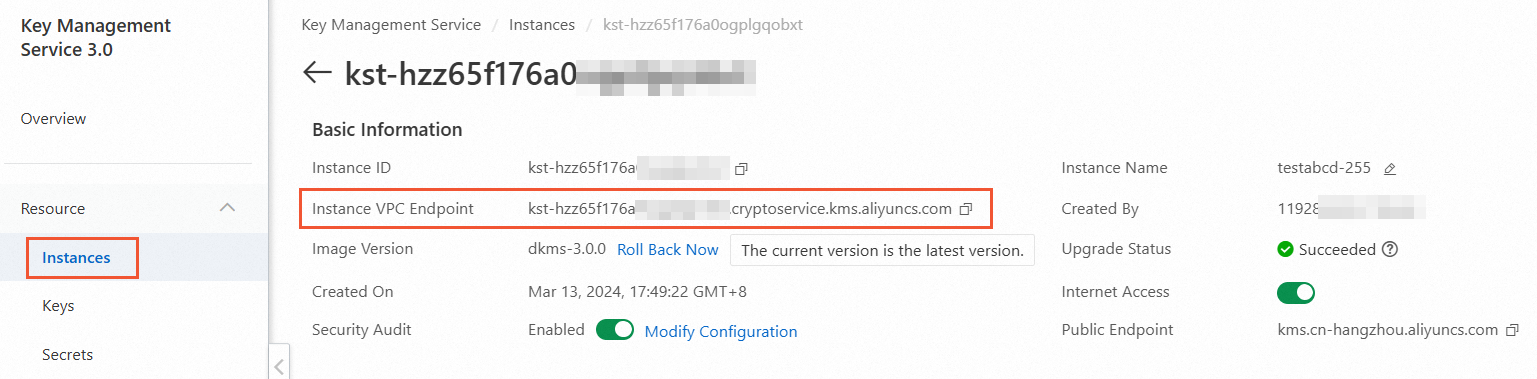
エンドポイントは、KMSインスタンスのドメイン名アドレスです。
インスタンス管理 ページに移動し、ソフトウェアキー管理 または ハードウェアキー管理 タブをクリックし、目的のKMSインスタンスを選択します。
インスタンスIDをクリックして製品ページに移動し、インスタンス VPC エンドポイントを見つけます。
ClientKeyFile
ClientKeyFilePathは、アプリケーションのID資格情報が保存される場所です。 ClientKeyが作成されると、通常はclientKey_****.jsonのようなデフォルトのファイル名で、ブラウザによって自動的にダウンロードされます。
Password
パスワードは、ClientKeyのセキュリティトークンです。 ClientKeyと同様に、作成時にブラウザによって自動的にダウンロードされます。デフォルトのファイル名はclientKey_****_Password.txtです。
検証
CA証明書はKMSインスタンスに関連付けられています。
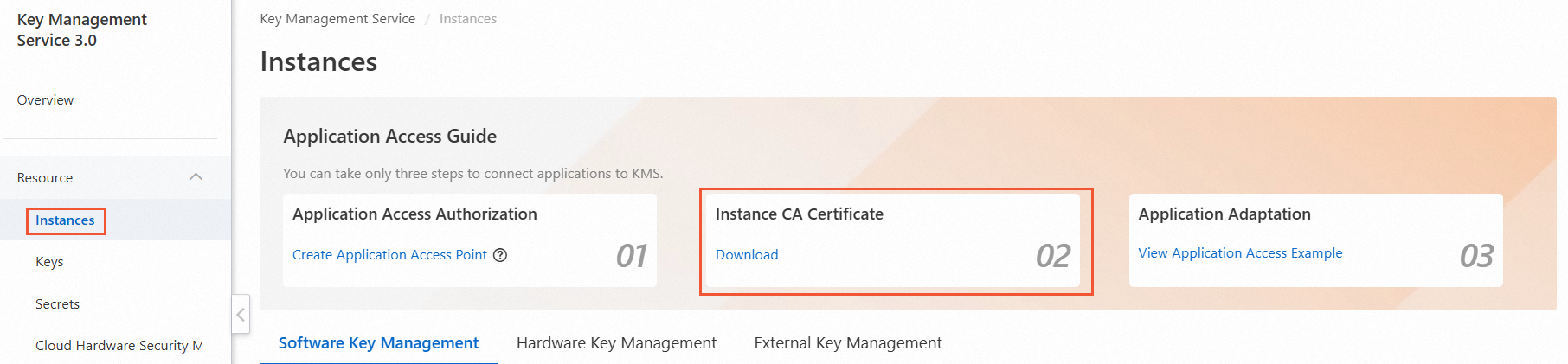
インスタンス管理 ページで、インスタンスCA証明書 セクションを見つけ、ダウンロード をクリックします。
インスタンスCA証明書 ダイアログボックスで、インスタンスIDを選択し、ダウンロード をクリックして安全に保存します。
ダウンロードしたCA証明書のデフォルトのファイル名はPrivateKmsCA_kst-******.pemです。