L'arrêt ou la désinstallation de Cloud Assistant Agent désactive la connexion à distance, l'exécution des commandes OOS et les fonctionnalités de diagnostic.
Arrêter Cloud Assistant Agent
Si vous êtes connecté via Session Manager ou Workbench, l'arrêt de l'agent met fin à votre session. Connectez-vous d'abord par un autre moyen, tel que la connexion au terminal Workbench, un outil client tiers (SSH), ou VNC.
Linux
Connectez-vous à une instance Linux à l'aide d'un nom d'utilisateur et d'un mot de passe.
-
Arrêtez le processus daemon.
Le processus daemon surveille Cloud Assistant Agent et le redémarre automatiquement. Arrêtez d'abord le daemon. Les versions plus récentes de Cloud Assistant n'installent pas le composant daemon. Si le chemin suivant n'existe pas sur l'instance, ignorez cette étape.
if [ -e /usr/local/share/assist-daemon/assist_daemon ]; then sudo /usr/local/share/assist-daemon/assist_daemon --stop fi -
Identifiez le système d'initialisation.
La commande d'arrêt varie selon le système d'initialisation. Identifiez celui utilisé par votre instance.
systemd: Alibaba Cloud Linux, CentOS 7+, Red Hat Enterprise Linux (RHEL) 7+, Fedora 15+, Ubuntu 15.04+, Debian 8+ et autres.Upstart: Ubuntu 6.10-14.10, RHEL 6, CentOS 6 et autres.SysVinit: RHEL 5, CentOS 5, Debian 6 et autres.
-
Arrêtez Cloud Assistant Agent.
systemd
sudo systemctl stop aliyun.service

# Verify that the service has stopped. The service is stopped if the output contains "inactive (dead)".
sudo systemctl status aliyun.service
Upstart
sudo /sbin/initctl stop aliyun-service

# Verify that the service has stopped. The service is stopped if the output is empty.
ps aux | grep -v grep | grep "aliyun-service"
SysVinit
sudo /etc/init.d/aliyun-service stop

# Verify that the service has stopped. The service is stopped if the output is empty.
ps aux | grep -v grep | grep "aliyun-service"
Windows
Méthode 1 : Utiliser la console des services Windows
Cliquez sur l'icône Démarrer et sélectionnez Windows Administrative Tools > Computer Management.
Dans le volet de gauche, accédez à Computer Management (Local) > Services and Applications > Services.
-
Recherchez Aliyun Assist Service et cliquez sur Stop the service.
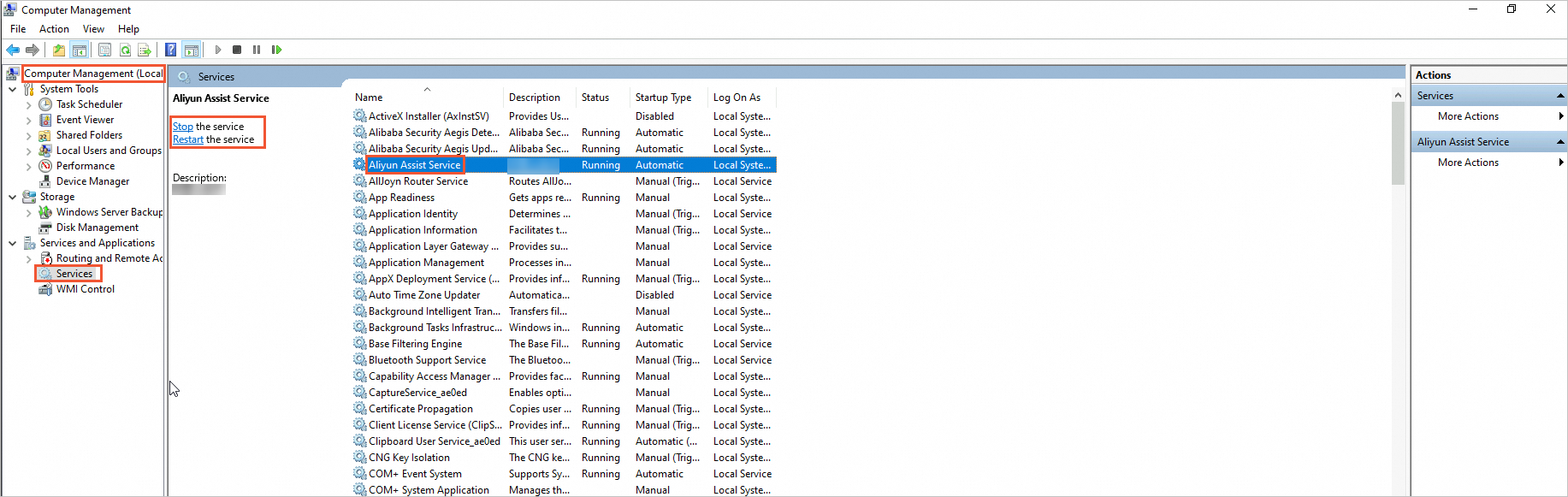
Méthode 2 : Utiliser Windows PowerShell
Cliquez sur l'icône Démarrer, recherchez Windows PowerShell, faites un clic droit dessus et sélectionnez Run as administrator.
-
Arrêtez Cloud Assistant Agent.
Stop-Service -Name "AliyunService" -
Vérifiez que l'agent est arrêté.
L'agent est arrêté si
StatusafficheStopped.Get-Service -Name "AliyunService"
Désinstaller Cloud Assistant Agent
Si vous êtes connecté via Session Manager ou Workbench, l'arrêt de l'agent met fin à votre session. Connectez-vous d'abord par un autre moyen, tel que la connexion au terminal Workbench, SSH, ou VNC.
Linux
-
Supprimez le processus daemon.
Les versions plus récentes de Cloud Assistant n'installent pas le composant daemon. Si le chemin /usr/local/share/assist-daemon n'existe pas sur l'instance, ignorez cette étape. Le fichier assist_daemon inclus dans les anciens packages d'installation se trouve dans le répertoire de version sous /usr/local/share/aliyun-assist et est supprimé lors de l'étape « Nettoyer les fichiers résiduels et les configurations de service ».
if [ -e /usr/local/share/assist-daemon/assist_daemon ]; then sudo /usr/local/share/assist-daemon/assist_daemon --delete fi -
Désinstallez le package.
RPM: Pour Alibaba Cloud Linux, CentOS, RHEL, Fedora, Rocky Linux, openSUSE et autres.-
DEB: Pour Debian, Ubuntu et autres.RPM
sudo rpm -qa | grep aliyun_assist | xargs sudo rpm -eDEB
sudo apt-get purge -y aliyun-assist
-
Nettoyez les fichiers résiduels et les configurations de service.
sudo rm -rf /usr/local/share/aliyun-assist sudo rm -rf /usr/local/share/assist-daemon sudo rm -f /etc/systemd/system/aliyun.service sudo rm -f /etc/init.d/aliyun-service -
Vérifiez que l'agent est désinstallé.
L'agent est désinstallé si la sortie est vide.
ps aux | grep -v grep | grep "aliyun-service"
Windows
Méthode 1 : Utiliser l'interface de bureau Windows
-
Dans l'Explorateur de fichiers, accédez à l'onglet View, sélectionnez Hidden items et supprimez le répertoire C:\ProgramData\aliyun\assist.

Méthode 2 : Utiliser Windows PowerShell
Cliquez sur l'icône Démarrer, recherchez Windows PowerShell, faites un clic droit dessus et sélectionnez Run as administrator.
-
Arrêtez Cloud Assistant Agent.
Stop-Service -Name "AliyunService" -Force -
Supprimez le répertoire d'installation et la clé de registre.
# Delete the installation directory Remove-Item -Path "C:\ProgramData\aliyun\assist" -Recurse -Force # Delete the registry entry Remove-Item -Path "HKLM:\SYSTEM\CurrentControlSet\Services\AliyunService" -Recurse -Force -
Vérifiez que l'agent est désinstallé.
L'agent est désinstallé si la sortie est vide ou affiche
Cannot find any service with service name 'AliyunService'.Get-Service -Name "AliyunService"
FAQ
Comment redémarrer Cloud Assistant Agent après l'avoir arrêté ?
Linux
Connectez-vous à une instance Linux à l'aide d'un nom d'utilisateur et d'un mot de passe.
-
Démarrez le processus daemon.
Les versions plus récentes de Cloud Assistant n'installent pas le composant daemon. Si le chemin suivant n'existe pas sur l'instance, ignorez cette étape.
if [ -e /usr/local/share/assist-daemon/assist_daemon ]; then sudo /usr/local/share/assist-daemon/assist_daemon --start fi -
Démarrez Cloud Assistant Agent.
systemd
sudo systemctl start aliyun.service

# Verify that the service has started. The service is running if the output contains "active (running)".
sudo systemctl status aliyun.service
Upstart
sudo /sbin/initctl start aliyun-service

# Verify that the service has started. The service is running if the output is not empty.
ps aux | grep -v grep | grep "aliyun-service"
SysVinit
sudo /etc/init.d/aliyun-service start

# Verify that the service has started. The service is running if the output is not empty.
ps aux | grep -v grep | grep "aliyun-service"
Windows
Méthode 1 : Utiliser l'interface des services Windows
Cliquez sur l'Start icon et sélectionnez Windows Administrative Tools > Computer Management.
Dans le volet de gauche, accédez à Computer Management (Local) > Services and Applications > Services.
Recherchez Aliyun Assist Service et cliquez sur Start the service.
Méthode 2 : Utiliser Windows PowerShell
Cliquez sur l'Start icon, recherchez Windows PowerShell, faites un clic droit dessus et sélectionnez Run as administrator.
-
Démarrez Cloud Assistant Agent.
Start-Service -Name "AliyunService" -
Vérifiez que l'agent a démarré.
L'agent est en cours d'exécution si
StatusafficheRunning.Get-Service -Name "AliyunService"