This topic explains why and how to use Git Large File Storage (LFS) with Codeup, how it works, and provides solutions for common issues.
Why use Git LFS?
To solve efficiency issues when hosting large files, Git LFS offers five key features:
Larger: Manage and version gigabyte-sized files.
Smaller: Reduce the storage footprint of your Git repository.
Faster: Speed up repository cloning and pulling.
Transparent: Integrates seamlessly into your Git workflow without changing the commands you use.
Compatible: Works with existing permission control, including in Codeup.
Download and install Git LFS
Download:
For Linux Debian and RPM packages: https://packagecloud.io/github/git-lfs/install.
For macOS: Run
brew install git-lfs.For Windows: Git LFS is integrated into Git for Windows. Download and install the latest version of Git for Windows.
To download a binary package directly: https://github.com/git-lfs/git-lfs/releases.
To build from source: https://github.com/git-lfs/git-lfs.
Install: If you downloaded a binary package, extract it and run the
./install.shscript. The script does two things:Installs the Git LFS executable file in your $PATH.
Runs the
git lfs installcommand to configure Git LFS globally for your user account.# Initialize Git LFS for your user account $ git lfs install Updated pre-push hook. Git LFS initialized.
Enable Git LFS for a new repository
The following steps walk you through a common scenario in a Linux or macOS environment.
Step 1: Create a new empty Git repository
Create a new, empty repository named "git-lfs" on Codeup.
Clone the repository to your local machine and change into the new directory:
# Replace this with your actual repository URL
$git clone https://codeup.aliyun.com/your-organization/git-lfs.git
Cloning into 'git-lfs'...
warning: You appear to have cloned an empty repository.
$cd git-lfs
$tree .git/hooks/
.git/hooks/
├── applypatch-msg.sample
├── commit-msg.sample
├── execute-commands.sample
├── post-receive.sample
├── post-update.sample
├── pre-applypatch.sample
├── pre-commit.sample
├── prepare-commit-msg.sample
├── pre-push.sample
├── pre-rebase.sample
├── pre-receive.sample
└── update.sample

0 directories, 12 files
# At this point, the Git LFS hooks have not yet been installed.
Step 2: Configure Git LFS
To track files with the
.bigfileextension, run the track command:$git lfs track "*.bigfile" Tracking "*.bigfile"ImportantThe double quotes around "*.bigfile" are important. Without them, your shell might expand the pattern, which can cause tracking to fail.
Similarly, to track other file types, such as JPEG images, run
git lfs track "*.jpg".Run
git lfs trackwithout any arguments to see a list of all currently tracked file patterns:$git lfs track Listing tracked patterns *.bigfile (.gitattributes) Listing excluded patternsThe track command modifies the
.gitattributesfile in your repository. Add this file to the staging area.$git add .gitattributesYou can review the changes with the following command:
$git diff --cached
 diff --git a/.gitattributes b/.gitattributes
 new file mode 100644
 index 0000000..c441ad2
 --- /dev/null
 +++ b/.gitattributes
 @@ -0,0 +1 @@
 +*.bigfile filter=lfs diff=lfs merge=lfs -text
Step 3: Commit the Git LFS configuration
To apply the tracking rule for "*.bigfile", commit the .gitattributes file:
$git commit -m "Add \"*.bigfile\" LFS config "
[master (root-commit) d052478] Add "*.bigfile" LFS config
 1 file changed, 1 insertion(+)
 create mode 100644 .gitattributes
$git log --oneline
d052478 (HEAD -> master) Add "*.bigfile" LFS config
Step 4: Test with a large file
Next, create a 1 GB file named dyrone.bigfile in your working directory:
# On macOS, you can use the mkfile command instead of dd.
$dd if=/dev/zero of=dyrone.bigfile bs=1G count=1
1+0 records in
1+0 records out
1073741824 bytes (1.1 GB) copied, 2.41392 s, 445 MB/s
$du -sh dyrone.bigfile
1.1G    dyrone.bigfile
Add dyrone.bigfile to the staging area:
$git add dyrone.bigfileGit processes the file using LFS because its name matches the "*.bigfile" pattern in .gitattributes.
What is a Git LFS pointer file?
Instead of storing the entire file in the Git index (the staging area), Git LFS creates a small pointer file that references the actual LFS object. You can view the contents of this pointer file by running git diff --cached to see the difference between your staging area and the HEAD commit:
$git diff --cached
diff --git a/dyrone.bigfile b/dyrone.bigfile
new file mode 100644
index 0000000..9d7c19f
--- /dev/null
+++ b/dyrone.bigfile
@@ -0,0 +1,3 @@
+version https://git-lfs.github.com/spec/v1
+oid sha256:49bc20df15e412a64472421e13fe86ff1c5165e18b2afccf160d4dc19fe68a14
+size 1073741824
The pointer file contains the following information:
version https://git-lfs.github.com/spec/v1: Specifies the Git LFS protocol version.version...v1: Represents the protocol version that the LFS server adheres to.git-lfs.github.com: The official domain of the Git LFS open source project.
oid sha256:49bc20df15e412a64472421e13fe86ff1c5165e18b2afccf160d4dc19fe68a14:oid: Represents the Git LFS object ID.sha256: A 64-character hexadecimal hash, generated using SHA-256, that uniquely identifies the file.
size: The actual size of the file in bytes.
How are local Git LFS files stored?
When you add the pointer file to the staging area, Git LFS stores the actual 1 GB file (dyrone.bigfile) in the repository's LFS cache directory. The file is renamed to the oid string from the pointer file:
$tree .git/lfs
.git/lfs
├── objects
│    └── 49
│         └── bc
│             └── 49bc20df15e412a64472421e13fe86ff1c5165e18b2afccf160d4dc19fe68a14
└── tmp
4 directories, 1 file
Git LFS represents the original dyrone.bigfile with two items: the pointer file, which Git commits as a blob object, and the actual file content, which is cached in the .git/lfs directory. The file in your working directory remains unchanged.
Step 5: Push the file to the remote
Next, commit the changes for dyrone.bigfile and push them to the remote:
$git commit -m "Add a really big file"
[master 8032589] Add a really big file
 1 file changed, 3 insertions(+)
 create mode 100644 dyrone.bigfile
The output "1 file changed, 3 insertions(+)" confirms that the small pointer file was committed, not the large file. You can verify this by viewing the commit details with git show HEAD:
$git show HEAD
commit 8032589f47a748171e84da94ce6440fe139e99f9 (HEAD -> master)
Author: dyroneteng <tenglong***@alibaba-inc.com>
Date:   Tue Sep 15 17:25:58 2020 +0800

    Add a really big file

diff --git a/dyrone.bigfile b/dyrone.bigfile
new file mode 100644
index 0000000..9d7c19f
--- /dev/null
+++ b/dyrone.bigfile
@@ -0,0 +1,3 @@
+version https://git-lfs.github.com/spec/v1
+oid sha256:49bc20df15e412a64472421e13fe86ff1c5165e18b2afccf160d4dc19fe68a14
+size 1073741824
Now, push the commit to your empty repository on Codeup:
$git push
Uploading LFS objects:   0% (0/1), 3.9 MB | 0 B/s
Uploading LFS objects:   0% (0/1), 79 MB | 30 MB/s
Uploading LFS objects:   0% (0/1), 207 MB | 50 MB/s
Uploading LFS objects:   0% (0/1), 326 MB | 51 MB/s
Uploading LFS objects:   0% (0/1), 534 MB | 56 MB/s
Uploading LFS objects: 100% (1/1), 1.1 GB | 58 MB/s, done.
Counting objects: 3, done.
Delta compression using up to 32 threads.
Compressing objects: 100% (3/3), done.
Writing objects: 100% (3/3), 410 bytes | 410.00 KiB/s, done.
Total 3 (delta 0), reused 0 (delta 0)
To https://codeup.aliyun.com/xxxxx/git-lfs.git
   d052478..8032589  master -> master
If any LFS files need to be uploaded, the push process displays the LFS upload progress.
At this point, files with the .bigfile extension are managed by LFS, while all other files are managed by standard Git.
Understanding the push output:
If a push includes Git LFS files, the process is split into two parts:
Part 1: The Git LFS object is uploaded.
Part 2: After the LFS object is uploaded, the related Git objects for the pointer file are pushed using the standard Git protocol.
The first part, "Uploading LFS objects: 100% (1/1), 1.1 GB | 58 MB/s, done.", shows the progress of the Git LFS object upload, including the total count, current progress, object size, and upload speed.
The second part, "Writing objects: 100% (3/3), 410 bytes | 410.00 KiB/s, done.", shows the push of the standard Git objects. In this example, there are three objects: one blob, one tree, and one commit.
If either part fails, the entire push fails.
This two-part process shows how Git LFS works during a push. LFS files are uploaded separately to the LFS server, while their corresponding pointer files are pushed to the Git server. You can verify this by checking the size of your repository directory.
The local repository is only 188K (excluding the LFS cache directory), which is roughly the size of the remote Git repository. This demonstrates how Git LFS helps keep your repository slim.
$du -sh --exclude=lfs .git
188K    .git

$du -sh .git
1.1G    .git
Clone a repository that uses Git LFS
You must install the Git LFS client before you clone a repository that uses it. Otherwise, tracked files will appear as pointer files instead of their actual content. When you clone a Git LFS-enabled repository, the git-lfs client automatically installs the necessary hooks to function correctly.
# Example repository. Replace this with your LFS-enabled repository URL.
$ git clone gi*@codeup.aliyun.com:your-organization/dyrone.git
Cloning into 'dyrone'...
remote: Counting objects: 41, done.
remote: Total 41 (delta 0), reused 0 (delta 0)
Receiving objects: 100% (41/41), 2.98 MiB | 5.01 MiB/s, done.
Filtering content: 100% (3/3), 5.01 MiB | 3.83 MiB/s, done.
# "Filtering content" indicates that the downloaded LFS files are being smudged into the actual files in the working directory.
$ cd dyrone
$ tree .git/hooks
.git/hooks
├── applypatch-msg.sample
├── commit-msg.sample
├── execute-commands.sample
├── fsmonitor-watchman.sample
├── post-checkout
├── post-commit
├── post-merge
├── post-update.sample
├── pre-applypatch.sample
├── pre-commit.sample
├── pre-merge-commit.sample
├── pre-push
├── pre-push.sample
├── pre-rebase.sample
├── pre-receive.sample
├── prepare-commit-msg.sample
└── update.sample

0 directories, 17 files
The necessary Git LFS hooks, such as pre-push, have been installed. This allows Git LFS to integrate with the standard Git workflow transparently.
Migrate historical files to LFS
For complex migration scenarios, see the LFS Migration Guide.
Untrack files from LFS
You can stop tracking a file type and remove the files from the LFS cache:
git lfs untrack "*.bigfile"
git rm --cached "*.bigfile"
To add these files back to regular Git tracking, run the following commands:
git add "*.bigfile"
git commit -m "restore "*.bigfile" to git from lfs"
How Git LFS works
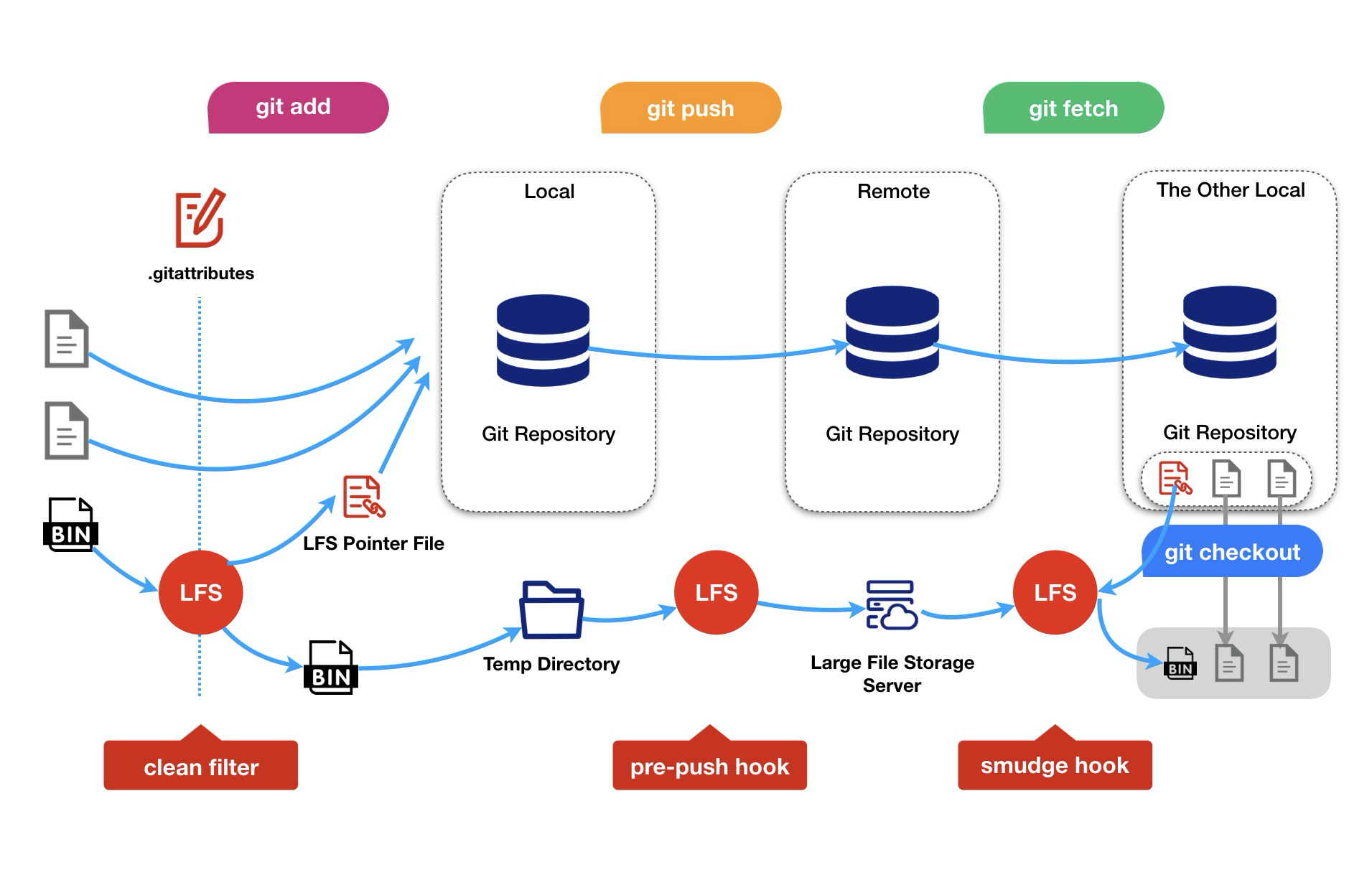
The following is a summary of how Git LFS works:
With Git LFS

As shown in the diagram, when you push changes, Git LFS intercepts tracked files, such as JPG images, and uploads them to a separate large file storage service. The corresponding pointer files are pushed to the remote Git repository along with your other code.
Git LFS process flow
Without Git LFS
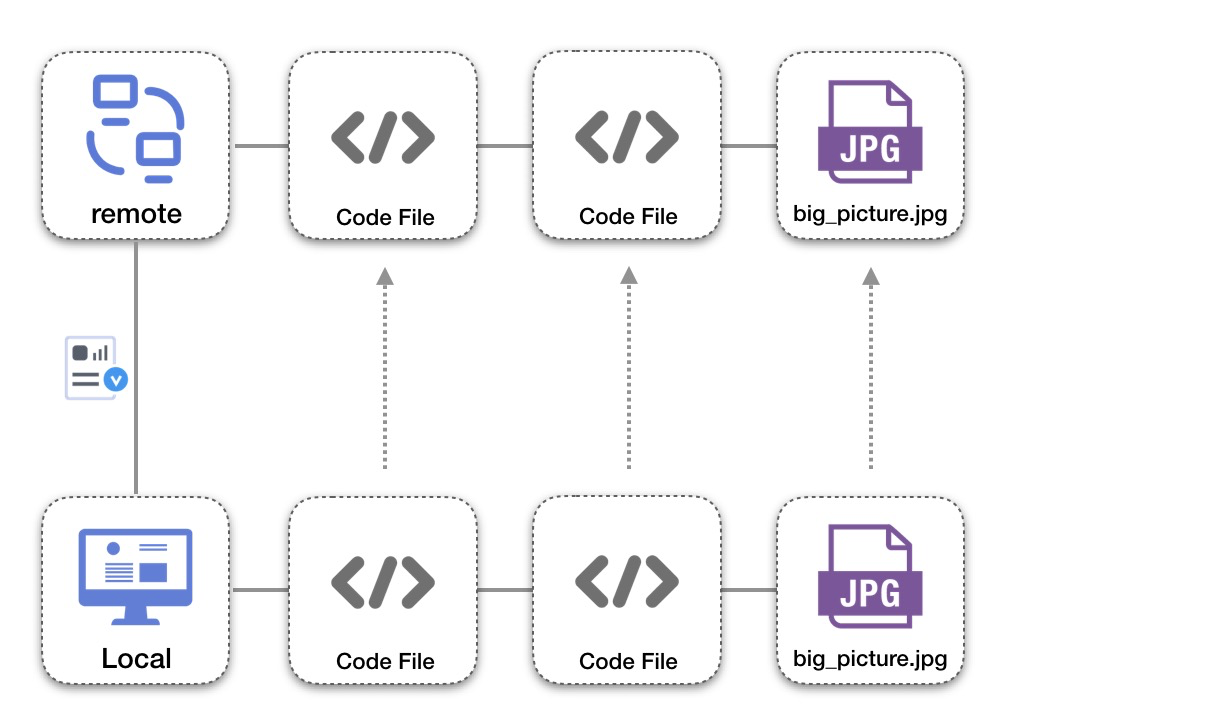
Without Git LFS, all files, from small text files to large images, are stored directly in the Git server when you push changes. As the number and size of large files increase, the repository can grow very large, slowing down operations for everyone.
Limitations
On the Windows platform, individual files cannot exceed 4 GB. For more details, see issue 2434.
Windows users must have
Git Credential Managerinstalled. Without it, LFS operations may hang indefinitely. For more details, see issue 1763.Unlike GitLab, which has a hardcoded 30-minute timeout for LFS download tokens, Codeup calculates the timeout dynamically based on the files to be downloaded. However, downloads can still time out on unreliable networks. If you need to adjust the timeout period, contact a Codeup system administrator.