This topic describes how to integrate your Agent with DingTalk. Two methods are available: Quick Pairing (scan-and-go, no app creation required) and Link Existing Bot.
Prerequisites
You have created an Agent in the AI Management Center.
Channel configuration
Go to the AI Management Center.
In the left-side navigation pane, select your Agent type, such as JVS Computer.
Click Channel Configuration.
In the Actions column of the target Agent, click View/Configure Channel.
On the DingTalk card, click Configure Now.
In the dialog that appears, select one of the following methods to complete bot integration:
Express Pairing
Requires cloud computer image version: Windows 3.2.18 or later, or Linux 3.0.10 or later. Restart your cloud computer to update.
Click Send Now. The system sends an SMS or email containing an access link to the authorized user.
The authorized user opens the URL from the SMS or email to access the binding page and obtain a QR code. You can also copy the URL directly from the console.
Scan the QR code with DingTalk to complete the bot binding.
Chat with the bot in DingTalk to verify the connection.
If another bot is already bound, it is replaced when you scan the new QR code.
Associate Existing Robot
Create a DingTalk app
Your DingTalk organization must have developer permissions. If not, see Obtain developer permissions. To quickly create an organization, scan this QR code with the DingTalk mobile app.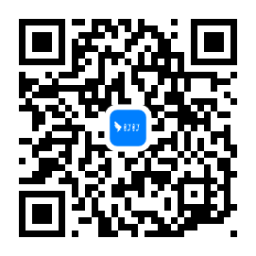
Log in to the DingTalk Open Platform developer console.
In the top navigation bar, click App Development, then click Create Now to create an OpenClaw bot app.
On the Create OpenClaw page, enter the bot name, description, and icon. Keep the defaults unless needed, then click OK.
The page displays the Client ID and Client Secret. Copy and store them securely for channel configuration.
NoteThe Client ID and Client Secret grant access to your app data. Keep them confidential.
Enter credentials to complete the integration
Go back to the AI Management Center, enter the Client ID and Client Secret of your DingTalk app, then click OK.
Chat with the bot in DingTalk to verify the connection.
Chat with the DingTalk bot
Chat with the bot in a group
Open the DingTalk client and enter a group chat.
For an existing group, ensure it belongs to the same organization as the bot.
For a new group, select the same organization as the bot.
Click the group settings icon in the upper-right corner and select Group Bots.
In the bot management section, click Add Bot.
Search for the bot you created and published, then click it to add.
@mention the bot in the group to trigger automatic replies.
Chat with the bot directly
Search for the bot by name in the DingTalk search bar.
Send a message to start a one-on-one chat.
FAQ
The DingTalk bot doesn't receive messages after configuration
Check that the Client ID and Client Secret are correct.
Ensure the app is published.
Bot not found when adding to a group
Causes:
The group belongs to a different organization. Use a group in the same organization as the bot, or create one.
The group is in the correct organization but is not an internal group. Convert it to an internal group.