To use ADB devices on cloud computers, administrators must configure the relevant peripheral policies as described in this topic.
Preparations
If you are using an Alibaba Cloud Workspace hardware terminal, you must first enable network ADB for ADB devices because Alibaba Cloud Workspace hardware terminals cannot connect to ADB devices over USB. Alibaba Cloud Workspace hardware terminals can connect to ADB devices only over networks.
Windows client/macOS client
When you use cloud computers from a Windows client or macOS client, administrators and end users must configure peripheral access by following the following steps.
Configure peripheral policies as an end user
Peripheral policies are included in cloud computer policies and need to be created and maintained by administrators in the console.
General steps for creating or modifying peripheral policies
Create a custom policy and associate it with a cloud computer
Modify a custom policy with which a cloud computer is associated
Peripheral configuration instructions
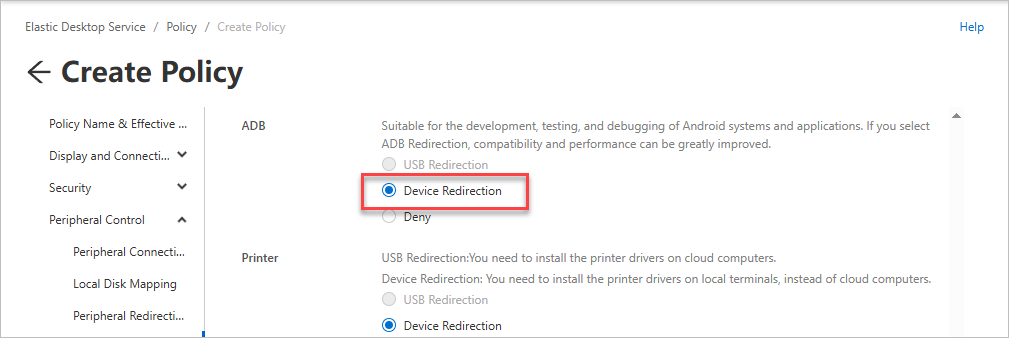
Enable device redirection for ADB devices
Configuration path: .
Configuration requirements: Set the redirection mode for ADB devices to Device Redirection.
What do I do if an on-premises device can detect an ADB device but my cloud computer cannot detect it?
Problem description
What do I do if an on-premises device can detect an ADB device but my cloud computer cannot detect it?
Cause
You have not configured ADB environment variables on the cloud computer.
Solution
Perform the following steps on the cloud computer to configure environment variables:
Go to Start and search for
environment variables. Then click Edit the system environment variables from the search result.Add the
ANDROID_HOMEvariable.In the System Properties dialog box, click the Advanced tab and then click Environment Variables.
In the Environment Variables dialog box, click New in the lower part of the System variables section.
In the New System Variable dialog box, specify the variable name and variable value and click OK.
The variable name is
ANDROID_HOME, and the variable value is the path to adb.exe, such asD:\platform-tools.
Modify the
Pathvariable.In the System variables section of the Environment Variables dialog box, select the
Pathvariable and click Edit.In the Edit environment variable dialog box, click New, enter
%ANDROID_HOME%in the blank row, and then click OK.
Optional. Verify that the environment variables are added. Open Command Prompt on the cloud computer and run the
adbcommand. If an ADB version number is returned in the command output, the environment variables are added.
Troubleshooting
For common questions about cloud computer policies, see FAQ about policies.
For common questions about peripherals, see FAQ about peripherals.