The Alibaba Cloud Workspace mobile client is available as an iOS client and an Android client. You can use the client to connect to and use Alibaba Cloud Workspace services. This topic describes the interface and features of the mobile client.
The examples in this topic are based on the iOS client V7.7 and the Enterprise Edition. If your experience differs from the description in this topic, you may be using a different client or an outdated version. Upgrade to the latest version.
Logon screen 1
On this screen, you can enter an organization ID or an office network ID.
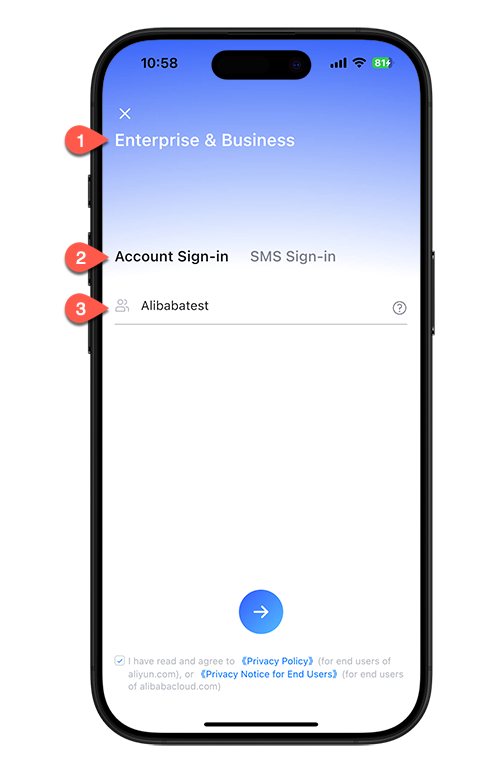
Select the cloud computer edition. You can switch between Enterprise & Business and Personal.
Select a logon method.
NoteThe text message logon method is available only for mobile numbers registered in the Chinese mainland.
Enter your organization ID or office network ID.
Logon screen 2
On this screen, you can enter your logon credentials, such as your username and password, or your mobile number and verification code.
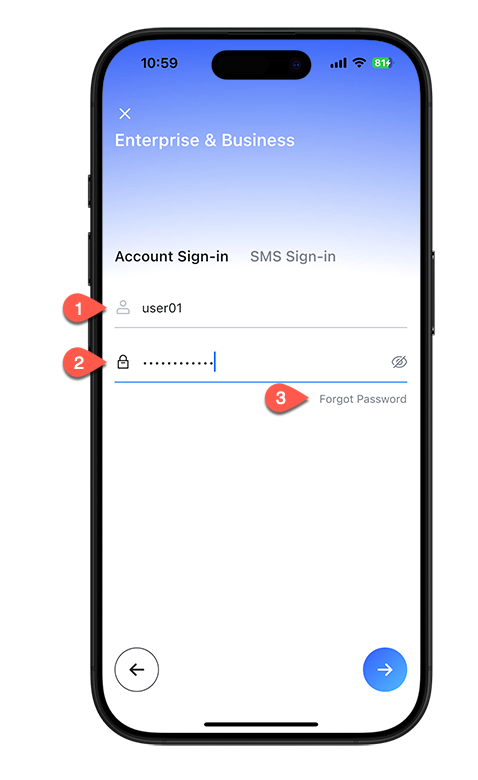
Enter your username.
Enter your password.
If your initial password has expired or you have forgotten your custom password, click Forgot Password and follow the on-screen instructions to reset your password.
Cloud resources screen
After you log on, the mobile client displays a list of cloud computers that the administrator has assigned to you.
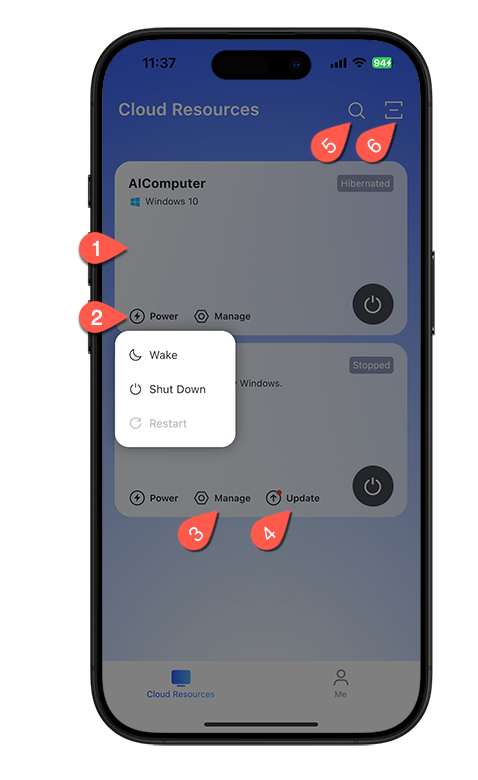
Cloud resource card: You can perform common management operations on the card, such as starting, stopping, restarting, or updating the cloud computer.
Power button: Performs power operations such as start, stop, restart, hibernation, and wake-up.
Manage button: Goes to the settings screen of the cloud computer.
Update button: Updates the image version of the cloud computer.
Scan to log on: This feature allows for cross-device logon. For example, you can scan a QR code with your logged-on mobile client to log on to the desktop client.
User center
The Me screen provides entries to account information, settings, and feedback.
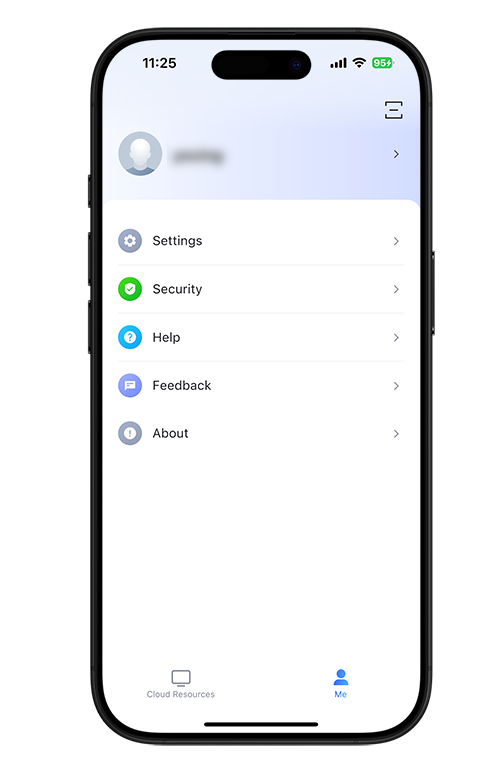
Profile: Click your profile picture to view basic account information, such as your username, organization ID, and contact information.
Settings: Adjusts general and network settings.
Security: Adjusts logon security settings.
Help: Opens the online help documentation.
Feedback: Submits product feedback and suggestions.
About: Displays the current version and provides an option to check for updates.