App Protection in Web Application Firewall (WAF) secures native apps by detecting proxies, emulators, and requests with invalid signatures. After integrating the Anti-Bot SDK into your app, complete the following steps in the WAF console to configure and enable protection.
Prerequisites
Before you begin, make sure that you have:
You have activated a WAF instance, and the App Protection module is enabled.
A WAF instance with App Protection enabled
Pay-as-you-go: enable the Bot Management module in Billing & Cost Management
Subscription: enable the App Protection module
The Anti-Bot SDK integrated into your app. For details, see Overview of app protection
Step 1: Open the App Protection settings
Log in to the WAF console. In the top navigation bar, select the resource group and the region (Chinese Mainland or Outside Chinese Mainland) where your WAF instance is deployed.
In the left-side navigation pane, choose Protection Configurations > Website Protection.
On the Website Protection page, select the domain name from the Switch Domain Name drop-down list.

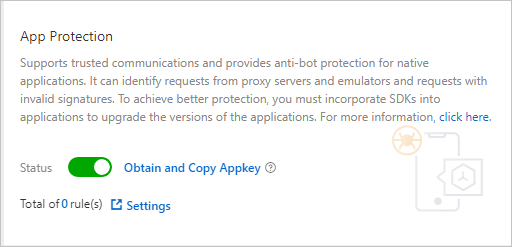
Click the Bot Management tab, find the App Protection section, and click Settings.
After App Protection is enabled, all service requests are checked. To exclude specific requests from the check, configure a whitelist rule under Bot Management. For details, see Configure a whitelist for Bot Management.
Step 2: Create an interface protection rule
Interface protection rules define which API paths to protect and what action to take when a violation is detected.
On the App Protection page, find the Interface Protection section and click Add Rule.
In the Add Rule dialog box, configure the following parameters.
ImportantDo not set Action to Block for production domain names until SDK integration and debugging are complete. If the SDK is not properly integrated, valid requests may be blocked. During testing, use Monitor to review log data and debug the integration.
If the body of a POST request exceeds 8 KB, signature verification may fail. For API operations that handle large payloads (such as image uploads), either disable SDK protection for those endpoints or use a User-defined field to specify an alternative field for signature verification.
Parameter Description Rule name A name for the rule. Path protection settings The API path to protect. Configure the following fields: — Path The path to protect. A forward slash ( /) matches all paths.— Matching How the path is matched: Prefix Match matches all endpoints under the path; Precise Match matches only the specified path; Regular Expression Match matches paths defined by a regular expression. — Parameter Query parameters to filter on, if the path has fixed parameters. These are the key-value pairs after the ?in the request URL. For example, fordomain/?action=login&name=test, you can specifyaction=loginorname=test.Protection policy The checks to perform on matching requests. Invalid Signature is always enabled and cannot be cleared — it checks whether the request signature is valid. Optionally enable Simulator to detect emulator-originated requests, and Proxy to detect requests sent through a proxy (recommended). Action What to do when a rule is matched: Monitor logs the request without blocking it; Block blocks the request and returns HTTP 405. User-defined field An alternative field for signature verification, used when the request body exceeds 8 KB. Select Header, Parameter, or Cookie, then specify the field name. For example, select Cookie and enter DG_ZUIDto use theDG_ZUIDcookie field instead of the request body.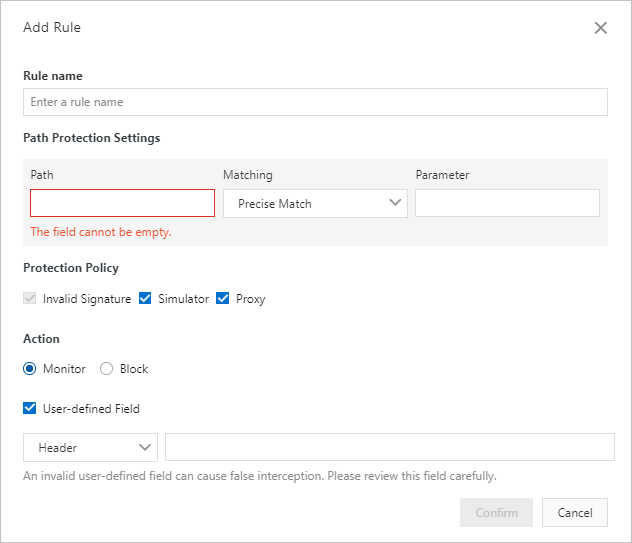
Click Confirm.
Testing recommendations
During the test phase, use these settings to validate your SDK integration without affecting live traffic:
Set Path to
/and Matching to Prefix Match to capture all paths.Set Action to Monitor for production domain names.
For test domain names only, you can set Action to Block to test rejection behavior end-to-end.
Once your logs show expected behavior, update the rules for production use.
Step 3: Configure version protection (optional)
Version protection blocks requests from non-official app builds by validating the app package name and signature. Configure this only when you need to enforce that users run an approved app version.
On the App Protection page, find the Version Protection section and turn on Allow Specified Version Requests.
In the Add Rule dialog box, configure the following parameters.
ImportantPackage signature is not the same as the app certificate signature. Contact Alibaba Cloud technical support to obtain the correct value.
Parameter Description Rule name A name for the rule. Valid version The approved app versions. For each version, enter the package name (for example, com.aliyundemo.example) and optionally the package signature. If you leave Package signature blank, WAF validates only the package name. To get the package signature, contact Alibaba Cloud technical support. Both iOS and Android apps are supported. Click Add Valid Version to add more entries — up to five valid versions, each with a unique package name.Disposal method for illegal version Monitor logs the request; Block blocks it and returns HTTP 405. 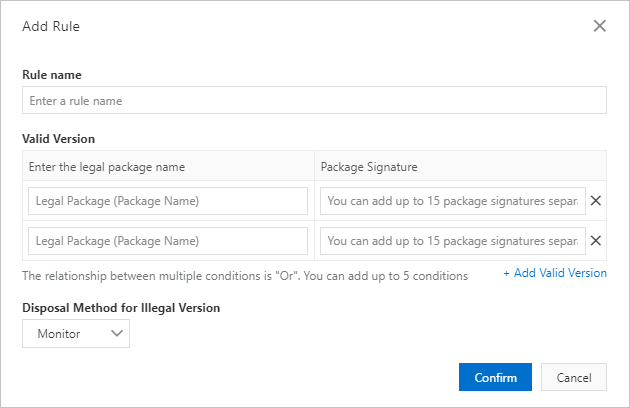
Click Confirm.
Step 4: Enable App Protection
After configuring your protection rules, turn on the Status toggle in the App Protection section.
Complete SDK integration, debug your app, and release the updated version before enabling App Protection. Enabling protection before SDK integration is stable may cause unexpected behavior in production.
What's next
To exclude trusted requests from checks, configure a whitelist rule. For details, see Configure a whitelist for Bot Management.
To learn how App Protection works, see Overview of app protection.