You can use an SSL-VPN connection to securely connect your clients (Windows, Linux, Android, or macOS) to your VPC and access cloud resources over the internet.
For iOS and iPadOS clients, see Connect an iPhone or iPad to a VPC using SSL-VPN.
Scenarios
SSL-VPN is suitable for the following scenarios:
No static public IP address on premises: An SSL-VPN connection is initiated by the client, so your on-premises network does not need a static public IP address. Dynamic IP environments such as home broadband, mobile office, and offices with dynamic IP addresses are all supported, as long as the client device can access the internet. If you already have a gateway device with a static public IP address, you can also use IPsec-VPN to establish a site-to-site connection.
Private access to ECS instances: ECS instances in the VPC do not need a public IP address. After the client connects over SSL-VPN, it can use the private IP addresses of resources in the same VPC directly.
Secure access control: In the security group associated with the ECS instance, you can allow traffic only from the SSL-VPN Client CIDR Block. This blocks direct access over the internet, allows access only after the client connects over SSL-VPN, and reduces exposure of vulnerable ports such as SSH 22 and RDP 3389.
Scenario
Goal: Create an SSL-VPN-enabled VPN Gateway that allows a local client to securely access an ECS instance in a VPC using its private IP address.

The following resources are planned for this tutorial:
VPC
Name:
vpc-demoRegion: China (Hangzhou)
CIDR block: 10.0.0.0/16
vSwitches: Create two vSwitches named
vsw1andvsw2.vsw1is in zone J with the CIDR block 10.0.0.0/24.vsw2is in zone K with the CIDR block 10.0.1.0/24.
ECS: The IP address is 10.0.0.1, and the operating system is
Alibaba Cloud Linux 3.2104 LTS 64-bit.
Client's on-premises network: 172.16.0.0/16
Step 1: Configure cloud VPN resources
Before you connect a client to the VPC, you must create and configure a VPN Gateway, an ssl server, and an ssl client in the Alibaba Cloud console.
1. Create a VPN Gateway
A VPN Gateway is the entry and exit point in the cloud for SSL-VPN connections.
Go to the VPN Gateway page and click Create VPN Gateway.
On the VPN Gateway page, set the following parameters:
Instance Name:
vpn-demoRegion: China (Hangzhou).
VPC: Select the VPC that your client needs to access.
vSwitch 1/vSwitch 2: Select
vsw1andvsw2respectively.VPN gateways use a dual-active architecture. In a region that supports multiple zones, your VPC must have at least two vSwitches in different zones to ensure cross-zone high availability. If your VPC does not have vSwitches in different zones, Create a vSwitch first.
Maximum Bandwidth: 10 Mbps
IPsec-VPN: Disabled. (This option is available only after you enable SSL-VPN.)
SSL-VPN: Enable.
SSL-VPN Connections: 5.
Service-linked Role: If a service-linked role has not been created, click Create Service-linked Role.
For detailed parameter descriptions, see Create and manage a VPN gateway instance.
After you complete the purchase, the new VPN Gateway appears on the VPN Gateway page.
A new VPN gateway starts in the Preparing state. It changes to Normal in about 1 to 5 minutes, at which point it is ready for use.
2. Create an SSL server
An Ssl server defines the cloud network that clients can access and configures the client IP address pool.
Go to the SSL Servers page. In the top navigation bar, select the China (Hangzhou) region, and then click Create SSL Server.
In the Create SSL Server panel, configure the ssl server with the following settings:
Name: Enter
server-demo.VPN Gateway: Select the VPN Gateway that you just created.
Local Network: Enter the CIDR block of the VPC,
10.0.0.0/16.This is the cloud network that you want clients to access, which is typically the CIDR block of your VPC.
Client CIDR Block: This is the address pool from which the VPN Gateway assigns IP addresses to client-side virtual network adapters. To avoid routing conflicts, this block must not overlap with the Local Network or any of the client's existing CIDR blocks (such as your Client's on-premises network). Use an address from the RFC 1918 private address ranges (10.0.0.0/8, 172.16.0.0/12, or 192.168.0.0/16) that is unlikely to cause conflicts with existing networks, such as
10.0.0.0/8.172.16.0.0/12192.168.0.0/1610.200.200.0/24
Keep the default values for other options. For detailed parameter descriptions, see Create and manage an SSL server.
3. Create an SSL client and download certificate
An SSL client manages a client certificate. Each connecting client must import a certificate for authentication and encryption.
In the left-side navigation pane, choose Interconnections > VPN > SSL Clients. In the top navigation bar, select the China (Hangzhou) region. On the SSL Client page, click Create SSL Client.
In the Create SSL Client panel, enter
client-demofor Name, select SSL Server forserver-demo, and then click OK.On the SSL Client page, find your ssl client and click Actions in the Download Certificate column.
Step 2: Configure the client
Follow the configuration instructions for your client's operating system.
Windows client
Download the OpenVPN client for your Windows version and follow the on-screen instructions to install it.
Windows 64-bit system (Intel/AMD): OpenVPN client (Windows 64-bit).
Windows ARM64 system: OpenVPN client (Windows ARM64).
Unzip the downloaded ssl client certificate package and copy all extracted files to the OpenVPN configuration directory.
Default path:
C:\Program Files\OpenVPN\configNote: If you changed the installation path, copy the files to the config folder in your actual installation directory.

Open the
config.ovpnfile with a text editor and add the following line to the end of the file:disable-dco.The Data Channel Offload (DCO) feature introduced in OpenVPN 2.6 is incompatible with some Windows systems, such as specific versions of Windows 10 and 11. This configuration disables DCO to resolve potential connection issues on these devices.

Right-click the OpenVPN icon in the system tray, and then click Connect to establish a VPN connection.

If the state changes to Connected and an IP address is assigned, the connection is successful.

Linux client
Run the following command to install the OpenVPN client and create the
confdirectory.CentOS
yum install -y openvpn
mkdir -p /etc/openvpn/conf
Ubuntu
apt-get update
apt-get install -y openvpn
mkdir -p /etc/openvpn/conf
Unzip the downloaded ssl client certificate package and copy the files to the /etc/openvpn/conf/ directory.

Go to the /etc/openvpn/conf/ directory and run the following command to establish the VPN connection.
openvpn --config /etc/openvpn/conf/config.ovpn --daemon(Optional) Configure the OpenVPN process to start automatically on boot.
Edit the /etc/rc.local file and add the following lines.
#Open the /etc/rc.local file in edit mode
vi /etc/rc.local
#Press the i key to enter edit mode, then add the following commands to the /etc/rc.local file
cd /etc/openvpn/conf/
openvpn --config /etc/openvpn/conf/config.ovpn --daemon
#Press the Esc key to exit edit mode, then enter the following command to save and exit the file
:wq
Grant execute permissions to the /etc/rc.local file.
chmod +x /etc/rc.local
Android client
Download and install the OpenVPN client for Android.
This example uses an Android 9.0 device with OpenVPN client v3.0.5 installed.
Transfer the downloaded ssl client certificate package to the Android device and unzip it.
NoteIf your Android device does not have an unzip utility, you can unzip the certificate package on a computer and then transfer the extracted files to your Android device.
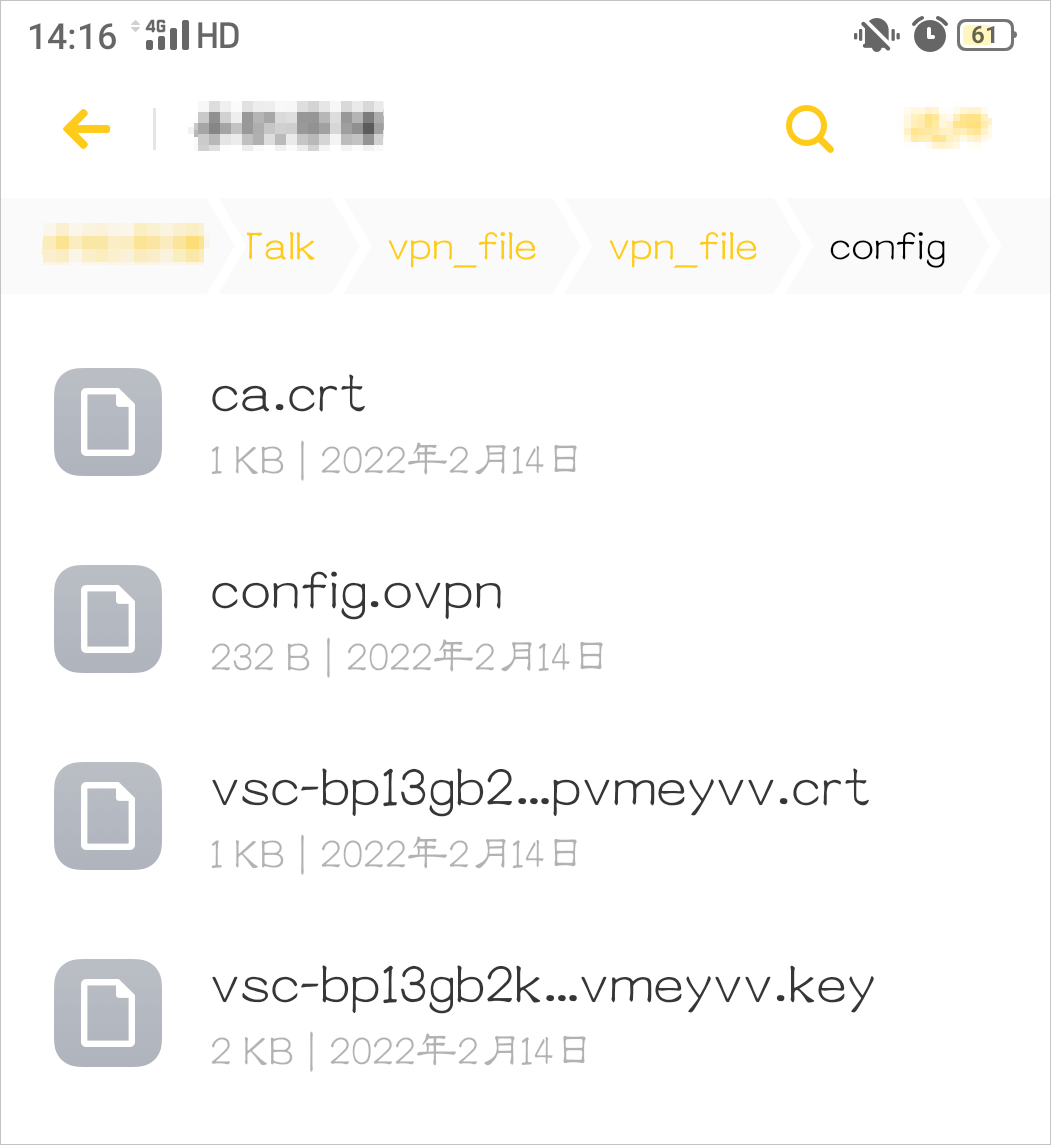
Make sure that all extracted files are in the same folder, as shown in the following figure.
Open the OpenVPN client, import the
config.ovpnfile, and add the VPN connection.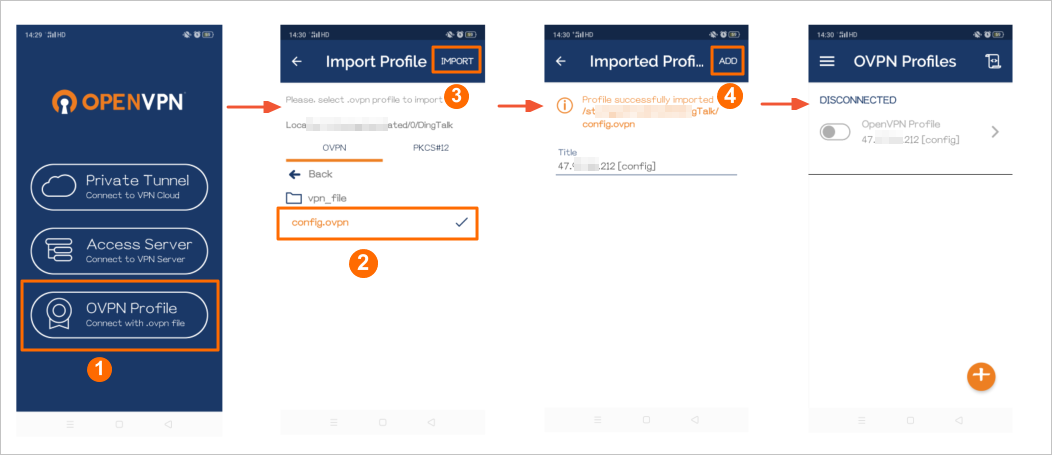
Step
Description
①
Select the OVPN Profile connection method.
②
Find the
config.ovpnfile in the storage directory.③
Tap IMPORT to import the
config.ovpnfile.④
The client imports the configuration from the
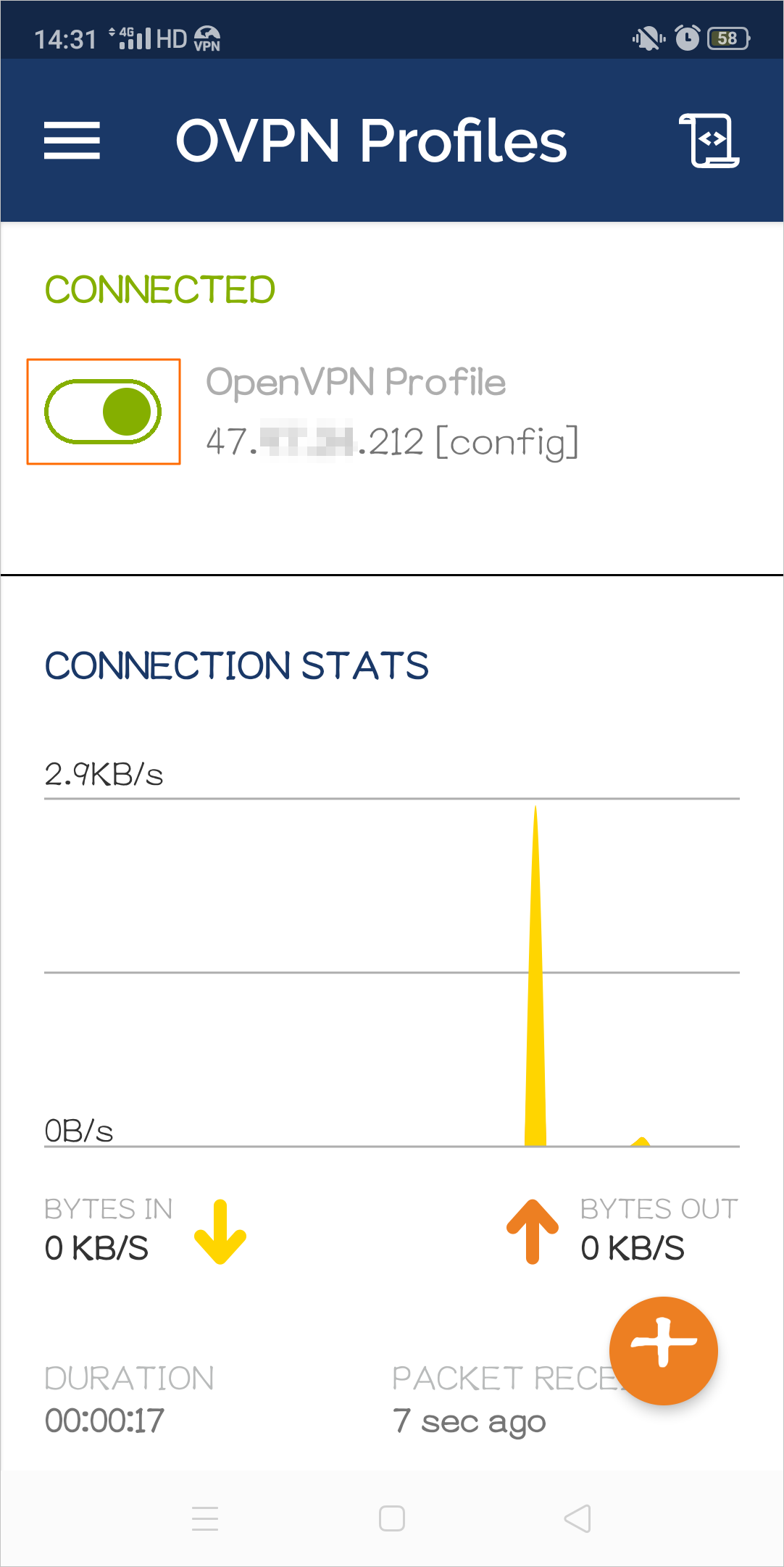
config.ovpnfile and displays the public IP address of the VPN Gateway. Tap ADD to add the VPN connection.Tap the toggle to enable the VPN connection.
macOS client (GUI)
Open the Tunnelblick Releases page and find the latest stable version to download the dmg file. This topic uses version
Tunnelblick 4.0.1 (build 5971)as an example, and downloads the file in.dmgformat from the Assets panel.
Install the Tunnelblick software.
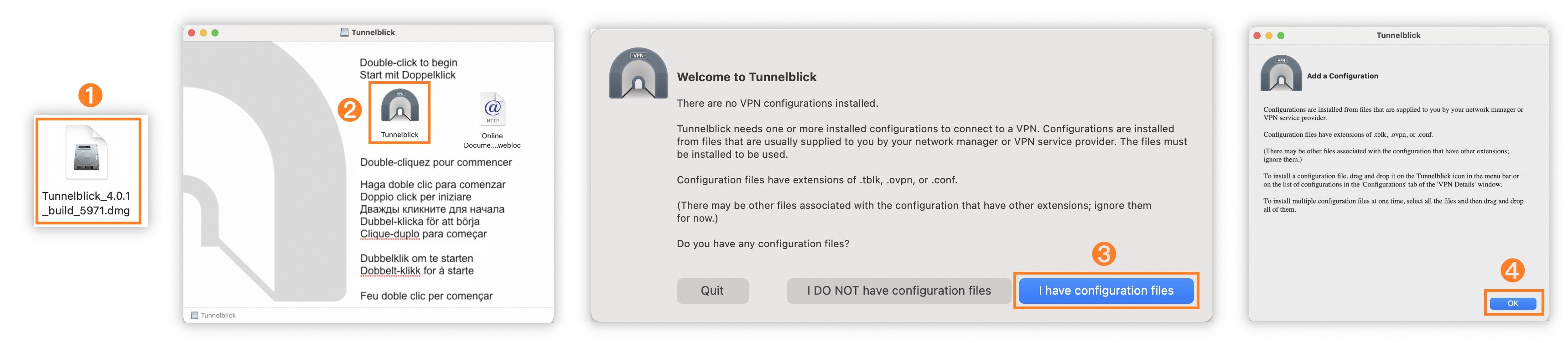
Step
Description
①
Double-click the downloaded Tunnelblick installer package.
②
Double-click the Tunnelblick icon.
③
Select I have configuration files.
④
Click OK.
Unzip the downloaded ssl client certificate package. Then, drag the extracted
config.ovpnfile to the Configurations panel.
Step
Description
①
In Launchpad, click the Tunnelblick icon to open Tunnelblick.
②
Drag the extracted
config.ovpnfile to the Configurations panel.③
Select Only Me.
④
Click Connect.
macOS client (CLI)
Open a Terminal window. If Homebrew is not installed on your client, run the following command to install it.
NoteThe Homebrew installation script includes the sudo command and will prompt you for your administrator password. When "Press RETURN/ENTER to continue..." appears, press Enter to proceed.
/bin/bash -c "$(curl -fsSL https://raw.githubusercontent.com/Homebrew/install/HEAD/install.sh)"
Run the following command to install the OpenVPN client.
brew install openvpn
Copy the downloaded ssl client certificate package to the configuration directory.
Back up the /opt/homebrew/etc/openvpn directory.
cp -r /opt/homebrew/etc/openvpn /opt/homebrew/etc/openvpn_bakRun the following command to delete the current OpenVPN configuration files.
rm /opt/homebrew/etc/openvpn/*Run the following command to copy the downloaded ssl client certificate package to the configuration directory.
cp /path/to/certs.zip /opt/homebrew/etc/openvpn/Note/path/to/certs.zipis the path to your downloaded ssl client certificate package. It is typically in the current user's Downloads directory, for example,/Users/example/Downloads/certs.zip.
Run the following commands to unzip the certificate package.
cd /opt/homebrew/etc/openvpn/
unzip /opt/homebrew/etc/openvpn/certs.zip
Choose a run mode.
Run in the foreground
Run the following command to start the client process and establish the VPN connection:
sudo /opt/homebrew/opt/openvpn/sbin/openvpn --config /opt/homebrew/etc/openvpn/config.ovpnThis command runs in the foreground. To disconnect, press Ctrl+C to terminate the process.
Run in the background
Run the following commands to run the VPN client as a background service that starts automatically on boot:
cp config.ovpn openvpn.conf
sudo brew services start openvpn
To stop the service, run the following command:
sudo brew services stop openvpn
Step 3: Test connectivity
Configure security group rules
To ensure the client can access resources in the VPC, add an inbound rule to the security group for the ECS instance to allow traffic from the Client CIDR Block (
10.200.200.0/24).For connectivity testing: Allow the ICMP protocol so that the
pingcommand works.For application access: Allow specific ports required by your services, such as TCP 22 (SSH), TCP 3389 (RDP), or TCP 80/443 (web services).
Ping test
On the client device, ping the ECS instance. A successful ping response indicates a private connection to the ECS instance.
ping 10.0.0.1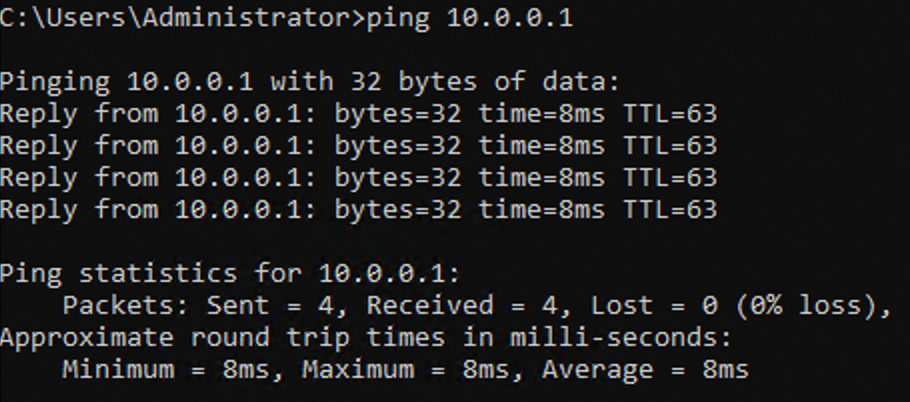
Service port test
To further verify application access, try to connect to a service running on the ECS instance. For example, install and start a web service (like Nginx) on the ECS instance:
# Run on the ECS instance (taking Alibaba Cloud Linux 3 as an example:)
yum install -y nginx
systemctl start nginx.service
Confirm that the security group for the ECS instance allows TCP port 80 traffic from the client CIDR block. Then, open a web browser on your client and navigate to
http://10.0.0.1.If the Nginx welcome page appears, your application access is working correctly.

FAQ
How do I use username and password authentication?
You can enable two-factor authentication, which requires clients to authenticate with both a certificate and a username/password before establishing an SSL-VPN connection.
Does the client need to enter the VPN Gateway address when connecting?
No need to manually enter the VPN Gateway address when connecting. The config.ovpn configuration file downloaded from the console already contains the public IP address of the VPN Gateway. After it is imported into the OpenVPN client, it can be automatically recognized without additional input.
Can I use the Alibaba Cloud SSL-VPN client together with another OpenVPN client?
Yes, you can use them at the same time, but you must avoid a configuration file conflict. If multiple OpenVPN clients share the same config directory, the certificates and the config.ovpn file may overwrite each other or be loaded by the wrong client, which causes an OpenVPN conflict and connection failures.
Use a separate installation for each client:
Install the OpenVPN client used for Alibaba Cloud SSL-VPN in a different path from the existing client. For example, if the existing client is installed in
C:\Program Files\OpenVPN, install the new client in another directory.Make sure each client has its own config folder. Extract and copy the Alibaba Cloud SSL-VPN certificate files only to the config folder of the installation directory that you use for this topic.
Start the connection from the client in the corresponding installation directory. Do not place multiple sets of configuration files in the same client.
Disconnect from VPN on Linux or macOS
Open a command-line terminal, run the following command to find the OpenVPN process, and note the process ID.
ps aux | grep openvpnRun the following command to terminate the OpenVPN process.
kill -9 <process ID>
After I connect over SSL-VPN, do I still need Bastionhost to log on to an ECS instance over SSH?
In most cases, no. As long as the SSL-VPN connection works and the security group of the ECS instance allows traffic on TCP port 22 from the Client CIDR Block, you can use an SSH client to log on to the ECS instance with its private IP address directly. Bastionhost is not required.
If your organization requires session auditing, fine-grained permission control, or shared logon management for operations, you can use Bastionhost together with SSL-VPN. However, Bastionhost is not a prerequisite for establishing an SSL-VPN connection or for logging on to an ECS instance over a private IP address.
Troubleshooting connection issues
After the SSL-VPN client connects, it can communicate with ECS instances in the same VPC over private IP addresses automatically. No extra route entries or additional network configuration are required. Therefore, if the connection is established but access still fails, the cause is usually access control on the ECS instance rather than the VPN tunnel itself.
Symptom | Cause and solution |
Connection fails. For example, the client logs show | 1. Network issue: Confirm that your client device has a stable internet connection and that your local network firewall or security software is not blocking the OpenVPN client from accessing the public IP address and port of the VPN Gateway (default is TCP/1194). 2. Certificate issue: Verify that the imported |
Connection is successful, but you cannot | 1. Security group rule (check this first): If the ping fails, first log on to the ECS console and check whether the security group of the instance has an inbound rule that allows 2. ECS internal firewall: Check if the ECS instance's operating system firewall (such as firewalld or iptables) is blocking ICMP requests. |
Connection is successful and | 1. Security group rule: Check the security group for the ECS instance and ensure it allows traffic on the relevant service ports (such as TCP 80 or TCP 22) from your client CIDR block. 2. Service listening status: Log on to the ECS instance and confirm that the port is in a listening state (for example, use 3. ECS internal firewall: Log on to the ECS instance and confirm that the instance's operating system firewall allows traffic on the required port. |
After connecting to the VPN, you cannot access your local network (like a printer) or the internet. | Routing conflict: The Client CIDR Block configured in the ssl server may conflict with your local network's CIDR block. Return to Step 1, modify the client CIDR block in the ssl server to a less common range (such as |
The ECS instance cannot initiate a | This is expected behavior. For security reasons, client operating system firewalls typically block unsolicited incoming connections from external sources, including the VPN endpoint. This does not affect the client's ability to access cloud resources. If a cloud resource needs to access the client, you must configure the client's firewall to allow ICMP traffic. |
For more questions, see SSL-VPN connection FAQ.