Configure live-to-VOD
Live-to-VOD synchronously records live streams as VOD videos and supports media asset management, media processing, content production, and CDN-accelerated delivery.
Architecture
The following figure shows the live-to-VOD architecture: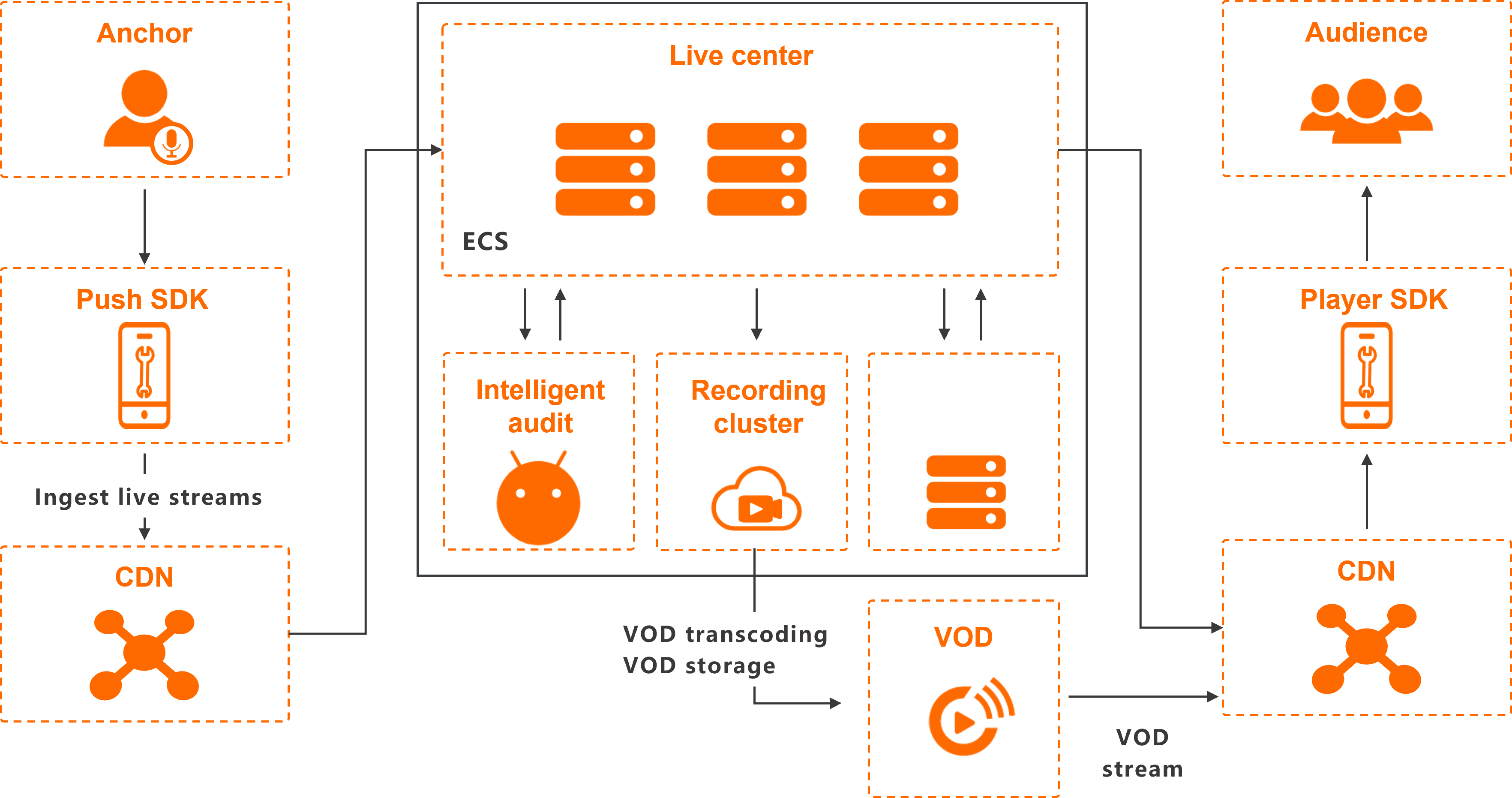
Benefits
Compared to traditional recording to user storage, recording to ApsaraVideo VOD offers these benefits:
-
End-to-end video production: ApsaraVideo VOD automates transcoding and content delivery with Alibaba Cloud CDN, providing a complete video production workflow.
-
Rich media asset management: ApsaraVideo VOD manages recorded videos as individual assets with a wide range of management options for easy scalability.
-
Powerful content production: Online editing capabilities let you edit recorded videos directly in the cloud without traditional offline production workflows.
-
AI-powered media processing: Leverage AI for content moderation, intelligent thumbnail generation, and media fingerprinting.
Usage
Prerequisites
ApsaraVideo VOD is activated. For more information, see Activate ApsaraVideo VOD.
ApsaraVideo Live is activated. For more information, see Activate and purchase ApsaraVideo Live.
To store recordings in ApsaraVideo VOD, the region where you activated ApsaraVideo VOD must match the live center region of your streaming domain.
Configure live recording to VOD
ApsaraVideo Live records and stores live content, which is then managed in ApsaraVideo VOD.
-
In ApsaraVideo VOD, create a transcoding template group to process the recorded video content.
Log on to the ApsaraVideo VOD console. On the Transcoding Template Groups page, create the template group. For more information, see Audio and video transcoding.
-
Configure ApsaraVideo Live to store live recordings in ApsaraVideo VOD.
Log on to the ApsaraVideo Live console. For the target streaming domain, navigate to the Record to VOD page by choosing Domain Settings > Templates > Live Recording > Record to VOD. Configure the settings on this page. For more information, see Store recordings in VOD. You can also call the AddLiveRecordVodConfig API operation to add a recording configuration.
-
After you complete the configuration, the system records incoming live streams based on the template.
NoteTo prevent recordings from being cut short by network jitter or temporary stream interruptions, the system waits for 180 seconds after a stream interruption before finalizing the recording file. If the stream is ingested again within this 180-second window, the system continues the same recording. If ingestion resumes after 180 seconds, the system starts a new recording.
Query recorded videos
After a live stream is recorded to ApsaraVideo VOD, the content is managed as video assets with extensive media processing capabilities. You can retrieve recorded videos in the following ways:
-
From the console
-
In the left-side navigation pane of the ApsaraVideo VOD console, choose Media Files, and then click Audio/Video. On the Audio/Video page, select ApsaraVideo Live from the Source drop-down list to filter the results.
-
In the left-side navigation pane of the ApsaraVideo Live console, choose Feature Management > Live Recording. On the Live Recording page, click the Recording Files tab. You can then filter the recording files by AppName and StreamName.
-
-
Recording callback
Configure ApsaraVideo VOD to send a recording callback when a live recording is complete. By listening for the Live Recording Complete event, you can obtain information about newly created video assets.
-
Call an API operation
ApsaraVideo VOD provides an API operation to query videos. Call the ListLiveRecordVideo operation and specify the domain,
AppName, andStreamNameto retrieve videos.
References
-
Choose a live-to-VOD scenario: Covers three typical scenarios: live recording with automatic transcoding and Alibaba Cloud CDN acceleration; live recording with storage only, followed by manual transcoding and Alibaba Cloud CDN acceleration; and automatic merging of multi-period video recordings.
-
FAQ about live-to-VOD: Covers common issues and recommended solutions for live-to-VOD.