Image processing lets you edit and distribute images on points of presence (POPs). This reduces loads on origin servers and origin traffic. The image processing features provided by ApsaraVideo VOD and Object Storage Service (OSS) are independent from each other. You can use either feature to process images. ApsaraVideo VOD lets you automatically convert images to the WebP format and automatically rotate and compress images.
The image editing feature of Alibaba Cloud CDN, the image editing feature of DCDN, and the Image Processing (IMG) feature of Object Storage Service (OSS) are three different features.
Image editing is free of charge until further notice.
When you use the image editing feature, conversion between different image formats, such as JPEG to WebP, JPEG to PNG, and PNG to WebP, may result in larger image sizes. This is because different image formats use different compression algorithms. If you want to reduce image sizes, we recommend that you configure the
qualityparameter to reduce the image quality.
Limits
Before you use image editing, take note of the following items:
Source images
You can use this feature to edit only images in the following formats: JPEG, JPG, PNG, WebP, BMP, GIF, TIFF, and JPEG 2000.
The size of a source image cannot exceed 10 MB.
The total number of pixels of a source image cannot exceed 16,777,216.
NoteFor a GIF image, the total number of pixels is the sum of all frames. You can use tools such as ImageMagick to query the frame information about a GIF image.
Edited images
The total number of pixels of an edited image cannot exceed 16,777,216.
If you want to convert an image into the WebP format, the total number of pixels of the image cannot exceed 16,777,216, and neither the width nor the height can exceed 16,384 pixels. If a source image is a dynamic image, a static image is generated when you convert the source image to the WebP format.
Procedure
Log on to the ApsaraVideo VOD console.
In the left-side navigation pane, choose Configuration Management > CDN Configuration > Domain Names.
Find the domain name that you want to manage and click Configure in the Actions column.
In the navigation pane on the left for the domain name, click Performance Optimization.
In the Image Editing section, turn on Image Editing and select the image formats that you want to convert. The following table describes the parameters.
NoteAfter you select image formats that you want to convert, image editing is enabled. Only if you enable image editing, the image processing parameters in the URL take effect when you use object URLs to process images. Otherwise, the parameters are invalid.
You can enable automatic conversion to WebP, automatic rotation, and automatic compression in the Alibaba Cloud CDN console based on your business requirements.
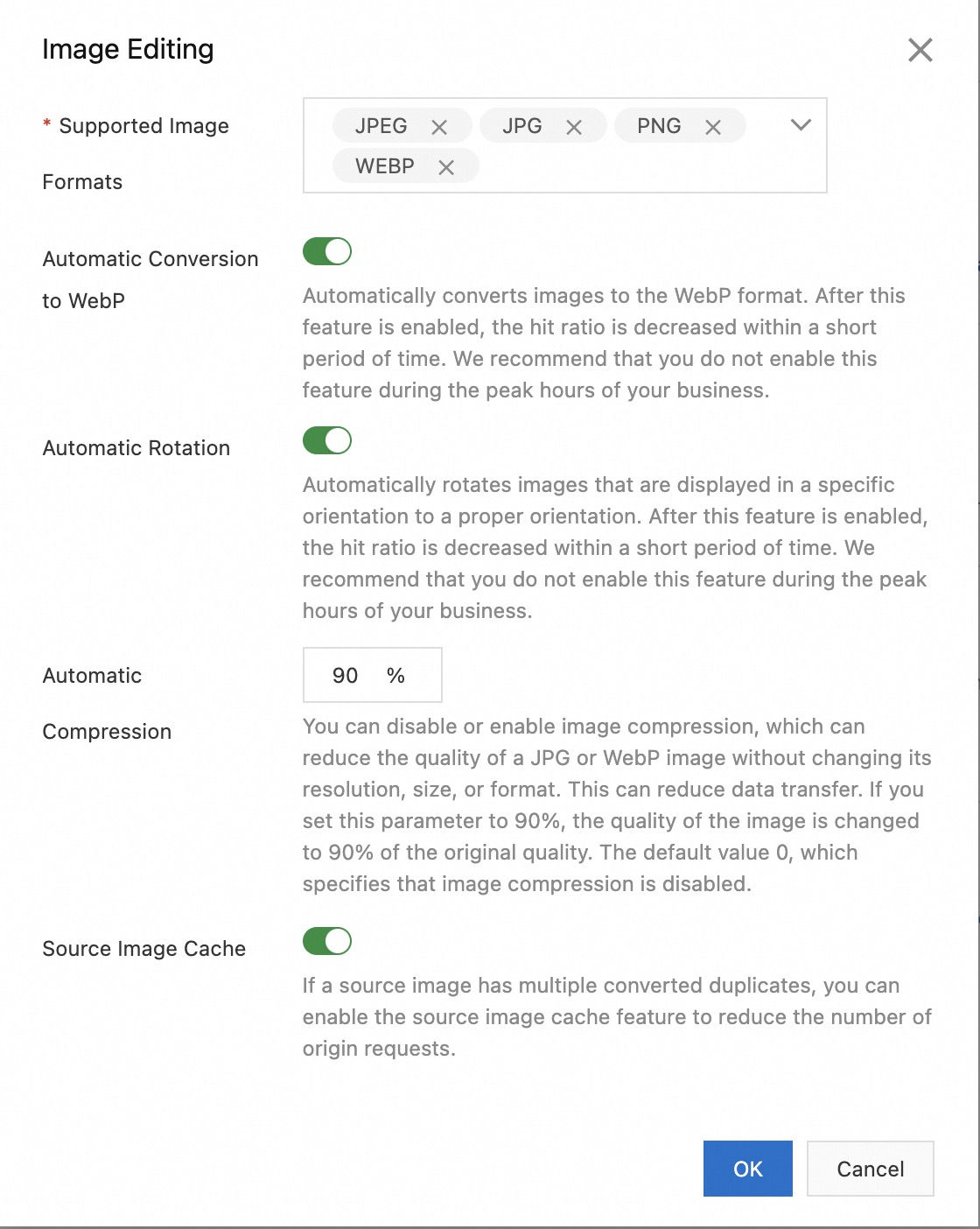
Parameter
Description
Note
Supported Image Formats
The image formats that you want to convert. You can select multiple formats. This parameter is required.
N/A
Automatic Conversion to WebP
After you turn on Automatic Conversion to WebP, if the Accept header contains
image/webp, Alibaba Cloud CDN automatically converts images in other formats into the WebP format for caching.After you turn on Automatic Conversion to WebP, the cache hit ratio decreases within a short period of time and is gradually restored after images are converted. Do not enable this feature during peak hours.
Automatic Rotation
After you enable the automatic rotation feature, Alibaba Cloud CDN automatically rotates images.
Automatic rotation applies only to images that have the
auto-orientparameter.After you turn on Automatic Rotation, the cache hit ratio decreases within a short period of time and is gradually restored after images are rotated. Do not enable this feature during peak hours.
Automatic Compression
Automatic compression reduces the file size of images without the need to change the resolution, size, and format of the images. This reduces data transfer. Default value: 0. Valid values:
0: Auto compression is disabled.
1 to 100: Auto compression is enabled. For example, if you enter 90% in the Automatic Compression field, the image quality is reduced to 90% of the original quality.
Automatic compression supports only images in the JPEG and WebP formats.
Source Image Cache
If a source image has multiple converted duplicates, you can enable this feature to reduce the number of origin requests.
N/A
Click OK.