The short video SDK allows you to create custom filters and transitions by writing OpenGL ES shaders (OpenGL ES 3.0 syntax) based on a general-purpose effect configuration file. A basic understanding of OpenGL ES and shading languages is required.
Overview
A filter or transition resource package folder contains an effect configuration file named config.json and related image materials. To apply a filter or transition during video editing or recording, specify the resource package folder when you call the corresponding editing or recording operation.
Configure an effect configuration file
The effect configuration file is in JSON format and describes a complete rendering process. The first level contains basic information about the effect, and the second level uses a node tree to describe how the effect is rendered.
First level - basic information
An effect's basic information includes the following fields:
Parameter | Description |
name | The name of the effect. |
module | The module identifier. Set this to |
version | The version number. Value: 1. |
type | The type of the effect. Valid values: 1 and 2. 1 indicates filter and 2 indicates transition. |
nodeTree | The node tree that describes how the effect is rendered. For more information, see Second level - node tree. |
The following code shows the configuration file of the Intense filter.
{
    "name": "Intense",
    "module": "ALIVC_GECF",
    "version": 1,
    "type": 1,
    "nodeTree": [
        {
            "nodeId": 0,
            "name": "Intense",
            "fragment": "/** ...... */",
            "textures": [
                {
                    "name": "inputImageTexture",
                    "srcType": "INPUT_NODE",
                    "nodeId": 0
                },
                {
                    "name": "inputImageTexture2",
                    "srcType": "IMAGE",
                    "path": "color.png"
                }
            ]
        }
    ]
}
Second level - node tree
The nodeTree contains one or more nodes that describe a rendering process.
The following figure shows the rendering flow in the short video SDK: 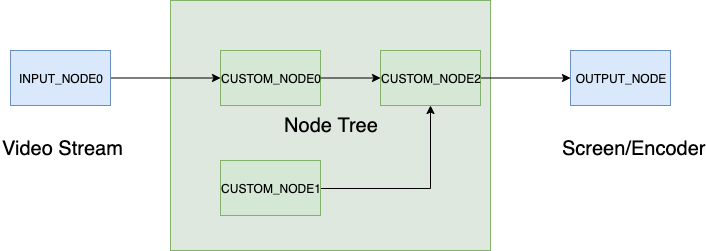
As shown in the preceding figure, the rendering process is abstracted into a tree structure of nodes.
The input node INPUT_NODE represents the input source. During recording, the input node is the camera image data stream. During editing, the input node is the current video stream. Multiple input nodes can exist. For example, to apply a transition between two video clips, the first clip is INPUT_NODE0 and the second clip is INPUT_NODE1.
The middle section represents the
nodeTreeparameter in the effect configuration file. A node tree can contain one or more rendering nodes. The key to a node tree is the configuration of its rendering nodes.The output node OUTPUT_NODE represents the rendered video stream. In preview mode, the output is displayed on screen. In production mode, the output is sent to the encoder.
Nodes
A node defines the rendering configuration for a single draw call, including the shader code and parameter descriptions required for a custom effect. The following table describes the node parameters.
Parameter | Description |
nodeId | The ID of the node. |
name | The name of the node. |
vertex | The vertex shader code. Mutually exclusive with the vertexPath parameter. If this parameter is not specified, the SDK uses the following default implementation. |
vertexPath | The path to the vertex shader code file. Mutually exclusive with the vertex parameter. |
attributes | The list of vertex attributes, declaring the names and types of attributes used in vertex shading. Valid values of type: POSITION and TEXTURECOORD. POSITION indicates the vertex coordinate, and TEXTURECOORD indicates the texture coordinate. This parameter is optional. If not specified, the SDK uses the following default implementation. |
fragment | The fragment shader code. Mutually exclusive with the fragmentPath parameter. |
fragmentPath | The path to the fragment shader code file. Mutually exclusive with the fragment parameter. |
textures | The list of textures, specifying the
|
params | The list of uniforms, specifying the
|
The type attribute of the params parameter supports the following values.
Type | Example value |
INT | [1] |
FLOAT | [-2.0] |
VEC2I | [3, 2] |
VEC3I | [1, 2, 3] |
VEC4I | [4, 3, 2, 1] |
VEC2F | [-1.0, 1.0] |
VEC3F | [0.5, 0.5, 0.5] |
VEC4F | [1.0, -1.0, 1.0, -1.0] |
MAT3F | [1.0, 0.0, 0.0, 0.0, 1.0, 0.0, 0.0, 0.0, 1.0] |
MAT4F | [1.0, 0.0, 0.0, 0.0, 0.0, 1.0, 0.0, 0.0, 0.0, 0.0, 1.0, 0.0, 0.0, 0.0, 0.0, 1.0] |
The following code shows the configuration file of the Translate transition.
{
    "name": "Translate",
    "module": "ALIVC_GECF",
    "version": 1,
    "type": 2,
    "nodeTree": [
        {
            "nodeId": 0,
            "name": "Translate",
            "vertex": "/** ...... */",
            "attributes": [
                {
                    "name": "a_position",
                    "type": "POSITION"
                },
                {
                    "name": "a_texcoord",
                    "type": "TEXTURECOORD"
                }
            ],
            "fragment": "/** ...... */",
            "textures": [
                {
                    "name": "RACE_Tex0",
                    "srcType": "INPUT_NODE",
                    "nodeId": 0
                },
                {
                    "name": "RACE_Tex1",
                    "srcType": "INPUT_NODE",
                    "nodeId": 1
                }
            ],
            "params": [
                {
                    "name": "direction",
                    "type": "INT",
                    "value": [
                        0
                    ],
                    "maxValue": [
                        3
                    ],
                    "minValue": [
                        0
                    ]
                }
            ]
        }
    ]
}
Built-in variables
The short video SDK provides the following built-in variables that you can declare in your shader.
uniform highp float BUILTIN_PROGRESS; // Transition progress: 0 to 1
uniform highp float BUILTIN_WIDTH;    // Image width
uniform highp float BUILTIN_HEIGHT;   // Image height
Use an effect in the short video SDK
To use an effect, create an effect object, apply it, and update the effect parameters as needed.
The initialized effect object contains an AliyunEffectConfig object that describes the effect configurations. The internal structure of AliyunEffectConfig corresponds to the structure of the effect configuration file. If the configuration file contains the params parameter, you can obtain the AliyunParam object from AliyunEffectConfig -> nodeTree -> params. The value field in AliyunParam holds the parameter value. You can update effect parameters in one of the following ways.
Update the parameters by calling the update method of the
AliyunValueobject.Update the parameters by calling the effect update method. For details, see step iii in the following section.
Android Procedure
Filters
Call
EffectFilter(String path)to create a filter object.pathspecifies the path of the filter folder.Call
int addAnimationFilter(EffectFilter filter);to apply the filter.Call
int updateAnimationFilter(EffectFilter filter);to update the filter parameters.
Transitions
Call
TransitionBase(String path)to create a transition object.pathspecifies the path of the transition folder.Call
int setTransition(int index, TransitionBase transition);to apply the transition.Call
int updateTransition(int clipIndex, TransitionBase transitionBase);to update the transition parameters.
Procedures for iOS
Filters
Call
- (instancetype)initWithFile:(NSString *)path;ofAliyunEffectFilterto create a filter object.pathspecifies the path of the filter folder.Call
- (int)applyAnimationFilter:(AliyunEffectFilter *)filter;to apply the filter.Call
- (int)updateAnimationFilter:(AliyunEffectFilter *)filter;to update the filter parameters.
Transitions
Call
-(instancetype)initWithPath:(NSString *)path;ofAliyunTransitionEffectto create a transition object.pathspecifies the path of the transition folder.Call
- (int)applyTransition:(AliyunTransitionEffect *)transition atIndex:(int)clipIdx;to apply the transition.Call
-(int)updateTransition:(AliyunTransitionEffect *)transition atIndex:(int)clipIdx;to update the transition parameters.