Alibaba Cloud has developed several commonly used components based on typical scenarios. You can use these components directly or customize them according to your requirements.
Background information
The source code of components is available on GitHub. For more information, see Project description.
For more information about how to use the components, see the Functions tab.
Specific features of Web SDK cannot be used in built-in browsers on mobile devices.
GitHub is a third-party website. Connection failures or increased latency may occur when you access GitHub.
List of official components
Component name | Component type | Description | Effect display |
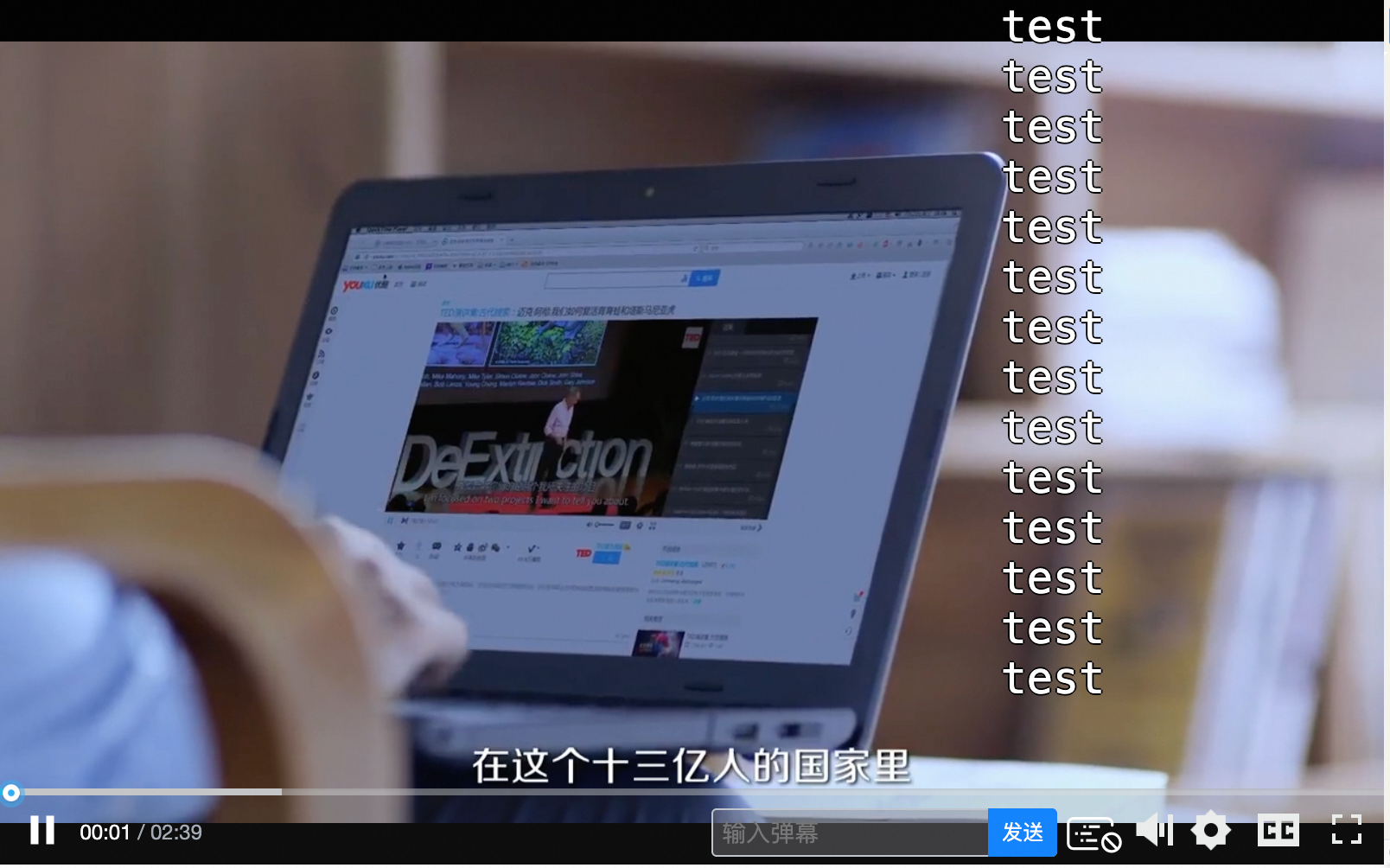
Live commenting |
| The live comment component adds a text input box and the buttons for enabling, disabling, and sending live comments to the control bar of the player. For more information, see Danmu component. |
|
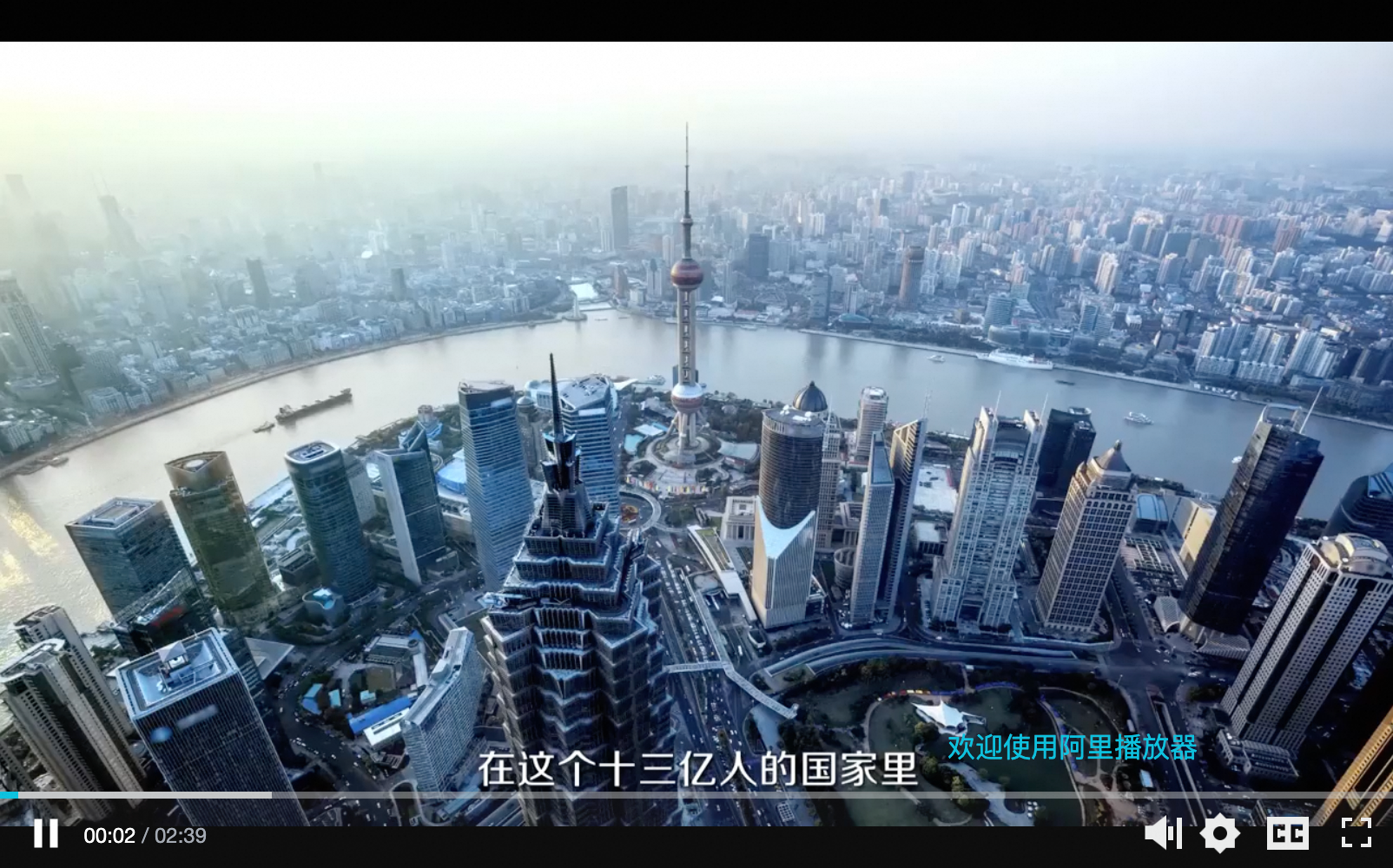
Animated watermark (Marquee component) |
| This component is used to add a text watermark that contains user information such as the user ID to videos. This helps reduce copyright infringements. You can specify the watermark location and the color and size of the text. For more information, see Marquee component. |
|
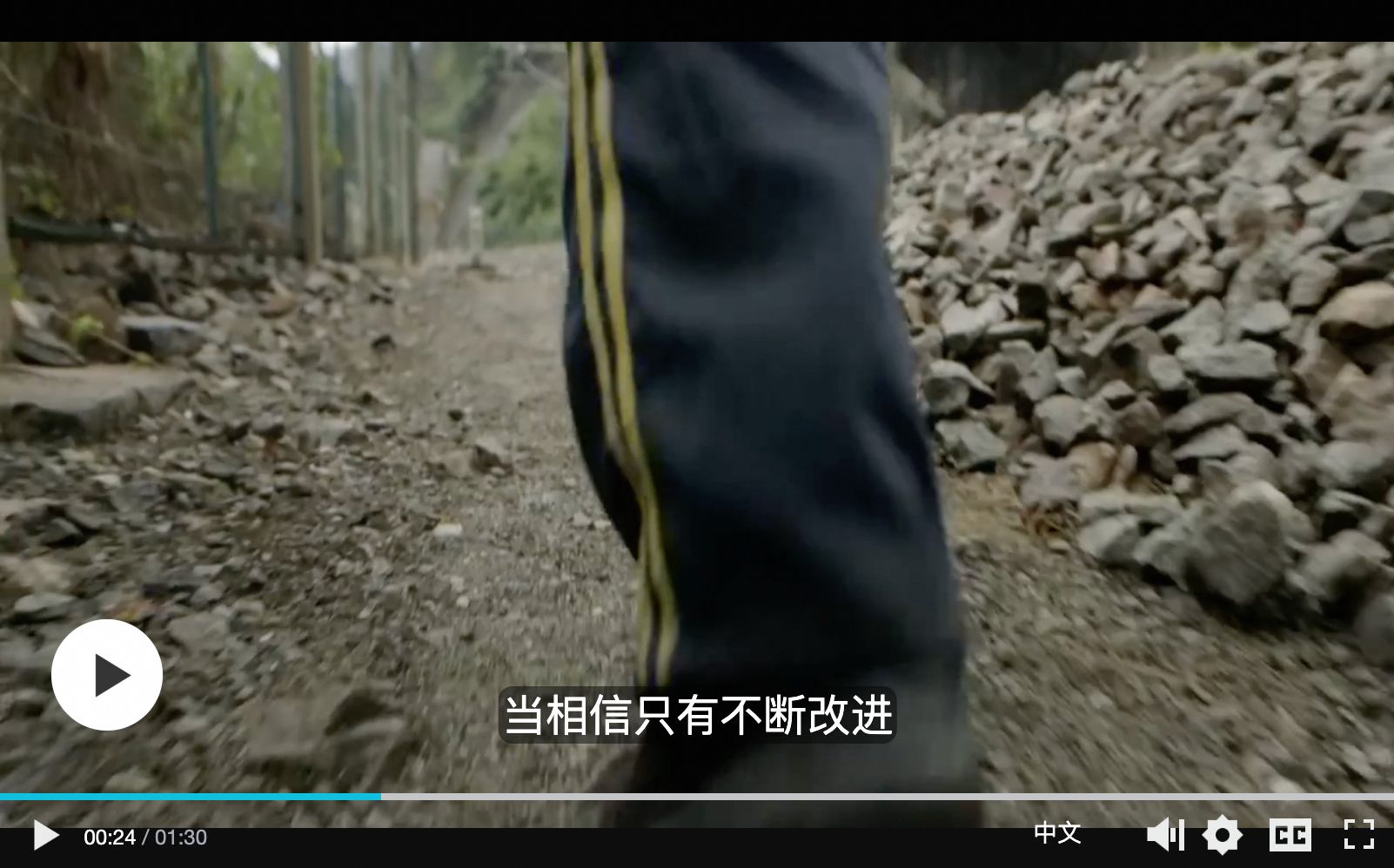
Subtitle |
| The subtitle component allows you to switch subtitles in different languages. For more information, see Subtitle component. |
|
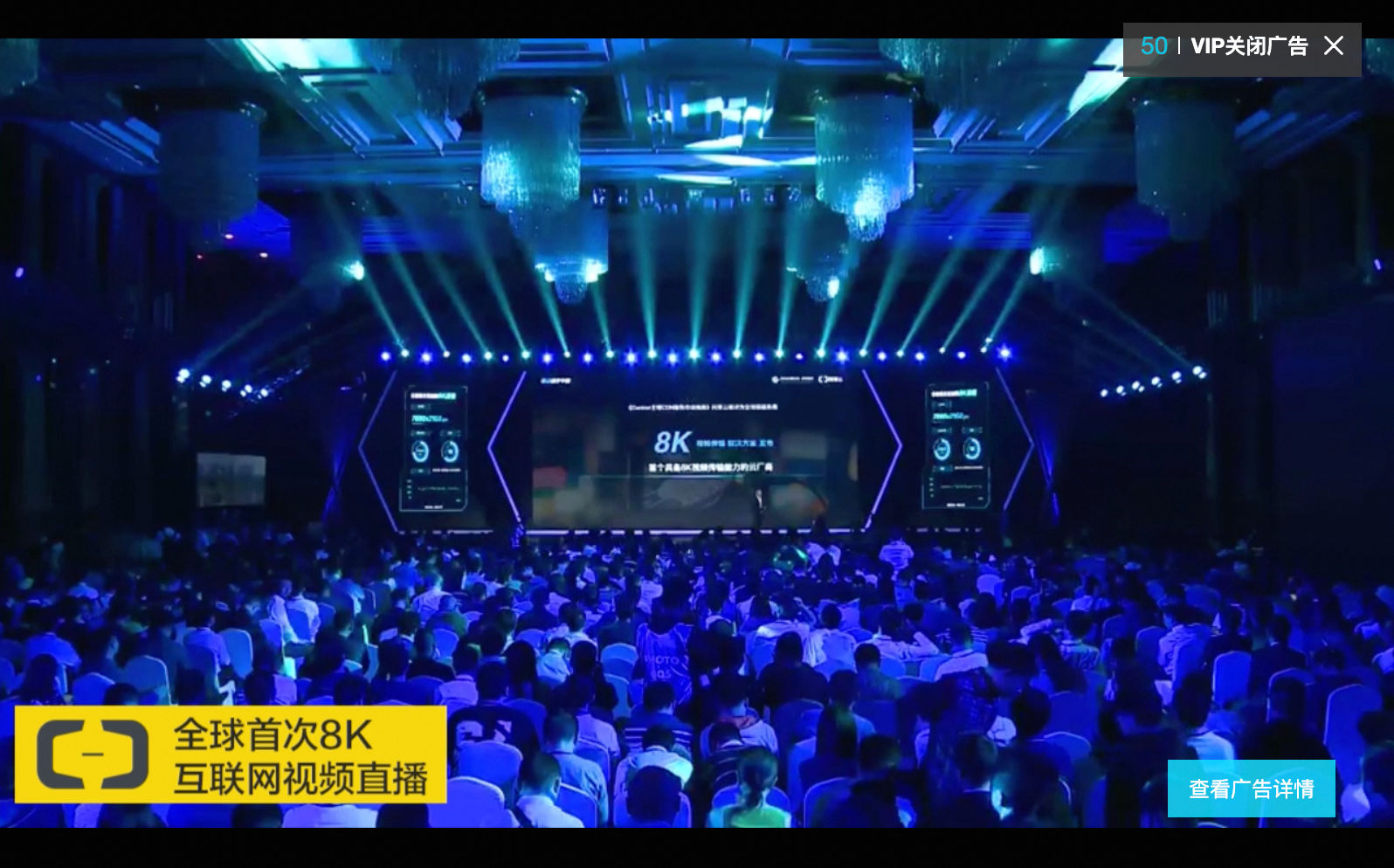
Video ad sequence |
| The video ad sequence component plays a series of video ads before a video is played. For more information, see Video ad sequence component. |
|
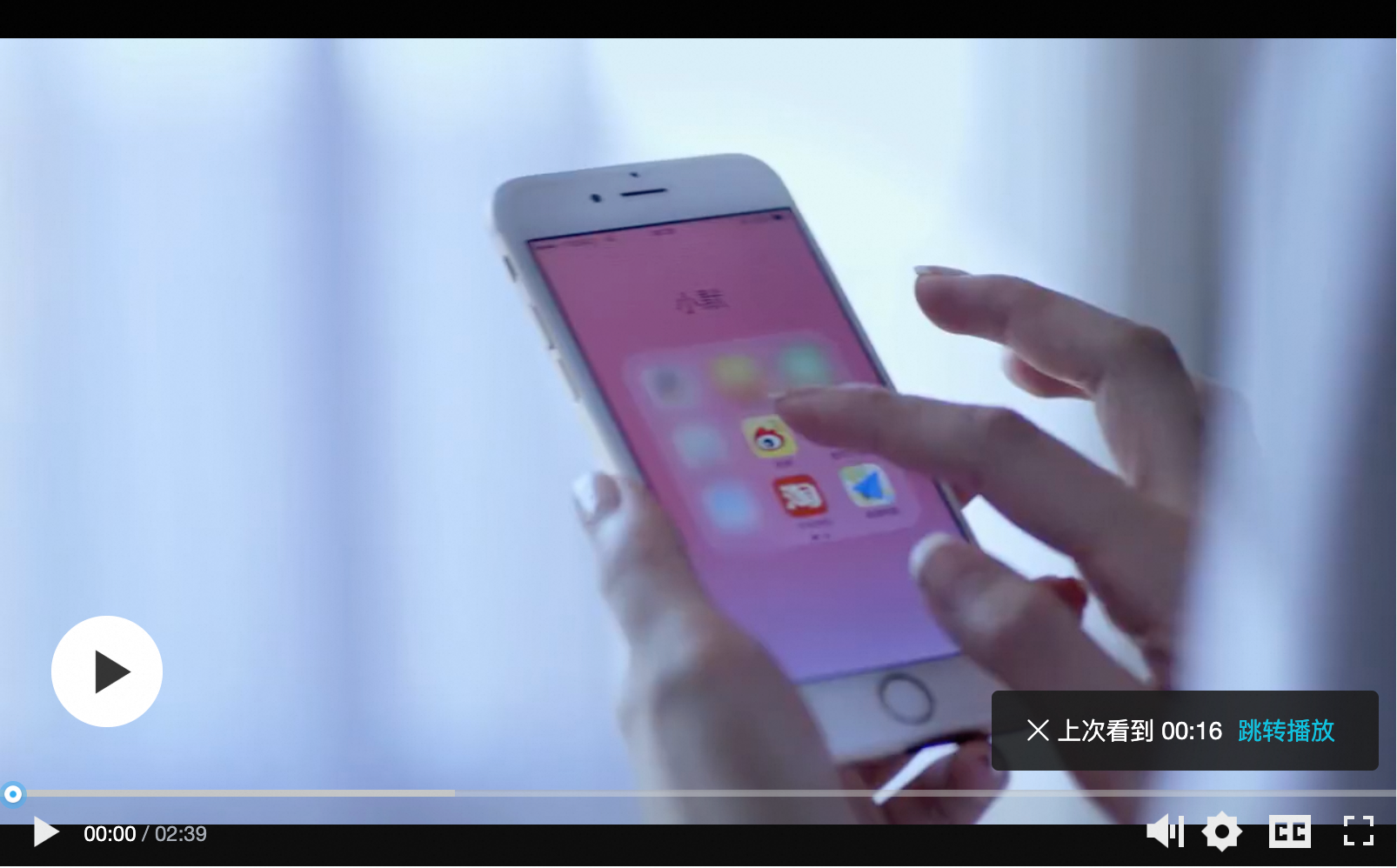
Resume playback |
| This component allows you to resume playback from the previous playback position. If you select Remember Played Position (Manual), you are notified of the previous playback position. You can click on the progress bar to seek to the playback position. If you select Remember Played Position (Auto Play), the video is automatically played from the previous playback position. For more information, see Resume playback component. Note The localStorage property is used to record the playback position in the resume playback component. The component cannot be used in browsers that do not support localStorage. |
|
Pause ad (image) |
| The pause ad component is used to display an image ad when a video is paused. For more information, see Pause ad component. |
|
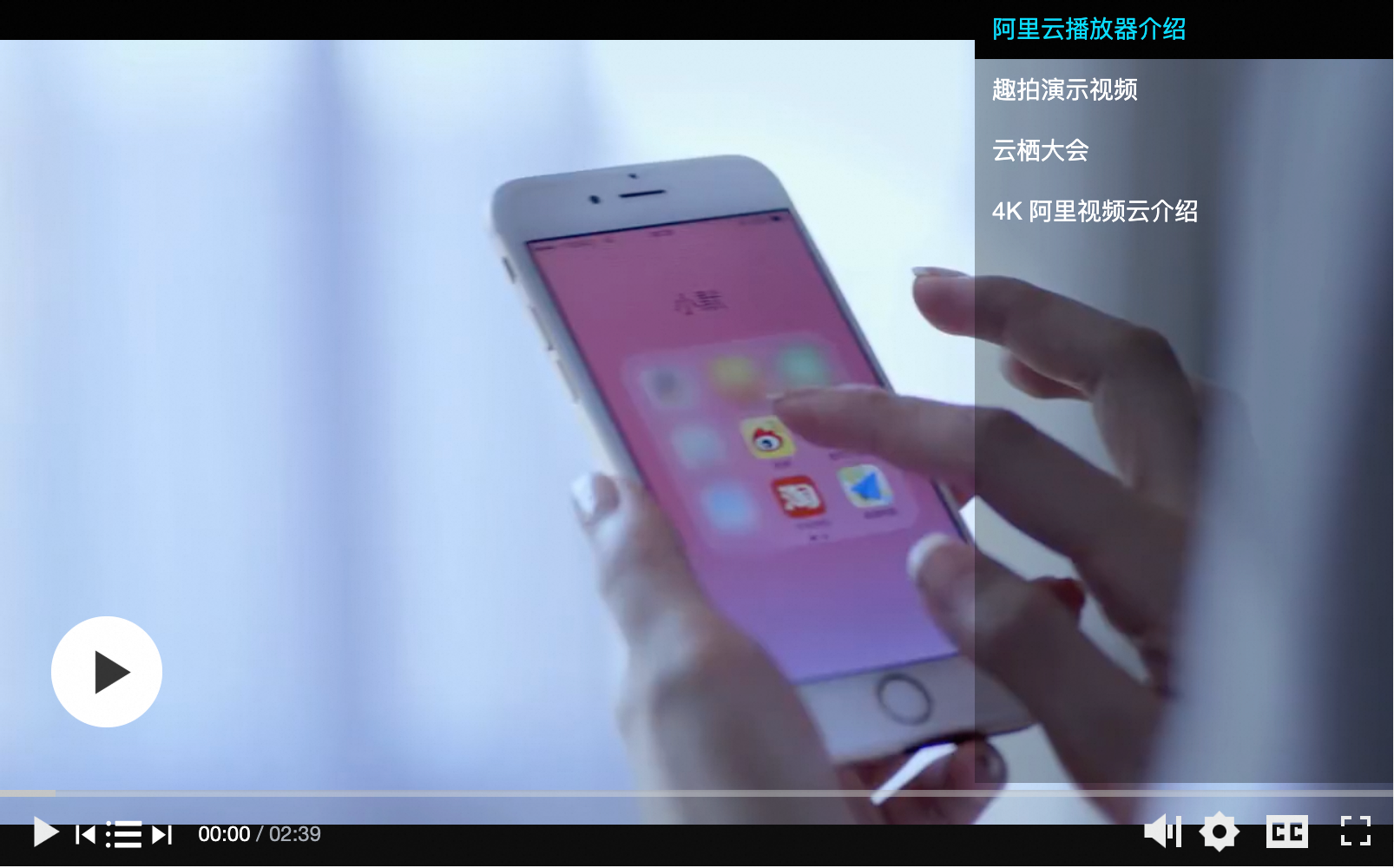
Video playlist |
| This component adds the buttons for displaying the playlist and switching among videos to the control bar of the player and displays a playlist on the player. For more information, see Video playlist component. |
|
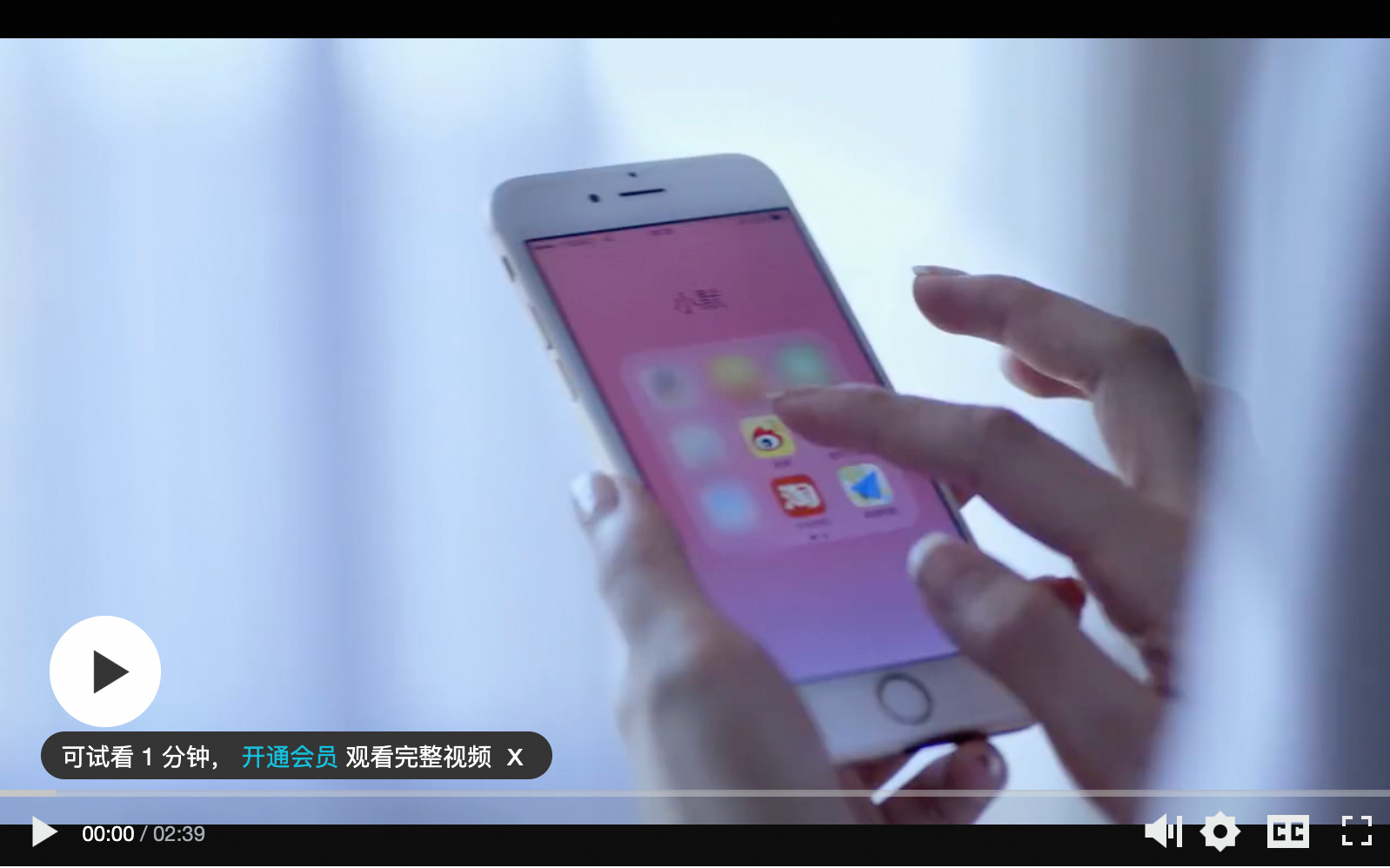
Preview |
| The preview component allows you to preview a video for a period of time. After the preview ends, this component notifies you of the conditions that need to be met to watch the full video. For more information, see Preview component. |
|
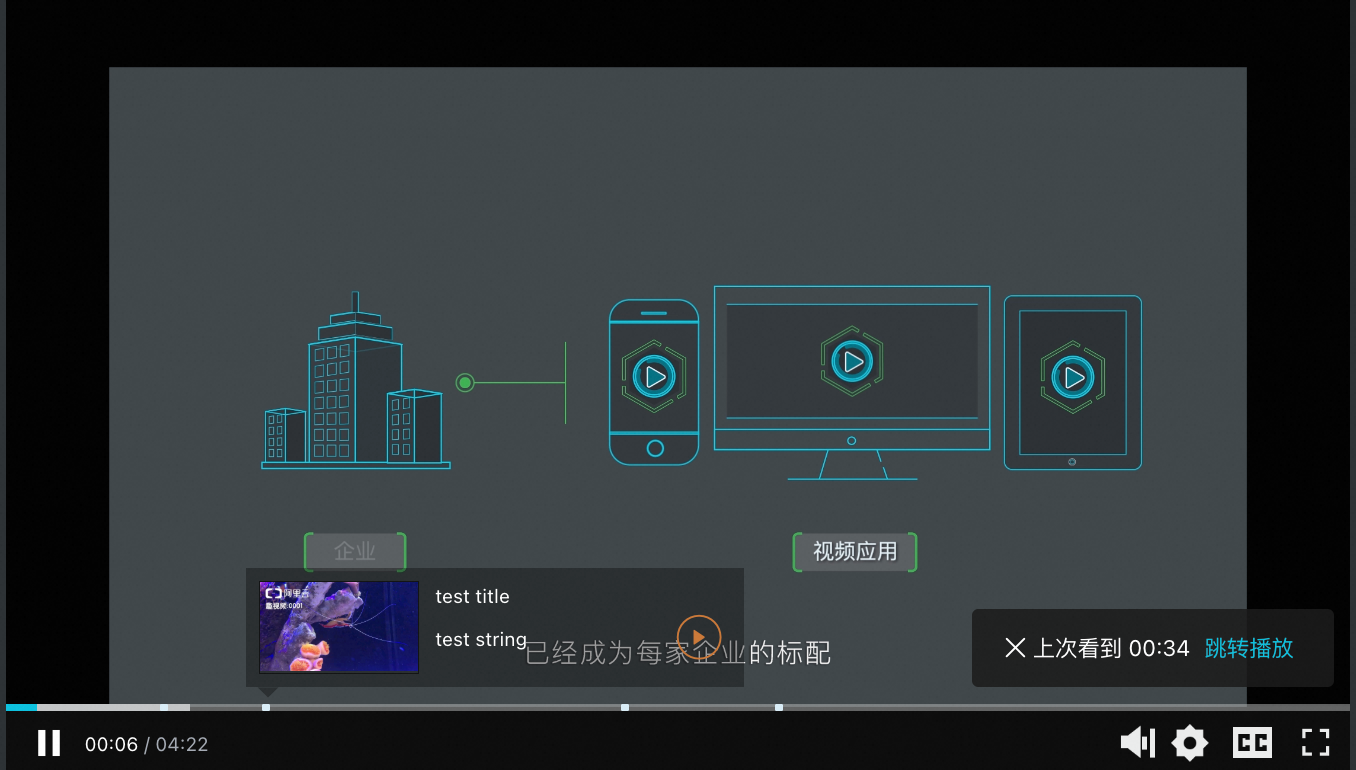
Progress marker |
| The progress marker component marks the key points of a video. When you move the pointer over a marked key point, the specified image is displayed. For more information, see Progress marker component. |
|
Definition |
| The definition component is used to quickly switch video definitions. For more information, see Definition component. |
|
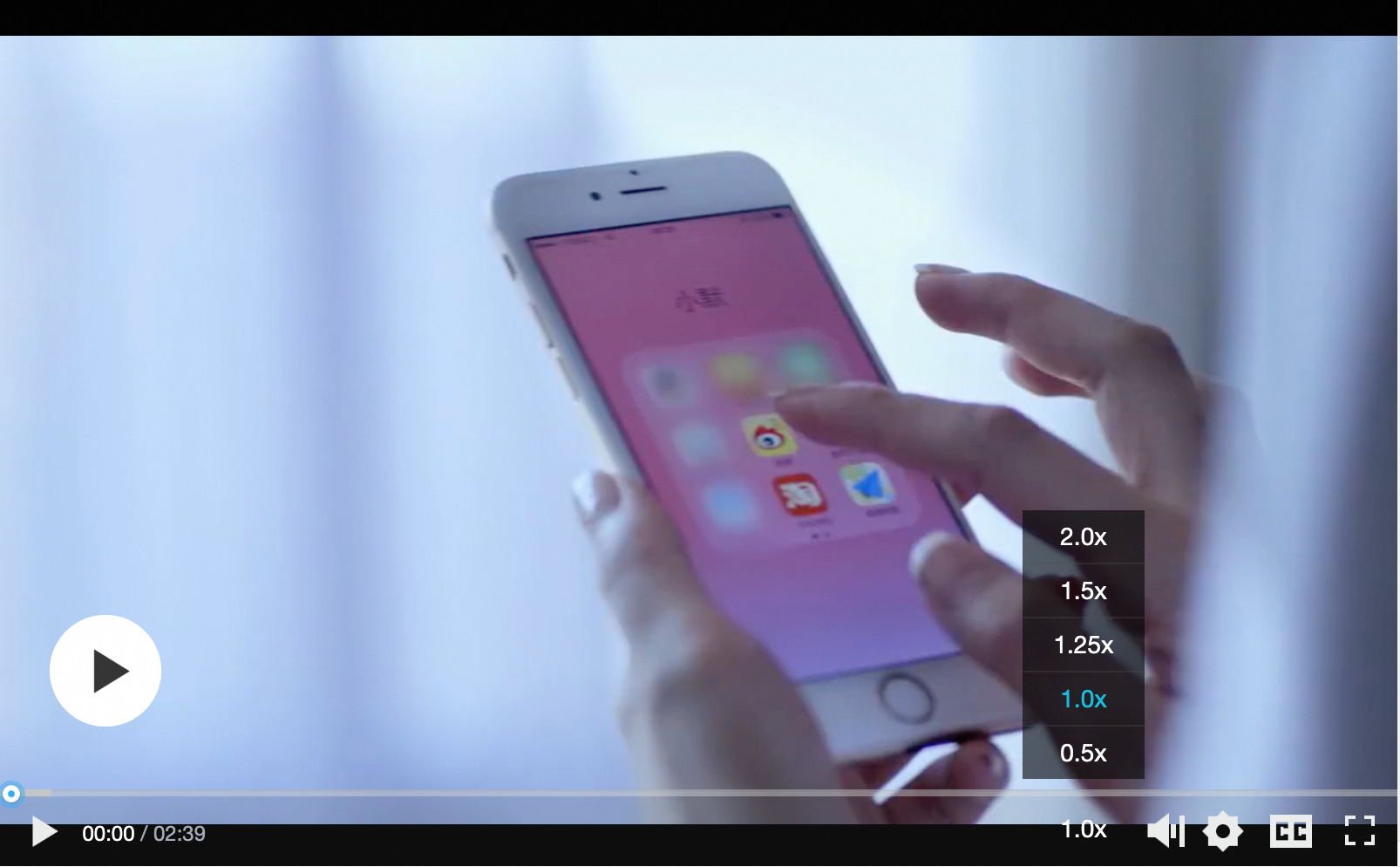
Playback speed |
| This component is used to adjust the playback speed of videos. For more information, see Playback speed component |
|
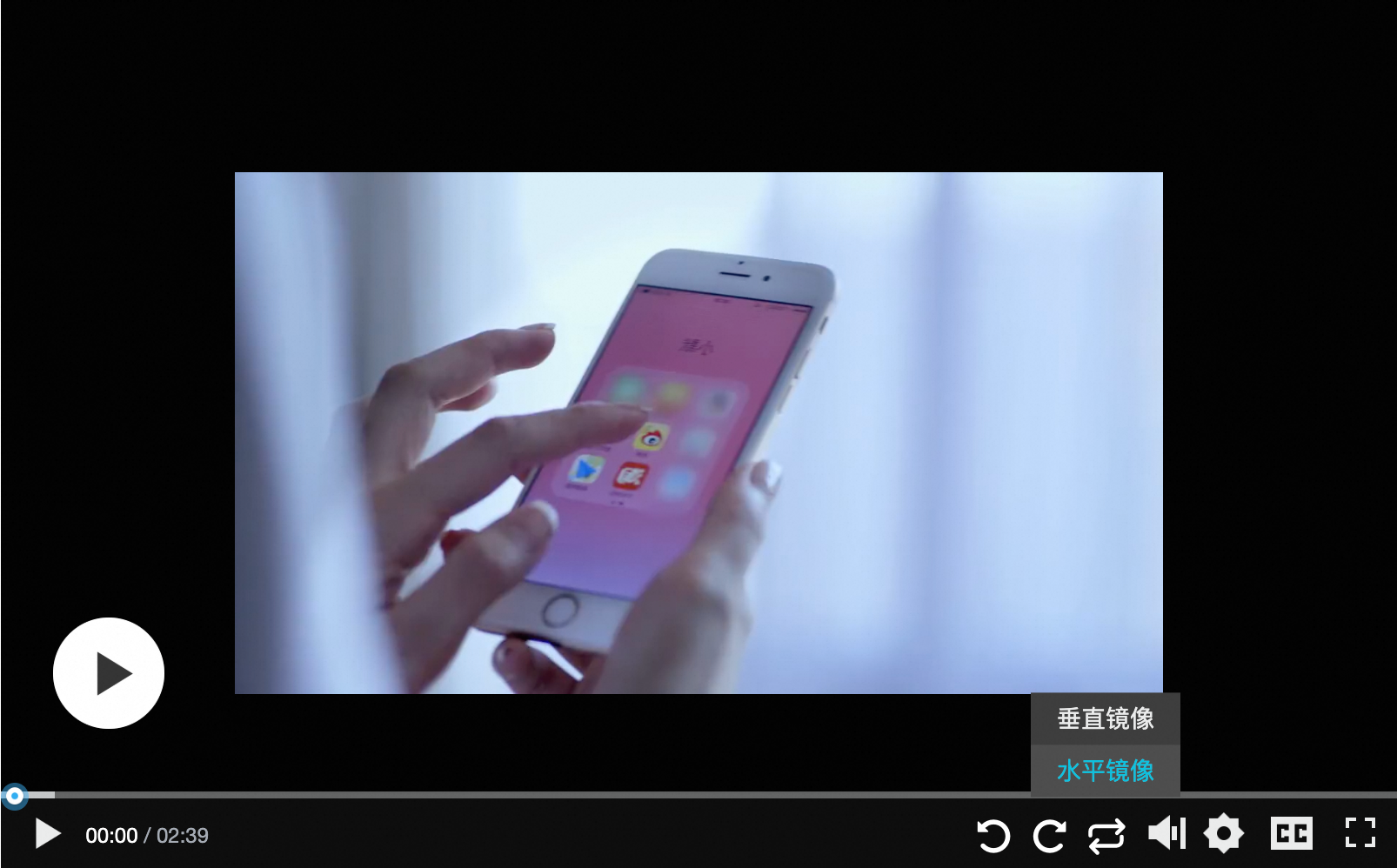
Rotation and mirroring |
| The rotation and mirroring component adds the buttons for rotating and mirroring a video to the control bar of the player. For more information, see Rotation and mirroring component. |
|
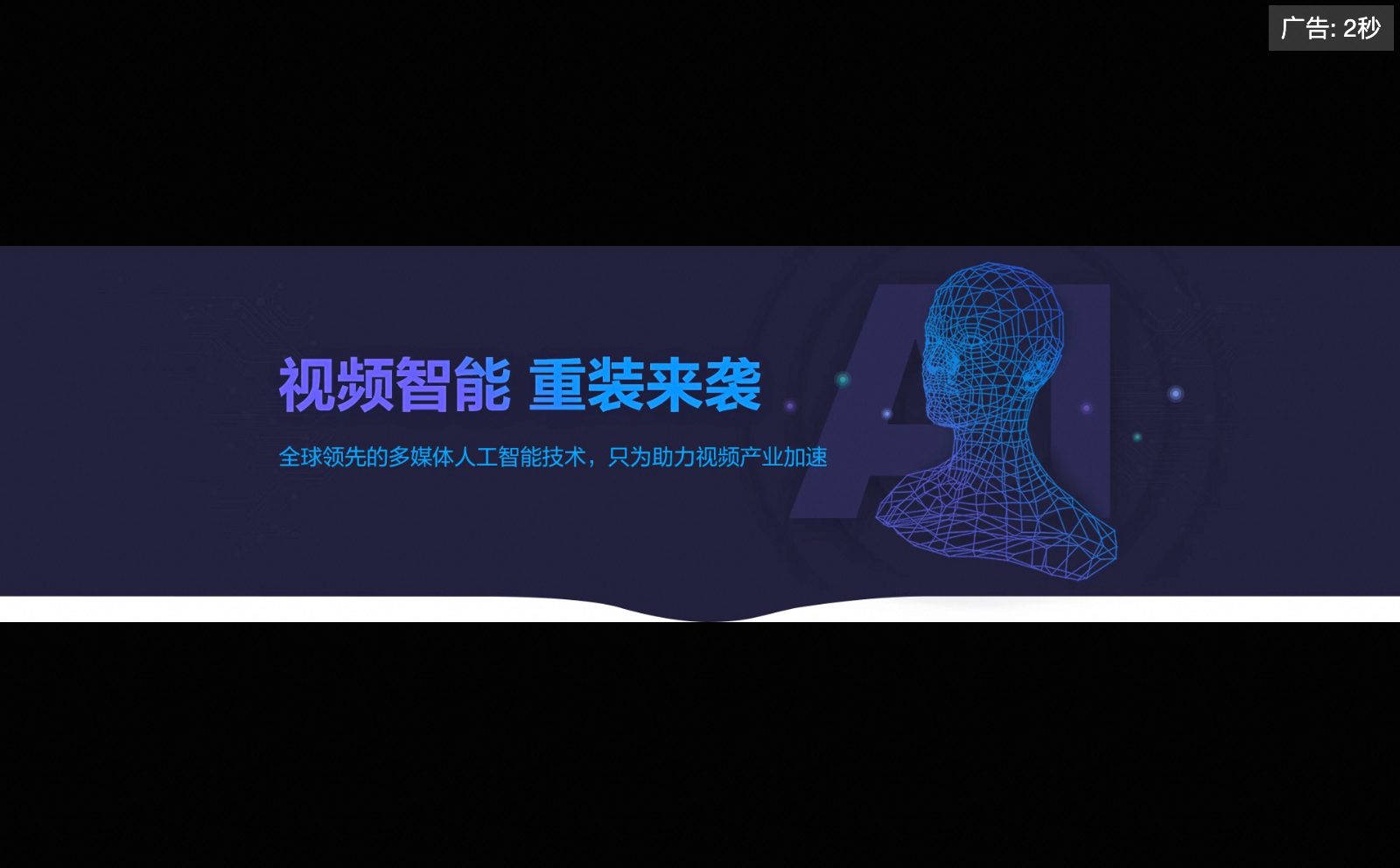
Start ad (image) |
| The start ad component is used to display an image ad before a video is played. For more information, see Start ad component. |
|
Audio track switching |
| The audio track component is used to switch audio tracks in different languages. For more information, see Audio track component. | - |
Video ad |
| The video ad component plays a video ad before a video is played. For more information, see Video ad component. |
|
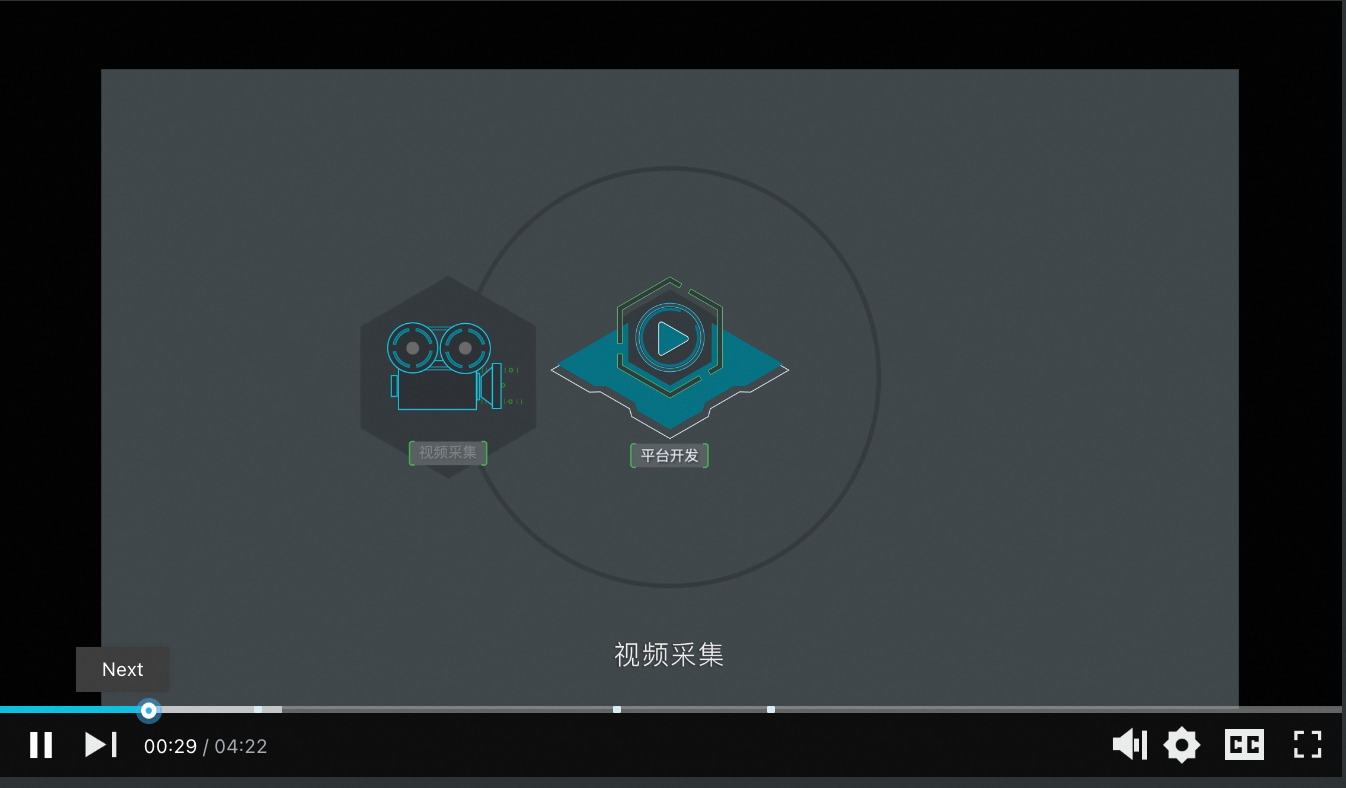
Play next | PlayerNextComponent | This component adds the |
|


Use components
Add the components to Web Player SDK. Alibaba Cloud CDN resources are not included in the components. If you want to use CDN resources, add them after you download them to your local PC. To download the components, visit the player component download page. We recommend that you use the latest version.
<script type="text/javascript" src="your-public-path/aliplayercomponents-1.0.9.min.js"></script>Mount the components to Web Player SDK.
var player = new Aliplayer(
  {
    id: "player-con",
    source: "//player.alicdn.com/video/editor.mp4",
    components: [
      {
        name: "StartADComponent",
        type: AliPlayerComponent.StartADComponent,
        args: [
          "https://img.alicdn.com/tfs/TB1byi8afDH8KJjy1XcXXcpdXXa-1920-514.jpg",
          "https://promotion.aliyun.com/ntms/act/videoai.html",
          3,
        ],
      },
      {
        name: "BulletScreenComponent",
        type: AliPlayerComponent.BulletScreenComponent,
        args: [
          "Welcome to use Aliplayer",
          { fontSize: "16px", color: "#00c1de" },
          "random",
        ],
      },
    ],
  },
  function (player) {}
);
Each component configuration has three parameters:
Name
Description
name
The component name, which can be used to obtain the component
type
The component type
args
The component parameters. Pass appropriate parameters based on the constructor of the component.
How to customize packaging
Package all components
You can use either of the following two commands to package all player components. The packaged file is /dist/aliplayer-components/aliplayercomponents-[version].min.js
$ npm run buildCustomize component packaging
To reduce the file size, you can select the components that you want to package by running the following command:
$ npm run build componentsName # componentsName is the component namecomponentsName is the name of the component. Multiple component names are separated by spaces. For example:
$ npm run build AliplayerDanmu BulletScreen # Package the Danmu plugin and Marquee plugin