This topic describes how to install VMware Tools on a Windows operating system (OS).
Prerequisites
A virtual machine (VM) is created, and a Windows OS is installed. For more information, see Create a VM and install an OS.
Tasks
Install VMware Tools on the Windows OS
Procedure
After the Windows OS is installed, check that the message "VMware Tools is not installed on this virtual machine" is displayed in the VMware vSphere console.
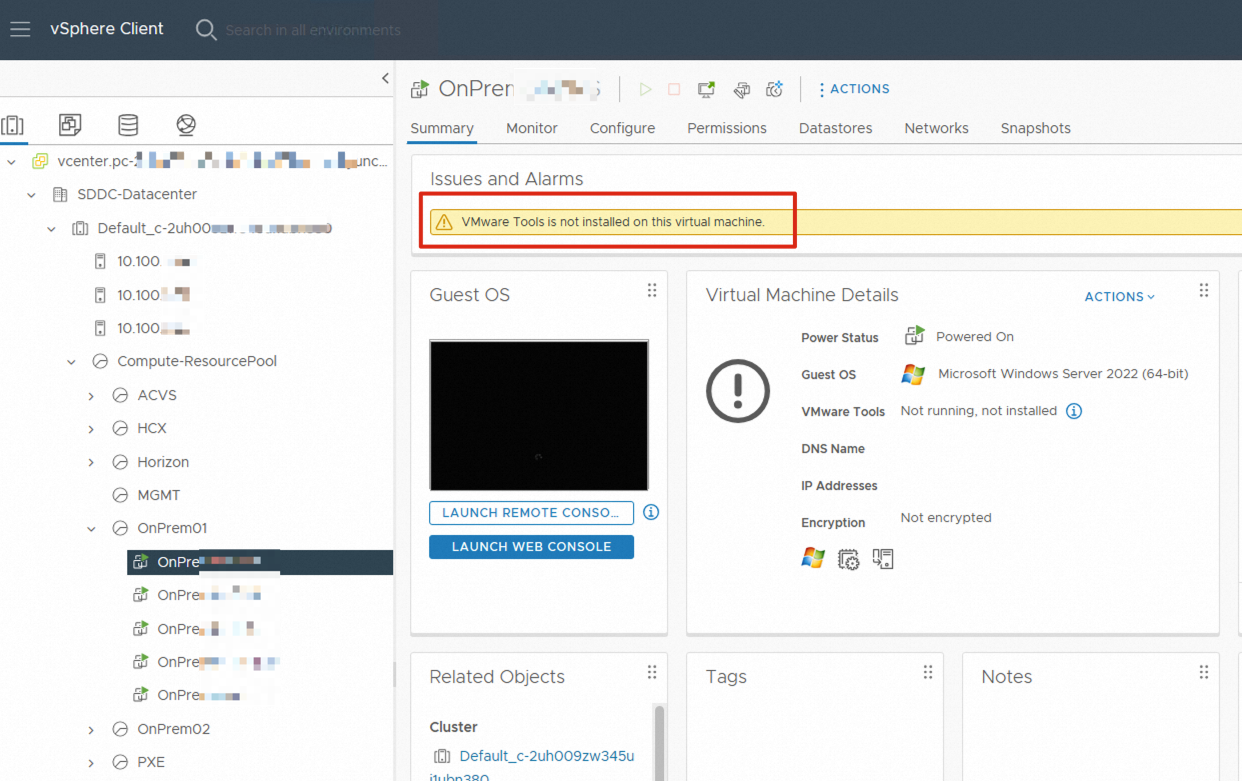
Right-click the VM and choose Guest OS > Install VMware Tools.

In the Install VMware Tools dialog box, click MOUNT to mount the disk image of VMware Tools to the CD/DVD drive of the VM.

Log on to the console of the Windows VM and double-click the DVD Drive to install VMware Tools.

Click Next.

Select Typical. You can also select Complete based on your business requirements. Then, click Next.

Click Install to start the installation.

View the installation progress of VMware Tools.

Click Finish.

Click Yes to restart the OS.

Check whether the information, including the VMware Tools version, domain name system (DNS) name, and IP address, is correct.
