This topic describes how to install VMware Tools on a Linux operating system (OS).
Prerequisites
A VM is created, and a Linux OS is installed. For more information, see Create a VM and install an OS.
Tasks
Install VMware Tools on the Linux OS
Procedure
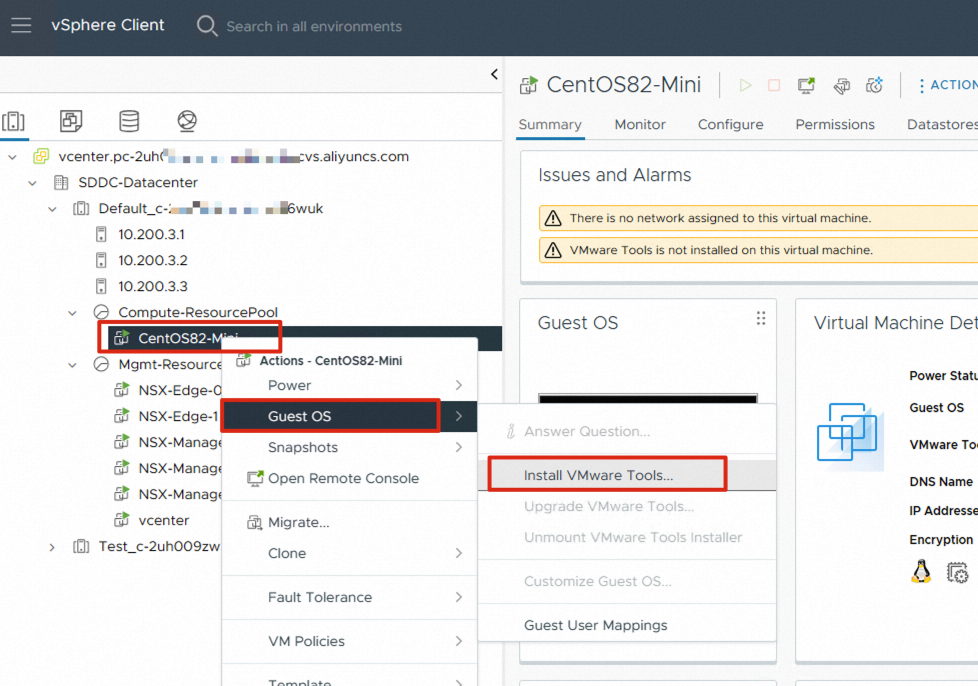
Right-click the VM and choose Guest OS > Install VMware Tools.
 Important
Some Linux OSs contain the open source VMware Tools (open-vm-tools) after they are installed. If VMware Tools is not installed on the Linux OS, we recommend that you install VMware Tools on the Linux OS. You can choose to install the open source VMware Tools or install the commercial VMware Tools according to the instructions in this topic.
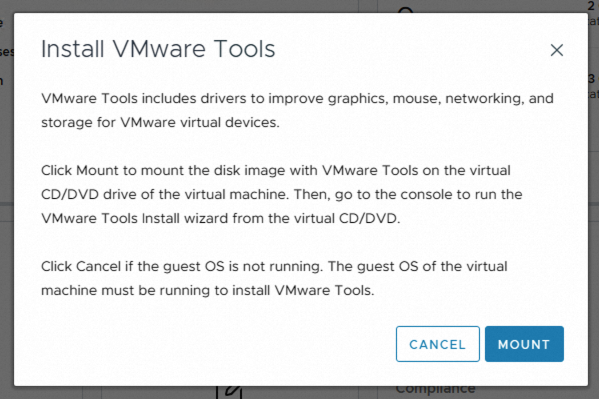
In the Install VMware Tools dialog box, click MOUNT to mount the disk image of VMware Tools to the CD/DVD drive of the VM.
Log on to the Bash terminal interface of the Linux OS and install VMware Tools. The Linux OS does not support the VMware Tools installation by using a graphical user interface.
## Mount cdrom to the /mnt directory.
[root@localhost /]# mount /dev/cdrom /mnt
mount: /dev/sr0 is write-protected, mounting read-only
[root@localhost /]#

## Switch to the /mnt directory.
[root@localhost /]# cd /mnt/
[root@localhost mnt]#

## Copy the VMware Tools installation package to the /tmp directory.
[root@localhost mnt]# cp VMwareTools-10.3.23-17030940.tar.gz  /tmp/
[root@localhost mnt]#
[root@localhost mnt]#

## Switch to the /tmp directory.
[root@localhost mnt]# cd /tmp/

## Decompress the installation package.
[root@localhost tmp]# tar zxf VMwareTools-10.3.23-17030940.tar.gz
[root@localhost tmp]#

## Switch to the directory where the installation package is decompressed.
[root@localhost tmp]# cd vmware-tools-distrib/
[root@localhost vmware-tools-distrib]#
[root@localhost vmware-tools-distrib]#

## Run the following commands to start the installation.
[root@localhost vmware-tools-distrib]# ./vmware-install.pl
open-vm-tools packages are available from the OS vendor and VMware recommends
using open-vm-tools packages. See http://kb.vmware.com/kb/2073803 for more
information.
Do you still want to proceed with this installation? [no] yes ## Select yes and use the default settings for other parameters.

INPUT: [yes]

Creating a new VMware Tools installer database using the tar4 format.

Installing VMware Tools.

In which directory do you want to install the binary files?
[/usr/bin]

INPUT: [/usr/bin]  default

What is the directory that contains the init directories (rc0.d/ to rc6.d/)?
[/etc/rc.d]

INPUT: [/etc/rc.d]  default

What is the directory that contains the init scripts?
[/etc/rc.d/init.d]

INPUT: [/etc/rc.d/init.d]  default

In which directory do you want to install the daemon files?
[/usr/sbin]

INPUT: [/usr/sbin]  default

In which directory do you want to install the library files?
[/usr/lib/vmware-tools]

INPUT: [/usr/lib/vmware-tools]  default

The path "/usr/lib/vmware-tools" does not exist currently. This program is
going to create it, including needed parent directories. Is this what you want?
[yes]

INPUT: [yes]  default

In which directory do you want to install the documentation files?
[/usr/share/doc/vmware-tools]

INPUT: [/usr/share/doc/vmware-tools]  default

The path "/usr/share/doc/vmware-tools" does not exist currently. This program
is going to create it, including needed parent directories. Is this what you
want? [yes] yes

INPUT: [yes]

The installation of VMware Tools 10.3.23 build-17030940 for Linux completed
successfully. You can decide to remove this software from your system at any
time by invoking the following command: "/usr/bin/vmware-uninstall-tools.pl".

Before running VMware Tools for the first time, you need to configure it by
invoking the following command: "/usr/bin/vmware-config-tools.pl". Do you want
this program to invoke the command for you now? [yes]

INPUT: [yes]  default

Initializing...


Making sure services for VMware Tools are stopped.

Stopping vmware-tools (via systemctl):  [  OK  ]


The module vmci has already been installed on this system by another installer
or package and will not be modified by this installer.

The module vsock has already been installed on this system by another installer
or package and will not be modified by this installer.

The module vmxnet3 has already been installed on this system by another
installer or package and will not be modified by this installer.

The module pvscsi has already been installed on this system by another
installer or package and will not be modified by this installer.

The module vmmemctl has already been installed on this system by another
installer or package and will not be modified by this installer.

The VMware Host-Guest Filesystem allows for shared folders between the host OS
and the guest OS in a Fusion or Workstation virtual environment.  Do you wish
to enable this feature? [no]

INPUT: [no]  default

The vmxnet driver is no longer supported on kernels 3.3 and greater. Please
upgrade to a newer virtual NIC. (e.g., vmxnet3 or e1000e)

The vmblock enables dragging or copying files between host and guest in a
Fusion or Workstation virtual environment.  Do you wish to enable this feature?
[no]

INPUT: [no]  default


Skipping configuring automatic kernel modules as no drivers were installed by
this installer.


Disabling timer-based audio scheduling in pulseaudio.

Do you want to enable Guest Authentication (vgauth)? [yes]

INPUT: [yes]  default


Detected X server version 1.20.4


Distribution provided drivers for Xorg X server are used.

Skipping X configuration because X drivers are not included.


Skipping rebuilding initrd boot image for kernel as no drivers to be included
in boot image were installed by this installer.

The configuration of VMware Tools 10.3.23 build-17030940 for Linux for this
running kernel completed successfully.

You must restart your X session before any mouse or graphics changes take
effect.

To enable advanced X features (e.g., guest resolution fit, drag and drop, and
file and text copy/paste), you will need to do one (or more) of the following:
1. Manually start /usr/bin/vmware-user
2. Log out and log back into your desktop session
3. Restart your X session.

Found VMware Tools CDROM mounted at /run/media/root/VMware Tools. Ejecting
device /dev/sr0 ...
Enjoy,

--the VMware team

[root@localhost vmware-tools-distrib]#
## The installation is complete.
Check whether the information, including the domain name system (DNS) name and IP address of the VM, is correct.
