For pay-as-you-go resources, pay your bills promptly after they are generated to prevent business interruptions from overdue payments.
When to make a repayment
Pay your bills promptly to avoid them becoming overdue. The payment timing depends on whether you use credit control:
Users not on credit control: There is no fixed repayment time. The system automatically deducts payment from your default payment method.
Users on credit control: The due date is calculated based on the payment term agreed upon in your contract with Alibaba Cloud. The payment term is determined by the settlement cycle (such as monthly or quarterly) and the payment period (such as N calendar days or business days).
How to make a repayment
The repayment method depends on whether you use credit control:
Users not on credit control: If you link a bank card or PayPal as your default payment method, the system automatically initiates a deduction when your accumulated pay-as-you-go fees reach a threshold. The threshold is USD 1,000 for bank cards and varies from USD 8 to USD 500 for PayPal, depending on the account. Additionally, at the end of each month, the system makes a single deduction for any bills that have not yet reached the threshold.
Users on credit control: If you top up your account balance through a bank transfer, you can enable the Automatic Bill Settlement feature to automatically settle your bills. If Automatic Bill Settlement is disabled, you can manually select and pay bills on the Bill Overview page.
When you use PayPal as your default payment method, a pre-authorization check is triggered the first time you activate a pay-as-you-go product.
Automatic bill write-off
You can use the Automatic Bill Settlement feature to automatically settle your bills. Users on credit control can check whether this feature is enabled in the Funding Account > Account Settings section.
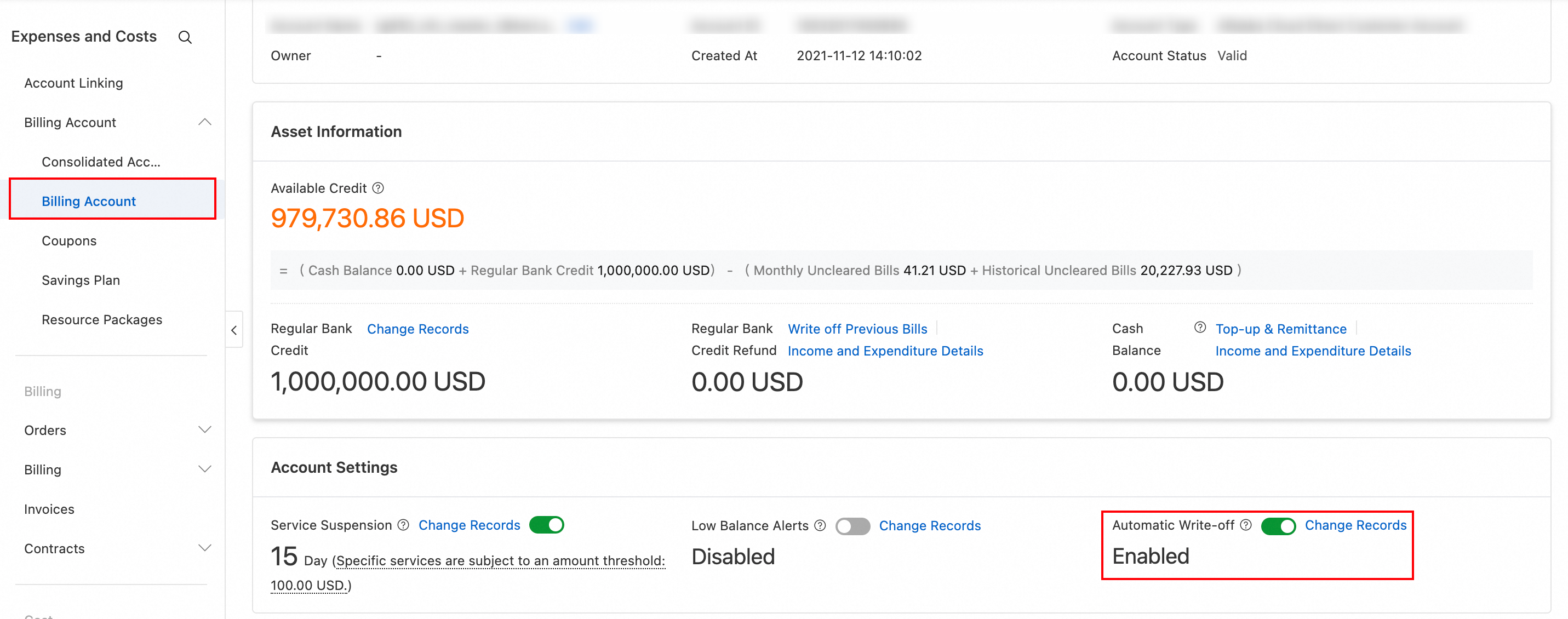
After you enable Automatic Write-off, the system automatically pays your bills after they are issued, as long as your account has sufficient available credit (Cash Balance + Credit Limit - Frozen Amount > 0). No manual action is needed. Payments are made in the following order: Stored Value Card Payment → Account Balance.
If your available credit is insufficient, the bill is not paid automatically and remains Unsettled. You can top up your account on the Funding Account page. After you top up your account, the system automatically pays the unsettled bill.
Manual bill payment
You can manually select a bill to pay using your account balance or an external payment method. This is useful if automatic write-off is disabled or if you want to make payments from different sources.
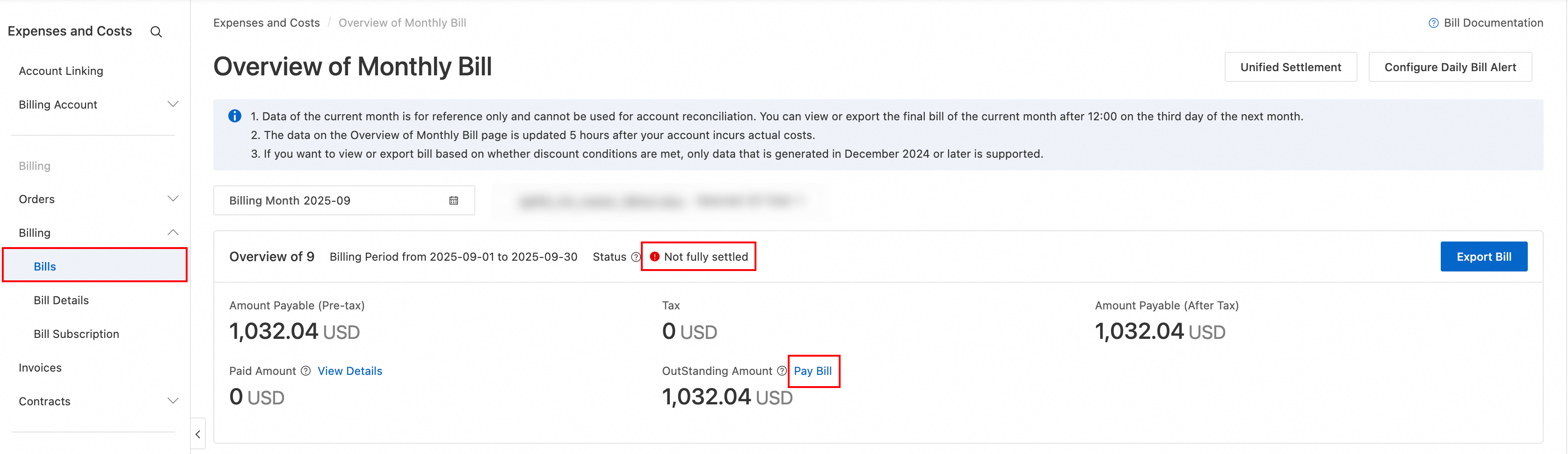
Go to the console: On the Bill Overview page, find an Unsettled monthly bill and click Pay Bill. In the drawer that appears, click Pay Bill.
Set the amount: Set the total repayment amount for this transaction (defaults to the outstanding amount and can be modified) and the amount to be deducted from the account balance.
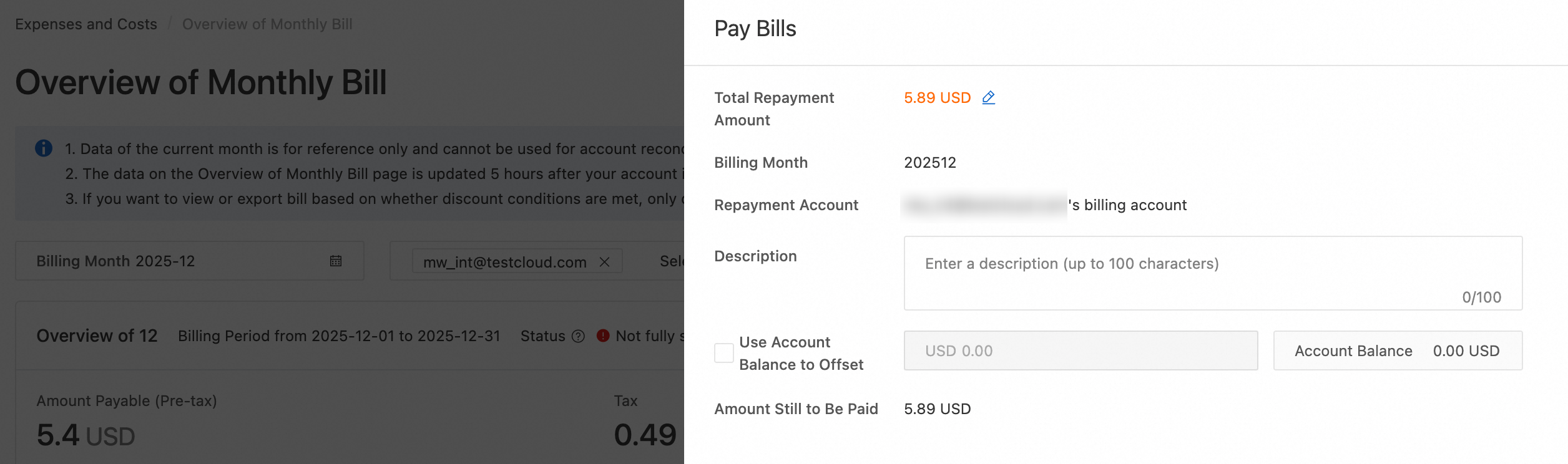
Select a channel: You can select your account balance or a payment method linked to your account, such as a credit card. The system defaults to the last used method.
Complete the payment: The payment is deducted using the selected method, and the result is displayed on the page.
View the result: The bill payment status takes about 30 minutes to update. You can refresh the page to check the status. Do not make a duplicate payment during this time.
During a manual payment, the automatic write-off feature is temporarily disabled and automatically resumes upon completion.
If a user on credit control chooses to pay by billing cycle and selects Use Account Balance, the system first uses the account balance and any credit control refund amount to pay for the bill in the corresponding billing cycle. By default, refunds cannot be used for bills from previous billing cycles. The remaining amount is paid through an external payment method. This process ensures refund compliance and consistency between invoices and bills.
For enterprises with multiple accounts where financial RAM users manage their own bills, two repayment methods are supported: unified settlement and transfer.
You can use unified settlement to pay bills for multiple financial RAM users in a batch. You can also use transfer to send funds from a main account to a financial RAM user to pay their bills.
Unified settlement
A main financial account can use unified settlement to pay historical unsettled bills for multiple RAM users in a batch .
A unified settlement task is a one-time operation. You must create a new task each time you need to make a unified payment for a new billing cycle or account. Follow these steps:
On the Bill Overview page, click Unified Settlement in the upper-right corner.
Click Create Settlement Task, select the accounts and billing cycles (up to 3 months) to settle, and then click Next.
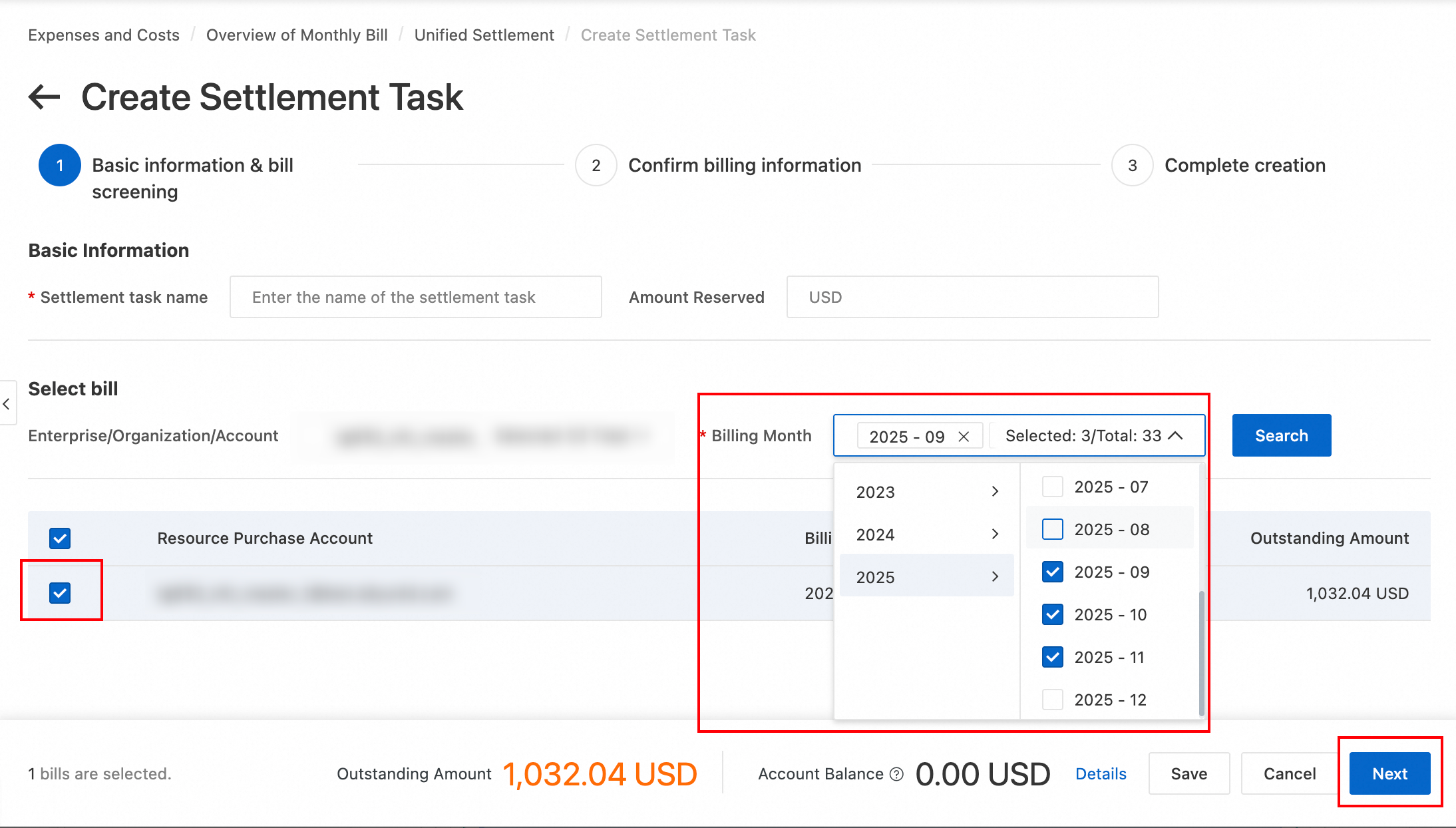
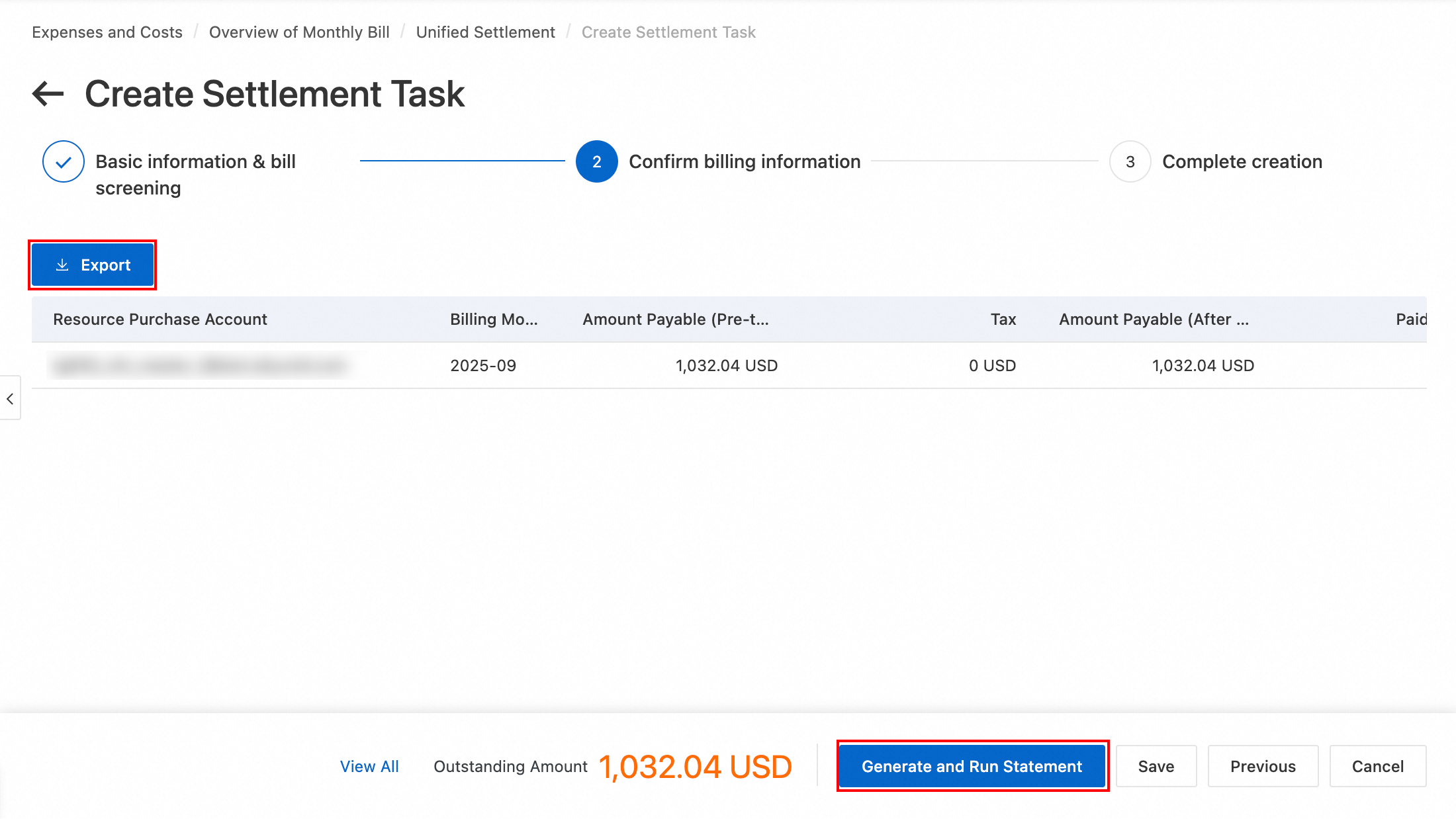
Verify the settlement bill information on the page, such as the account, billing cycle, and amount. You can also export the information as a CSV file for offline verification. After you confirm that the information is correct, click Generate and Run Settlement Bill. If your available credit is sufficient, the settlement is completed immediately. If your available credit is insufficient, the settlement is completed automatically after you top up your account. This takes about 1 to 2 minutes.
On the Unified Settlement page, you can edit, stop/close, , or delete all settlement tasks.
After a settlement task is created, the automatic write-off feature for the relevant accounts is disabled, and payments are made in the order specified in the settlement bill. After the task is closed or completed, the automatic write-off feature is restored.
Transfer repayment
You can use this method when a main account needs to transfer funds to a financial RAM user to pay bills. Follow these steps to transfer funds:
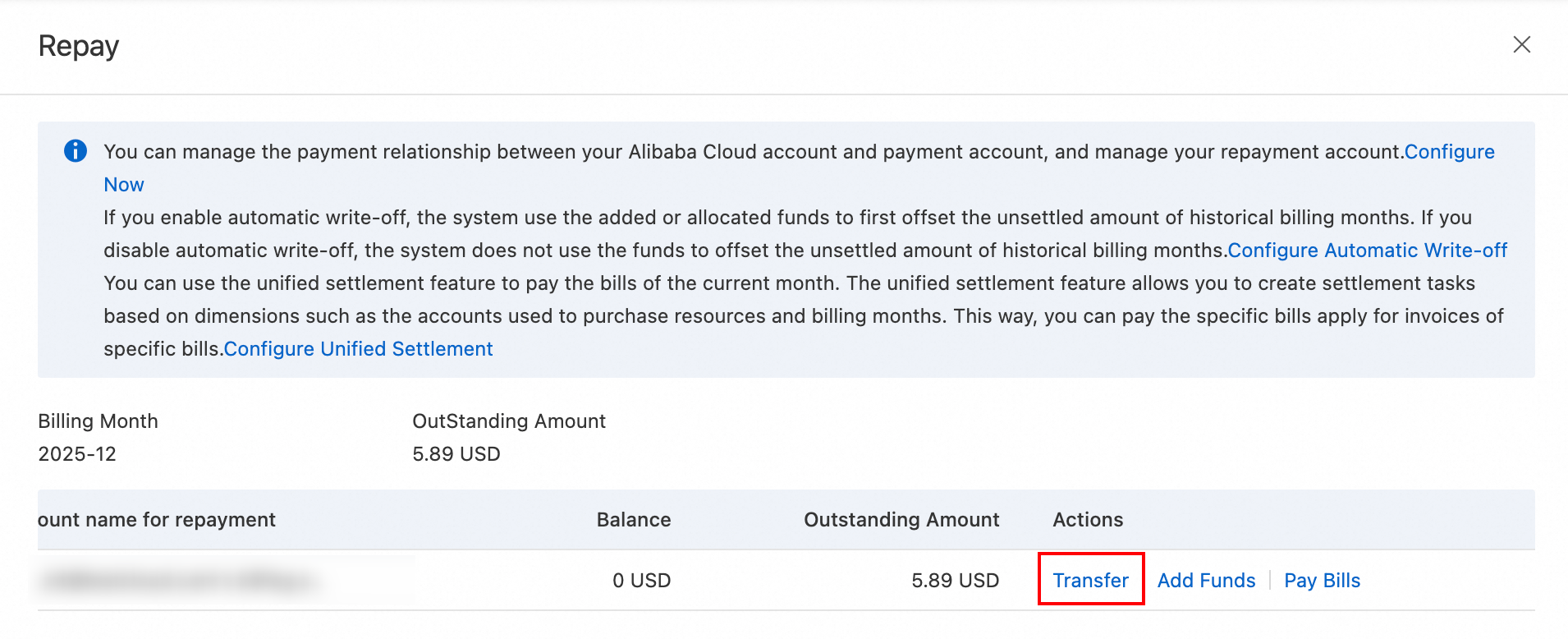
On the Bill Overview page, select an unsettled bill for a financial RAM user, click Pay Bill, and select Transfer on the payment page.
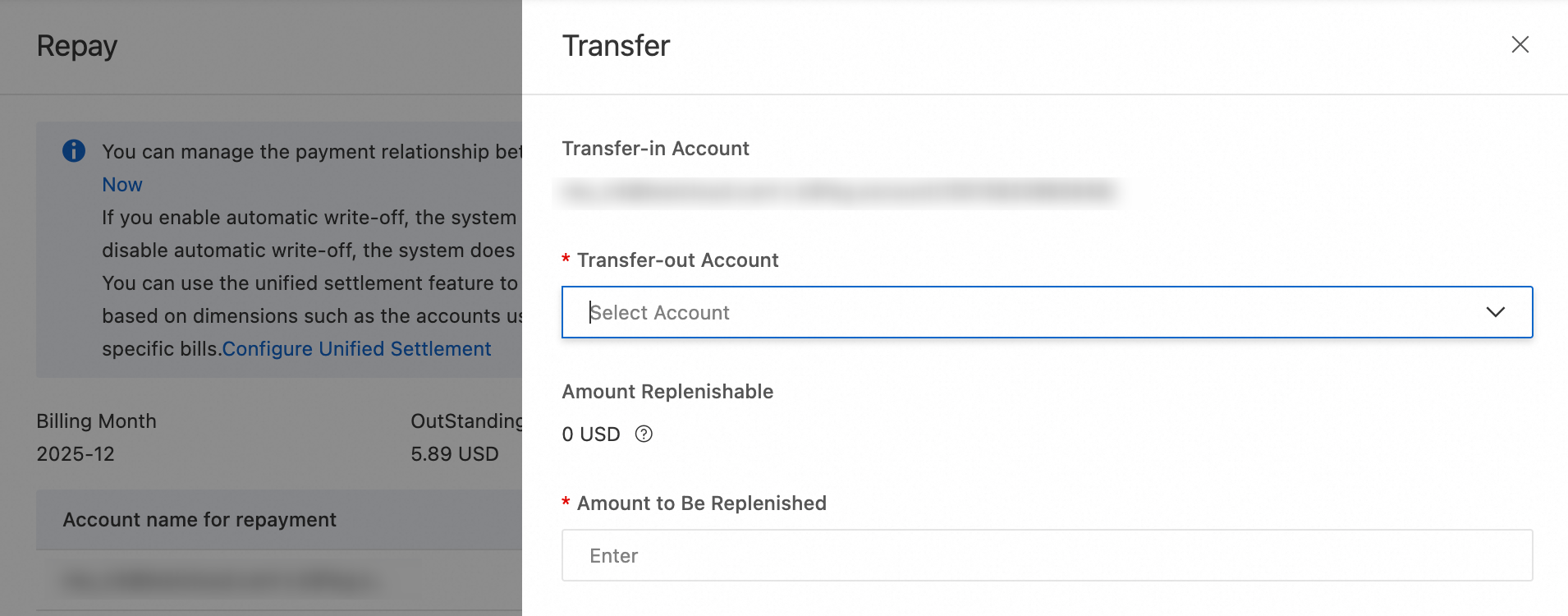
Select the transfer-out account, enter the transfer amount, and click Confirm Transfer.
After the transfer is complete, if the RAM user has automatic write-off enabled, the system automatically repays the historical unsettled bills first. If automatic write-off is disabled, the system does not repay any bills.
Automatic payment
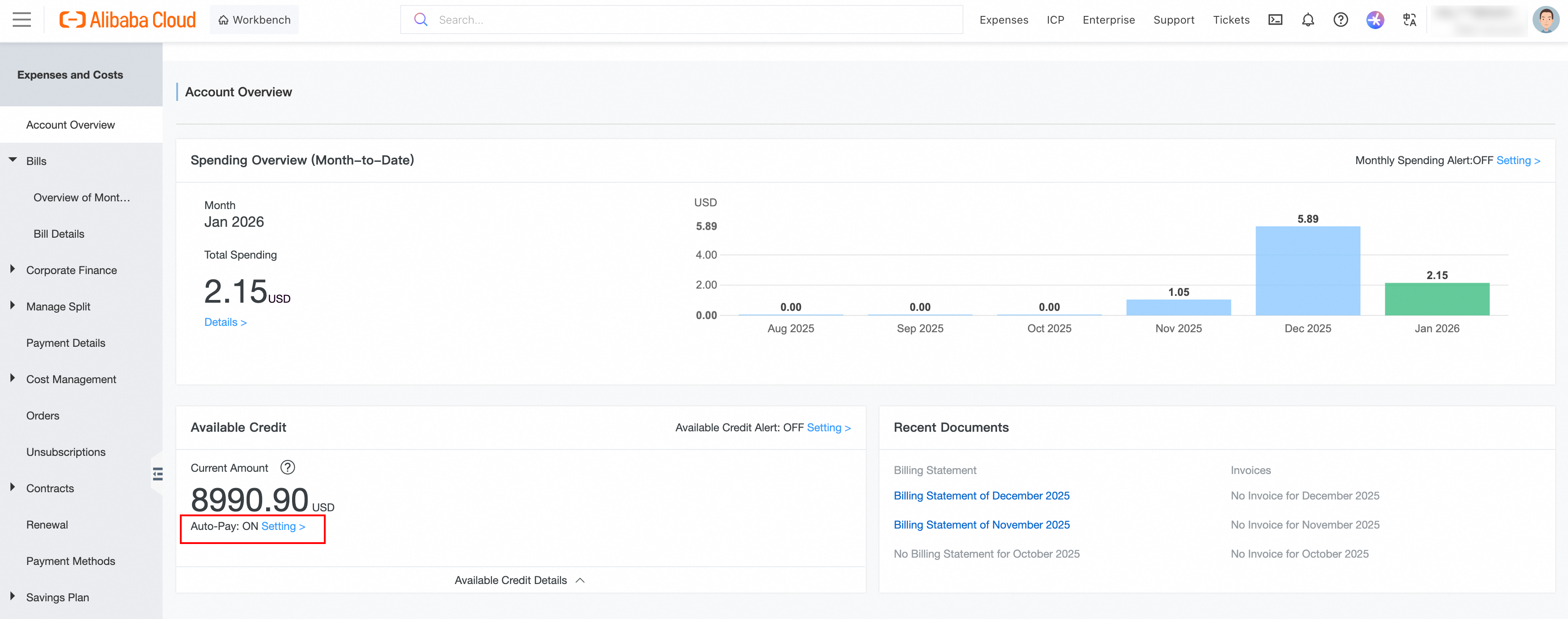
Users on credit control who pay by bank transfer can enable Automatically Pay Monthly Bills on the Account Overview page. After the system receives the remittance, it automatically pays the monthly bills in the order they were generated until all bills are settled or the remitted amount is depleted.
Manual payment
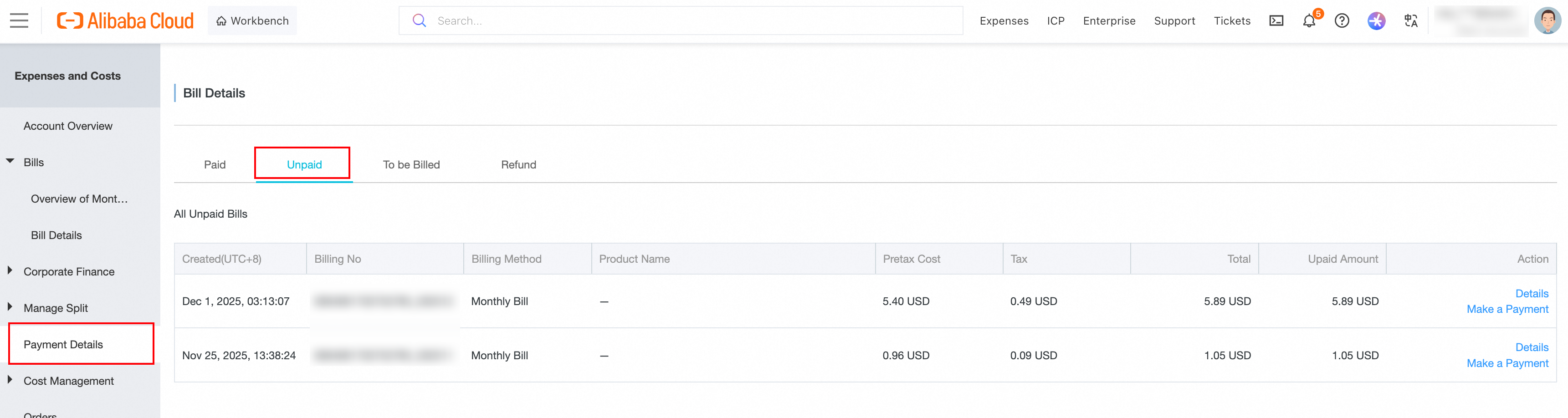
Users not on credit control, or users on credit control who have disabled automatic payment, must manually pay their monthly bills after the remittance is received. To do this, go to Payment Details, select the monthly bill to pay on the Unpaid tab, confirm the amount, and then click Pay. On the Pay Now page, enter the amount, select a payment method, and complete the payment.
View repayment records
On the Bill Overview page, in the Amount Paid column, click View Details to view the repayment details for a bill. In the repayment details drawer, click Coupon Deduction, Stored Value Card Payment, or Cash Payment to view detailed records for that payment method.
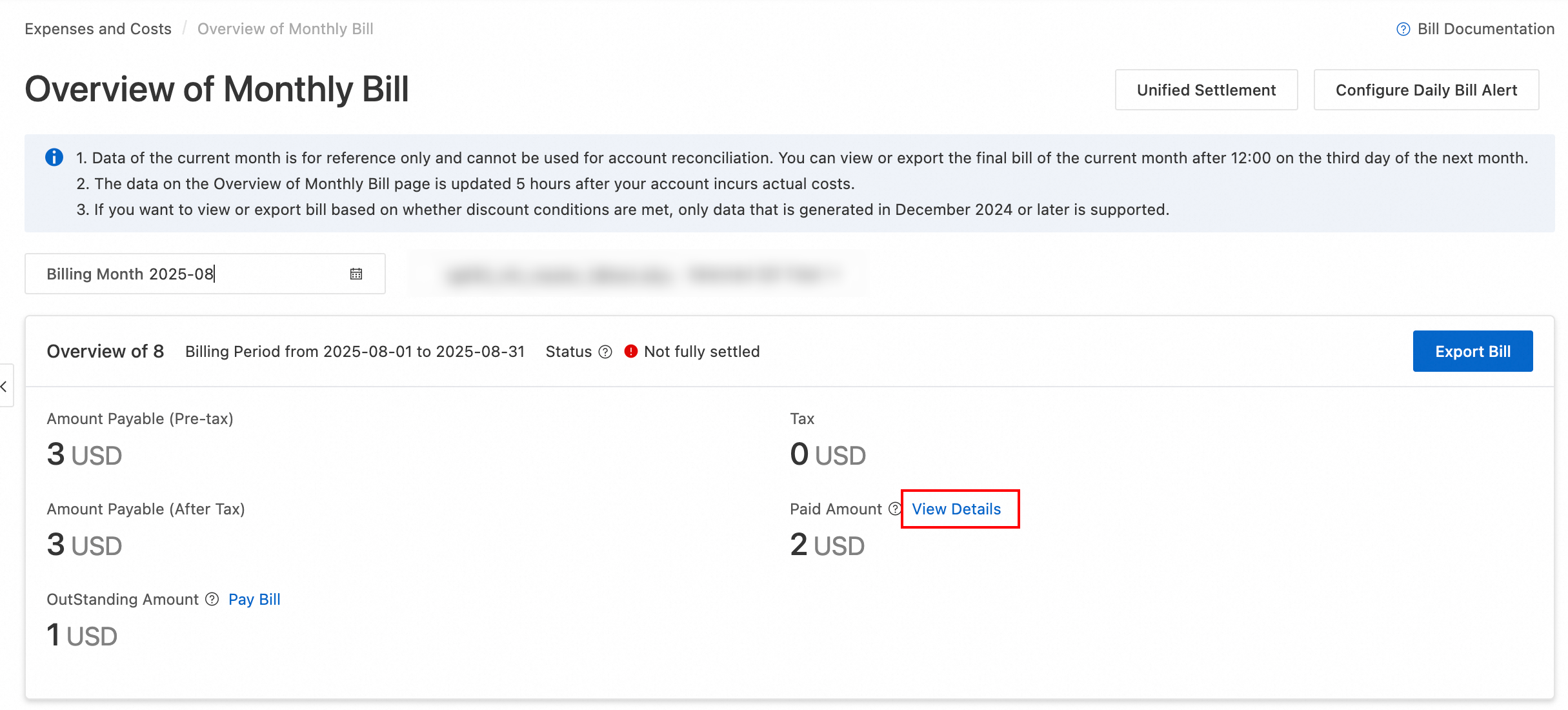
You can view repayment records only for bills from January 2023 onwards.
FAQ
After enabling automatic write-off, why does my bill still show as unsettled?
This usually occurs for one of the following reasons:
Insufficient available credit: If your available credit is ≤ 0, the system cannot complete the write-off, even if you have an account balance.
The monthly bill has not been issued yet: Alibaba Cloud monthly bills are officially issued at 12:00 on the second day of the following month.
Special rules for credit control customers: Users on credit control may have special settlement rules as part of their agreement.
Stored value card restrictions: Stored value cards can be used only within the same month. If a bill spans multiple months or the card was not specified at the time of order, it cannot be used for deduction during automatic write-off.
A Unified Settlement task exists: If a Unified Settlement task has been created for the account, the system temporarily disables the automatic write-off feature. Bills are paid in the order specified by the settlement bill.
If you have ruled out all the above possibilities, you can go to Bill Overview to check the specific billing cycle status and repayment records.
Can refund amounts be used to pay for bills from previous months?
By default, refund amounts cannot be used to pay for bills from previous billing cycles. They can be used only for bills from the month of the refund and subsequent months.
However, Alibaba Cloud direct customers who are on credit control can enable the "Write off past bills" feature. This allows credit control refunds to be used to pay off previous unsettled bills. After this feature is enabled, the system automatically writes off past bills in the order they were generated.
Why can't I select other accounts when using Transfer or Unified Settlement?
In Alibaba Cloud Expenses and Costs, both the Transfer and Unified Settlement features require that a valid financial management relationship is established between the main account and the RAM user. You can set this up in the Cash Account -> Manage Billing Relationship section.