Cost allocation lets you reallocate cloud resource costs based on your management needs, analysis requirements, or resource granularity. Split bill details provide a more granular view of expenses, which you can use for internal cost allocation. The final split bill details for the current month are generated at 12:00 on the fourth day of the following month. Data queried before this time is for reference only and is not a basis for reconciliation.
Alibaba Cloud provides two versions of split bill details: Split Bill Details (Legacy) and Split Bill Details (New). The new version is currently available by invitation. For more information about the differences in features between the bill versions, see Fields in new bills and differences from legacy bills.
How to identify the different versions of split bill details
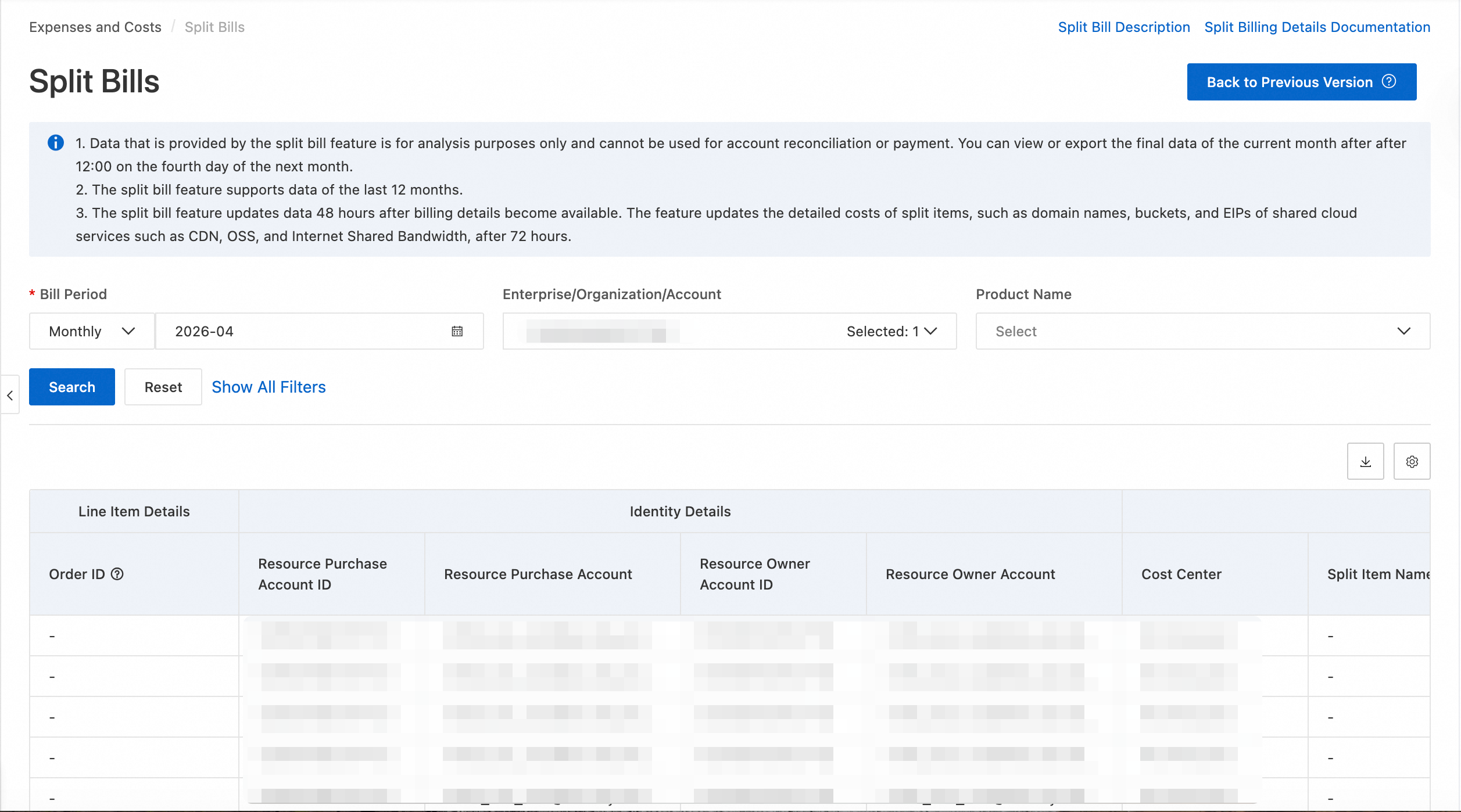
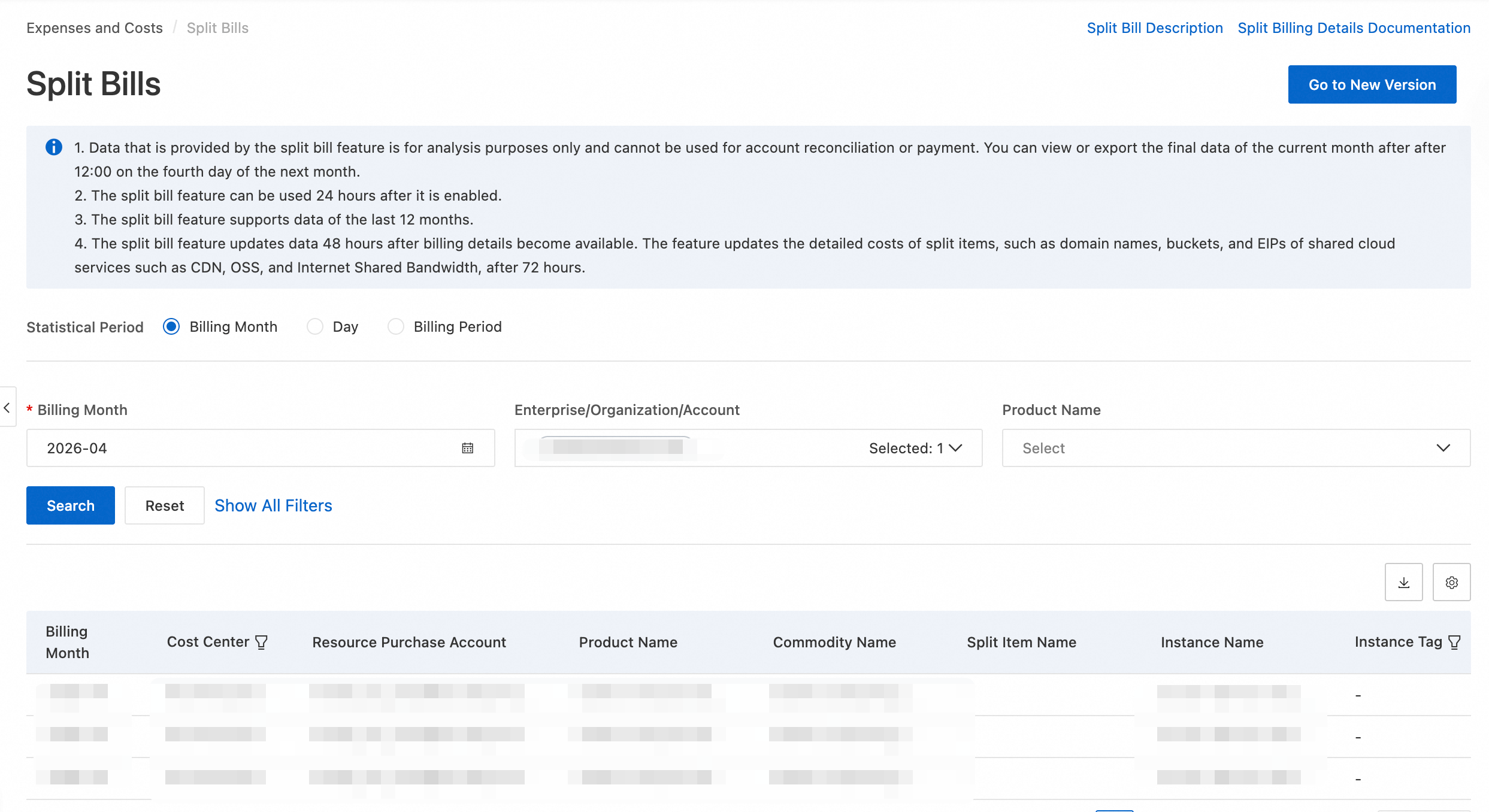
Version | Description | Interface style for each version |
Split Bill (New) | After you switch to the new version of the Expenses and Costs console, a structured, new version is provided based on the new split bill details:
|
|
Split Bill (Legacy) | The split bill details provided after you switch to the new version of the Expenses and Costs console:
|
|
How cost allocation works
For some Alibaba Cloud services, such as content delivery network (CDN) and Object Storage Service (OSS), the costs in Bill Details are not split by domain name or bucket. The billing granularity does not match the Resource Management granularity. The Split Bill feature automatically splits the costs for these services. The Split Item ID corresponds to the resource granularity of the service.
For example, the billing granularity for OSS in bill details is by region, but the Resource Management granularity is by bucket. When the system allocates costs, it splits the region-level costs into bucket-level entries in the split bill details. In the split bill details, the Split Item ID field corresponds to the bucket name.
You can also allocate costs using configurations such as cost centers, cost allocation tags, and resource groups. After you allocate resource fees based on cost centers, cost allocation tags, or resource groups, you can view the fees by different dimensions in the split bill details.
For services that are automatically split by Split Item in Split Bill, if both the service instance and its corresponding Split Item have tags or resource groups configured, the costs are allocated based on the tags or resource groups of the Split Item.
For example, the Split Item of Internet Shared Bandwidth (pay-as-you-go) is an Elastic IP Address (EIP). If the Internet Shared Bandwidth (pay-as-you-go) instance is configured with Tag A and the EIP is configured with Tag B, the costs are automatically allocated based on Tag B that is configured for the EIP.
Split Bill Details (New)
Split Bill Details (New) will be available for invitational preview on January 1, 2025. After the preview starts, you can view the bills that are generated in the new version. Historical bills that are generated before the preview are not available in the new version. To view historical split bill details, switch back to the legacy version.
Enable split bill details
If you are using the split bill details feature for the first time, you must enable it. In the Expenses and Costs console, go to the Split Bill page and click Activate Now. This feature is free to use. Accurate split bill data is available the day after you enable the feature.
If a management account enables this feature, it can view the cost data of all its member accounts by default. Member accounts must enable the feature separately.
View and export split bill details
Split Bill Details (New) provides structured bill details. It displays information such as product and resource details, cost allocation information, subscription and discount information, and the final payable amount in a structured format. This structure helps you accurately trace the cost calculation process.
In the Expenses and Costs console, choose Cost > Cost Allocation > Split Bill. Set the query conditions to view the split bill details.
Customize fields: Click the
 icon to customize the fields that are displayed.
Export split bill details: Click the
 icon to export the split bill details. On the Export Records page, download the exported file.
Split Bill Details (Legacy)
Enable split bill details
If you are using the split bill details feature for the first time, you must enable it. In the Expenses and Costs console, go to the Split Bill page and click Activate Now. This feature is free to use. Accurate split bill data is available the day after you enable the feature.
If a management account enables this feature, it can view the cost data of all its member accounts by default.
Member accounts must enable the feature separately.
View and export split bill details
On the Split Bill Details page in the Expenses and Costs console, select a Statistical Period and set the data range for your query.
Customize columns: Click the
 icon in the upper-right corner of the report to customize and save the field settings. This customization affects only the fields displayed in the console and does not affect the exported report.
Export split bill details: Click the
 icon in the upper-right corner to export the details. On the Export Records page, download the exported file.
You can export only the split bill details for the last 12 months.

FAQ
Why does the Split Item ID column show UNKNOWN_ITEM for some entries?
When a billing line has no resolvable Split Item ID, the field is displayed as UNKNOWN_ITEM. For example, the international SMS service in Alibaba Cloud's messaging product family lets you send messages through the template-free API. Because the Split Item ID is derived from the template ID, the field falls back to UNKNOWN_ITEM when the template ID is empty.
An UNKNOWN_ITEM entry does not affect how charges are calculated. The split data remains complete, so you can reconcile your bill with confidence.
What should I do if the sum of the amount column in the exported split bill details does not match the total row?
In most cases, the difference comes from data that is not yet final or from a sum range that does not exactly match the total row. Work through the following checks in order.
Confirm that the data is final: in Split Bill, the final split bill details for the current month are generated at 12:00 on the fourth day of the following month. Data queried or exported before that time is for reference only, and the amounts may still change. If you exported the file before this time, wait until the final details are generated and export again.
Confirm that the split item costs are complete: split item costs in Split Bill can be generated with some delay. A file exported during that window may not yet include all split item entries, so the sum of the detail rows can be smaller than the total. Wait until the data is complete and export again.
Handle rows with an unresolved Split Item ID correctly: rows in which the Split Item ID cannot be resolved are normal split bill rows, as explained earlier in this FAQ section. They do not affect how charges are calculated and do not mean that split data is missing. Include these rows in your sum range together with all other detail rows. Do not filter them out and do not count them twice, either of which introduces a difference of your own making.
Verify your own sum: open the exported CSV file in a spreadsheet tool such as Excel, use the SUM function over all data rows of the amount column, and compare the result with the value in the Total row. Confirm that the sum range covers every detail row and excludes the header row and the Total row itself.
If the difference persists after all of the above checks, contact Alibaba Cloud customer service and provide the exported file and the billing month so that they can help you reconcile the data.
The legacy console is being gradually phased out and may become unavailable in the future. If you need historical split bill data, we recommend downloading and archiving it as soon as possible.